为访谈画面加料Painting the Interview
16 steps
简介Overview
整体剪辑结构搭好之后,就可以开始铺 B-roll 了。B-roll 一来能让 Chris 的访谈画面活起来,二来可以补上 soundbite 之间的空隙,让整条片子浑然一体。这个流程常被叫做"画面加料"(painting),因为本质上就是用影像去丰富故事。操作方法是:在 timeline 上打 In 点和 Out 点,框出每个 B-roll 镜头的位置和时长。Now that you have the general structure of the edit in place, you can start adding the B-roll. This performs the dual role of making Chris’s interview come alive and covering the gaps between the soundbites, pulling the edit into a cohesive whole. This process is often referred to as painting since you are primarily enhancing the story through pictures. To do this, you will set In and Out points in the timeline to specify the placement and duration of the shots you’ll need.
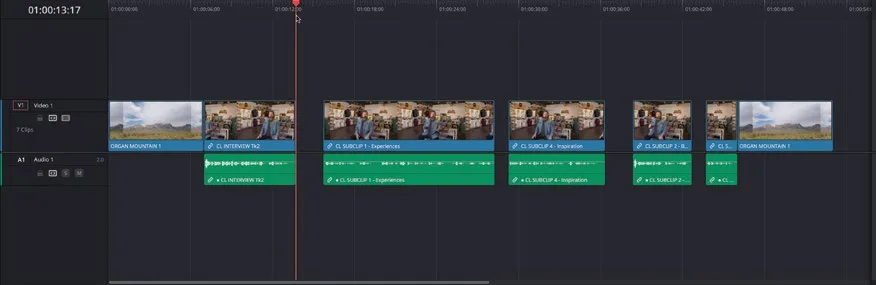
- 移动 playhead,让它吸附到 timeline 中第二条 clip 的末尾,也就是第一段空隙的起点。Move the playhead so that it snaps to the end of the second clip in the timeline, where the first gap starts.
TIP · 提示
想要快速跳到空隙的起点或终点,可以用 Playback > Previous > Gap或 Playback > Next > Gap。To quickly jump to the start of gaps in the timeline, you can choose Playback > Previous > Gap or Playback > Next > Gap.
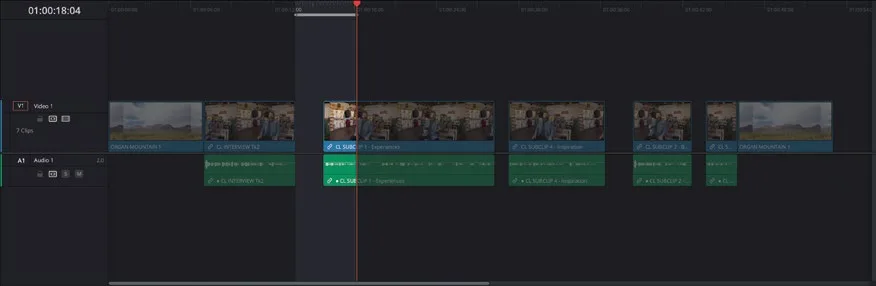
- 按 I 键,在 timeline 这个位置打一个 In 点。Press I to add an In point here in the timeline.
- 播放 timeline,播到 Chris 说 "… experience the southwest because…" 时暂停。Play the timeline until Chris says, “… experience the southwest because…” and then stop playback.
- 按 O 键,在当前位置打一个 Out 点。Press O to add an Out point here in the timeline.
这样就在 timeline 上标出了第一条 B-roll clip 要插入的区间。You have now marked a portion of the timeline where you want the first B-roll clip to be edited.
- 选中 PINE TRAIL smart bin,双击第一条 clip PINE TRAIL 5,在 source viewer 中打开。Select the PINE TRAIL smart bin and double-click the first clip, PINE TRAIL 5, to open it in the source viewer.
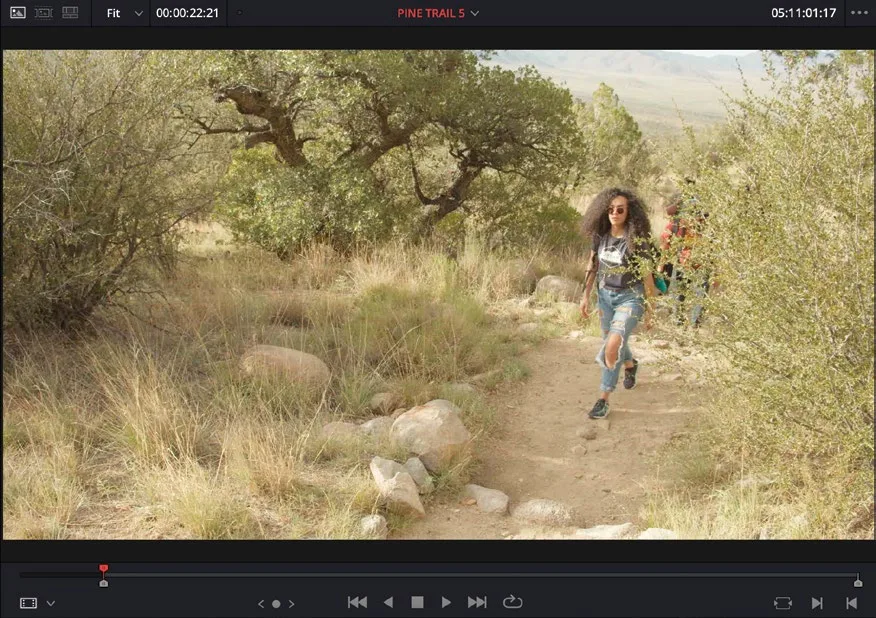
这个镜头拍的是三位朋友穿着 Organ Mountain Outfitters 品牌服装,在山麓间行走。This is a shot of three friends, attired in Organ Mountain Outfitters clothing, walking in the foothills of the mountains.
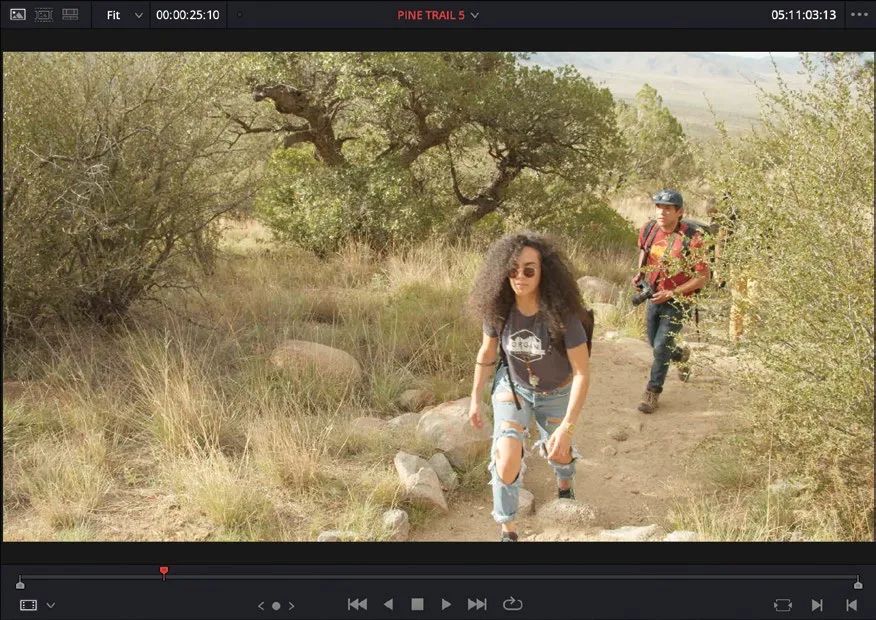
- 从片头开始播放,听到导演喊 "Go ahead"、女孩即将迈出第二步时,打一个 In 点。Play the clip from the beginning and add an In point after you hear the director shout, “Go ahead” and the girl is about to take her second step.
通常这类 B-roll 镜头会以 cutaway 的方式叠在 timeline 中已有的访谈画面之上。DaVinci Resolve 提供了一个编辑功能,可以把这个操作变得非常简便。Typically, B-roll shots like this are edited on top of the interview already in the timeline as a cutaway. DaVinci Resolve provides an editing function to make this as easy as possible.
- 把 PINE TRAIL 5 clip 拖到 timeline viewer 工具栏上的
Place on Top按钮上。Drag the PINE TRAIL 5 clip to the Place on Top function in the timeline viewer overlays.
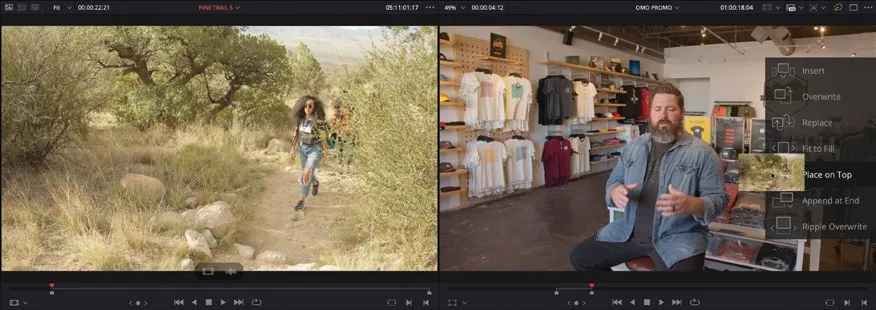 置顶叠加Place on Top
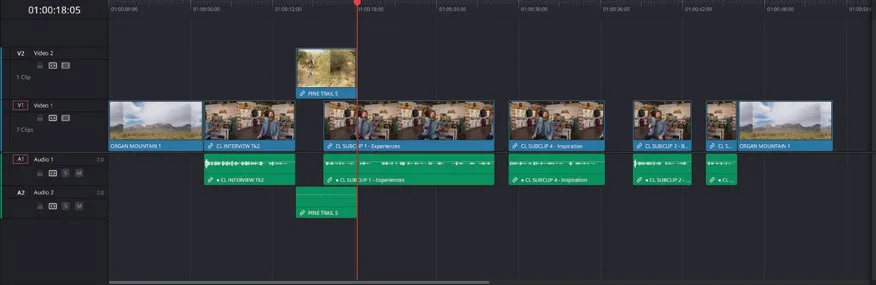
剪辑已按你在检视器中设置的 In 点和 Out 点完成 Place on Top 编辑。由于是 Place on Top 编辑,时间线上多出了一条视频轨和一条音频轨来容纳新片段,不会覆盖已有素材。The clip is edited between the In and Out points in the timeline, starting at the In point you set in the viewer. The Place on Top edit has also created an extra video and audio track to accommodate the new clip without overwriting any of the existing footage.
和之前一样,时间线检视器成为当前活动窗口,播放头自动停在刚加入的片段末尾,方便你指定下一次剪辑的位置。As before, the timeline viewer is now the active window, and the playhead is automatically positioned at the end of the clip you just added to the timeline, ready for you to specify where the next edit should be.
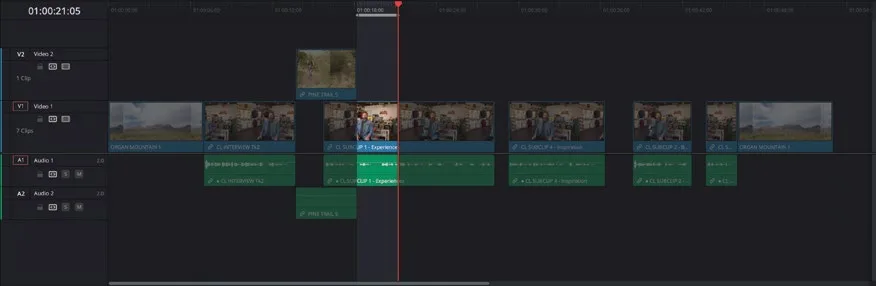
- 保持播放头位置不变,按 I 键为时间线添加 In 点。Without moving the timeline playhead, press I to add an In point to the timeline.
- 播放时间线,在 Chris 说完 “…there’s nothing like it….” 之后添加 Out 点。Play the timeline and add an Out point after Chris says “…there’s nothing like it….”
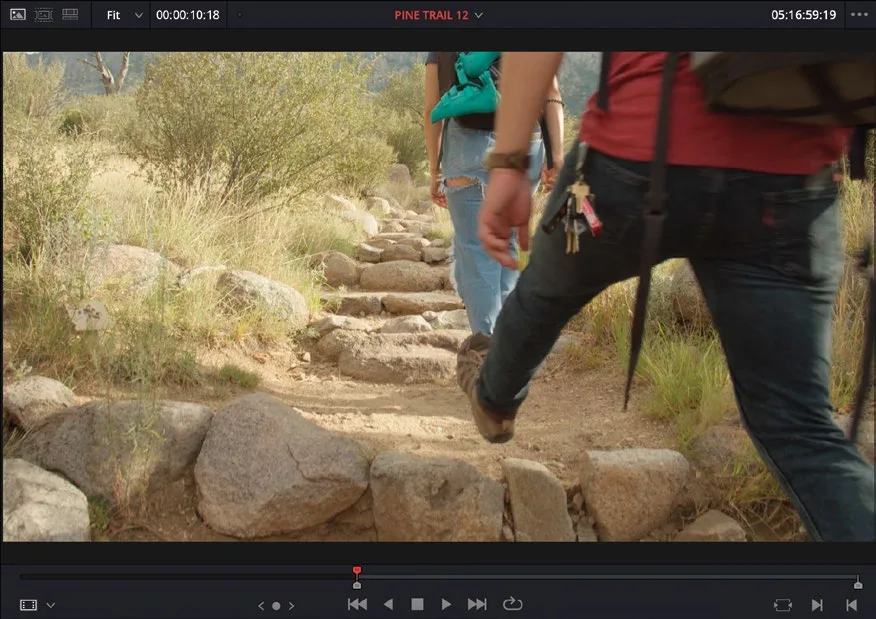
在 PINE TRAIL smart bin 中打开片段 PINE TRAIL 12,载入源检视器。From the PINE TRAIL smart bin, open the clip PINE TRAIL 12 in the source viewer.
在第二位男子刚进入画面、左腿伸出的瞬间设置 In 点。Set an In point just as the second guy enters the frame and has his left leg outstretched.
选择 Edit > Place on Top,或按 F12,将该片段添加到与上一条 cutaway 相同的轨道上。Choose Edit > Place on Top or press F12 to add the clip to the same tracks as the previous cutaway.
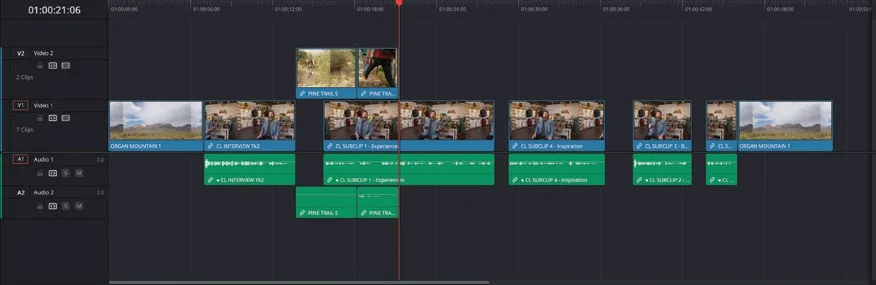
激活时间线后按 I 添加 In 点,向前播放,在 Chris 说完 “… ever experienced.” 之后添加 Out 点。With the timeline active, press I to add an In point in the timeline, play forward, and add an Out point after Chris says, “… ever experienced.”
选中 WHITE SANDS smart bin,在源检视器中打开镜头 WHITE SANDS 36。Select the WHITE SANDS smart bin and open the shot WHITE SANDS 36 in the source viewer.
在粉衣女孩开始把头发拢到耳后时为该镜头添加 In 点。Add an In point to this shot after the girl in the pink top starts to move her hair behind her ear.
这段镜头里,相机麦克风拾取的风声有点吵。The wind noise against the camera microphone is a little off-putting for this shot.
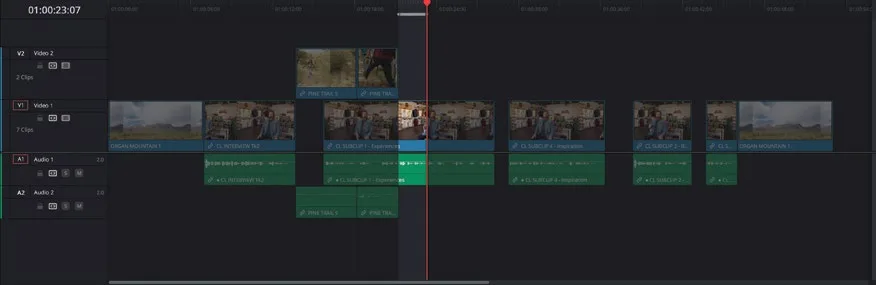
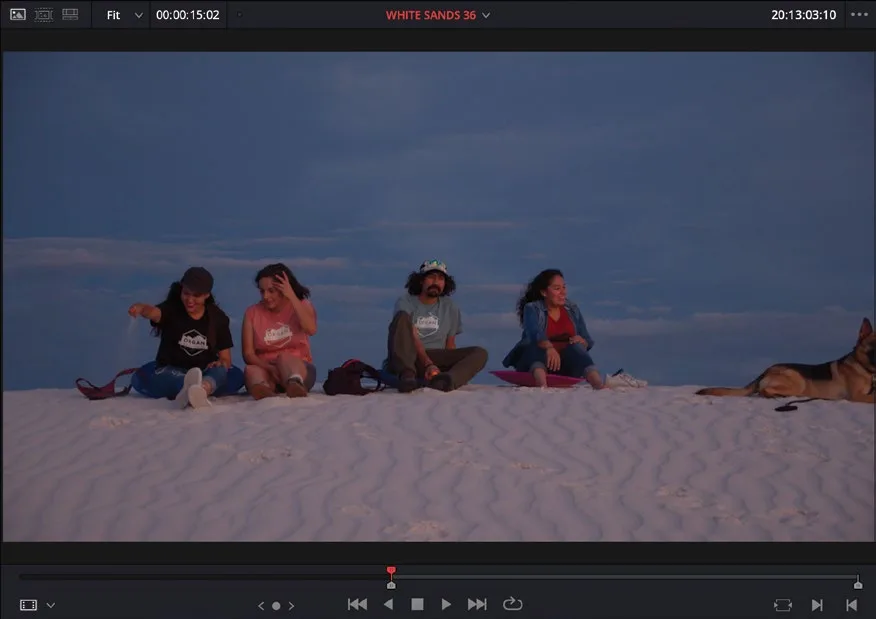
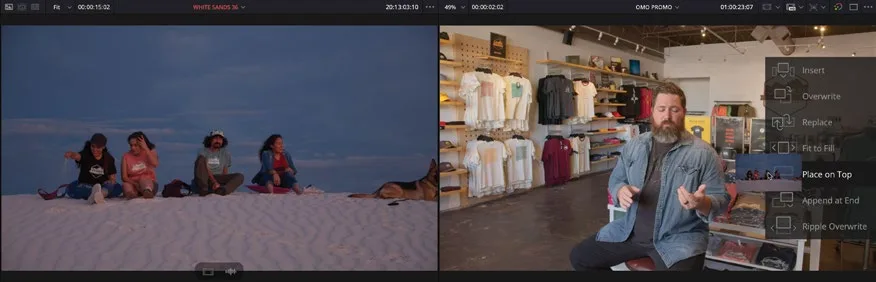
在源检视器中点击 video-only 叠加画面,拖拽到时间线检视器里的 Place on Top 叠加位。In the source viewer, click the video-only overlay and drag to the Place on Top overlay in the timeline viewer.
仅用视频覆盖方式时,只会把素材的视频部分编辑到时间线,不会带入音频。问题是这种拖拽方式只在从 source viewer 直接拖到 timeline viewer overlays 或时间线上时才有效。如果你想用快捷键或时间线工具栏的编辑按钮,就得换一种操作方式。Using the video-only overlay just edits the video portion of this clip into the timeline, not the audio. Unfortunately, this technique only works when dragging a clip from the source viewer into either the timeline viewer overlays or the timeline itself. If you want to use shortcuts or editing buttons in the timeline toolbar, you must use a slightly different control.
- 在时间线的 playhead 位置设一个 In 点,再在 Chris 说完 "… the culture, the food…." 之后设一个 Out 点。Add an In point to the playhead position in the timeline and an Out point after Chris says, “… the culture, the food….”
- 选中 PINA BLANCA smart bin,在 source viewer 中打开 PINA BLANCA 70,在女孩转动火焰棍的镜头起始处设一个 In 点。Select the PINA BLANCA smart bin, open the PINA BLANCA 70 clip in the source viewer, and add an In point near the top of the clip where the girl is spinning the flaming torches.
- 在时间线中点击 A1 的 destination control,将它关闭。In the timeline, click the destination control for A1 to disable it.
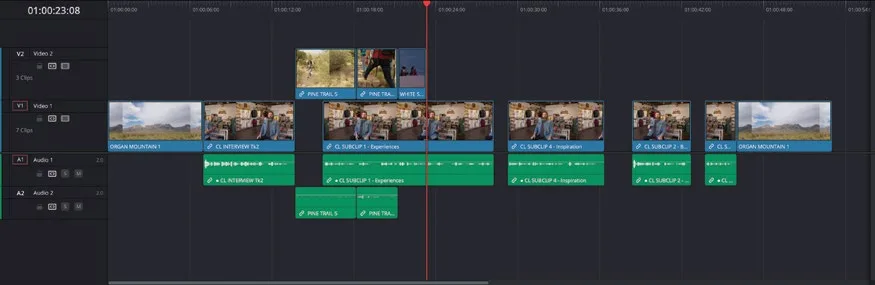
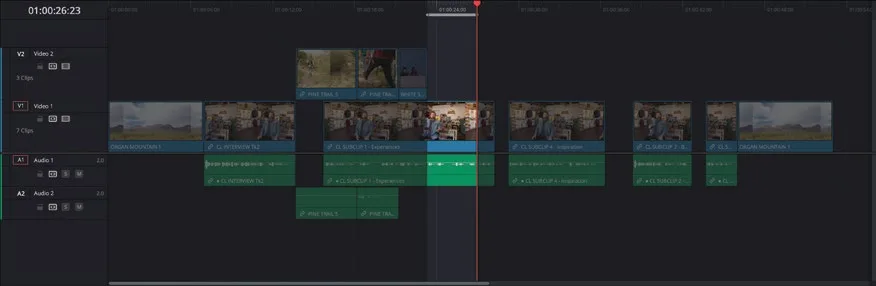
关闭这个控制后,从素材带入时间线时就不会带入源素材的音频,同时你仍可以使用编辑快捷键。Turning this control off prevents the audio from the source clip from being edited into the timeline while allowing you to use editing shortcuts.
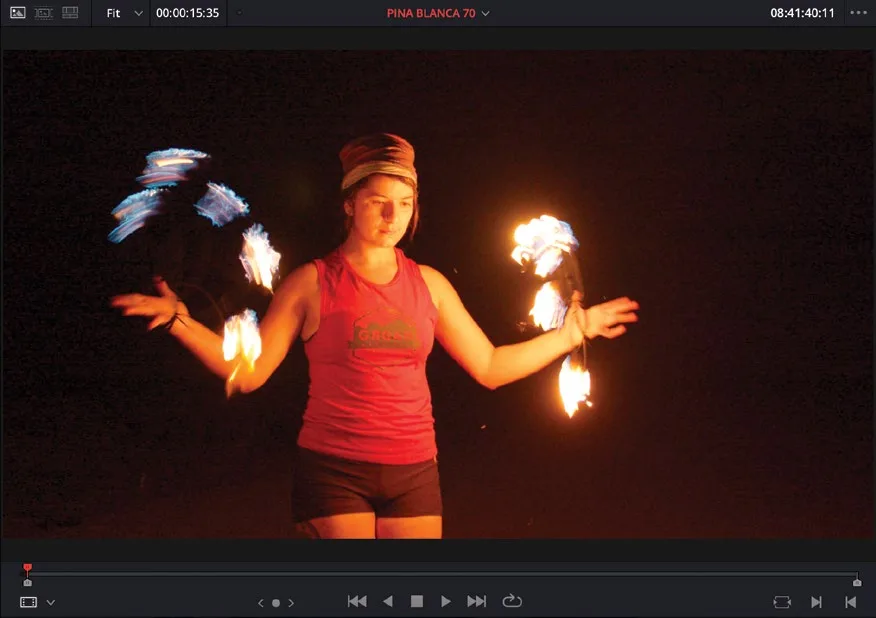
- 按 F12 执行 Place on Top 编辑。Press F12 to make a Place on Top edit.
- 在刚刚编辑完成的镜头之后设一个 In 点,再在 Chris 说完 "…. really inspires us…." 之后设一个 Out 点。Add an In point to the timeline directly after the shot you’ve just edited, and an Out point after Chris says, “…. really inspires us….”
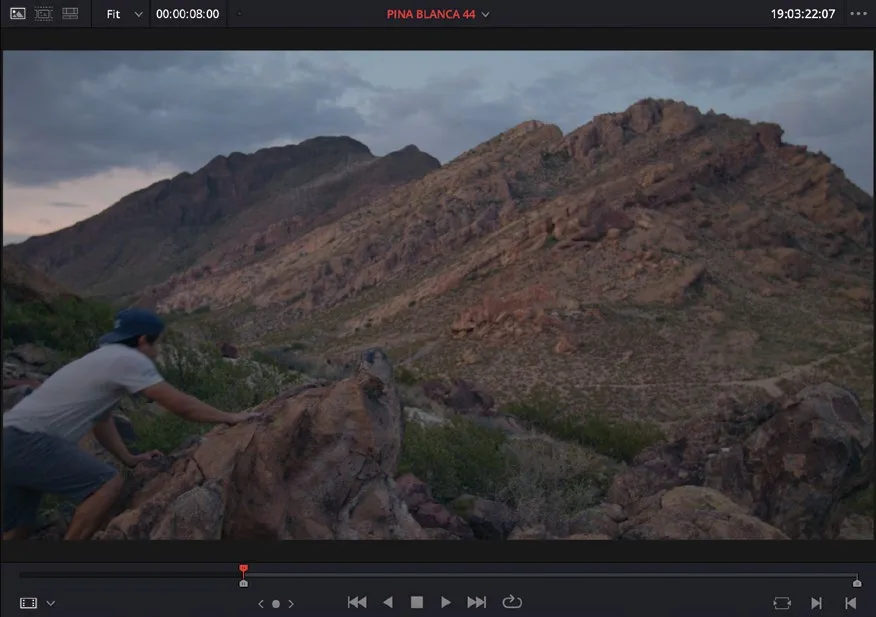
- 从 Media Pool 中打开 PINA BLANCA 44,在男子即将跳上岩石的位置设一个 In 点。From the media pool, open the clip PINA BLANCA 44 and add an In point when the guy is about to jump onto the rock.
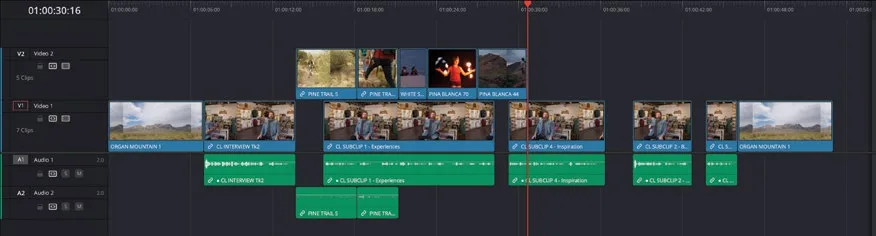
- 按 F12 执行 Place on Top 编辑。Press F12 to make a Place on Top edit.
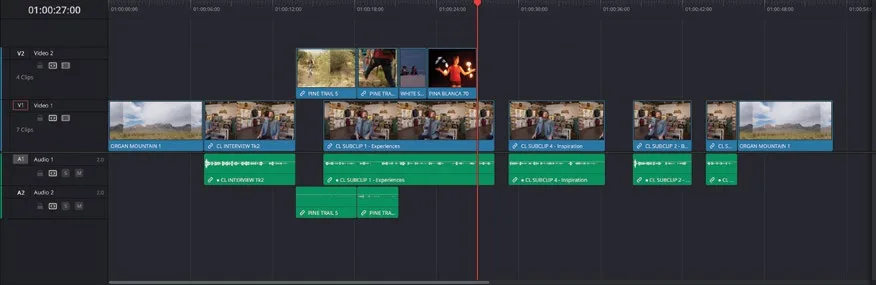
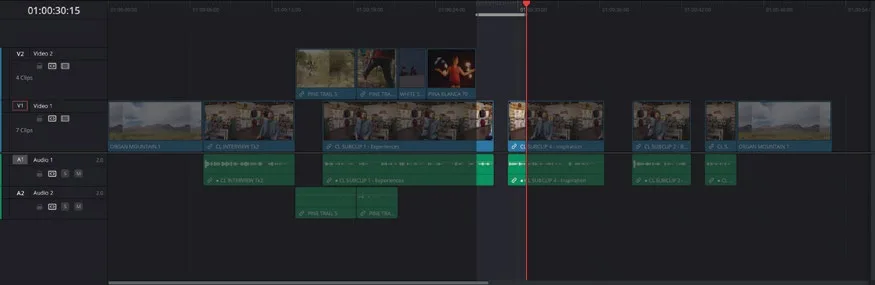
到这里你应该能感受到,灵活运用不同编辑技巧可以非常高效地批量插入 cutaway。这些镜头后续可能还需要修剪,但在那之前,我们再用刚才的变体方法在采访尾部多插几个 cutaway。Hopefully, you can see just how powerful an understanding of the different editing techniques can be to quickly add a series of cutaways like this. These shots will likely need trimming, but before you turn your attention to that, you will add a few more cutaways to the end of the interview using a variation of the technique you’ve just been using.
NOTE · 注意
如果需要先赶上进度再继续下一步,可以选中 TIMELINES bin,选择 File > Import > Timeline,导航到 R20 Beginners Guide / Lesson 01 / Timelines / OMO PROMO CATCHUP 03.drt 并点击 Open。If you need to catch up before moving to the next step, select the TIMELINES bin and choose File > Import > Timeline, navigate to R20 Beginners Guide / Lesson 01 / Timelines / OMO PROMO CATCHUP 03.drt and click Open.
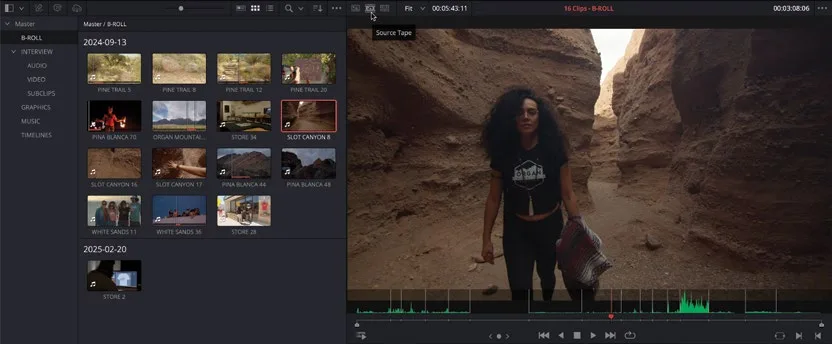
使用 Source Tape:如果 Media Pool 中有一批素材,不想像前面那样逐个打开,而是想一次性把当前选中 bin 里的所有素材都载入 source viewer,就可以用 Source Tape 模式。只需点击 Source Tape按钮,即可按当前 Sort 顺序浏览所有素材。Using Source Tape If you are working with a series of clips in the media pool, instead of opening each clip in turn as you have in the last few steps, you can instead open all the clips in the currently selected bin(s) in the source viewer’s Source Tape mode. Simply click the Source Tape button to view all the clips in the current Sort order.
Source Tape(源磁带)模式可以让你在大量素材中快速浏览,不必逐个打开片段。在浏览时仍可按之前的方式打上入点和出点。Source Tape allows you to browse through large amounts of clips effortlessly, without having to manually open each one in turn. You can add In and Out points as you have been doing in the previous steps.
在 Source Tape 模式下启用 Timeline(时间线)模式后,Source Tape 会以时间线形式打开,让你在浏览素材时能更精确地定位并打 In / Out 点。Enabling Timeline mode after Source Tape enables you to open the Source Tape in the timeline, giving you a greater degree of control when navigating around the footage in the Source Tape and, again, allowing you to add In and Out points with more precision.
要从 Source Tape 时间线切回主剪辑时间线,点击对应的 viewer(监视器),或按 Q 键。To switch from the Source Tape timeline to your main editing timeline, simply click the relevant viewer or press Q.
若要回到普通片段视图,点击 viewer 顶部的 Source Clip按钮。To return to the regular clip view, click the Source Clip button at the top of the viewer.
本卡术语Terms in this card
B-roll 素材B-roll 反向修剪Backtiming 媒体夹Bin 切出镜头Cutaway 入点和出点In & Out Points 媒体池Media Pool 置顶插入Place on Top 声音片段Soundbite 源磁带Source Tape 源检视器Source Viewer 时间线Timeline 覆盖Overwrite 播放头Playhead 修剪Trim 窗口Power Window 帧Frame
相关知识卡Related Cards
入点和出点In & Out Points 媒体池Media Pool 源磁带Source Tape 时间线Timeline 修剪Trimming