理解 Bin 与 Smart BinUnderstanding Bins and Smart Bins
7 steps
本卡概念Key Concepts
媒体池是用来存储和组织片段及其他项目元素(如时间线)的地方,功能类似一个大型文件系统(类似于 Finder 或文件资源管理器),在 NLE 软件中文件夹被称为 bin(箱)。The media pool is the place where clips and other project elements, such as timelines, are stored and organized, functioning like a large filing system (similar to Finder or File Explorer), where folders are referred to as bins in NLE software.
关键词智能箱是一组自动智能箱,当你在项目中开始为片段添加关键词时,它们就会自动出现。The Keywords smart bins are a set of automatic smart bins that appear when you start adding keywords to clips in your projects.
简介Overview
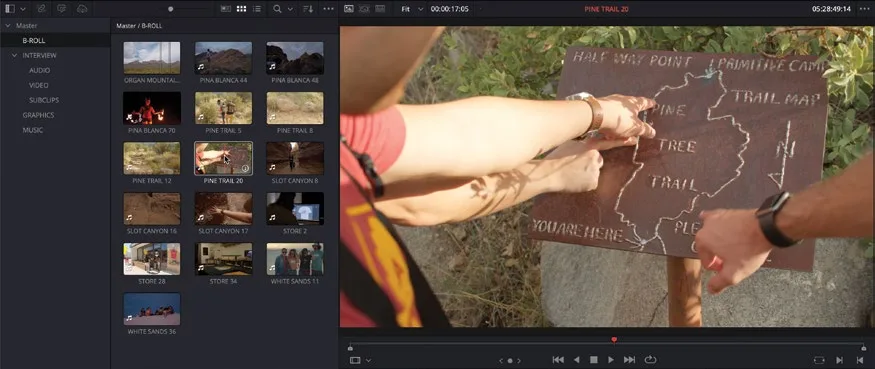
在 DaVinci Resolve 中,bin 列表位于主媒体池窗口的左侧,显示当前项目下的所有 bin。每个项目都有一个默认的 Master bin,列在 bin 列表顶部,可视为项目的顶层目录,所有存放项目素材的 bin 都包含在 Master bin 内。下一张卡会用到它来新建专用 bin 并创建时间线。In DaVinci Resolve, you can see the bins in the current project in the bin list, which is displayed to the left of the main media pool window. Each project has a default Master bin, which is listed at the top of the bin list. You can think of this as the top level for your project. All the other bins containing the footage you need for the project are listed inside the Master bin.
在 bin 列表中选中某个 bin,即可访问其中的素材。You can access the clips inside each bin by simply selecting the bin in the bin list.
NOTE · 注意
可能你会好奇为什么剪辑软件里文件夹叫 bin。这个术语源自电影剪辑的早期年代,剪辑师把胶片条存放在容器里,称之为 "bins"。当剪辑从物理拼接胶片转向屏幕上的数字媒体操作时,"bin" 这个叫法被保留下来,以保持剪辑师熟悉的连续性。You might wonder why folders are called bins in editing software. Well, this terminology dates to the earliest days of film editing, when editors would store strips of film in containers they referred to as “bins.” As editing moved from physically splicing film on an editing machine to moving digital media around on a screen, the term “bin” was simply retained to maintain continuity and familiarity for editors.
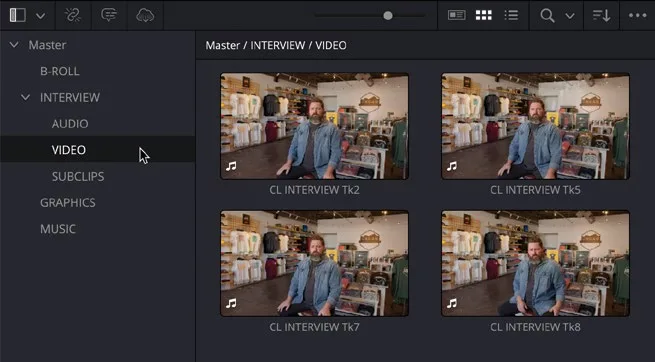
- 选中 VIDEO bin,即可在主媒体池浏览器中查看该 bin 包含的素材。Select the VIDEO bin to see the clips contained in this bin in the main media pool browser.
TIP · 提示
可使用媒体池顶部的滑块调整素材缩略图大小,按个人偏好显示。也可拖动媒体池与 source viewer(源检视器)之间的分隔线来调整媒体池尺寸。You can use the slider at the top of the media pool to resize the thumbnails of the clips, making them larger or smaller, according to your preferred view. You can also resize the media pool by dragging the dividing line between the media pool and the source viewer.
- 将鼠标指针移到 bin 中的素材上,即可在媒体池右侧的 source viewer(源检视器)中预览。Move your mouse pointer over the clips in this bin to preview them in the source viewer to the right of the media pool.
TIP · 提示
点击 source viewer 右上角的 Options 菜单(…),选择 Live Media Preview,即可启用或关闭实时媒体预览。You can disable/enable Live Media Preview by clicking the Options menu (…) at the top right corner of the source viewer and selecting Live Media Preview.
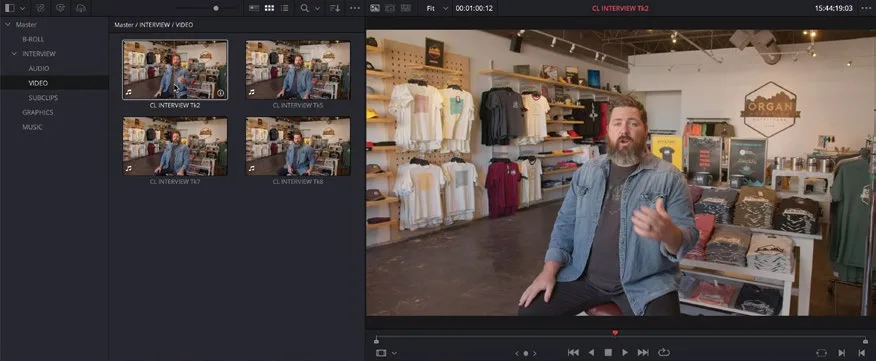
bin 内还可以嵌套其他 bin。You can also organize bins inside other bins.
- 点击 INTERVIEW bin 左侧的 disclosure arrow(展开箭头),显示其下的 VIDEO、AUDIO 和 SUBCLIPS 子 bin。Click the disclosure arrow to the left of the INTERVIEW bin to reveal the sub bins called VIDEO, AUDIO, and SUBCLIPS.
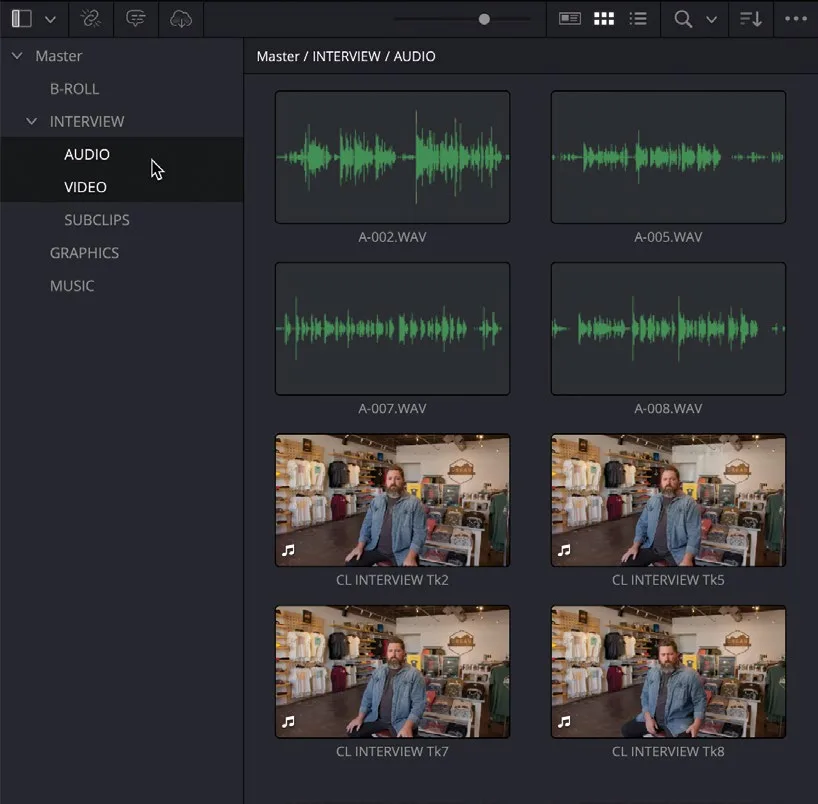
还可以在媒体池中同时显示多个 bin 的内容。You can also display the contents of multiple bins together in the media pool.
- 保持 VIDEO bin 选中状态,macOS 按 Command-click,Windows 按 Ctrl-click,点击 AUDIO bin,即可同时显示两个 bin 中的所有素材。With the VIDEO bin still selected, Command-click (macOS) or Ctrl-click (Windows) the AUDIO bin to display all the clips in both bins together.
Bin 虽然能帮你整理素材,但当素材量非常大时仍会显得力不从心。为此,Edit page 提供了一种更灵活的方式:利用 metadata(metadata)对片段进行分类,并自动归入一系列 smart bin 中。While bins are a useful way of organizing your footage, sometimes the sheer amount of footage you have to work with is overwhelming. That’s one reason why the edit page has a much more flexible approach to organizing the clips by using the metadata applied to a clip and grouping the clips in a series of smart bins.
- 在 bin 列表的 Smart Bins 区域,选中 Keywords 文件夹,点击展开箭头以显示 Keywords Smart Bins。In the Smart Bins section of the bin list, select the Keywords folder and click the disclosure arrow to reveal the Keywords Smart Bins.
- 选中 RETAIL keyword smart bin,其中会列出三段带有 "RETAIL" 关键词的片段。Select the RETAIL keyword smart bin, which lists three clips that have the keyword “RETAIL” applied.
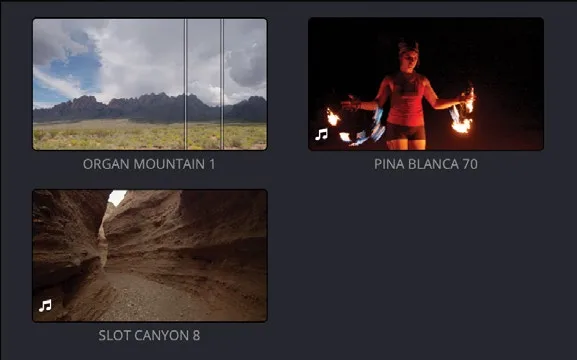
- 点击 Keywords 类别的展开箭头将其折叠,然后点击 MY SMART BINS 类别的展开三角,选中 GOOD TAKES smart bin。Click the disclosure arrow for the Keywords category to collapse the Keywords smart bins, and then click the disclosure triangle for the MY SMART BINS category and select the GOOD TAKES smart bin.
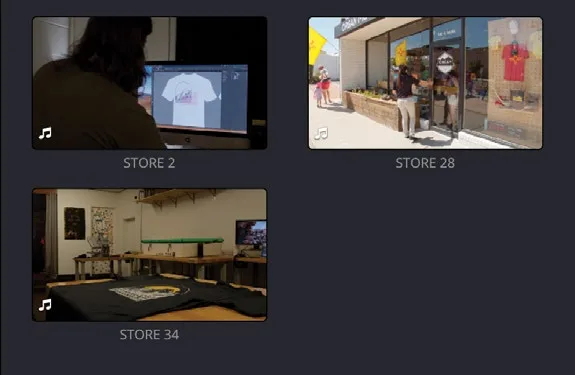
这是一个手动创建的 smart bin,用于存放被标记为 good take 的片段。This is a manually created smart bin that contains clips that have been marked as good takes.
NOTE · 注意
关于查看、添加和修改片段 metadata(包括添加 keyword 和将片段标记为 good take 以创建自己的 smart bin),更多内容请见第 7 课。You’ll learn more about viewing, adding, and modifying clip metadata, including adding keywords and marking clips as good takes so you can create your own smart bins, in Lesson 7.
本卡术语Terms in this card
媒体夹Bin 顶层媒体夹Master Bin 媒体池Media Pool 智能媒体夹Smart Bins 源检视器Source Viewer 子片段Subclips 时间线Timeline 编辑页Edit page 标记Marker 窗口Power Window 静帧Still 关键词Keywords 元数据Metadata 容器(封装)Container