重新排列时间线片段Reordering the Timeline Clips
4 steps
简介Overview
这些 soundbite(音频片段)在时间线上的当前顺序效果不错,但你多半还会想做一些调整。最常见的操作就是重新排列片段。虽然可以自由地选择并拖动片段,DaVinci Resolve 提供了一个更高效的快捷功能——Shuffle Insert edit(也称 Swap Insert edit)。The soundbites are working well as they currently sit in the timeline. However, there are always changes you’d probably like to make. One of the most common changes at this stage is the reordering of clips in the timeline. While you can select and move clips around freely, DaVinci Resolve has a neat feature that makes this process fast and efficient. It’s called a Shuffle Insert edit (or a Swap Insert edit).
- 在时间线中选中最后一个 soundbite 片段:CL SUBCLIP 4 - Inspiration。In the timeline, select the last of the soundbite clips, CL SUBCLIP 4 - Inspiration.
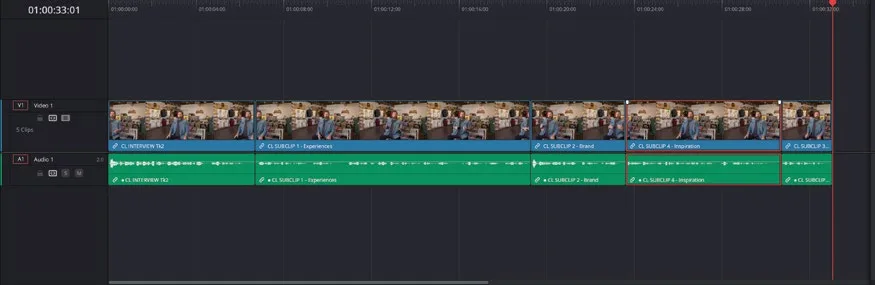
- 执行 Edit > Swap Clips Towards Left,或在 macOS 按 Shift-Command-,(逗号),在 Windows 按 Shift-Ctrl-,(逗号),将当前片段与前一个片段交换。Choose Edit > Swap Clips Towards Left, or press Shift-Command-, (comma) in macOS or Shift-Ctrl-, (comma) in Windows, to swap the clip with the previous clip.
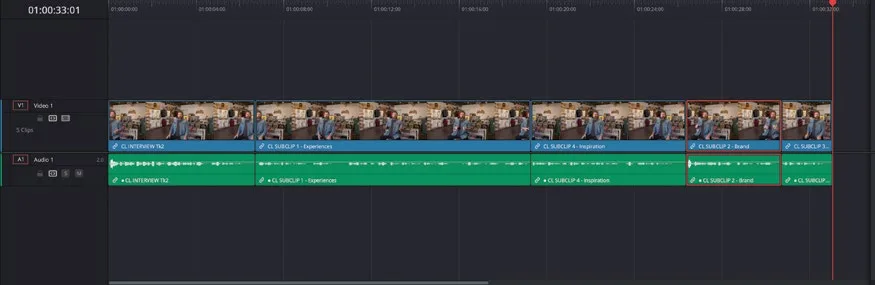
- 选中第三个 soundbite 片段 CL SUBCLIP 2 – Brand,执行 Edit > Swap Clips Towards Right,或在 macOS 按 Shift-Command-.(句号),在 Windows 按 Shift-Ctrl-.(句号),将它与后一个片段交换。Select the third soundbite clip CL SUBCLIP 2 – Brand and choose Edit > Swap Clips Towards Right, or press Shift-Command-. (period) in macOS or Shift-Ctrl-. (period) in Windows, to swap it with the subsequent timeline clip.
- 再次播放时间线上的片段,感受更顺畅的 soundbite 衔接。Play through the clips in the timeline again for a slightly better flow to the soundbites.
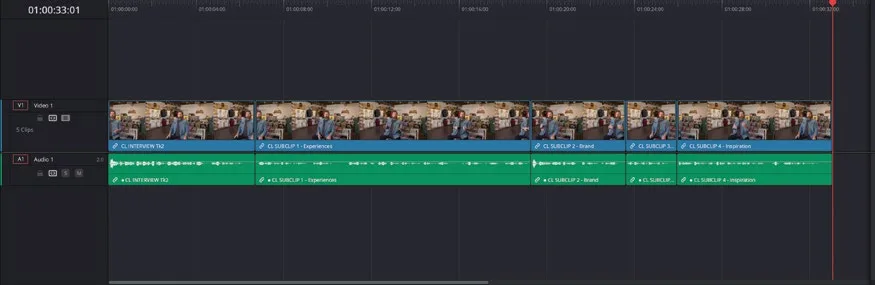
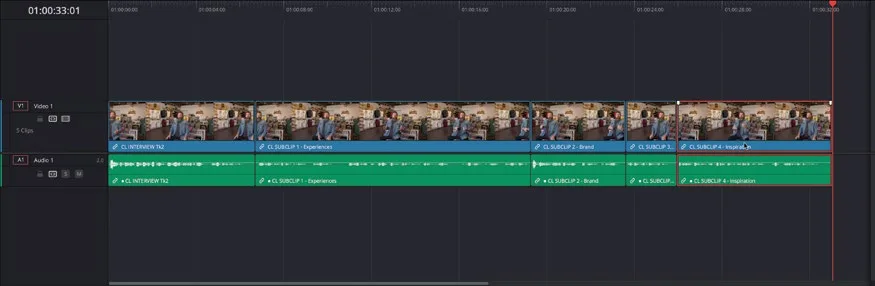
Shuffle Insert edit 是一种快速、精准地把时间线片段排成更合理顺序的好方法,也支持对多选片段同时使用。Using Shuffle Insert edits like this is a useful way of quickly and accurately reordering the timeline clips into a more logical order. You can also use this technique with multiple selected timeline clips.
NOTE · 注意
如果需要追赶进度再继续下一步,选中 TIMELINES 媒体夹,执行 File > Import > Timeline,定位到 R20 Beginners Guide / Lesson 01 / Timelines / OMO PROMO CATCHUP 01.drt,点击 Open。If you need to catch up before moving to the next step, select the TIMELINES bin and choose File > Import > Timeline, navigate to R20 Beginners Guide / Lesson 01 / Timelines / OMO PROMO CATCHUP 01.drt and click Open.
请注意:导入带有同步音频片段的 catchup 时间线时,DaVinci Resolve 会尝试重新导入分离的音频片段,并提示你搜索媒体文件以重新链接。无需执行此操作,直接点击 Cancel,然后在媒体夹中删除随时间线一起导入的离线片段即可。Please note that whenever you import a catchup timeline using clips with synced audio, DaVinci Resolve will attempt to reimport the separate audio clips and ask you to search for the media files to relink. This is not necessary. Click Cancel and remove the offline clips that have been added to the bin with the imported timeline.
本卡术语Terms in this card
媒体夹Bin 插入编辑Insert Edit 洗牌插入Shuffle Insert 声音片段Soundbite 时间线Timeline