创建新时间线Creating a New Timeline
5 steps
简介Overview
把第一批素材放进空白时间线往往让人无从下手:你既不确定该从哪条片段开始,也预判不到最终会剪成什么样子。Someone once said that the hardest part of writing a book is starting the first chapter. Indeed, the same is true for editing, except rather than trying to decide which words you should start with, you have to decide which sounds and pictures you need. Placing those first few clips into an empty timeline can be quite daunting; you never quite know where you should start or where you will ultimately end up. However, once you begin assembling
但只要逐条片段慢慢拼剪,成片的轮廓会逐渐浮现——哪些素材有效、哪些不行、哪些再花点功夫能救活,都会一一显现。the footage clip by clip, the edit will slowly start to reveal itself, and you’ll start to see what’s working, what doesn’t work, and what might be coaxed into working with a little more effort on your part.
我们先从 Organ Mountain Outfitters 店主 Chris Lang 的主采访 soundbite 开始剪。虽然并非所有剪辑都依赖对白,但它能帮你快速找到想讲的故事。You’ll begin by editing some soundbites from the main interview with the proprietor of Organ Mountain Outfitters, Chris Lang. While not every edit relies on spoken dialogue, it can be a useful starting point since it will start to reveal the story you want to tell.
动手之前需要一条空白时间线。为了保持项目整洁,我们把它单独放在一个 bin 里。However, to start this exciting process, you will need an empty timeline. And to keep the project organized, you will place this timeline in its own bin.
- 在 bin 列表中选中 Master bin,选择
File > New Bin。In the bin list, select the Master bin and choose File > New Bin.
由于这是项目中第 8 个创建的 bin,新 bin 默认命名为 "Bin 8"。A new bin is created called “Bin 8” since this is the 8th bin created in this project.
TIP · 提示
也可以按 Shift-Command-N(macOS)或 Shift-Ctrl-N(Windows)新建 bin。新 bin 会自动建立在当前选中的 bin 内部。You can also press Shift-Command-N (macOS) or Shift-Ctrl-N (Windows) to create a new bin. New bins are automatically created in the currently selected bin.
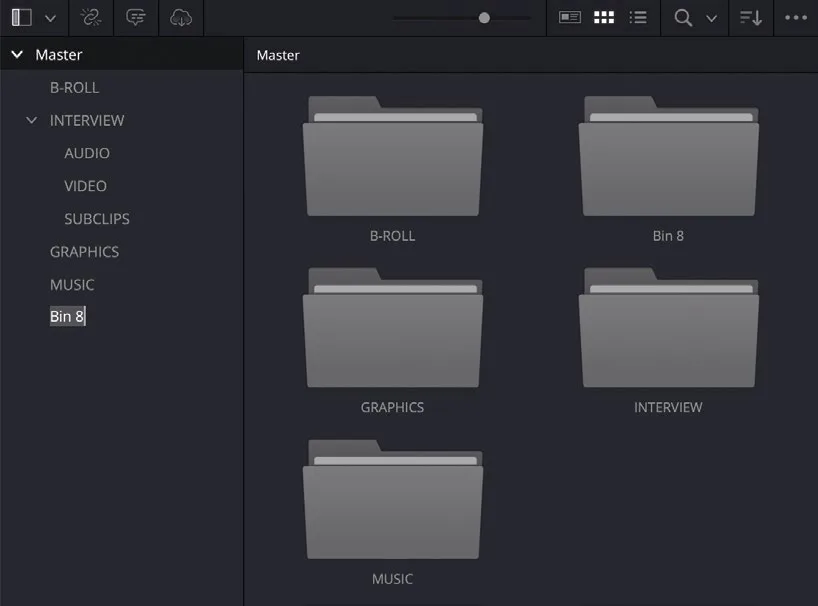
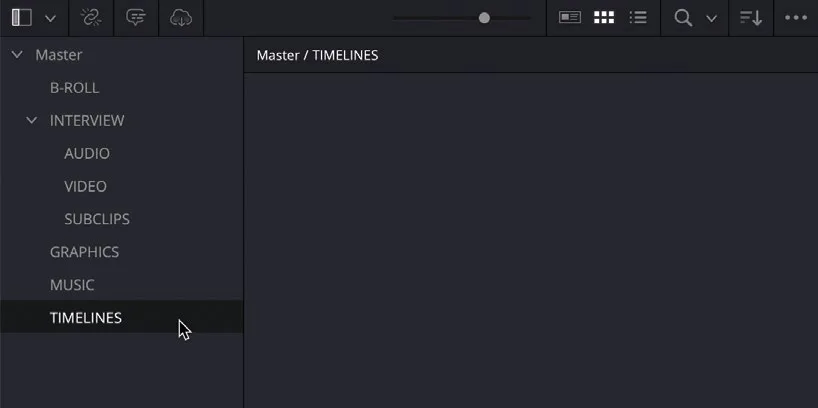
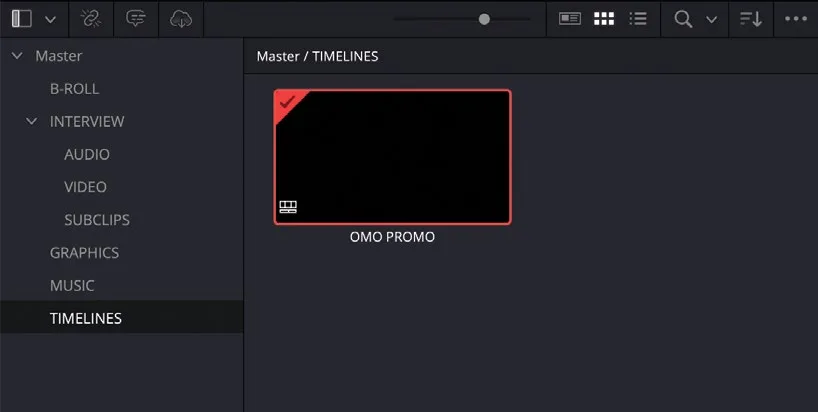
- 保持名称处于选中状态,输入 TIMELINES 重命名,然后在 bin 列表中选中新 bin。With the name of the bin highlighted, type TIMELINES to rename it and select your new bin in the bin list.
接下来在这个 bin 里创建一条新的空白时间线。Next, you’ll create a new, empty timeline in this bin.
- 保持 TIMELINES bin 选中状态,选择
File > New Timeline。With the TIMELINES bin still selected, choose File > New Timeline.
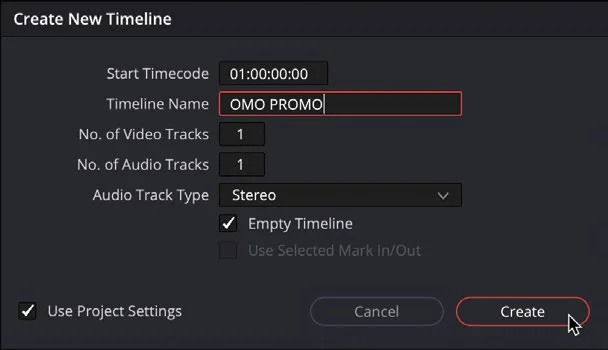
Create New Timeline窗口会打开。The Create New Timeline window opens.
TIP · 提示
也可以按 Command-N(macOS)或 Ctrl-N(Windows)新建时间线。新时间线会自动建立在当前选中的 bin 内部。You can press Command-N (macOS) or Ctrl-N (Windows) to create a new timeline. New timelines are automatically created in the currently selected bin.
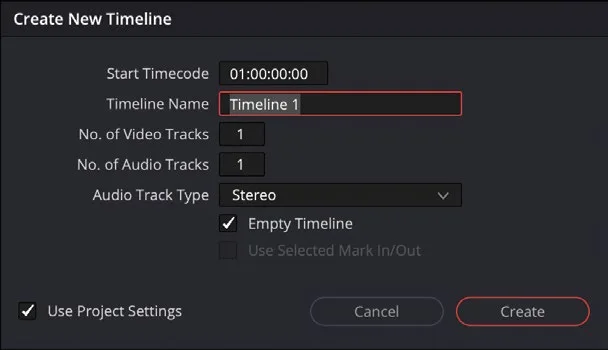
- 在 Timeline Name 字段中输入 OMO PROMO。In the Timeline Name field, type OMO PROMO.
- 点击 Create。Click Create.
新时间线会在所选 bin 中创建,时间线窗口中也会出现额外的控制项。A new timeline is created in the selected bin, and additional controls appear in the timeline window.
NOTE · 注意
DaVinci Resolve 项目可以包含多条独立的时间线。默认情况下,每条时间线都使用 Project Settings 中指定的各项设置来创建。不过,你也可以在创建时为每条时间线单独设置参数,必要时还可以在之后修改某些属性。Lesson 7 会详细介绍选择正确时间线设置的重要性。A DaVinci Resolve project can contain many separate timelines. By default, each of these timelines can be created using various settings specified in the Project Settings. However, each timeline can have its own settings specified when you create it, or you can change certain properties later if required. You’ll learn more about the importance of choosing the correct timeline settings in Lesson 7.
本卡术语Terms in this card
媒体夹Bin 顶层媒体夹Master Bin 声音片段Soundbite 时间线Timeline 窗口Power Window 静帧Still 项目设置Project Settings