重新链接媒体文件Relinking the Media Files
4 steps
简介Overview
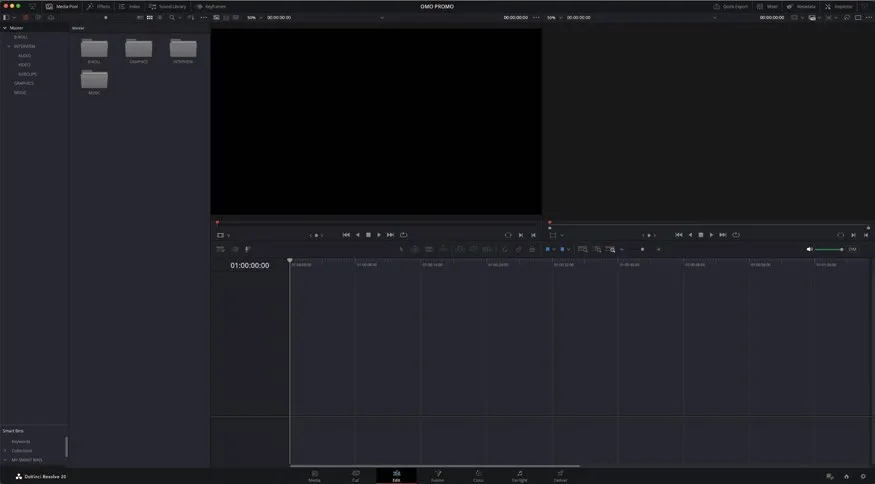
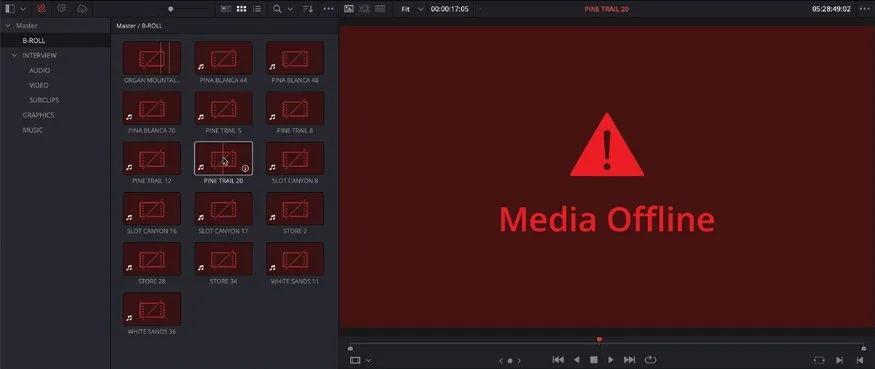
目前,项目中所有的视频、音频和图片素材都显示为“离线媒体”,这说明素材最初添加到项目时建立的链接已经断开。因此,在使用这些素材之前,需要把它们重新链接到硬盘上对应的媒体文件。Currently, all the video, audio, and image clips in this project are displaying as “offline media.” This means that the links that were originally created when the media files were first added to this project have been broken. So, before you can do anything with these clips, you’ll need to relink them to their associated media files on your computer’s hard drive.
媒体文件离线的常见原因是被移动过。为避免这种情况,素材添加到项目后最好不要随意改动。如果需要移动到其他位置(例如更大的硬盘),应使用 DaVinci Resolve 自带的 Media Management(媒体管理)功能(将在第 10 课学习)。素材在 DaVinci Resolve 中使用期间,切勿在硬盘上重命名文件,否则可能彻底断开链接并引发各种问题。如需重命名,应在 DaVinci Resolve 项目内操作,这样不会改动硬盘上的实际文件名。Media files may go offline for a variety of reasons, most commonly because they have been moved. To prevent this from happening, once the files have been added to a project, you should always leave them alone. If you need to move them to a different location, such as a larger hard drive, you should use DaVinci Resolve’s built-in Media Management feature, which you will explore in Lesson 10. You should never rename a file on your hard drive once it’s in use in DaVinci Resolve because this might break the link completely and cause lots of problems. If you need to rename a clip, do it in the DaVinci Resolve project since this does not rename the file on the hard drive.
本例中素材全部离线的原因,是项目最初设置的素材路径与文件实际存放位置不同,需要告诉 DaVinci Resolve 新的文件位置。Resolve 可以快速完成重新链接。In this case, the reason why the media files are all offline is that the project was originally set up with the media files in one location. However, as the copies of the media files live on your computer in a different location, you must tell DaVinci Resolve where to find them. Thankfully, DaVinci Resolve makes it easy to quickly relink them.
重新链接完成后,建议先熟悉素材在项目里的组织方式,也就是 bin 与 smart bin。You will learn more about the value of renaming clips in Lesson 7, “Project Setup and Organization.”
NOTE · 注意
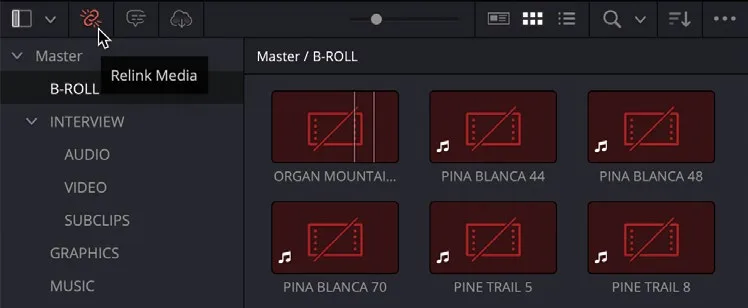
更多关于重命名素材的价值,请参阅第 7 课“项目设置与管理”。In the top left of the interface, above the media pool in the edit page, click the red Relink Media button.
- 在 Edit page 左上角、Media Pool 上方,点击红色的
Relink Media按钮。The Relink Media button will only be red if there are any media files in the project that are unexpectedly offline. Media that has been deliberately unlinked in the project is not indicated.
NOTE · 注意
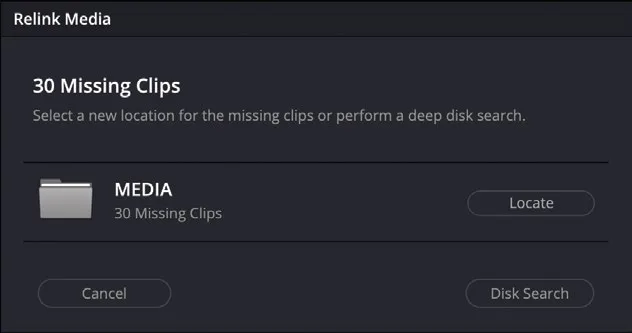
只有当项目中有素材意外离线时,Relink Media按钮才会显示为红色;项目中被主动取消链接的素材不会触发此提示。The Relink Media window appears, showing how many files are currently offline.
Relink Media窗口弹出,显示当前离线文件的数量。Place your mouse cursor over the location where Resolve expected the media files to be located to view more detail about the original location of the files.
TIP · 提示
将鼠标悬停在 Resolve 原本期望的素材路径上,可查看原始位置的详细信息。Click the Locate button to open a Finder window (macOS) or Explorer window (Windows).
- 点击
Locate按钮,打开Finder窗口(macOS)或资源管理器窗口(Windows)。You now need to tell Resolve where the appropriate media files can be found on your system.
现在需要指定系统中素材文件所在的正确位置。Navigate to the R20 Beginner Guide folder on your system and click Open.
- 在系统中定位到 R20 Beginner Guide 文件夹,点击 Open。Resolve automatically searches the location and will relink to the media files.
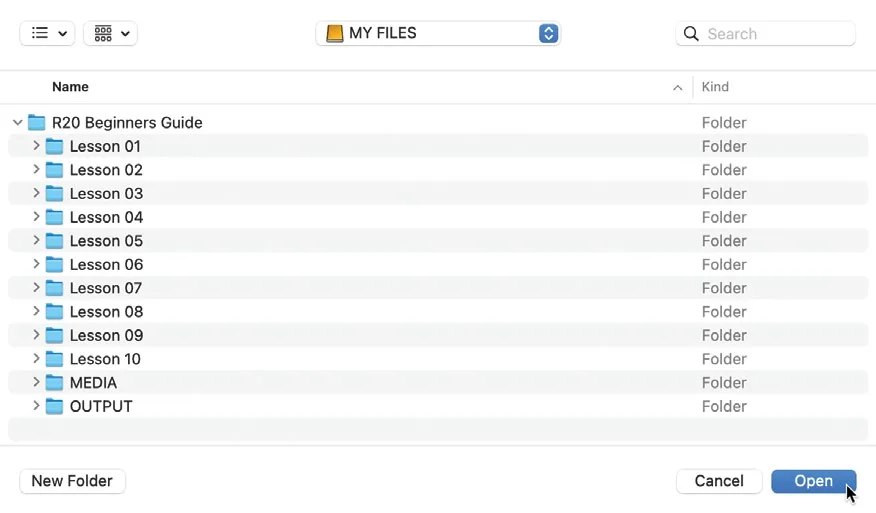
Resolve 会自动搜索该目录并完成素材的重新链接。If Resolve cannot find the appropriate files, you can initiate a more comprehensive search from the Relink Media window using the Disk Search button. Be aware, though, that this search will take much longer, especially if you have very large hard drives with lots of media files to search through!
NOTE · 注意
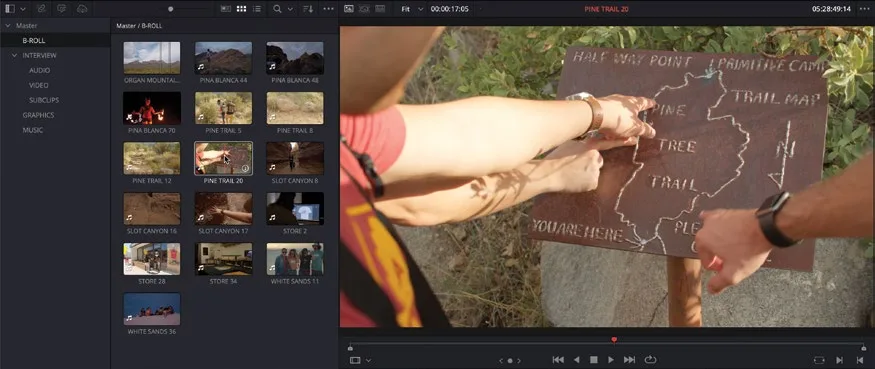
注意:如果 Resolve 找不到对应文件,可以在 Relink Media窗口里点 Disk Search按钮进行更全面的搜索。不过这种搜索耗时很长,尤其是硬盘很大、媒体文件很多的时候。Now that the clips have been successfully relinked, you can begin reviewing this project and start assembling the rough cut.
素材重新链接成功后,就可以开始检视这个项目,并着手搭建粗剪版本了。素材重新链接成功后,就可以开始检视这个项目,并着手搭建粗剪版本了。
本卡术语Terms in this card
媒体夹Bin 媒体池Media Pool 重新链接媒体Relink Media 媒体管理Media Management 编辑页Edit page 窗口Power Window 项目设置Project Settings