在 Fairlight 中修剪片段Trimming Clips in Fairlight
6 steps
简介Overview
在 Fairlight页面中,你能更精细地控制音频片段的修剪。视频片段最小可修剪到单帧,而音频的精度要高得多。影视制作中的音频通常以 48 kHz(千赫兹)采样,即每秒 48,000 个采样点;若视频帧率为 24 fps,则每帧约包含 2,000 个采样。Fairlight 支持你直接以采样为单位进行修剪。Another common task you have more control of in the Fairlight page is trimming audio clips. The smallest amount a video clip can be trimmed is the individual frame level. Audio, however, has a much greater level of detail. Audio for video production is typically recorded at 48 kHz (kilohertz), meaning that there are 48,000 samples of audio per second; this equates to around 2,000 samples per frame if your video is running at 24 frames per second. Fairlight allows you to trim at this sample level.
- 在时间线上,使用 Option-scroll(macOS)或 Alt-scroll(Windows)配合 Shift-scroll,放大查看 DIALOGUE 轨道上的第一段音频片段。In the timeline, use Option-scroll (macOS) or Alt-scroll (Windows) and Shift-scroll to zoom in on the first audio clip on the DIALOGUE track.
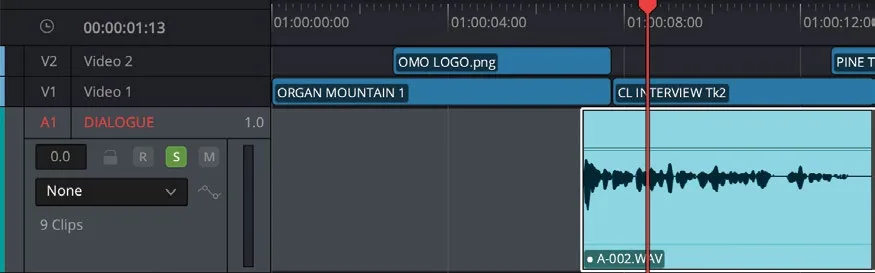
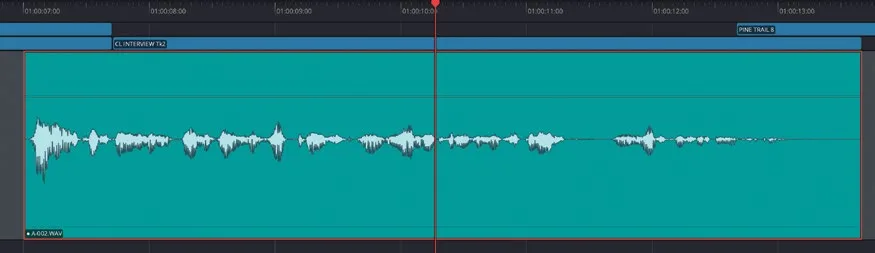
你会看到这段片段的尾部没有波形,因为 Chris 并没有在说话,只有录音中捕捉到的环境噪声。Notice that the end of this clip contains no waveform since Chris isn’t speaking, and you hear the environmental noise captured in the audio recording.
NOTE · 注意
提示:Fairlight 比 Edit page 更容易放大过度。如果你在音频片段上看到了一个个小点,说明已经放大到可以看清单个采样的程度了。It’s very easy to zoom in much further than you can in the edit page. If you see the dots appear on the audio clip, you are so close that you can see the individual samples!
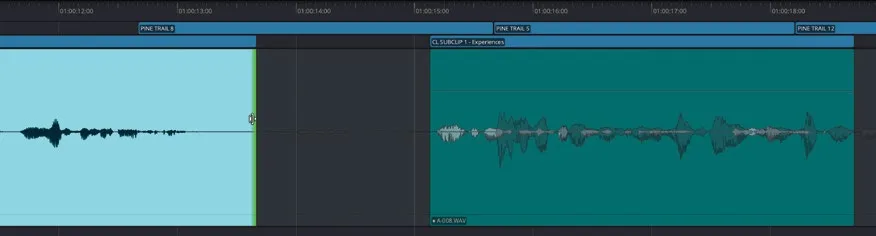
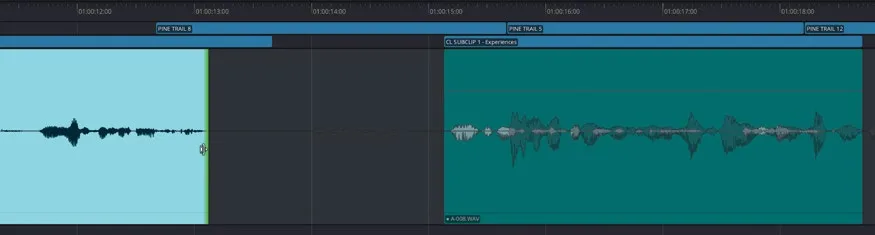
- 像在 Edit page 中一样选中片段的尾部进行修剪,但按住鼠标键不要松开。Select the end of the clip as if you were trimming the clip in the edit page, but keep your mouse button held down.
在 Fairlight页面修剪片段时,可以同时看到片段 handle 部分的波形,从而更精准地完成音频修剪。When trimming clips in the Fairlight page, you can see the waveforms of the clip’s handles displayed, making it easier to trim the audio clips with more precision.
- 在时间线工具栏中关闭
Snapping按钮,或按 N 键。In the timeline toolbar, disable theSnappingbutton or press N. - 将片段尾端修剪到上一个波形的结束处。Trim the end of the clip back to the end of the previous waveform.
- 回放听一下所做的修改。Listen back to the change you have made.
在 Fairlight页面修剪音频比 Edit page 精确得多。在继续之前,先把这条时间线上前两条轨道的所有音频编辑都听一遍,看看是否还有其它地方也能借助 Fairlight 的精度进行更细致的调整。Trimming audio in the Fairlight page is much more accurate and precise than it is in the edit page. Before going any further, listen to all the other audio edits along the first two tracks in this timeline to see if there are any other edits that could benefit from the precise adjustments you can make in the Fairlight page.
- 按 Shift-Z 让时间线缩放适配视图。Press Shift-Z to fit the timeline zoom.
NOTE · 注意
提示:Fairlight页面没有 Edit page 那样的 Trim Edit 模式,所以在 Fairlight 中做的修剪不会改变时间线的总时长。同样,也无法进行 roll、slip 或 slide 等编辑点操作。这些操作需要回到 Edit page 完成,这也正是 DaVinci Resolve 的灵活之处——你可以随时在不同页面之间无缝切换。The Fairlight page does not have a Trim Edit mode like the edit page has, so any trimming performed on the Fairlight page will not affect the overall duration of the timeline. Similarly, it’s not possible to roll, slip, or slide an edit point or clip. For actions like this, you’ll need to use the edit page, which highlights the flexibility of Resolve in that you can keep moving between the different pages seamlessly at any point.
子帧级音频调整Subframe Audio Adjustments You don’t always have to rely on the precision of the sample-level editing function of the Fairlight page because the edit page allows you to work with audio at the subframe level—that is, at a far higher level than the individual video frame but not quite to the level of individual samples. Nevertheless, this often allows you to trim audio to a high level of precision without leaving the edit page. It’s not quite as precise as the Fairlight page, but for many situations it’s more than adequate. The best way to ensure that you’re trimming at the subframe level in the edit page is to have snapping and linked selection disabled in the timeline and zoom in on the edit as much as you can.
不一定要依赖 Fairlight页面的采样级精度来剪辑音频。Edit page(剪辑页面)也支持子帧(subframe)级别的音频修剪——精度介于视频帧与单个音频采样之间,比视频帧细,但不到采样级别。对多数场景来说,这个精度已经够用了,虽然不如 Fairlight页面那么精确,但完全够用。If you need to catch up before moving to the next step, open the media pool, select the TIMELINES bin, and choose File > Import > Timeline, navigate to R20 Beginners Guide / Lesson 08 / Timelines / OMO PROMO MIX CATCHUP 01.drt and click Open.
想在 Edit page 中以子帧精度修剪,关键是关闭 timeline(时间线)的吸附(snapping)和链接选择(linked selection),然后尽量放大视图查看剪辑点。想在 Edit page 中以子帧精度修剪,关键是关闭 timeline(时间线)的吸附(snapping)和链接选择(linked selection),然后尽量放大视图查看剪辑点。
NOTE · 注意
提示:如果需要先跟上进度再进入下一步,可以打开 Media Pool,切换到 TIMELINES smart bin,然后选择 File > Import > Timeline,定位到 R20 Beginners Guide / Lesson 08 / Timelines / OMO PROMO MIX CATCHUP 01.drt,点击 Open。提示:如果需要先跟上进度再进入下一步,可以打开 Media Pool,切换到 TIMELINES smart bin,然后选择 File > Import > Timeline,定位到 R20 Beginners Guide / Lesson 08 / Timelines / OMO PROMO MIX CATCHUP 01.drt,点击 Open。
本卡术语Terms in this card
媒体夹Bin 媒体池Media Pool 时间线Timeline 帧率Frame Rate 编辑页Edit page 修剪Trim Fairlight 音频Fairlight 帧Frame 采样Sampling
相关知识卡Related Cards
媒体池Media Pool 时间线Timeline 修剪编辑模式Trim Edit Mode 修剪Trimming Fairlight 页面Fairlight Page