设置轨道格式与片段声道Setting Track Formats and Clip Channels
3 steps
简介Overview
在 Fairlight页面处理音频的思路与第 3 课在 Edit页面时一致:先从 dialogue 对白片段入手,设定电平后再推进流程。Fairlight页面会展示更多关于这些片段的细节信息。Working with audio in the Fairlight page follows the same principles as when you were dealing with audio in the edit page in Lesson 3 in terms of setting levels and general workflow. As before, you will start with the dialogue clips. However, the Fairlight page exposes more information about those clips that you may find useful.
- 在时间线头部,点击 DIALOGUE 轨道的
Solo按钮。In the timeline header, click theSolobutton for the DIALOGUE track.
- 把播放头回到时间线起点,再次播放,仔细观察轨道电平表并认真聆听。Return the playhead to the start of the timeline and play through again, watching the track meters and listening carefully.
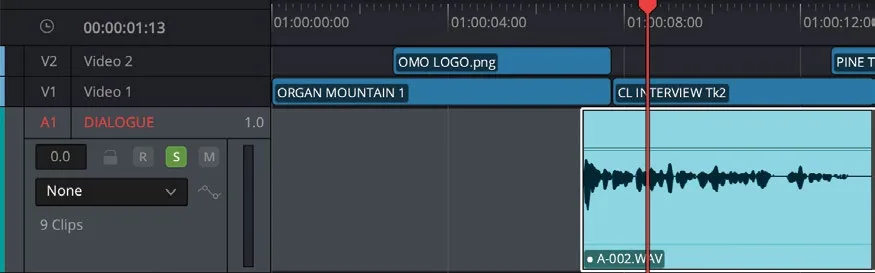
你会发现 Chris 的音频片段只从时间线的左声道输出,而不是左右同时输出。这是因为这些片段只配置了一个 mono 单声道——也就是关联音频中的第 4 通道(Chris 的领夹麦)。此前你用双声道配置把这一通道分配到了两个输出通道,但既然只有一个通道,自然只占用这一路即可。Again, you will notice that Chris’s audio clips are only playing out of the left output channel of this timeline, rather than out of both left and right. This is because these clips are only configured to use one mono channel of audio—the fourth channel of the linked audio, which is Chris’s lavalier microphone. (Previously, you used a stereo configuration of this channel in two output channels. However, as there is only one channel, it makes sense to use just this channel.)
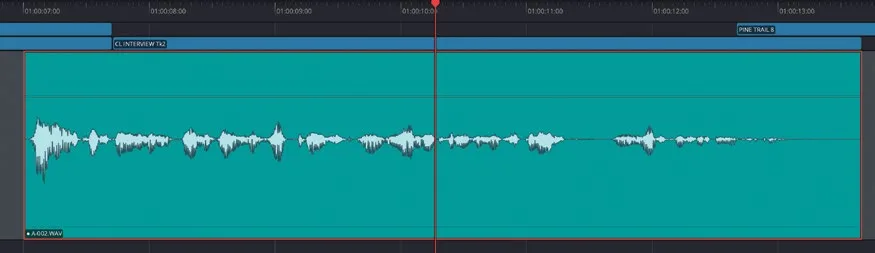
查看 dialogue 轨道上的片段可以清楚看到,这些片段只有一个声道,而它们所在的轨道是 stereo 立体声轨道,所以轨道的第二通道保持空置。If you look at the clips in the dialogue track, you will clearly see that these clips have only one channel, whereas the track they are sitting in is a stereo track, so the second channel of the track remains empty.
Edit页面通常不会呈现每个音频通道的细节,所以即便只是粗略地过一遍,也值得在 Fairlight页面检查一下音频片段的状态。The edit page doesn’t typically expose the individual audio channels like this, so this is a good reason to at least check your audio clips on the Fairlight page, even if just briefly.
TIP · 提示
如果想在 Edit页面查看各音频通道,选中相关片段后右键点击,选择 Display Individual Audio Channels。If you wish to see the individual audio channels in the edit page, select the relevant clips, right-click them, and choose Display Individual Audio Channels.
对白音频几乎都是 mono 单声道(没有人长两张嘴),因此所有对白都应放在 mono 轨道中。DaVinci Resolve 中切换起来非常方便。As dialogue audio is invariably mono (no one has more than one mouth), all dialogue should be placed in a mono track. Thankfully, it’s very easy to make this change in DaVinci Resolve.
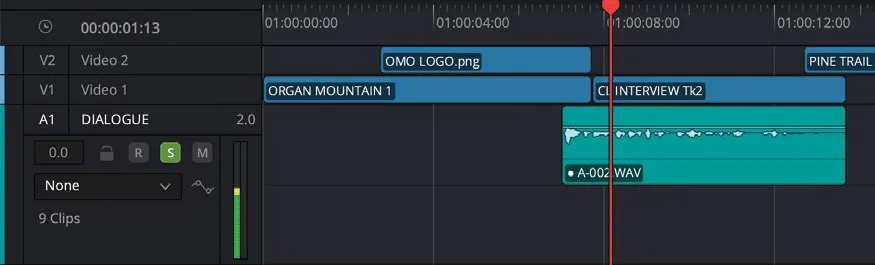
- 右键点击 A1 DIALOGUE 轨道的轨道头,选择 Change Track Type To > Mono。Right-click the track header for the A1 DIALOGUE track and choose Change Track Type To > Mono.
轨道随即从 stereo 立体声轨道变为 mono 单声道轨道。The track changes from a stereo track to a mono track.
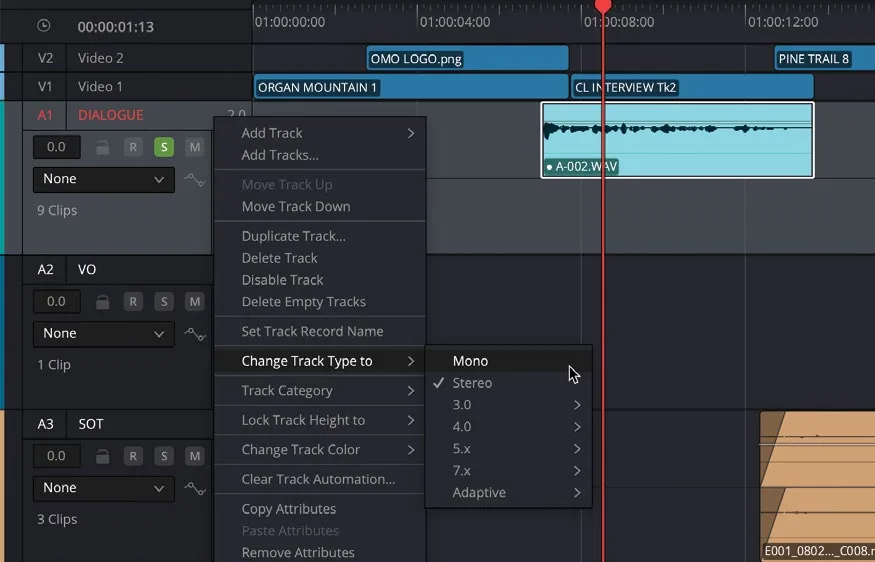
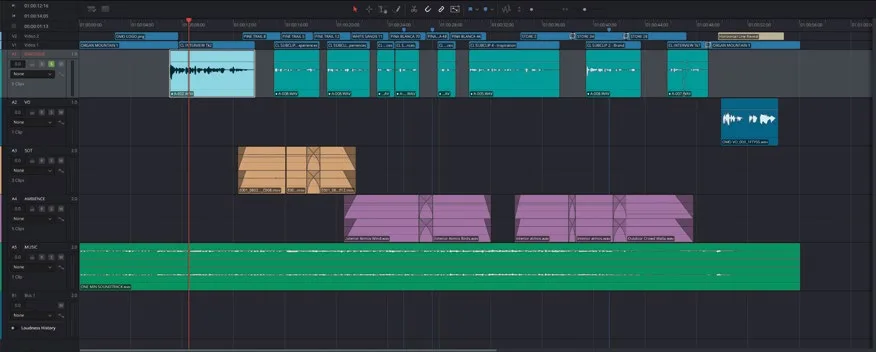
片段现在填满轨道的全部高度,播放时电平表会变成一根实心条,标有 1.0 指示,而不是之前的两根细条加 2.0 指示。The clips now fill the full height of the track, and when you play these back, you’ll see that the track meter is now one solid bar with the 1.0 indicator, instead of two thin bars with the 2.0 indicator.
此外,音频会均衡地从左右两个扬声器同时输出。Moreover, the audio now plays out of both left and right speakers equally.
NOTE · 注意
注意:在单声道音频轨道中,即使片段本身是立体声,也只会播放第一个声道。你随时可以在时间线上右键点击片段并选择 Clip Attributes 来调整其音频配置。关于用 Clip Attributes 配置声道的更多信息,请参见第 7 课。Only the first audio channel will play in a mono audio track, even if the clip is a stereo clip. You can always adjust the audio configuration of a clip in the timeline by right-clicking it and choosing Clip Attributes. For more information about configuring audio channels using Clip Attributes, see Lesson 7.