滑动剪辑内容Slip Clip Content
6 steps
简介Overview
仅仅把第一条 cutaway 镜头提前一点,确实让剪辑感觉更紧凑,但第一条和第二条 cutaway 之间的剪辑点却变得有些别扭,因为你改变了第二条片段的起始点。要改善这个剪辑点,需要在 Trim Edit 模式下依次对每个镜头做 slip(滑移)操作。Slipping Clips Simply bringing the first cutaway in slightly earlier makes the edit feel a little “tighter,” but the edit point between the first and second cutaway clips now feels a little more awkward because you’ve changed the point at which the second clip starts. To refine this edit point, you will slip each shot in turn using Trim Edit mode.
- 点击时间线工具栏中的
Trim Edit Mode按钮,或按 T 键。Click the Trim Edit Mode button in the timeline toolbar or press T.
Trim Edit按钮变红,表示已激活 Trim Edit。同时鼠标指针会从 Selection mode 的箭头变为修剪符号。The Trim Edit button turns red to indicate that Trim Edit is now active. You will also see that the mouse pointer has changed from the arrow of Selection mode to a trim symbol.
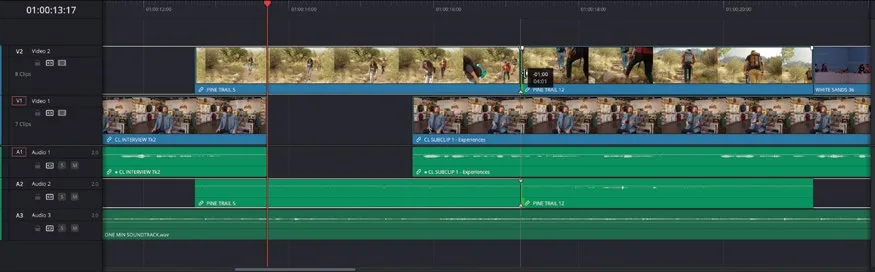
- 将鼠标指针移到 PINE TRAIL 5 上。Move your mouse pointer over PINE TRAIL 5.
Trim Edit mode 是上下文相关的,光标位置不同,功能也不同。把鼠标指针放在片段中部时,修剪符号会变成 slip 图标,提示即将执行的修剪类型。The Trim Edit mode is contextual, meaning that it will have different functions depending on where you place your cursor. When you place your mouse pointer over the middle of the clip, the trim symbol changes to a slip icon to reflect the type of trim you are about to perform.
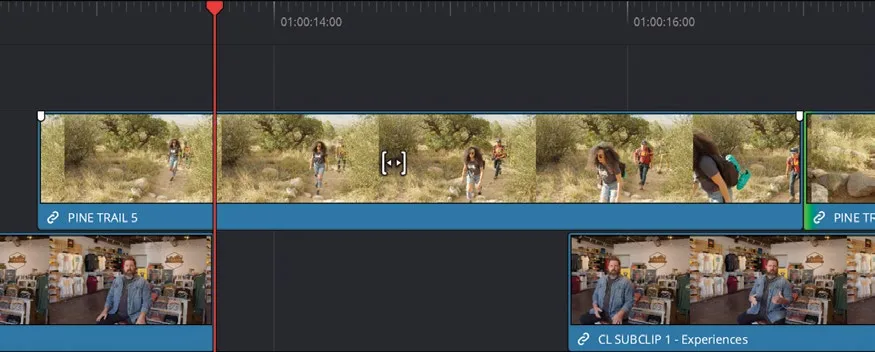
- 在显示 slip 图标的状态下,点击 PINE TRAIL 5 并在时间线中向左拖动。With the slip icon displayed, click PINE TRAIL 5 and drag left in the timeline.
此时因为处于 Trim Edit mode,片段本身不会在时间线上移动,而是在其自身的 In 和 Out 点之间被 slip(滑移)。This time, because you are in Trim Edit mode, the clip does not move in the timeline. Instead, you will see that you are slipping the clip within its own In and Out points!
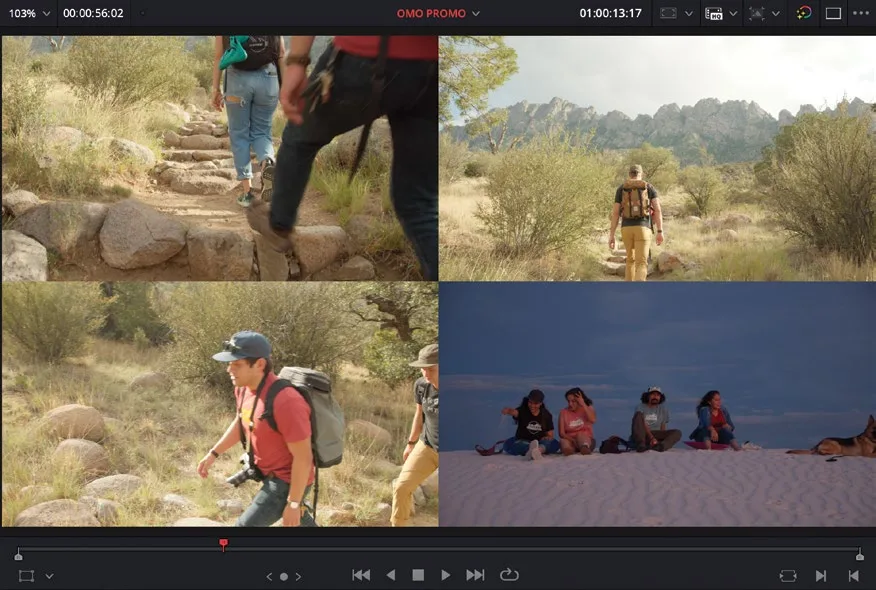
时间线检视器(timeline viewer)会自动切换为四分屏多视图预览,显示当前所做的调整。The timeline viewer has automatically changed to a four-up multi-view preview of the change you’re making.
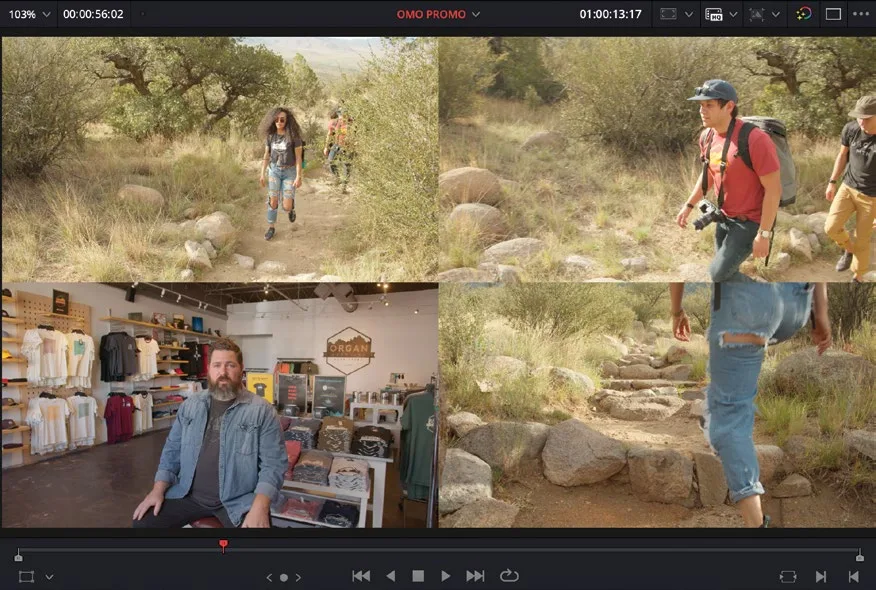
上方两张图显示当前选中的 PINE TRAIL 5 的起始与结束帧(即 In 和 Out 点),下方两张图分别显示前一个时间线片段(V1 上的 Chris 采访 CL INTERVIEW Tk2)的最后一帧和后一个时间线片段(V2 上的第二条 cutaway PINE TRAIL 12)的第一帧。The top two images show the start and end (the In and Out points) of the currently selected clip, PINE TRAIL 5, and the bottom two images show the last frame of the previous timeline clip (Chris’s interview on V1, CL INTERVIEW Tk2) and the first frame of the following timeline clip (the second cutaway on Video 2, PINE TRAIL 12).
在时间线中还可以看到一条从被 slip 片段首尾延伸出来的白色轮廓线,它同样表示该片段可用的 handle(余量)。In the timeline itself, you will also see a white outline extending from the start and end of the clip being slipped, again indicating the available handles of that clip.
- 保持 PINE TRAIL 5 选中状态,向左拖动以 slip 该镜头,直到多视图预览右上角的画面显示穿红衣的男士迈出左腿向前一步(工具提示约为 -01:00),然后播放 V2 上的第一个片段以检视调整效果。With PINE TRAIL 5 selected, drag to the left to slip the shot until the top-right image in the multi-view preview shows the guy in the red shirt stepping forward with his left leg forward (about -01:00 in the tooltip), and then play the first clip on Video 2 to review the change.
目前效果不错。不过多尝试不同剪辑、看看能否进一步改进,总是值得的。Things seem to work well. However, it’s always worth playing with an edit to see how it might be further improved.
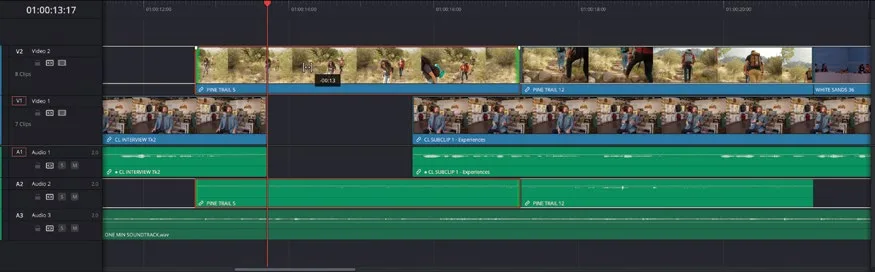
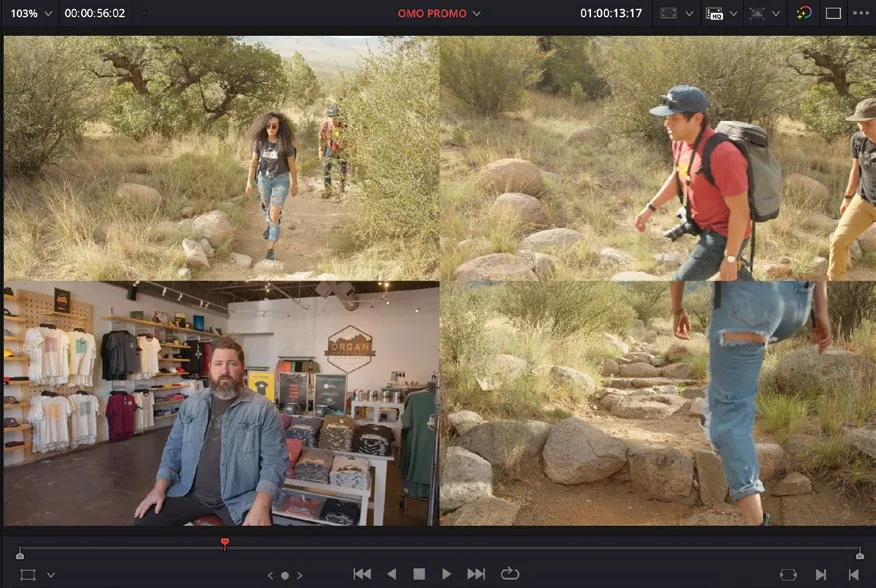
- 选中 PINE TRAIL 12,向左 slip,使 multi-view 预览中左上画面与另一镜头里同一个人左腿伸展的姿态尽量一致。Select PINE TRAIL 12 and slip it to the left so that the top-left image in the muti-view preview has the same guy with his left leg extended in a similar manner.
TIP · 提示
可以参考左下画面(此时显示 PINE TRAIL 5 的最后一帧)来辅助匹配两个镜头。You can use the lower-left image (which now shows the last frame of PINE TRAIL 5) to help visually match the two shots.
- 把时间线播放头回到 Video 1 上第一个采访片段的开头,播放以检查刚才所做的调整。Return the timeline playhead to the beginning of the first interview clip on Video 1 and play back to review the changes you’ve just made.
虽然 Video 1 上两个采访片段之间的间距时长没有调整,但因为修剪和微调了 cutaway 镜头之间的剪辑点,整体观感会显得更紧凑一些。Even though you haven’t adjusted the timing of the gap between the two interview clips on Video 1, by trimming and finessing the edit between the cutaway shots, the edit feels slightly tighter as a result.
NOTE · 注意
在大多数情况下,需要把多种修剪操作组合使用。前面的步骤中,修剪了一个片段的入点,又 slip 了两个片段以细化第一次切换的衔接。这种组合方式在修剪操作中非常常见。More often than not, you will find that you need to use different trimming operations in combination. In the previous steps, you trimmed the start of one clip but then needed to slip both clips to refine how the first shot cut to the second. As you will see, this is common to most trimming operations.
本卡术语Terms in this card
切出镜头Cutaway 时间线Timeline 播放头Playhead 滑移Slip Edit 修剪Trim 帧Frame