波纹修剪素材Ripple Trim Clips
6 steps
简介Overview
上一节课中,你通过在时间线上添加入点和出点,并用 Place on Top 编辑方式快速地把 B-roll 素材叠插到采访片段上,对采访进行了“画面润色”。按照那节课的流程,你当时没有花太多时间逐条审视每个编辑点,而是先把素材都铺进时间线。现在则可以开始评估这些镜头之间的配合情况,对每条片段做相应的修剪。In the previous lesson, you added a series of cutaways to “paint” the interview by adding In and Out points to the timeline and quickly editing the B-roll footage using the Place on Top edit. Following the steps in the lesson, you didn’t spend much time reviewing each of those edits as you made them, focusing instead on just getting the material into the timeline. Now, though, you can start to consider how those shots are working together, trimming each one as appropriate.
本节先用 Selection mode 对 OMO Promo 时间线中的一些片段进行修剪。You will begin by trimming some of the clips in the OMO Promo timeline using Selection mode.
- 把时间线播放头定位在第一条采访片段的开头,浏览 Video 2 轨道上第一组 cutaway 镜头。Place the timeline playhead at the beginning of the first interview clip and review the first group of cutaways on the Video 2 track.
这段剪辑功能上没问题,但节奏偏松,尤其从采访片段切到第一条 cutaway(朋友们走在山麓小路上)时感觉比较拖。The edit is functional but feels a little loose, especially coming out of the interview clip into the first cutaway of the friends walking up the path in the foothills.
- 把播放头回到 Video 2 上第一条片段 PINE TRAIL 5 的起点。Return the playhead to the start of the first clip on Video 2, PINE TRAIL 5.
- 点
Detail Zoom按钮,将时间线放大到播放头位置。Click the Detail Zoom button to zoom in on the playhead position in the timeline. - 选中 Video 2 上的片段(PINE TRAIL 5),把它向左拖动约一秒(提示中显示 -01:00)。Select the clip on Video 2 to select PINE TRAIL 5 and drag it backward by about a second (-01:00 in the tooltip).
这样直接移动片段会在 cutaway 之间留下空隙,画面会尴尬地跳回 V1 上 Chris 的采访片段。需要修剪 Video 2 上下一个片段的入点来填补这段空隙。Unfortunately, moving the clip like this has left a gap in the cutaways, which disconcertingly cuts back to the underlying clip of Chris’s interview on V1. You will need to trim the start of the next clip on Video 2 to fill this gap.
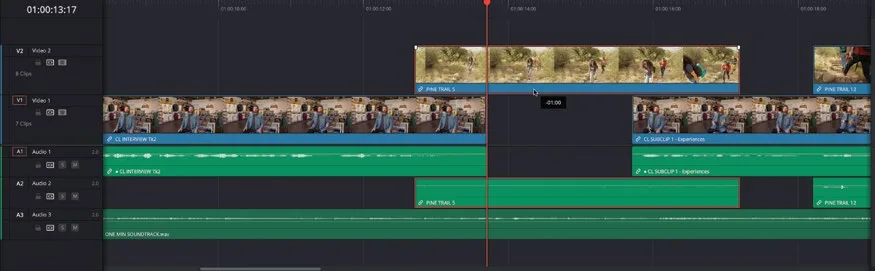
- 在时间线上稍微滚动,点击 Video 2 上第二条片段 PINE TRAIL 12 的起点,向左拖动直到它吸附到上一条片段的尾部。Scroll along the timeline a little, and then click the start of the second clip on Video 2, PINE TRAIL 12, and drag backward until it snaps to the end of the previous clip.
这样操作后,第二条片段被延长了一秒,刚好填补了移动第一条片段时留下的空隙。This process has lengthened the second clip by one second to fill the gap created when you moved the first clip.
NOTE · 注意
白色描边显示的是该片段可用的 handle——也就是这条片段当前没被使用、但必要时仍可调用的部分。The white outline shows the available handles for the trimmed clip—that is, the portion of this clip not currently being used in the timeline but that can still be used if required.
- 把播放头回到第一条采访片段的起点,播放一遍检查刚才的修改效果。Return the playhead to the start of the first interview clip and play back to review the changes you’ve just made.
本卡术语Terms in this card
B-roll 素材B-roll 切出镜头Cutaway 入点和出点In & Out Points 置顶插入Place on Top 时间线Timeline 播放头Playhead 修剪Trim 静帧Still