滚动修剪切点Roll Trim Edit Point
6 steps
简介Overview
Rolling Edit(卷动剪辑):另一种常用的修剪方式,可以同时修剪相邻两个片段的切点来重新定位编辑点。Rolling Edits Another useful trimming function is the roll edit, which allows you to reposition an edit point by trimming two neighboring clips at the same time.
NOTE · 注意
在 DaVinci Resolve 中,Selection 模式和 Trim Edit 模式下都可以做 roll edit,功能相同。In DaVinci Resolve, roll edits can be made in both Selection and Trim Edit modes; the functionality is the same.
四个人对着镜头微笑的镜头 WHITE SANDS 36,相比其他 cutaway 显得稍短。The shot of the four friends smiling for the camera, WHITE SANDS 36, is a little short when viewed in context with the other cutaways.
- 将鼠标指针放到 WHITE SANDS 36 与 PINA BLANCA 70 之间的编辑点中央,直到出现 roll 图标。Place your mouse pointer over the center of the edit between WHITE SANDS 36 and PINA BLANCA 70, so it displays the roll icon.
- 单击选中该编辑点两侧:WHITE SANDS 36 的末端即 Out 点(称为 outgoing clip),以及 PINA BLANCA 70 的起始即 In 点(称为 incoming clip)。Click to select both sides of the edit: the end, or Out point, of WHITE SANDS 36 (referred to as the outgoing clip) and the start, or In point, of PINA BLANCA 70 (referred to as the incoming clip).
- 将选中的编辑点向右拖动约 20 帧(tooltip 显示 +00:20),直到两个镜头的时长看起来相近为止。Trim the selected edit to the right for about 20 frames (+00:20 in the tooltip) or until the two shots appear to be similar durations.
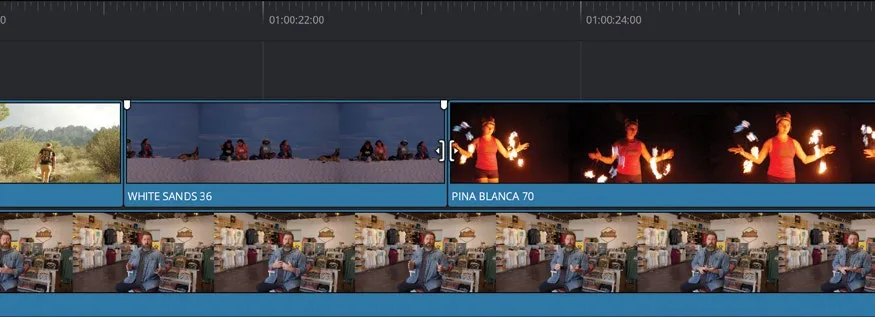
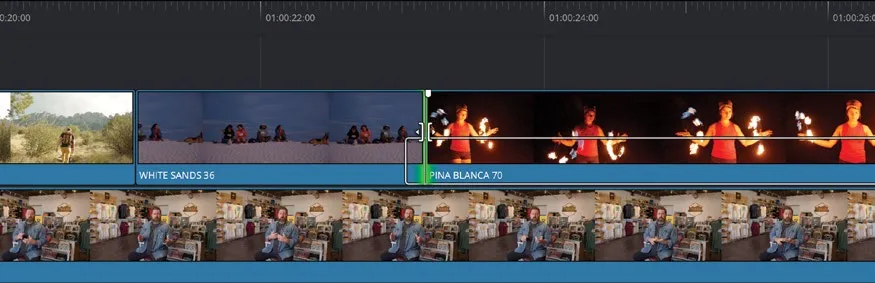
这种滚动修剪会在出向片段尾部增加画面,同时从入向片段首部裁掉等量时长,因此不会留出间隙。This rolling trim adds footage to the end of the outgoing clip but also trims the same duration of footage from the start of the incoming clip, so it doesn’t leave a gap.
- 把时间线播放头回到 WHITE SANDS 36 的起点,回看一下刚才做的修改。Return the timeline playhead to the start of WHITE SANDS 36 and review the change you’ve just made.
- 各 cutaway 的节奏都顺了以后,点击
Full Extent Zoom按钮放大缩小到整个时间线一览。Now that the timing of each of the cutaways seems to work better, click theFull Extent Zoombutton to zoom out and see the entire timeline.
本卡术语Terms in this card
切出镜头Cutaway 时间线Timeline 播放头Playhead 卷动Roll Edit 修剪Trim 帧Frame