使用 Scroller(波形/帧滚动条)Using Scrollers
14 steps
简介Overview
在 Fairlight页面将音频片段编辑到时间线上的方式与 Edit页面类似,但缺少 Edit页面那种灵活的多样编辑方式(Overwrite、Insert、Place on Top、Append 等)。Fairlight页面里编辑音频很简单,直接拖放即可。当然,你也可以像在 Edit页面的 source viewer 里那样,在 preview player 中为片段添加 In/Out 点。Editing audio clips into the timeline in the Fairlight page is similar to editing audio clips in the edit page, except that there isn’t the flexibility you have in the edit page with all the different edits (Overwrite, Insert, Place on Top, Append, etc.). Instead, editing audio clips in the Fairlight page is as simple as drag and drop. However, you can choose to add In and Out points to a clip in the preview player as you did in the edit page’s source viewer.
- 使用 Option-scroll(macOS)或 Alt-scroll(Windows)在 playhead 所在位置放大时间线视图,playhead 仍位于第二个 marker 处。Use Option-scroll (macOS) or Alt-scroll (Windows) to zoom in on the playhead location in the timeline, which is still on the second marker.
- 在 Media Pool 中选中 Boots on Rough Dirt Footsteps.wav,从 preview player 拖到时间线的 FOLEY 轨道上。暂时不需要精确定位,只要让片段起点与上方 V2 轨道中 PINA BLANCA 48 片段的起点对齐即可。In the media pool, select the Boots on Rough Dirt Footsteps.wav and drag it from the preview player into the FOLEY track in the timeline. Don’t worry about placing it in any particular place at the moment; just line up the start of the clip with the start of the PINA BLANCA 48 clip in the V2 track above.
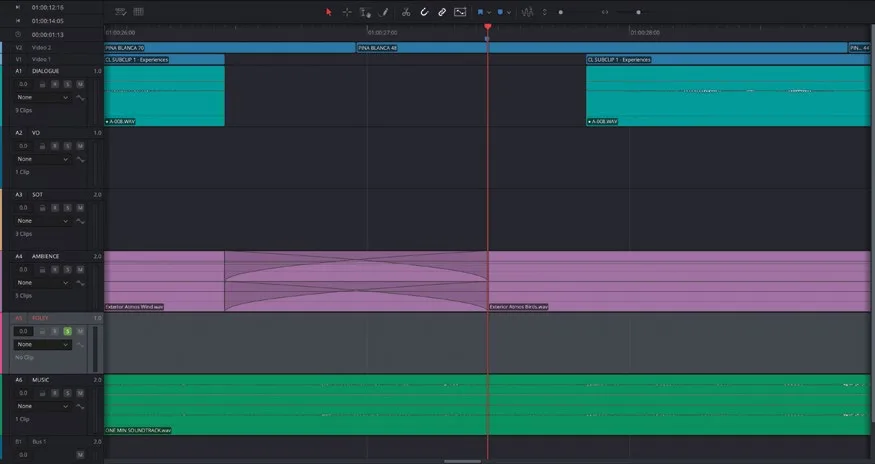
片段放进时间线后,接下来要把音效与人物动作对齐。为了高效完成这一步,Fairlight页面提供了一组 scroller(滚动条)。With the clip in the timeline, you’ll now need to align the sound effect with the guy’s movements. To help you do that efficiently, the Fairlight page has a set of scrollers.
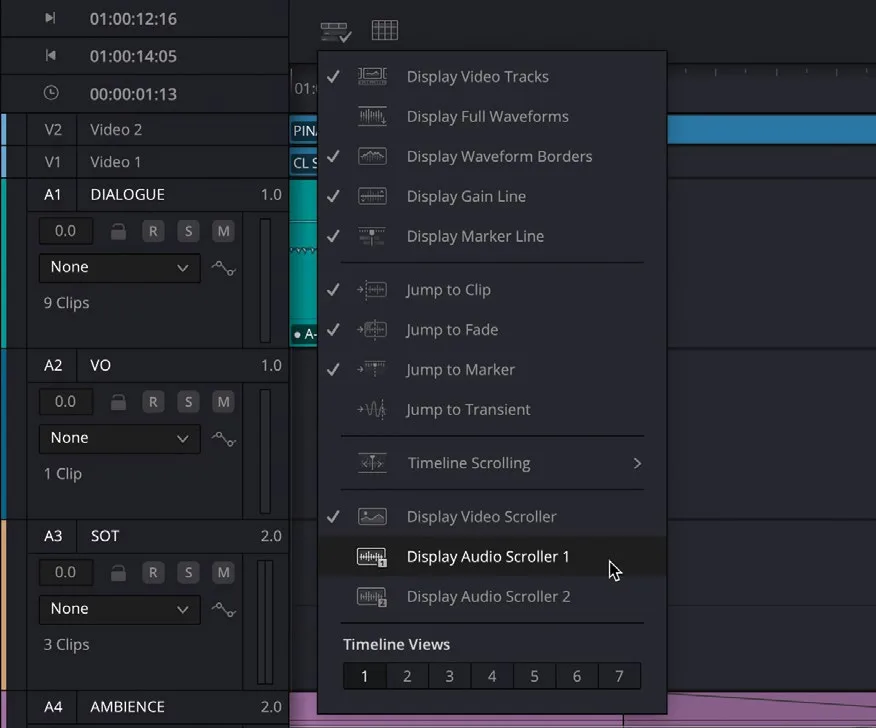
- 点击 Timeline View Options 菜单,选择 Display Video Scroller。Click the Timeline View Options menu and choose Display Video Scroller.
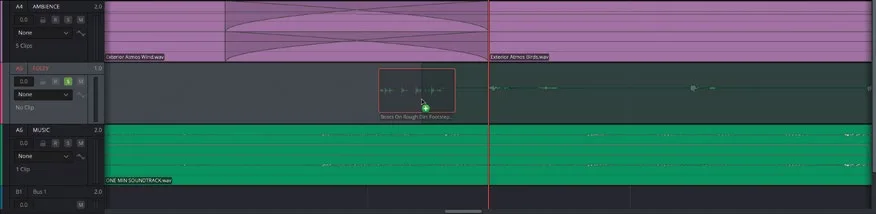
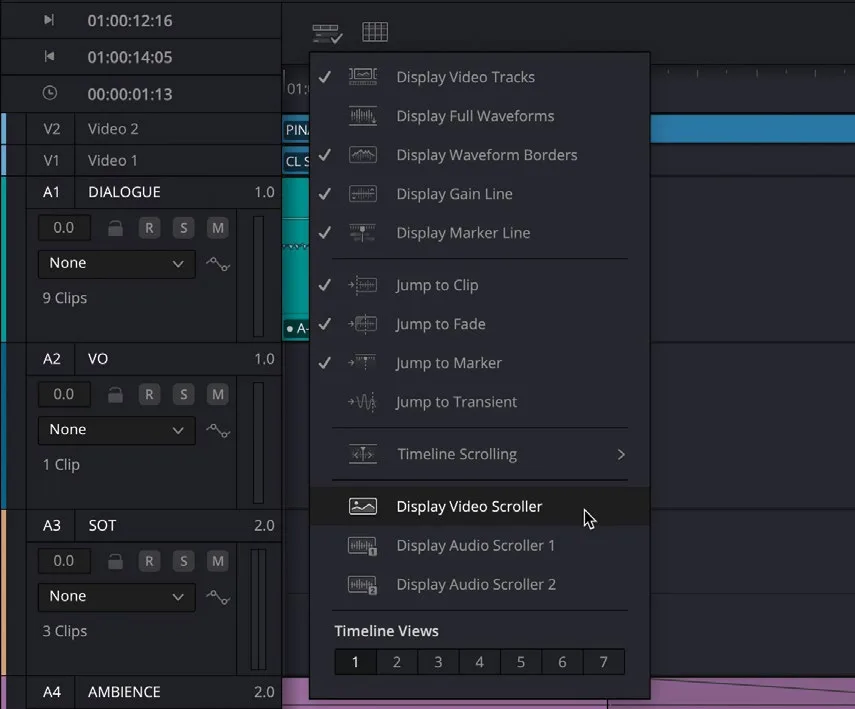
Video scroller 会在时间线下方打开,显示 Edit页面中用到的各个视频帧。Video scroller 中央有一条红线,标示时间线 playhead 当前所在的那一帧。The video scroller opens underneath the timeline and shows the individual video frames in use from the edit page. In the center of the video scroller, you will see a red line indicating the frame currently underneath the playhead in the timeline.
- 在 video scroller 中,点击当前帧左右两侧的帧,可将 playhead 移动到该帧的起点。In the video scroller, click the frames to the left and right of the current frame to move the playhead to the start of that frame.
- 利用 video scroller 把时间线 playhead 重新定位到人物把右脚放到岩石上那一帧的起点。(由于无法直接看到脚碰到岩石的瞬间,需要靠目测判断。)Use the video scroller to reposition the timeline playhead to the start of the frame where the guy places his right foot on the rock. (Since you can’t see his foot touching the rock, you’ll need to use your best judgment.)
TIP · 提示
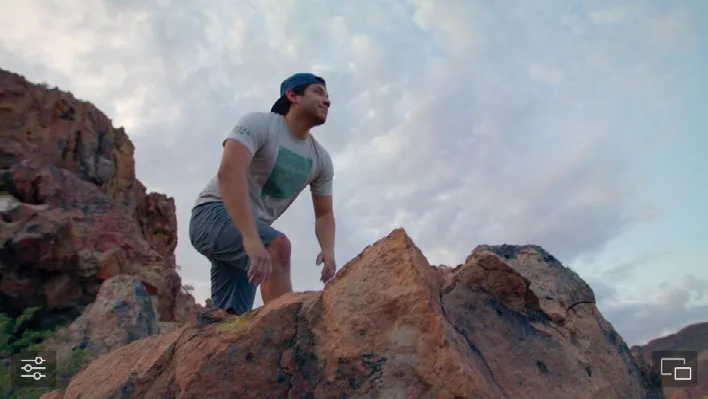
点击 viewer 右下角的 Floating Window按钮,可以把 Fairlight页面 viewer 在独立的浮动窗口中打开。You can open the Fairlight page viewer in a separate floating window by clicking the Floating Window button in the lower right corner of the viewer.
- 在 Timeline View Options 菜单中,选择 Show Audio Scroller 1。In the Timeline View Options menu, select Show Audio Scroller 1.
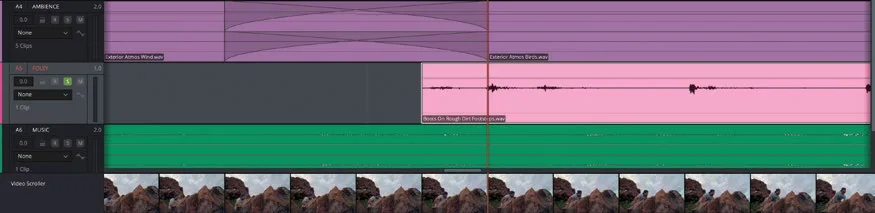
Audio scroller 会出现在 video scroller 下方,显示所选音频轨道的波形。The audio scroller opens below the video scroller, showing the waveform of the chosen audio track.
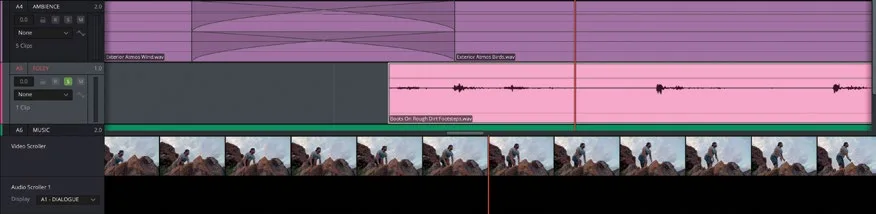
- 点击 Audio Scroller 1 的 Display 菜单,选择 A4 - FOLEY 轨道,以显示该轨道上音频的波形。Click the Display menu for Audio Scroller 1 and choose the A4 - FOLEY track to display the waveform of the audio on this track.
- 在时间线中拖动 Boots on Rough Dirt Footsteps.wav 片段,让第一个"脚步"的波形与 scroller 中画面的起点对齐。In the timeline, drag the Boots on Rough Dirt Footsteps.wav clip to align the waveform of the first “step” with the start of the frame in the scrollers.
用 scroller 把音频对齐到画面动作,比在时间线里凭感觉判断要方便得多。Using the scrollers to align audio to onscreen action like this is much easier than trying to judge it in the timeline.
- 在时间线中播放新加入的音效。Play back the new sound effect in the timeline.
整体同步效果不错,但第三个"脚步"的时机略有偏差。Generally, the sync works well, but the third “step” isn’t quite timed right.
在时间线中点击音频 scroller 里的最后一个"脚步",跳到该处,然后点击并拖动波形,把播放头精准定位到波形起点之前。In the timeline, click the final “step” in the audio scroller to jump to that part of the audio clip and click and drag the waveform to position the playhead accurately just before the waveform.
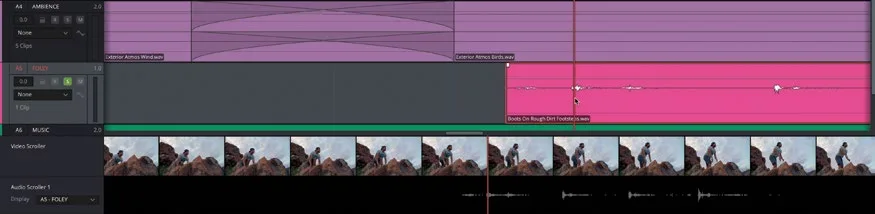
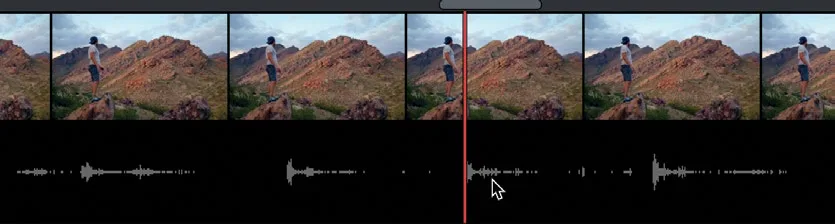
选中时间线中的 Boots on Rough Dirt Footsteps.wav 片段,点击时间线工具栏上的 Razor(剪刀)按钮,或按 Command-B(macOS)/ Ctrl-B(Windows)切开片段。With the Boots on Rough Dirt Footsteps.wav clip selected in the timeline, click the Razor (Scissors) button in the timeline toolbar, or press Command-B (macOS) or Ctrl-B (Windows) to split the clip.
用视频 scroller 往前回退几帧,找到远景中人物脚落地的画面。Using the video scroller, move back a few frames to locate where the guy puts his foot down in the wide shot.
播放头对准画面起点后,把切开后的第二段音频片段拖回去,让波形与动作对齐。Once the playhead is at the start of the frame, drag the second part of the split audio clip back to align the waveform with the action.
把 Boots on Rough Dirt Footsteps.wav 片段末尾的最后一个"脚步"裁掉。Trim off the final “step” in the Boots on Rough Dirt Footsteps.wav clip.
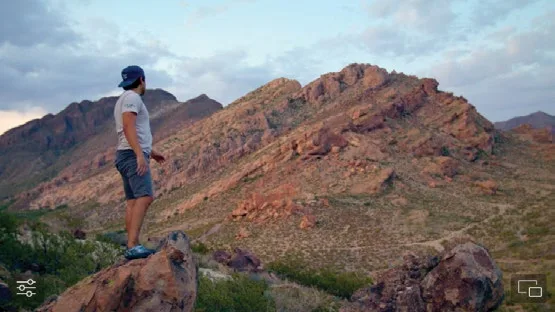
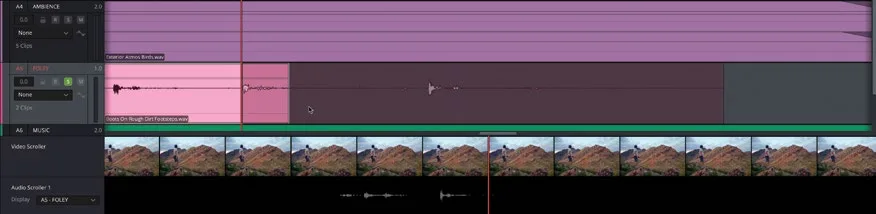
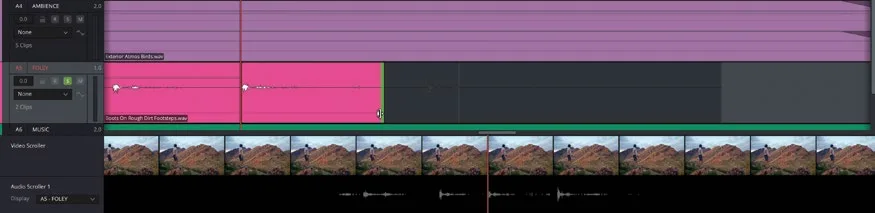
播放这两段镜头,检查音效的同步效果。Play back the two shots and review your synced sound effect.
有时候哪怕最不起眼的小段音效,只要运用得当,也能为画面或场景增色,即使它原本并非为该素材专门录制的。Sometimes even the tiniest, most innocuous piece of sound can help enhance a shot or scene, even if it wasn’t actually recorded for that particular purpose.
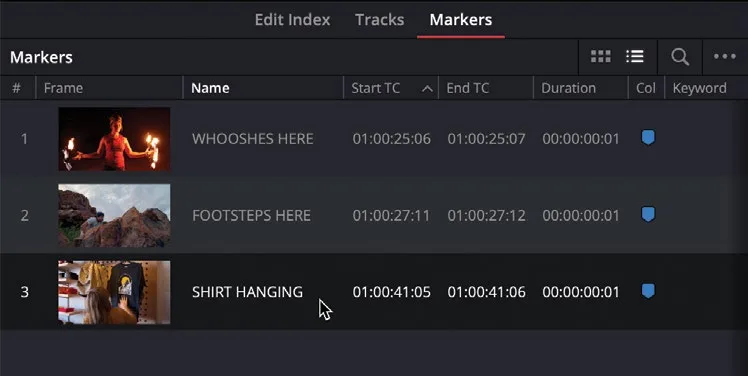
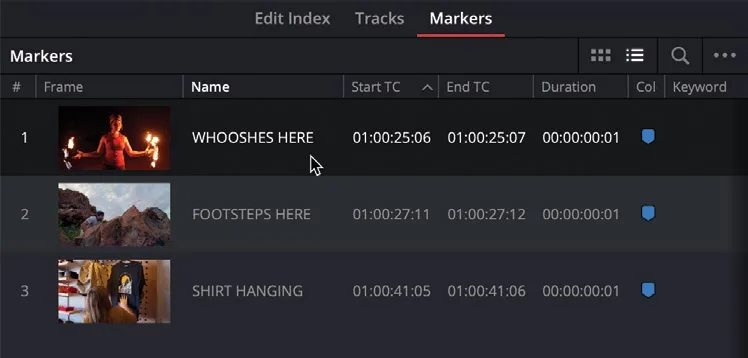
在 markers 索引中点击第三个标记 SHIRT HANGING,跳到时间线中的对应位置。In the markers index, click the third marker, SHIRT HANGING, to jump to that point in the timeline.
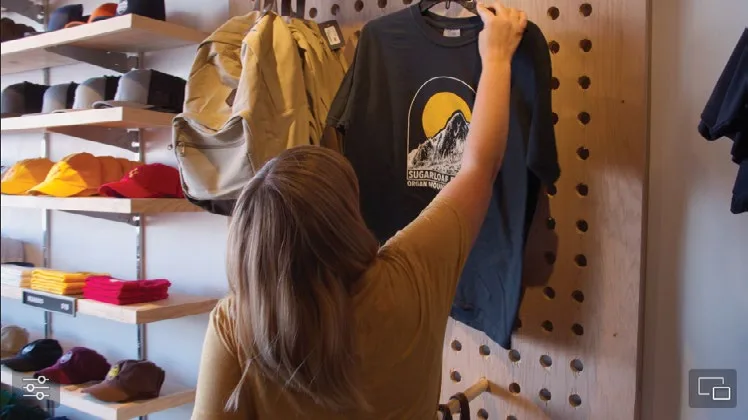
如果能加一个衣服挂上衣架的轻微音效,效果会更出彩。It would be nice to include a small sound effect of the shirt being placed on the hanger.
- 用 video scroller(视频滚动条)找到衣服挂接触到展示架那一帧。由于画面上看不清完整动作,凭经验判断即可——之后随时可以再调整。Using the video scroller, locate the frame where you think the shirt hanger would contact the display hanger. Again, since you can’t see the action fully onscreen, your best guess is as good as anything—you can always adjust it later if necessary.
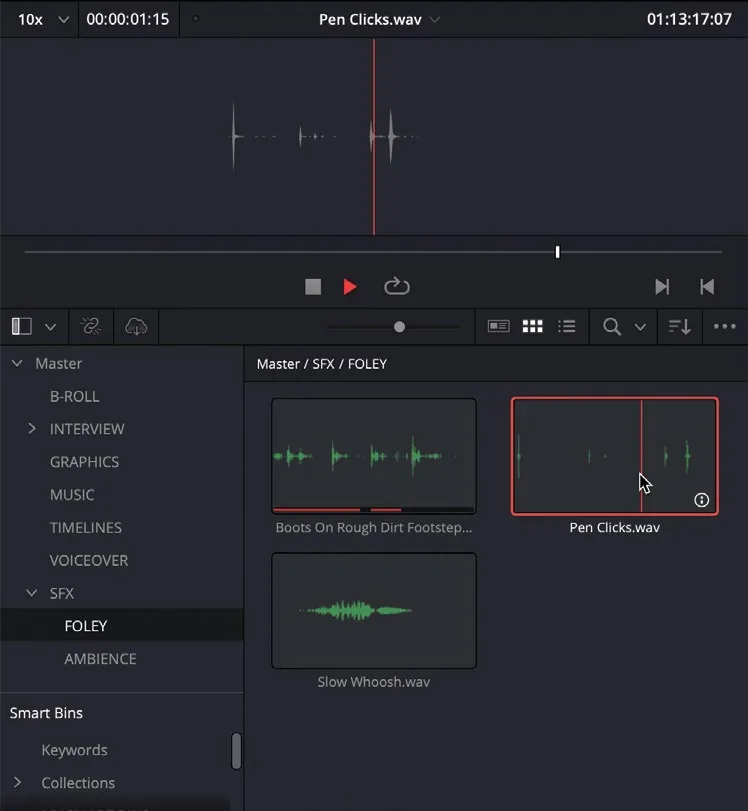
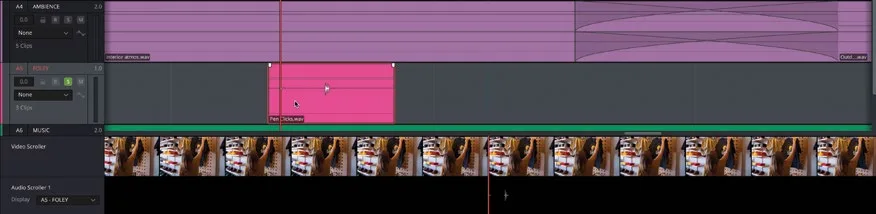
- 从 FOLEY bin 中选中 Pen Clicks.wav 素材,在 preview player(预览播放器)里听一听。From the FOLEY bin, select the Pen Clicks.wav clip and listen to it using the preview player.
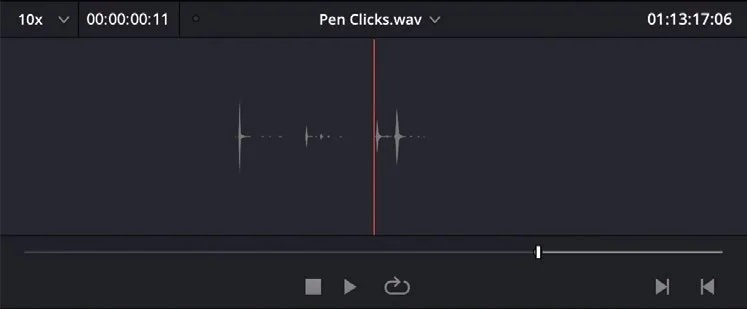
这段素材里有几声辨识度不高的咔哒声,刚好能用上。This clip has a few unidentifiable clicks that will serve your purpose.
- 在 preview player 里把播放头移到倒数第二个咔哒声(无意的双关)的起始处,按 I 键打一个 In 点。In the preview player, place the playhead at the start of the penultimate click (pun intended) and press I to add an In point.
TIP · 提示
提示:Fairlight 预览播放器的音频播放可以用之前在 Edit page 学过的常用控制方式,例如 Spacebar 或 JKL 快捷键、左右方向键。You can use the familiar playback controls you learned in the edit page lessons, such as the Spacebar or JKL keys and the left/right arrows, to control the playback of audio in the Fairlight preview player.
- 把打好点的素材从 preview player 拖到 FOLEY 轨道播放头所在位置,借助 audio scroller(音频滚动条)微调素材位置,让它和画面动作对得最准。Drag the marked clip from the preview player to the playhead location in the FOLEY track, using the audio scroller to refine the position of the clip to best align it with the onscreen action.
- 把新加的音效和环境声一起回放,微调音效的对齐位置,让动作听上去更真实。Review your new sound effect along with the ambience, changing the alignment of the sound effect to best sell the action.
本卡术语Terms in this card
媒体夹Bin 媒体池Media Pool 置顶插入Place on Top 源检视器Source Viewer 时间线Timeline 编辑页Edit page 标记Marker 覆盖Overwrite 播放头Playhead 修剪Trim 窗口Power Window 静帧Still Fairlight 音频Fairlight 音效Sound Effects 帧Frame
相关知识卡Related Cards
媒体池Media Pool 时间线Timeline 标记Markers Fairlight 页面Fairlight Page