添加音效Adding Sound Effects
9 steps
简介Overview
除了对时间线上的音频做美化处理,Fairlight页面还可以帮助你添加、编辑和操控音频片段。由于 Fairlight 界面专为音频工作设计,它在添加与同步音效时比 Edit page 灵活得多。下面先添加一条新的音频轨道,用来放置初始要加入的音效片段。In addition to sweetening the audio in your timeline, the Fairlight page can help you add, edit, and manipulate audio clips. And because the Fairlight interface is solely concerned with audio work, it provides a much more flexible environment than the edit page, and no more so than when it comes to adding and synchronizing sound effects. You will start by adding a new audio track for the types of sound clips you will initially add.
- 在 Mixer(调音台)中点击
Solo按钮,取消 DIALOGUE 和 VO 轨道的独奏。Use the Solo buttons in the mixer to unsolo the DIALOGUE and VO tracks. - 点击
Mixer按钮,关闭调音台。Click the Mixer button to hide the mixer. - 点击界面左上角的
Index按钮打开 Edit Index,然后切换到 Markers 标签页,查看之前在 Edit page 中添加的标记列表。In the top left corner of the interface, click theIndexbutton to open the Edit Index, and click the Markers tab to reveal the list of markers you previously added in the edit page. - 按 Shift-Z 将时间线缩放至适配窗口,然后在 Markers Index 中点击第二个标记 FOOTSTEPS HERE,时间线跳转到该标记位置。Press Shift-Z to zoom the timeline to fit and, in the Markers Index, click the second marker, FOOTSTEPS HERE, to jump to that marker in the timeline.
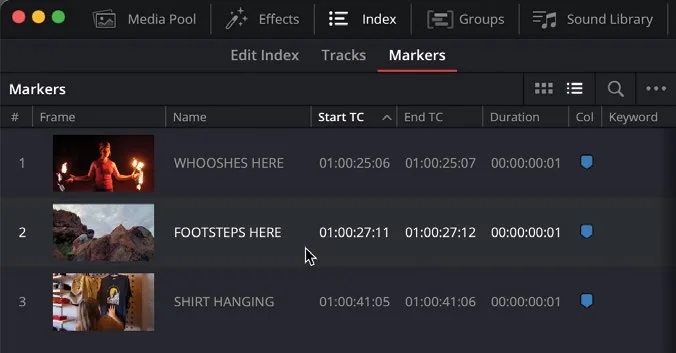
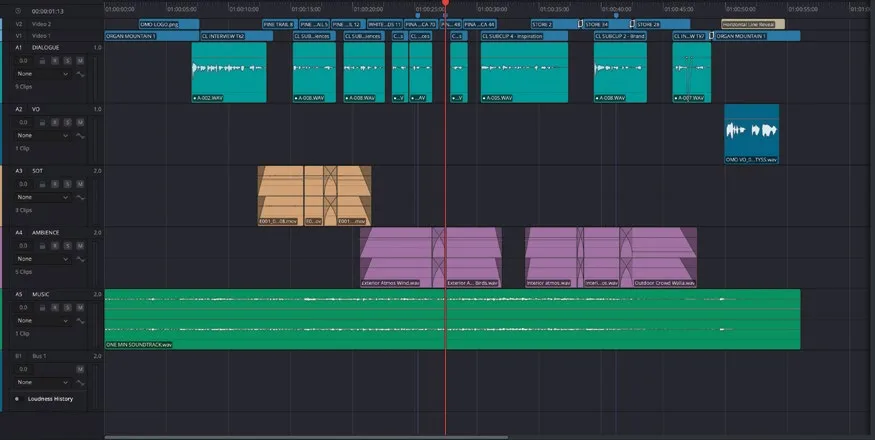
这里对应人物跳上岩石眺望风景的画面。原始录音无法使用,需要另外添加声音来代替。This is the part of the edit where the guy jumps up onto the rocks to look out over the landscape. The original audio recorded with this clip wasn’t suitable for use, but you will add some sound that can be used instead.
- 点击界面左上角的
Media Pool按钮打开媒体池,选择 FOLEY smart bin。In the top left corner of the interface, click theMedia Poolbutton to reveal the media pool and select the FOLEY bin.
NOTE · 注意
电影术语中,foley(拟音)泛指为影片音轨添加的、用于再现故事内声音的音频,例如不同地面上的脚步声、车流声、衣料摩擦声或光剑挥舞声。它以拟音先驱 Jack Foley 的名字命名,由此还衍生出 foley studio(拟音棚,拟音录制场所)和 foley artist(拟音师,表演和/或录制这些声音的人)等术语。In filmmaking parlance, foley is the term used for any audio added to a film’s soundtrack that re-creates diegetic sounds, such as footsteps on different surfaces, traffic sounds, the rustle of clothing, or the swish of a lightsaber. Named after Jack Foley, the pioneer of recording and synchronizing such “everyday” sounds for films, it also gives rise to the terms foley studio, where such sounds are often created and recorded, and foley artist, the person who performs and/or records the sounds.
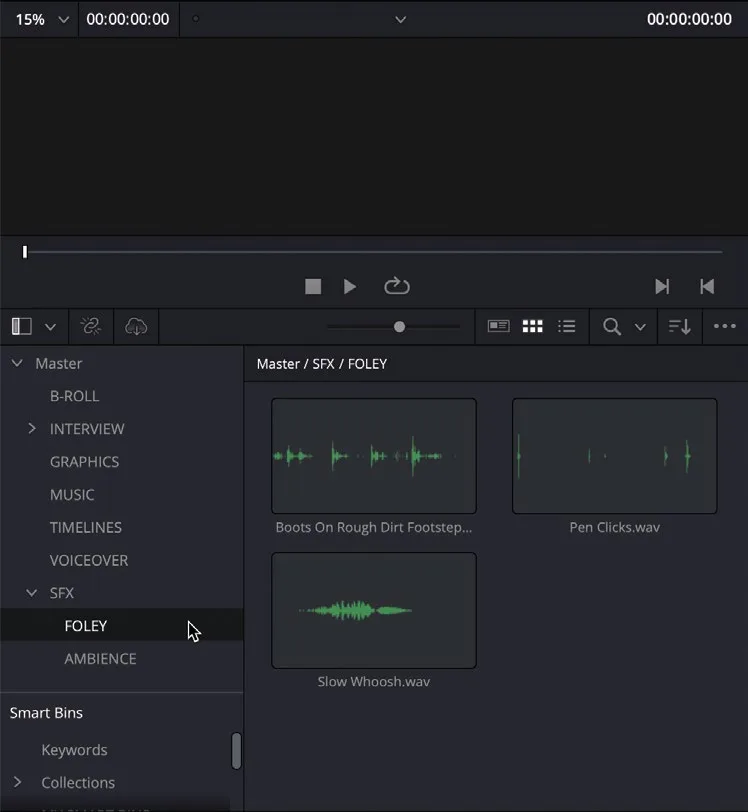
该 bin 中包含两段来自 Fairlight Sound Library 的片段。获取与使用 Fairlight Sound Library 的方法,请参阅《The Fairlight Audio Guide to DaVinci Resolve 20》。This bin contains two clips that were taken from the Fairlight Sound Library. For more information on obtaining and using the Fairlight Sound Library, see The Fairlight Audio Guide to DaVinci Resolve 20.
NOTE · 注意
默认情况下,Fairlight页面的媒体池只显示音频片段以及带有音频的视频片段。如需查看所有片段,请点击 Media Pool Options(…)菜单并选择 Show All Clips。By default, the Fairlight page only shows audio clips and video clips with an audio element to them in the media pool. To see all clips, click the Media Pool Options (…) menu and choose Show All Clips.
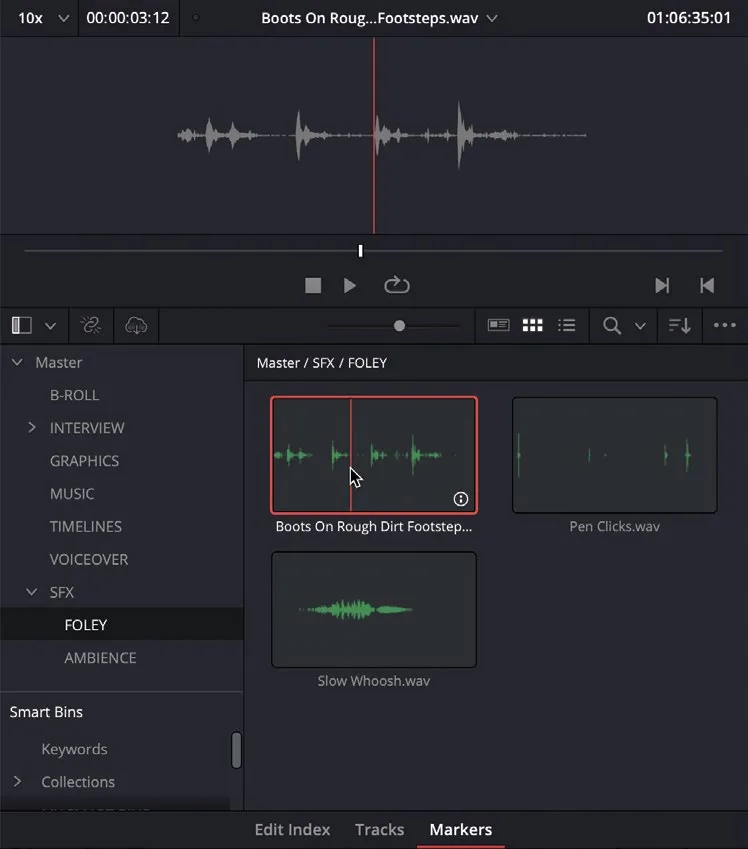
- 选中 Boots on Rough Dirt Footsteps.wav,在预览播放器中打开它。Select the clip Boots on Rough Dirt Footsteps.wav to open it in the preview player.
- 播放这段音频试听。Play the clip to listen to it.
从波形显示就能看出,这是一条单声道(mono)音频片段。You can tell just by looking at the waveform display that this is a single-channel mono clip.
NOTE · 注意
如果想确认这条片段确实是单声道的,可以像上一课那样,在 Inspector 或片段属性(Clip Attributes)中查看它的通道配置。To verify that this clip is indeed mono, you can view its channel configuration in the Inspector or in Clip Attributes, as you did in the previous lesson.
确认要处理的是单声道音频片段后,也就知道时间线上需要添加哪种类型的轨道了。Now that you know you’ll be working with a mono audio clip, you know the type of track you’ll need in the timeline.
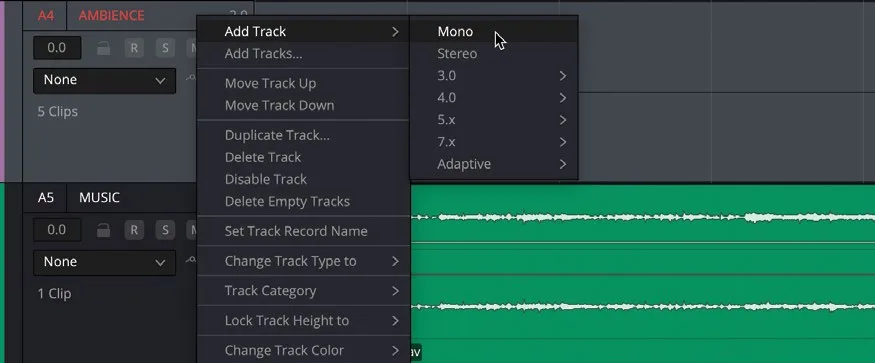
- 右键点击 AMBIENCE 轨道的轨道控制区域,选择
Add Track > Mono。Right-click the AMBIENCE track controls and choose Add Track > Mono.
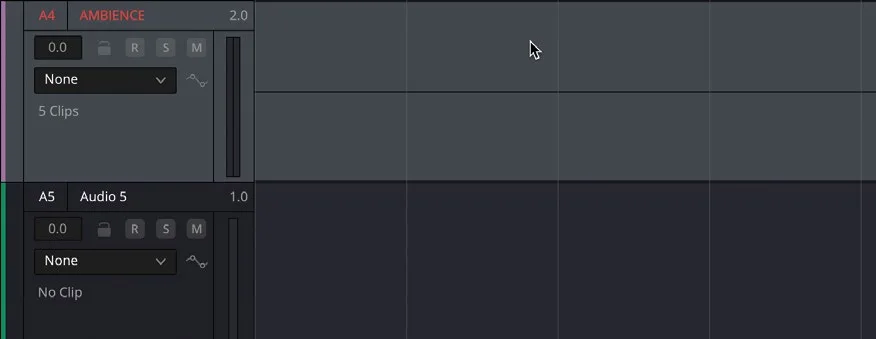
SOT 轨道下方会新增一条单声道音频轨道。A new mono audio track is added below the SOT track.
NOTE · 注意
新音频轨道总是会添加在右键点击控制区域的那条轨道下方。如需调整轨道在时间线上的位置,可使用 Track Index(见后文)。如果想一次添加多条轨道,或指定轨道在时间线中的位置,可在右键菜单中选择 Add Tracks。New audio tracks are always added below the track for which you right-clicked the controls. You can always reposition a track in the timeline by using the Track Index (see below). To add more than one audio track, or to specify where the track will be placed in the timeline, right-click the track controls and choose Add Tracks.
- 将新轨道重命名为 FOLEY,右键点击该轨道的控制区域,选择
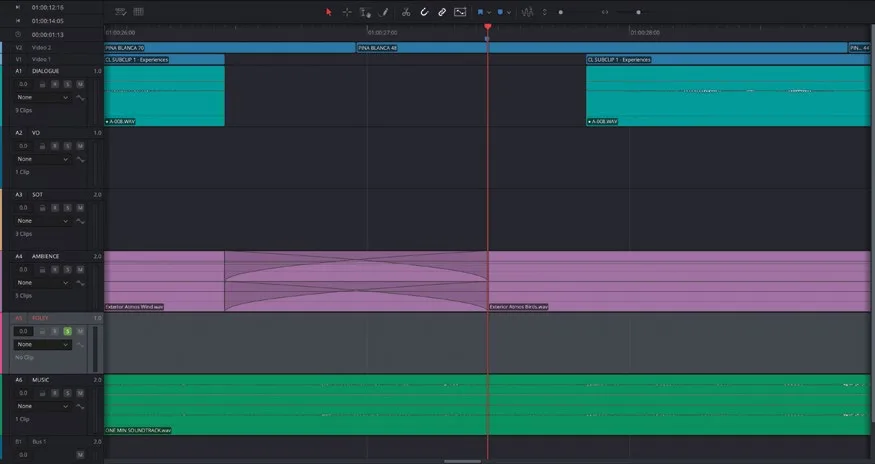
Change Track Color > Violet。Rename the new track FOLEY, right-click the track controls, and choose Change Track Color > Violet.
点击 FOLEY 轨道的 Solo按钮。Click the Solo button for the FOLEY track.
接下来需要把片段添加到轨道上,并将声音与画面动作对齐。Now you need to add the clip to the track and sync the sound to the onscreen action.
本卡术语Terms in this card
媒体夹Bin 媒体池Media Pool 时间线Timeline 编辑页Edit page 检查器Inspector 标记Marker 调音台Mixer 窗口Power Window Fairlight 音频Fairlight 音效Sound Effects
相关知识卡Related Cards
媒体池Media Pool 时间线Timeline 标记Markers Fairlight 页面Fairlight Page