对齐音效Aligning Sound Effects
11 steps
简介Overview
Fairlight 还提供其他以音频为核心的工具,可以帮你搭建声音设计元素、强化画面动作效果。Fairlight has other audio-centric tools that you can use to your advantage when building your sound design elements and enhancing the onscreen action.
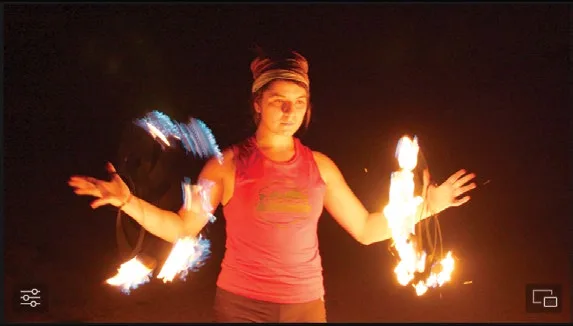
接下来给这段画面添加音效,突出火把挥动的运动感。You’ll add some sound effects to this to emphasize the movement of the torches.
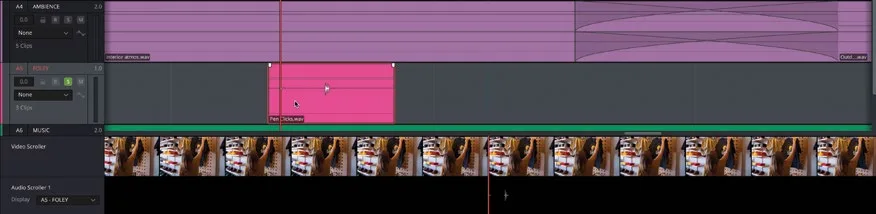
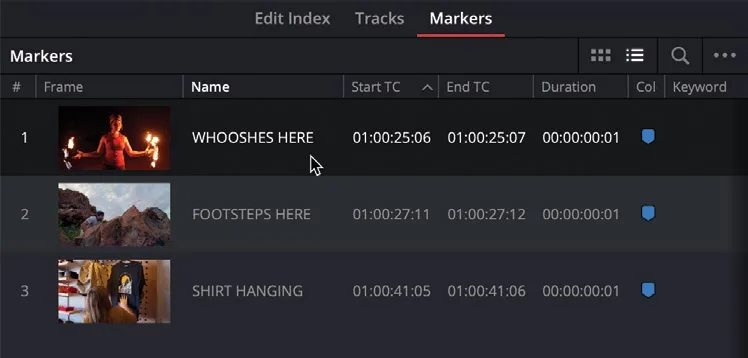
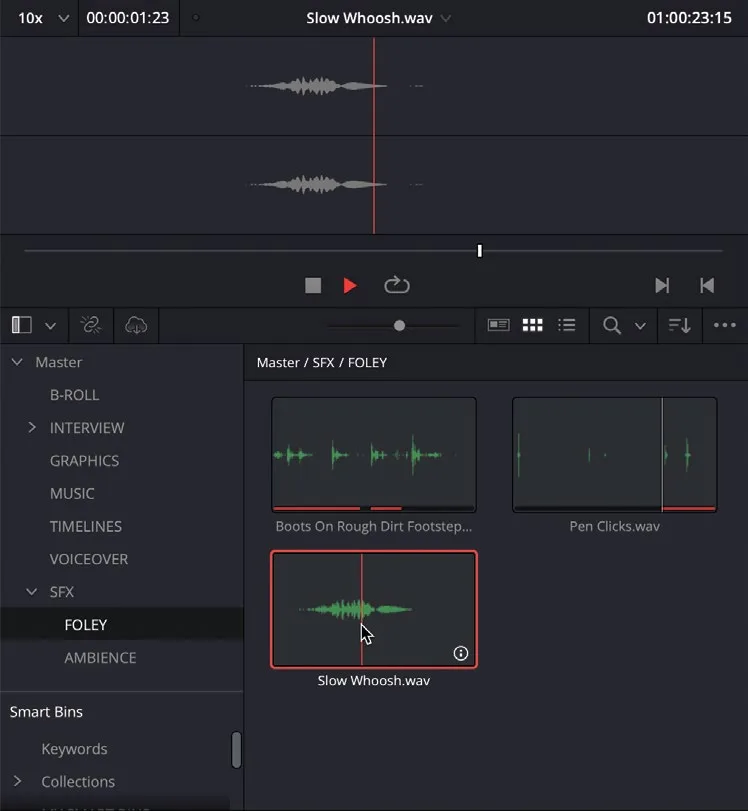
- 在 Media Pool 中选中 Slow Whoosh.wav 素材,用预览播放器试听。In the media pool, select the Slow Whoosh.wav clip and listen to it using the preview player.
这类音效通常不是现场录制,而是用合成方式制作的,常出现在音效库里,很适合替代火把燃烧的声音。可以从这个素材的波形看到它有两条音轨——说明它是立体声(stereo)素材。This is the sort of sound effect that’s been created rather than recorded, often as part of a sound effect library, and is a good substitute for the sound of flaming torches. You can see that this clip has two audio channels—a good indication that it’s a stereo clip.
NOTE · 注意
波形显示两条通道并不一定能反映它实际的声道路由配置,务必像上一节课那样,到 Inspector 的 Audio Configuration面板或 Clip Attributes窗口中再确认一次。Just because the waveform shows two channels doesn’t necessarily tell you how they are configured. Always double-check using the Audio Configuration panel in the Inspector or the Clip Attributes window as you did in the previous lesson.
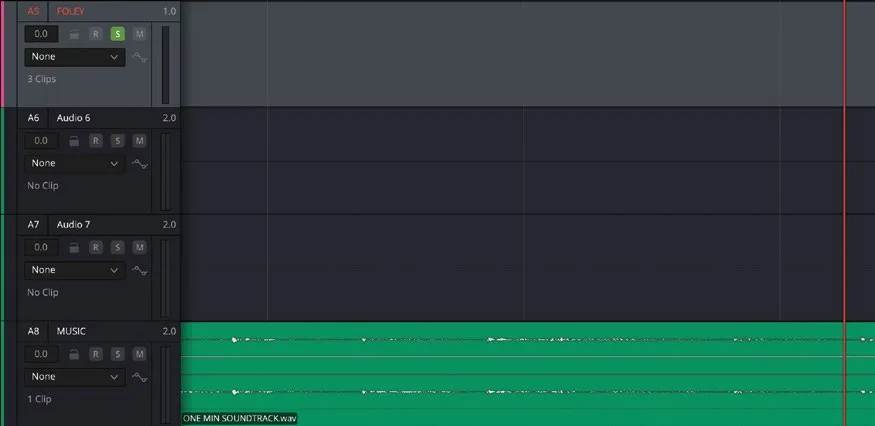
- 在时间线中右键点击 FOLEY 轨道的轨道控制区,选择 Add Tracks。In the timeline, right-click the track controls for the FOLEY track and choose Add Tracks.
- 在 Add Tracks 对话框中,把轨道数量改为 2,确认 Insert Position 设为 Below FOLEY,并把 Audio Track Type 改为 Stereo。In the Add Tracks dialog, change the number of tracks to 2, ensure that the Insert Position is set to Below FOLEY, and change the Audio Track Type to Stereo.
- 点击 Add Tracks。Click Add Tracks.
FOLEY 轨道下方会新增两条立体声轨道 Audio 5 和 Audio 6。Two new stereo tracks (Audio 5 and Audio 6) are added to the timeline below the FOLEY track.
- 把 Audio 5 和 Audio 6 分别重命名为 SFX1 和 SFX2。Change the names of Audio 5 and Audio 6 to SFX1 and SFX2, respectively.
- 选中 SFX1 的轨道头,然后按住 Command(macOS)或 Ctrl(Windows)点击 SFX2 的轨道头。Select the track header for SFX1 and Command-click (macOS) or Ctrl-Click (Windows) the track header for SFX2.
- 右键单击选中的轨道,选择
Change Track Color > Tan,为这两条轨道都设置颜色。Right-click the selected tracks and choose Change Track Color > Tan for both of these tracks.
- 点击这两条轨道的
Solo按钮。Click the Solo control for both of these tracks.
使用 video scroller 定位到片段中火焰火炬离镜头最近的第一处位置。Now use the video scrollers to locate the first time in the clip where the flaming torches are closest to the camera.
从预览播放器拖动 Slow Whoosh.wav 片段,使 playhead 对齐波形中心。Drag the Slow Whoosh.wav clip from the preview player so the playhead intersects the center of the waveform.
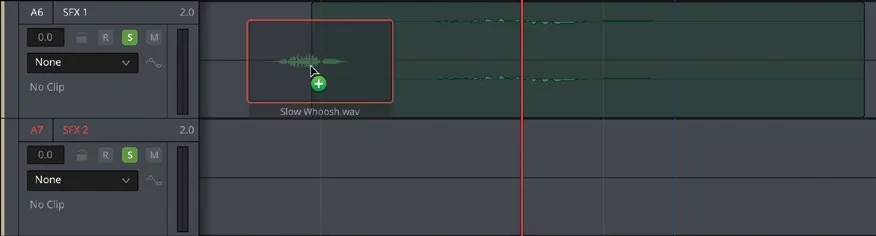
点击 SFX1 轨道的轨道控制。Click the track controls for the SFX1 track.
在 Fairlight 中,只要轨道处于这种选中状态,与 playhead 相交的所有 clip 都会自动被选中。Whenever a track is selected like this in Fairlight, any clips intersecting the playhead are automatically selected.
clip 自动选中后,选择 Edit > Copy或按 Command-C(macOS)/ Ctrl-C(Windows)复制该 clip。With the clip automatically selected, choose Edit > Copy or press Command-C (macOS) or Ctrl-C (Windows) to copy the clip.
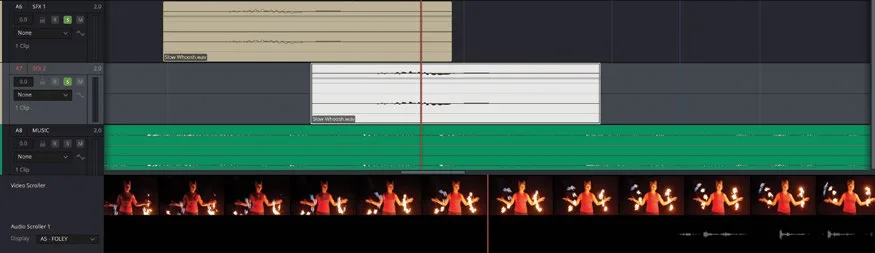
点击 SFX2 的轨道控制。Click the track control for SFX2.
SFX2 轨道上出现一个 Slow Whoosh.wav clip 的半透明副本。A transparent copy of the Slow Whoosh.wav clip appears in the SFX2 track.
使用 video scroller 定位到火焰火炬再次环绕到离镜头最近的位置。Using the video scroller, locate the next time the flaming torches circle around closest to the camera.
playhead 跟随 video scroller 移动到新位置,而 Slow Whoosh.wav clip 的半透明副本也一起移动,仿佛粘在 playhead 上一样!The playhead follows the video scroller to the new position, and the transparent copy of the Slow Whoosh.wav clip moves along with it as though it’s attached to the playhead!
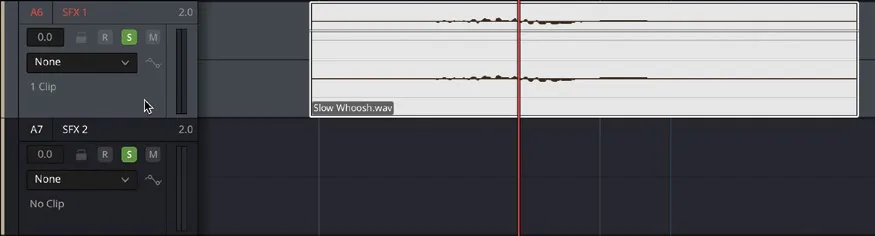
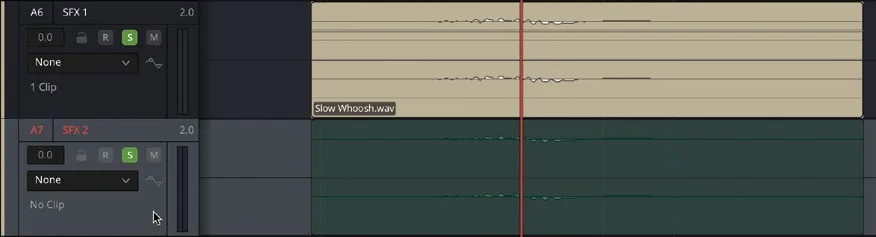
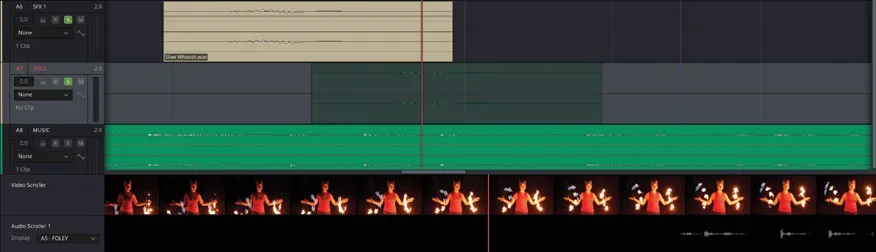
选择 Edit > Paste或按 Command-V(macOS)/ Ctrl-V(Windows),将复制的 clip 粘贴到 SFX2 轨道的这个位置。Choose Edit > Paste or press Command-V (macOS) or Ctrl-V (Windows) to paste the copy of the clip into the SFX2 track at this position.
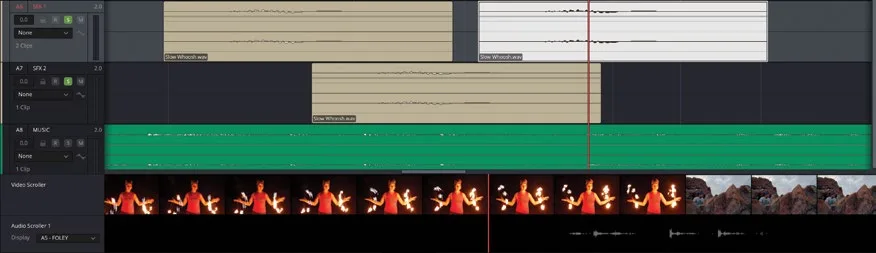
- 选中 SFX1 轨道,使用视频滚动条找到第三次火焰火把离镜头最近的时刻,按 Command-V(macOS)或 Ctrl-V(Windows)粘贴另一份该片段的副本。Select the SFX1 track and use the video scroller to locate the third time the flaming torches are closest to the camera and press Command-V (macOS) or Ctrl-V (Windows) to paste another copy of the clip.
- 回放这段火焰火把的画面,连同新增强的音频一起试听。Play back the shot of the flaming torches, along with its newly enhanced audio.
可以看到,Fairlight页面在添加并同步音频片段与画面动作方面提供了多项增强功能。As you can see, the Fairlight page offers several enhancements when it comes to adding and syncing audio clips to onscreen action.
NOTE · 注意
注意:如果需要赶进度再继续下一步操作,可在 Media Pool 中打开 TIMELINES smart bin,选择 File > Import > Timeline,导航到 R20 Beginners Guide / Lesson 08 / Timelines / OMO PROMO MIX CATCHUP 04.drt 并点击 Open。If you need to catch up before moving to the next step, open the media pool, select the TIMELINES bin, and choose File > Import > Timeline, navigate to R20 Beginners Guide / Lesson 08 / Timelines / OMO PROMO MIX CATCHUP 04.drt and click Open.
本卡术语Terms in this card
媒体夹Bin 媒体池Media Pool 时间线Timeline 检查器Inspector 标记Marker 播放头Playhead 窗口Power Window 声音设计Sound Design Fairlight 音频Fairlight 音效Sound Effects 合成Compositing
相关知识卡Related Cards
媒体池Media Pool 时间线Timeline 标记Markers Fairlight 页面Fairlight Page