混音Mixing the Soundtrack
13 steps
简介Overview
声音设计元素添加完毕后,就要把所有素材整合到最终混音中。混音的本质是平衡每条轨道上片段的电平,让整条音轨听起来协调统一。Now that you’ve successfully added the sound design elements to the OMO Promo, it’s time to bring all the elements together into the final mix. This is where you bring all the separate audio elements together by balancing the levels of the clips on each track so the soundtrack sounds good as a whole.
虽然可以在单个片段上逐个调整,但最高效的方式是使用 mixer(混音器)。While you could make these adjustments at an individual clip level, the easiest way to balance the mix is to use the mixer.
- 在 Timeline View Options 菜单中,取消勾选 Display Video Scroller 和 Display Audio Scroller 1,把滚动条关掉。In the Timeline View Options menu, click the Display Video Scroller and Display Audio Scroller 1 options to turn off the scrollers.
- 选择
Workspace > Reset UI Layout,把Fairlight页面恢复到默认布局;然后拖动混音器左边缘,让所有 channel strip 完整可见。Choose Workspace > Reset UI Layout to reset the Fairlight page back to the default layout. Drag the left edge of the mixer so you can see all the channel strips. - 取消所有轨道的 solo,只保留 DIALOGUE 和 VO 两条轨道处于 solo 状态。Un-solo all the tracks except the DIALOGUE and VO tracks.
- 按 Shift-Z 缩放时间线,并调整轨道高度,让整条时间线一览无余。Press Shift-Z and adjust the track heights so you can see the whole timeline.
现在要逐个聆听各元素并设置轨道电平,让它们融为一体。对白电平已通过 Dialogue Leveler 调好,就以它为起点。It’s time to start listening to the individual elements and setting the track levels so they all sound good together. Since you’ve already set the dialogue levels using the Dialogue Leveler, that will be your starting point.
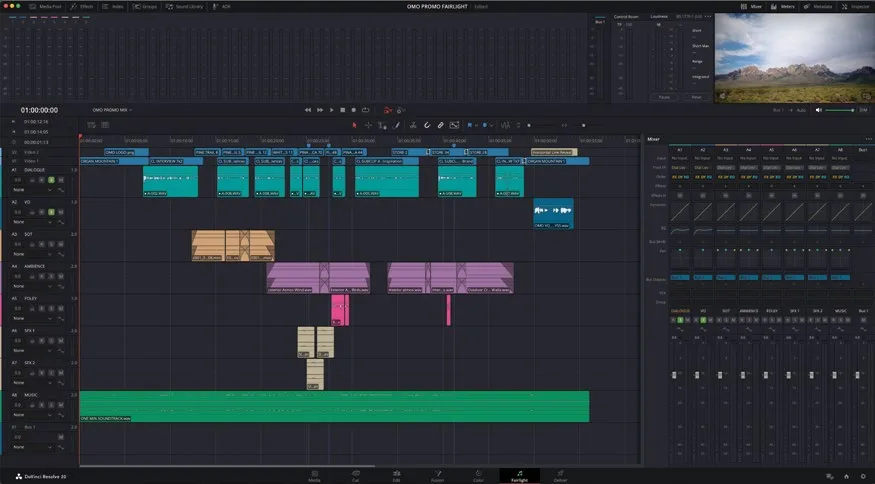
- 播放时间线,整体听一遍对白轨道的电平。Play the timeline, listening to the overall levels of the dialogue track.
- 点击 SOT 轨道的
Solo按钮,把它加入整体混音。Click the Solo button for the SOT track to add this track to the overall mix.
这条轨道和 Chris 的访谈配合起来电平已经合适,后续如有需要可以再微调,现在继续加入下一个元素。The levels of these clips sound fine next to Chris’s interview, although you can always change them later if necessary, so you will add the next element into the mix.
- 点击 AMBIENCE 轨道的
Solo按钮。Click the Solo button for the AMBIENCE track.
这条轨道主要是室内和室外的通用环境声,用来为每个镜头建立空间感。This track contains general, nonspecific environment sounds, mainly interior and exterior sounds, to help establish a location for each of the shots.
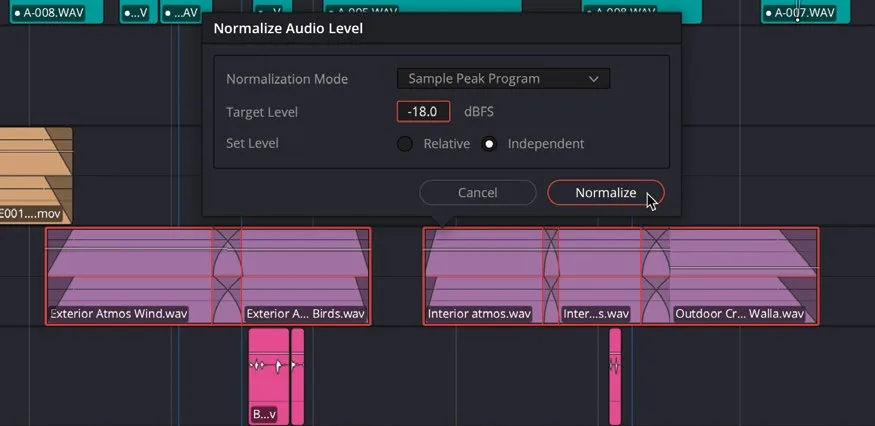
- 选中 AMBIENCE 轨道上的所有片段,右键点击,选择 Clip Operations > Normalize Audio Levels,独立地将它们标准化到 -18 dBFS。Select all the clips on the AMIBIENCE track, right-click them, and choose Clip Operations > Normalize Audio Levels, and normalize them independently to -18 dBFS.
如果听起来有点太吵,你的直觉是对的。If that sounds like it may be a bit too loud, you’re right.
- 播放时间线上 AMBIENCE 轨道片段淡入的部分。Play the part of the timeline where the clips on the AMBIENCE track fade in.
这条轨道上的片段因为在混音中过于突出,干扰了 Chris 的对白。标准化让片段音量保持一致(大约 -20 dBFS,峰值 -18 dBFS),但对本段混音来说太响了。The clips on this track distract from Chris’s spoken words because they’re too dominant in the mix. Normalization means that the clips have a consistent level (around -20 dBFS, peaking at -18 dBFS, of course), but that’s too loud for this mix.
你可以把片段标准化到更低的电平,或逐个调低音量,但还有更高效的环境音调整方式。You could simply normalize the clips to a lower level or adjust each clip’s audio level to be lower, but there’s a more efficient way of adjusting the ambience level.
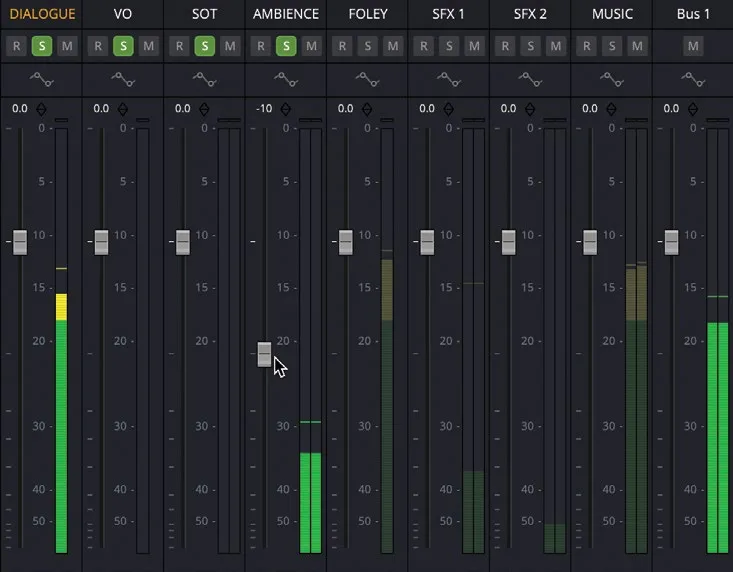
再次播放时间线,当环境音片段开始播放时,用混音器中的 control strip 降低整条轨道的电平。Play the timeline again and, when the ambience clips start to play, use the control strip in the mixer to lower the level of the whole track.
调整轨道电平时,尽量用耳朵判断合适的音量。如果拿不准,大致下调 -10 dB 通常比较合适(数值显示在推子上方的白色相对调整值处)。暂时不确定是否准确也没关系,后面还有大量机会继续微调。As you are adjusting the track level in the mixer, try to use your ears to discern where the level should be. If you’re unsure, an adjustment of around -10 dB is probably about right (as indicated by the white relative adjustment value at the top of the fader). Don’t worry if you’re not sure whether it’s the right level just yet, there will be plenty of opportunity to refine it.
接下来,添加第一条音效设计(sound design)轨道。Next, it’s time to add the first track of your sound design elements.
点击 FOLEY 轨道的 Solo按钮,把它加入混音。Click the Solo button for the FOLEY track to add this to the mix.
同样,这条轨道上每个片段的电平都偏高。Again, the level of each of the clips on this track is too high.
把这轨道上的片段标准化到 -9 dB,然后在混音器中把轨道电平降低约 -12 dB。Normalize the level of the clips on this track to -9 dB. Then, bring the track’s level down in the mixer by around -12 dB.
点击 SFX1 和 SFX2 轨道的 Solo按钮。Click the Solo button for the SFX1 and SFX2 tracks.
这两条轨道上放的是相同素材的副本,因此归一化音量没有意义——反正会被等量处理。不过正因为它们分属两条轨道,我们可以通过编组来同时调整两条轨道。Because these two tracks contain copies of the same clips, there’s no benefit to normalizing their levels since they’ll all be normalized by the same amount anyway. However, because the clips are across two tracks, you can make the same change to both tracks by grouping them together.
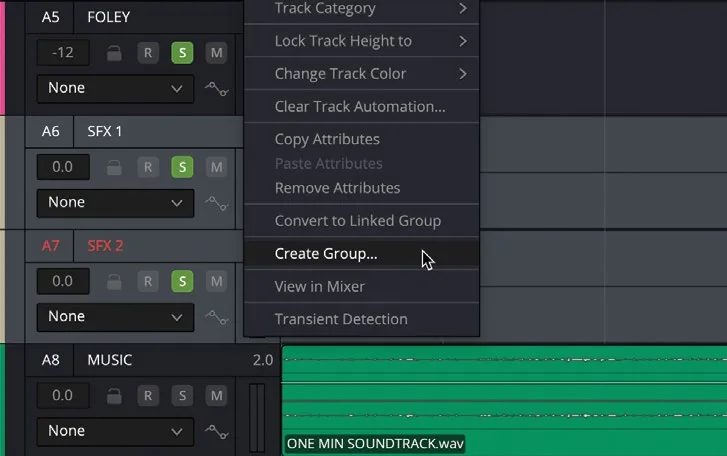
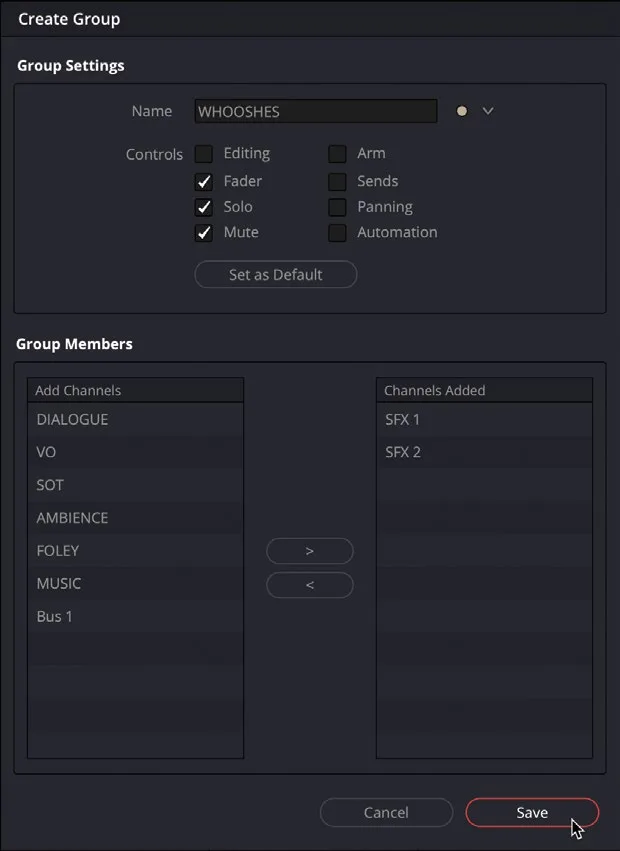
- 在轨道控制头部上按住 Command 键(macOS)或 Ctrl 键(Windows)逐个点选两条轨道,然后右键轨道控制区域,选择 Create Group(创建编组)。Select both tracks by Command-clicking (macOS) or Ctrl-clicking (Windows) the track control headers, and then right-click the track controls and choose Create Group.
- 在
Create Group窗口中,把编组名改为 WHOOSHES,并勾选 Fader、Solo 和 Mute 选项。In the Create Group window, change the name of the group to WHOOSHES and check the options for Fader, Solo, and Mute.
勾选这些控制项后,组内任意一条轨道的对应操作都会同时作用于其他轨道。Choosing these controls means that adjusting one of these controls for one track will adjust the others in the group at the same time.
- 点击 Save 保存。Click Save.
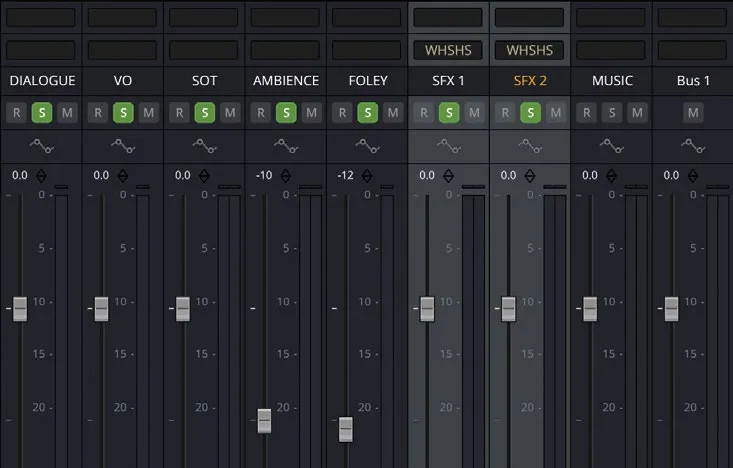
回到 Mixer(混音器)可以看到这两条轨道已经被加入新编组。此后对 Fader、Solo 或 Mute 的任何操作都会同步影响两条轨道。In the mixer, you will see that these tracks have been added to the new group. Now, any change to the faders, solo, or mute controls will affect both tracks simultaneously.
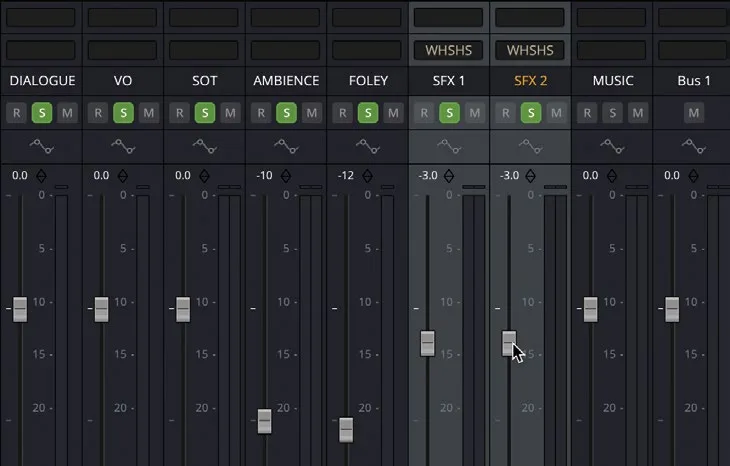
- 把 SFX1 或 SFX2 任意一条的音量下调约 -3 dB,组内的另一条轨道会跟着联动。Lower the level for either SFX1 or SFX2 by about -3 dB. The other track in the Group will follow suit.
NOTE · 注意
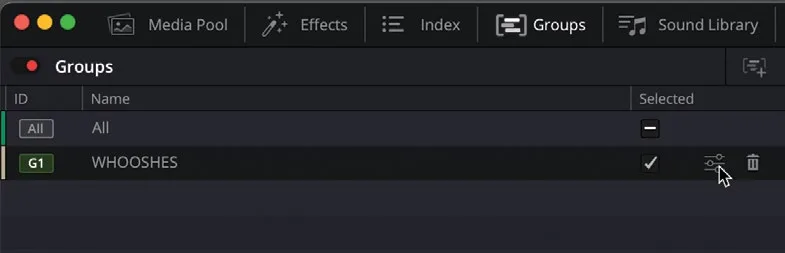
提示:你可以在 Groups面板中管理编组。如需修改编组,点击该编组对应的 Settings按钮,即可在 Modify Group窗口中进行调整。You can manage the group in the Groups panel. To make changes to a group, click the Settings button for the group to open it in the Modify Group window.
删除编组后,此前在编组状态下所做的所有调整仍会保留在各条轨道上。If you delete a group, all the adjustments you’ve made will be retained on the tracks.
本卡术语Terms in this card
时间线Timeline 淡入淡出Fade 调音台Mixer 标准化音量Normalize 窗口Power Window 声音设计Sound Design Fairlight 音频Fairlight 音效Sound Effects