变速处理Speed Change
5 steps
简介Overview
改变片段速度:另一种常见技巧是通过放慢镜头来强化片段的动作感。调整片段播放速度有多种方法,最简单的一种是使用 Inspector 中的 Speed Change 控件。Changing Clip Speed Another common technique is often employed to enhance the action of a clip by slowing down a shot. While there are several ways you can adjust the speed at which a clip plays in the timeline, one of the easiest is by using the Speed Change controls in the Inspector.
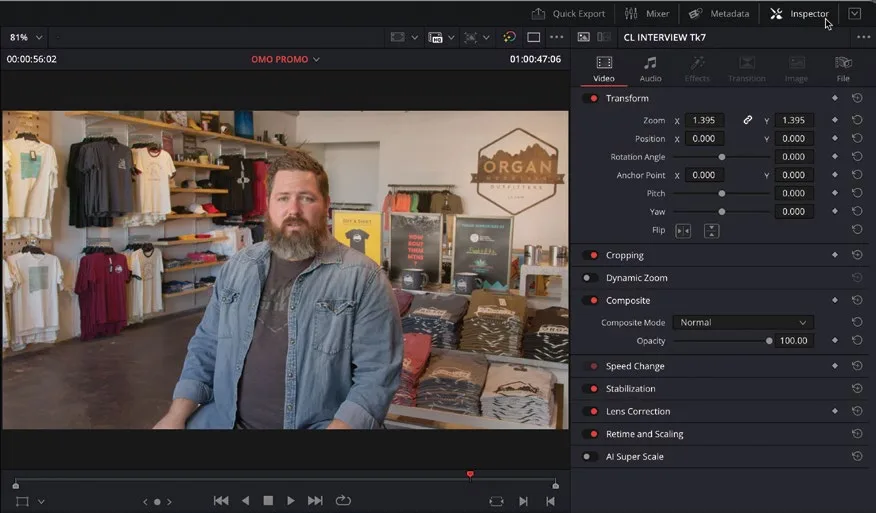
- 要打开 Inspector,点击界面右上角的
Inspector按钮。To open the Inspector, click theInspectorbutton at the top right of the interface.
Inspector 会在时间线 viewer 右侧打开。你可以用 Inspector 调整时间线中的片段,包括画面在屏幕上的大小、位置和旋转,分别对应 Zoom、Position、Rotation 控件,使用方式与前面用屏幕上控件调整采访镜头大小类似。The Inspector opens to the right of the timeline viewer. You can use the Inspector to make changes to a clip in the timeline, including its size, position, and rotation on the screen using the Zoom, Position, and Rotation controls, respectively, similar to using the onscreen controls you used in the previous steps to resize the interview shot.
你可以向下滚动查看 Inspector 下方更多的控件。也可以点击界面右上角的 Expand按钮,将 Inspector 纵向展开,占满 Resolve 界面的整个高度。You can scroll down to view the controls lower down in the Inspector. Alternatively, you can “expand” the Inspector vertically, so it occupies the full height of the Resolve interface, by clicking the Expand button at the top right of the interface.
NOTE · 注意
如果你使用笔记本或分辨率低于 1920 × 1080 的屏幕,Resolve 可能会自动切换到单 viewer 模式。在这种模式下,之前一直在用的 source viewer 似乎消失了!你依然可以像之前一样在 Media Pool 中双击片段将其打开到 source viewer,只是现在 source viewer 和时间线 viewer 共用界面中的同一块区域。这是一种节省空间的处理方式,避免界面各部分过小而无法使用。If you’re working on a laptop or screen using a resolution lower than 1920 x 1080, you will probably find that Resolve automatically switches to single-viewer mode. In this mode, it appears as though the source viewer you have been using has vanished! You can still open a clip in the source viewer by double-clicking it in the media pool as before; it’s just that the source viewer and timeline viewers will now occupy the same space in the interface. This is a space-saving method employed to prevent the various parts of the interface from becoming too small and unusable.
要修改时间线上的片段,需要在 Inspector 中显示其控制参数。两种方法:一是单击时间线中的片段选中它,同时将播放头移到该片段上,这样在时间线 Viewer 中能实时看到调整效果;二是不选中任何片段,直接将播放头放在片段上,系统会自动显示播放头位置最上层视频轨上对应片段的控制参数。To make a change to a clip in the timeline, you need to display its controls in the Inspector. You can do this in a couple of ways. First, you can single-click a clip in the timeline to select it. If you are selecting a clip in this manner, then you are also best off moving the timeline playhead over the clip you want to adjust. This way, you will see the changes you’re making reflected in the timeline viewer. Alternatively, you can simply place the timeline playhead over a clip. Using this latter method will automatically display the controls for the uppermost timeline clip in the timeline at the location of the timeline playhead.
- 将时间线播放头移到 PINA BLANCA 70 这条片段上。Place the timeline playhead over the clip PINA BLANCA 70.
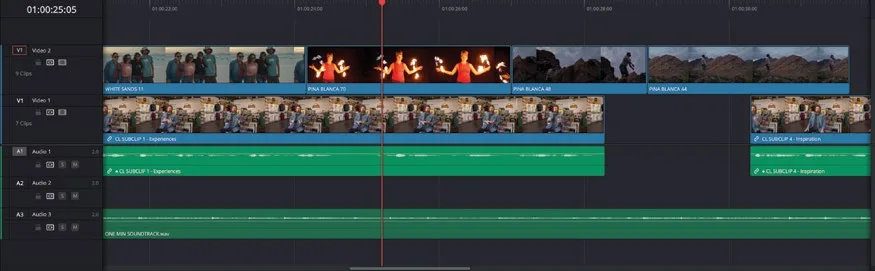
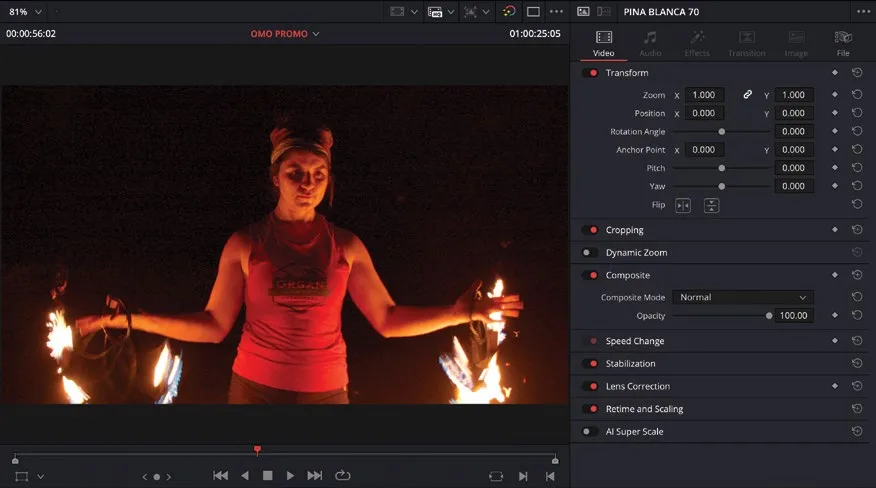
由于 PINA BLANCA 70 位于最上层视频轨,Inspector 会自动显示它的控制参数。可通过 Inspector 顶部显示的片段名称确认是否为正确片段。The Inspector automatically displays the controls for this clip since it’s on the uppermost video track. You can confirm whether this is the correct clip by verifying the name displayed at the top of the Inspector.
NOTE · 注意
如果 Inspector 显示的是别的片段名称,请确认时间线中没有已选中的片段——已选中的片段会覆盖自动选择机制。If you see another clip’s name in the Inspector, ensure that you don’t have any clips selected in the timeline. Selected clips will override the automatic selection method.
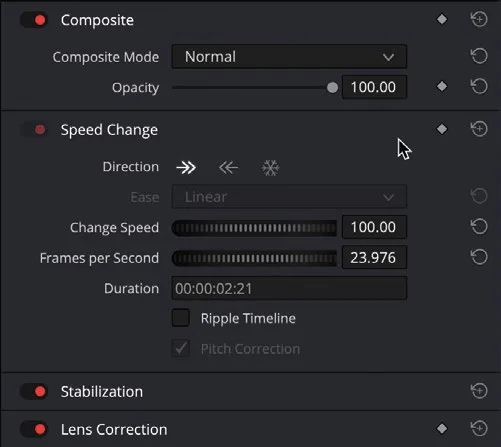
- 在 Inspector 中找到 Speed Change(变速)控制区。In the Inspector, locate the Speed Change controls.
为节省空间,Speed Change 当前处于折叠状态。Currently, the specific Speed Change controls are collapsed to save space in the Inspector.
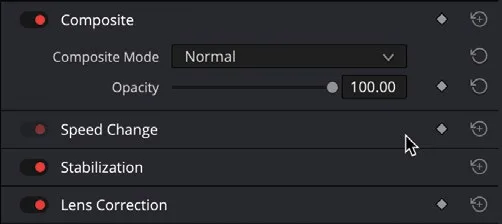
- 点击 Speed Change 区域将其展开。Click the Speed Change section to reveal the controls.
展开后可以看到多项 Speed Change 选项。The Speed Change controls show several options.
- 确认 Direction 箭头朝右(即片段为正向播放),然后将 Change Speed 百分比旋钮向左拖动到 40.00,把片段速度降为原始速度的 40%。Ensure that the Direction arrow is facing to the right, so the clip is playing forward, and drag the Change Speed percent wheel value to the left to 40.00 to reduce the clip’s speed to 40% of its original.
TIP · 提示
若要更快捷精确,可直接在 Change Speed 百分比输入框中键入 40 并按 Enter(Return)。For quicker and more precise adjustments, you can type 40 into the Change Speed percent field and press Enter (Return).
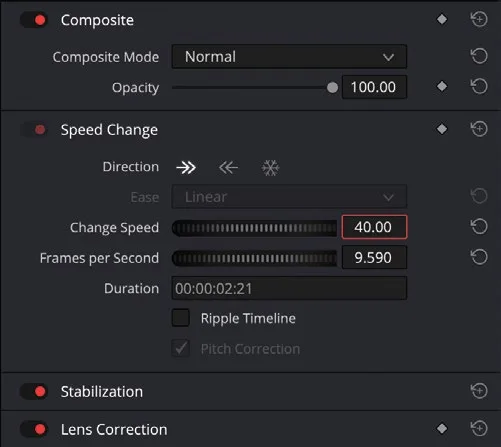
片段现在以原始速度的 40% 回放,时间线中该片段上会出现一个图标,标示已应用变速。The clip now plays back at 40% of its original speed, and an icon on the clip in the timeline indicates that a speed change has been made.
用同样的控制区也可以加速片段:只要将 Change Speed 百分比提高到 100% 以上即可。You can use the same controls to increase the speed of a clip from its original speed by increasing the Change Speed percent value to above 100%.
本卡术语Terms in this card
媒体池Media Pool 源检视器Source Viewer 时间线Timeline 分辨率Resolution 检查器Inspector 覆盖Overwrite 播放头Playhead 变速Speed 静帧Still