稳定画面Stabilize Clip
4 steps
简介Overview
稳定画面接下来用 Inspector 里的控件来稳定一段手持晃动比较明显、影响观感的片段。Stabilizing Shots Next, you will use the controls in the Inspector to stabilize a clip that has some excessive and distracting camera movement.
- 在时间线上播放第二段素材——站在岩石上眺望群山的人物镜头,PINA BLANCA 44。In the timeline, play the second clip of the guy standing on the rock looking out over the mountains, PINA BLANCA 44.
手持拍摄的画面抖动明显,削弱了这个本该很出彩的镜头。The shake from the handheld camera is quite noticeable and detracts from an otherwise fantastic shot.
- 把时间线播放头停在该片段上,然后在 Inspector 中展开 Stabilization 控件。In the timeline, place the timeline playhead over the clip and, in the Inspector, click to expand the Stabilization controls.
- 点击
Stabilize按钮。Click the Stabilize button.

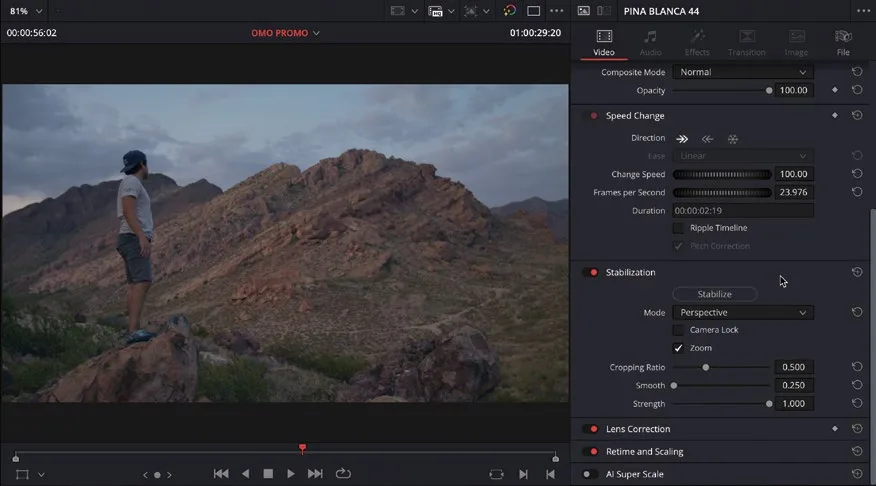
DaVinci Resolve 会分析片段并尝试稳定画面。分析完成后,播放镜头查看效果。Resolve analyzes the clip and attempts to stabilize the shot. Once the analysis has completed, play the shot to review the changes.
画面抖动有所缓解,但相机移动并未完全平滑。The shot seems to be a little less shaky, but it doesn’t completely smooth the camera movement.
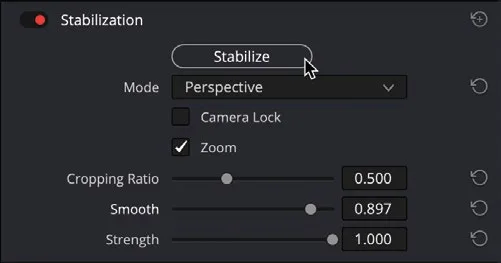
- 把 Smooth 参数调到约 0.900,再次点击
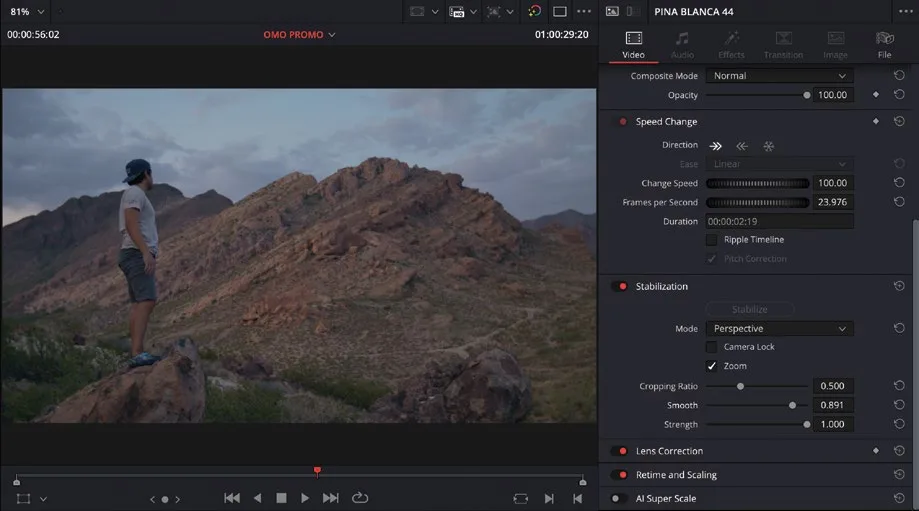
Stabilize按钮应用更改。Increase the Smooth control to about 0.900 and click theStabilizebutton again to apply the changes.
提高 Smooth 值后,相机抖动进一步减弱,镜头质量明显改善。The increased smoothing value helps to reduce the camera shake even further, resulting in a much-improved shot.
NOTE · 注意
注:这些控件与调色页面 Tracker面板里的稳定功能(简化版)一致。在剪辑页面应用的稳定效果会同步到调色页面,方便后续进一步精修。These are the same (albeit simplified) stabilization controls you can find in the color page’s Tracker pallet. The resulting stabilization applied in the edit page will be mirrored in the color page, allowing you to make further refinements if necessary.
本卡术语Terms in this card
时间线Timeline 编辑页Edit page 检查器Inspector 播放头Playhead 稳定画面Stabilize 调色页Color page 跟踪器Tracker 调色Grade