滑动扩展间隙Slide to Extend Gap
9 steps
简介Overview
Ripple 修剪(波纹修剪)Ripple Trimming
Trim Edit 模式下另一个强大功能是可以对剪辑点做 ripple edit(波纹编辑)。Ripple 在调整镜头节奏时非常方便:和 Selection 模式不同,改动不局限于当前选中的片段,时长变化会沿时间线向后(或向前)波纹传播,影响后续所有片段。Another powerful function of the timeline’s Trim Edit mode is the ability to ripple edit points. Rippling edits is very useful when you want to refine the timing or pacing of shots because, unlike with Selection mode, the changes you make aren’t confined to the clip(s) you have selected. Instead, the change in duration ripples through the rest of the timeline.
在当前时间线中,可以用一个 ripple edit 来微调各段采访之间的间隔节奏。In the current timeline, you can use a ripple edit to adjust the pacing of the gaps between the interview clips.
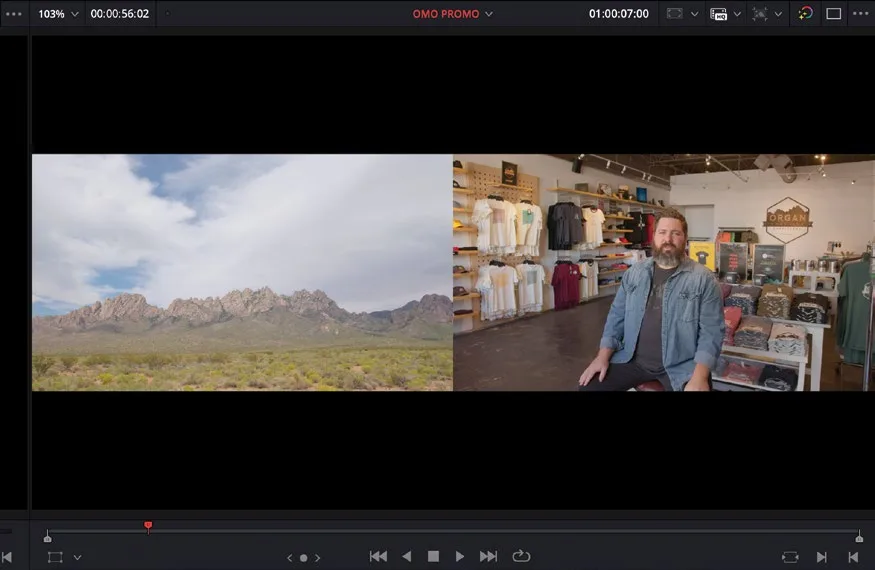
- 点击
Full Extent Zoom按钮,查看整条时间线。Click the Full Extent Zoom button to view the entire timeline. - 点击
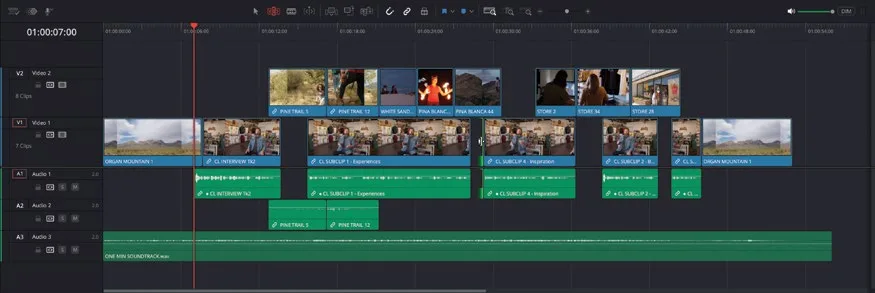
Linked Selection按钮,或按快捷键 Shift-Command-L(macOS)/ Shift-Ctrl-L(Windows),重新启用 Linked Selection。Click the Linked Selection button or press Shift-Command-L (macOS) or Shift-Ctrl-L (Windows) to re-enable Linked Selection. - 保持 Trim Edit 模式选中,点击第二个空隙的出点剪辑(紧挨着第三段采访 CL SUBCLIP 4 – Inspiration 之前)。With Trim Edit mode still selected, click on the outgoing edit of the second gap, just before the third interview clip, CL SUBCLIP 4 – Inspiration.
虽然这个时间线位置实际上没有片段,但空隙的“出点”部分已被选中。Even though there isn’t actually a clip at this point in the timeline, the “outgoing” part of the gap is selected.
NOTE · 注意
提示:在笔记本上,你可能需要放大到这个剪辑点附近,才能更有效地选中它。On a laptop, you might need to zoom in closer to this edit to select it effectively.
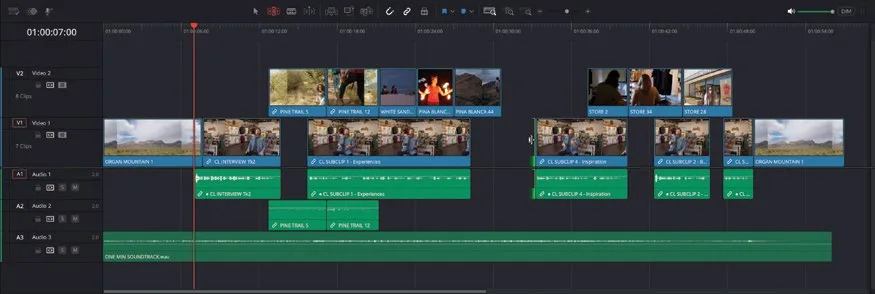
- 操作步骤:把选中的剪辑点向右拖动,开始拉长空隙。Drag the selected edit point to the right to begin lengthening the gap.
你会发现,所选剪辑点之后的所有片段都跟着一起调整,这就是 ripple edit(涟漪编辑)的威力。As you do this, you’ll notice that all the other clips starting after the selected edit are also being adjusted based on the change you’re making. This is the power of ripple edits.
但 PINA BLANCA 44(位于第二段和第三段受访者片段之间)不参与这次调整,因为它的起点在所选剪辑点之前,位置保持不变,最终你会切回到 Chris 采访的不同位置!However, the clip covering the gap between the second and third interview clips, PINA BLANCA 44, isn’t included in this change because it starts before the selected edit. As a result, that clip’s position remains unchanged, so you will end up cutting back to Chris’s interview at a different place!
虽然简单滚动调整岩石上那位男士切镜素材的结尾就能解决,但有时同时修剪多个剪辑点会更方便。While it should be no problem to simply roll the end of the cutaway of the guy on the rock, sometimes it’s easier to trim multiple edit points together.
- 操作步骤:松开鼠标,选择
Edit > Undo,或按 Command-Z(macOS)/ Ctrl-Z(Windows)撤销你对这个剪辑点所做的修改。Release the mouse button and choose Edit > Undo or press Command-Z (macOS) or Ctrl-Z (Windows) to undo any changes that you might have made to this edit.
TIP · 提示
提示:选择 Edit > History > Open History Window可以查看完整的撤销与重做步骤列表。You can view a complete list of the steps you can undo and redo by choosing Edit > History > Open History Window.
- 操作步骤:在空隙结尾仍处于选中状态时,按住 Command(macOS)或 Ctrl(Windows)并点击 VIDEO 2 上 PINA BLANCA 44 的结尾。With the end of the gap still selected, Command-click (macOS) or Ctrl-click (Windows) the end of PINA BLANCA 44 on VIDEO 2.
同时选中这两个剪辑点后,你就可以一起修剪了。By selecting both of these edit points, you can now trim them together.
- 操作步骤:把 Video 2 上选中的剪辑点向右拖动,给这段片段和下方选中的空隙各增加约 1 秒时长。Drag the selected edit on Video 2 to the right to add about 1 second to the duration of this clip and the selected gap below.
- 操作步骤:播放这部分时间线,回看一下修改效果。Play back this part of the timeline to review the change.
最后,通过对 Video 2 上最后一个片段的入点做 ripple(涟漪)修剪,来调整 soundbite 片段之间的最终间隙。Finally, you will adjust the final gap between the soundbite clips by rippling the start of the final clip on Video 2.
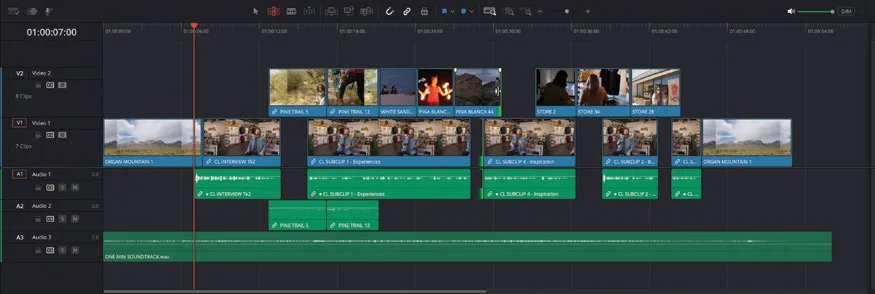
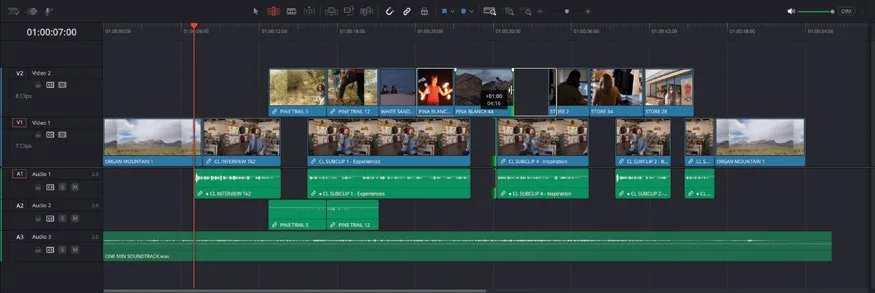
- 点击 STORE 28 的入点。Click the start of STORE 28.
将 STORE EXTERIOR SIGN 片段的入点向左 ripple 修剪 1 秒(tooltip 显示 -01:00)。Ripple the start of the STORE EXTERIOR SIGN clip backward by a second (-01:00 on the tooltip).
对 Video 2 上片段的入点做 ripple 修剪后,该点之后所有片段都会跟着 ripple 移动,效果就是 STORE EXTERIOR SIGN 片段下方的间隙时长变长了。By ripple trimming the start of the clip on Video 2, all clips that start after this point will also be rippled. This has the effect of increasing the duration of the gap below the STORE EXTERIOR SIGN clip.
本卡术语Terms in this card
切出镜头Cutaway 声音片段Soundbite 时间线Timeline 波纹Ripple 修剪Trim 静帧Still