添加转场Add Transition
15 steps
简介Overview
添加转场视频转场是一组特效,常用来让两个片段之间的切换更具视觉表现力。用得当时,是非常有力的叙事手段。Adding Transitions Video transitions are a set of effects that are often used to make the cut between two clips a little more visually interesting. They can be a powerful storytelling tool when used correctly.
- 把播放头移到 Video 1 上最后一段素材的起点,点击
Detail Zoom按钮。In the timeline, place the timeline playhead at the start of the final clip on Video 1 and click theDetail Zoombutton. - 选中最后一个采访片段 CL INTERVIEW Tk7 与 ORGAN MOUNTAIN 1 之间的剪辑点。Select the edit point between the last interview clip, CL INTERVIEW Tk7, and the ORGAN MOUNTAIN 1 clip.
如果时间线上启用了 Linked Selection,则音视频剪辑点会同时被选中(即使延时镜头没有音频)。如果只选中了视频剪辑点,请确认时间线工具栏上的 Linked Selection按钮处于激活状态。If Linked Selection is enabled for the timeline, the audio and video edit points are selected (even though the timelapse shot has no audio). If only the video edit is selected, ensure that the Linked Selection button is active in the timeline toolbar.
- 执行 Timeline > Add Video Only Transition,或按快捷键 Option-T(macOS)/ Alt-T(Windows)。Choose Timeline > Add Video Only Transition or press Option-T (macOS) or Alt-T (Windows).
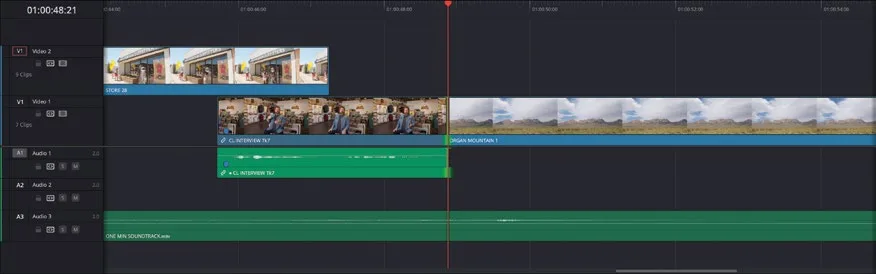
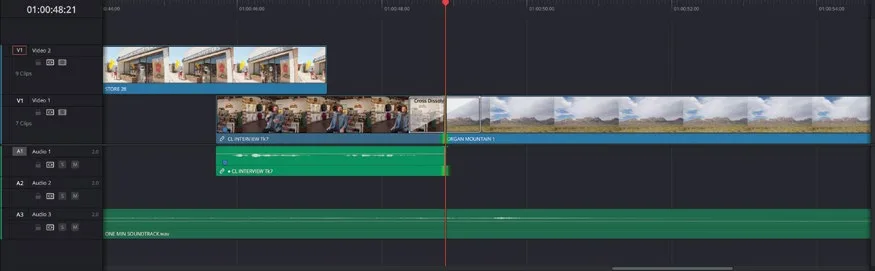
当前的 Standard Transition 会以默认时长添加到视频剪辑点上。The current Standard Transition is added to the video edit using a default duration.
- 在时间线上选中该转场。Select the transition in the timeline.
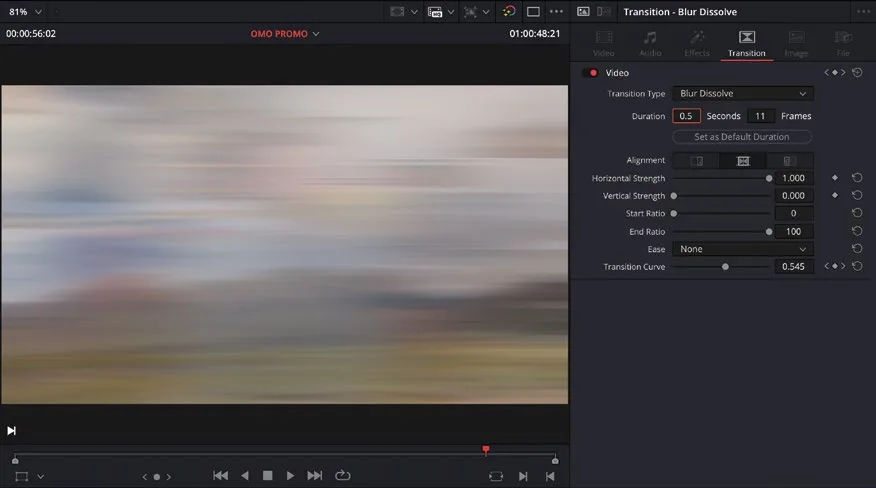
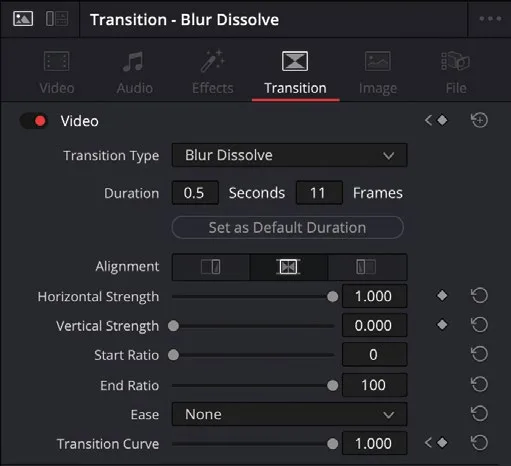
选中转场后,Inspector 中的 Transition 标签会自动激活,显示当前转场的各项控制参数。With the transition selected, the Transition tab of the Inspector automatically becomes active, with controls for the currently selected transition.
- 按 /(正斜杠)预览转场效果。Press / (forward slash) to preview the transition.
默认情况下,当前转场应为 1 秒时长的 Cross Dissolve,你可以根据需要随时调整转场参数。By default, the current transition should be a Cross Dissolve with a 1-second duration, but you can always adjust a transition to your requirements.
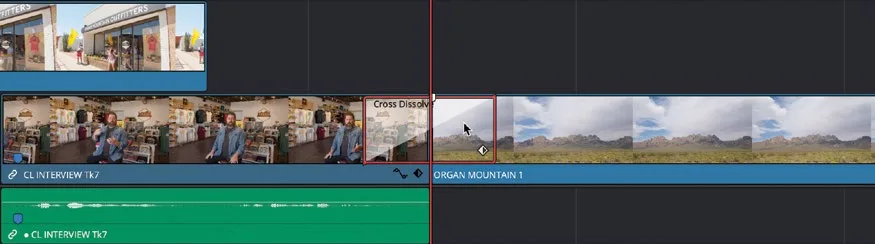
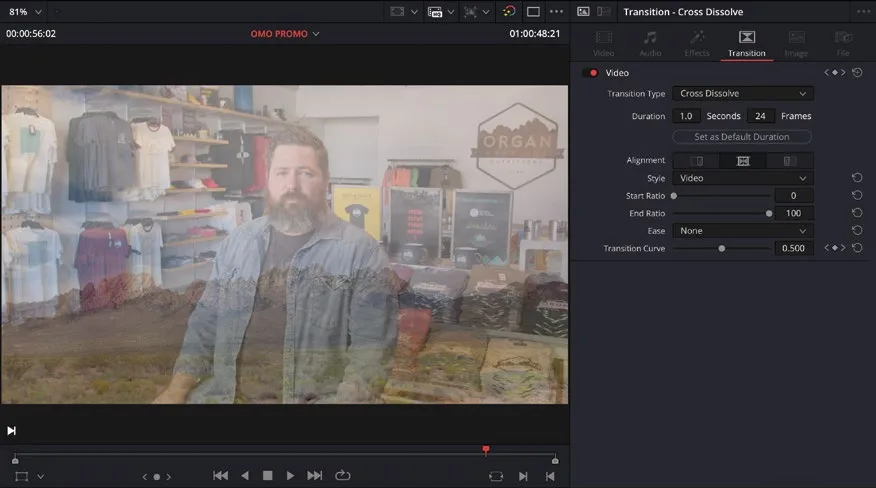
- 在 Transition Type 下拉菜单中选择 Blur Dissolve,点击 Duration Seconds 字段并输入 0.5(即半秒)。From the Transition Type dropdown menu, choose Blur Dissolve, click in the Duration Seconds field, and type 0.5 for half a second.
- 再次按 /(正斜杠)预览修改后的效果。Press / (forward slash) again to preview the changes.
你可以将转场保存为 preset,以便反复使用。You can save transitions as presets that you can use over and over again.
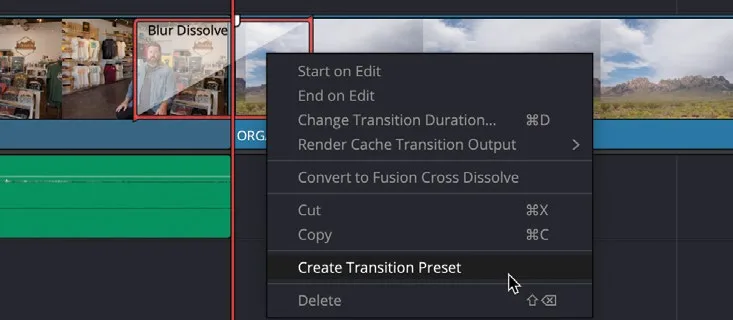
- 在时间线上右键该转场,选择 Create Transition Preset。In the timeline, right-click the transition and choose Create Transition Preset.
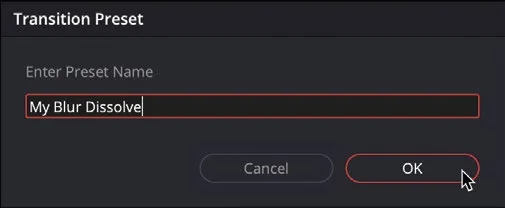
Transition Preset(转场预设)窗口已打开。The Transition Preset window opens.
- 在 Preset Name 字段中输入 My Blur Dissolve,然后点击 OK 保存该预设。In the Preset Name field, type My Blur Dissolve and click OK to save the preset.
像这样保存的预设会出现在 Effects Library(特效库)的 Video Transitions(视频转场)中。Saved presets like this are available in the Video Transitions in the Effects Library.
- 点击界面左上角的
Effects按钮,打开 Effects Library(特效库)。Click the Effects button at the top left of the interface to reveal the Effects Library. - 选择
Toolbox > Video Transitions。Select Toolbox > Video Transitions.
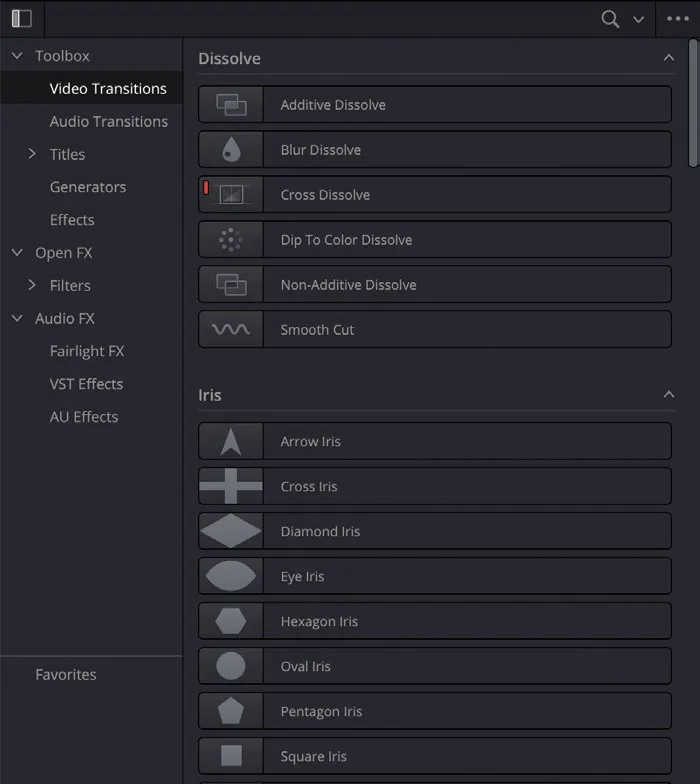
特效库的该区域列出所有可用转场,包括你可能安装的第三方转场。每个转场按类型分组(例如 Dissolve、Iris、Wipe 等)。This section of the Effects Library lists all the available transitions, including any third-party transitions you may have installed on your system. Each transition is grouped in a category (for example, Dissolve, Iris, Wipe, etc.), indicating the type of transition it is.
注意,Cross Dissolve 当前在图标左上角有一个红色标签,表示它现在是默认应用的 Standard Transition(标准转场)。Note that the Cross Dissolve currently has a red tag in the top left corner of the transition’s icon. This indicates it is currently the Standard Transition, which you applied by default.
NOTE · 注意
提示:将鼠标悬停在任意转场上并左右移动,即可预览该转场。将转场拖到时间线上的剪辑点,即可添加该转场。You can preview any of the supplied transitions by hovering your mouse pointer over a transition and moving it left and right. To add any of these transitions, just drag them to an edit point in the timeline.
- 向下滚动到 User 组的转场。Scroll down to the User group of transitions.
这里会列出你保存的所有转场预设。Here you will find all your saved transition presets.
- 右键点击 My Blur Dissolve 转场,选择 Set As Standard Transition(设为标准转场)。Right-click the My Blur Dissolve transition and choose Set As Standard Transition.
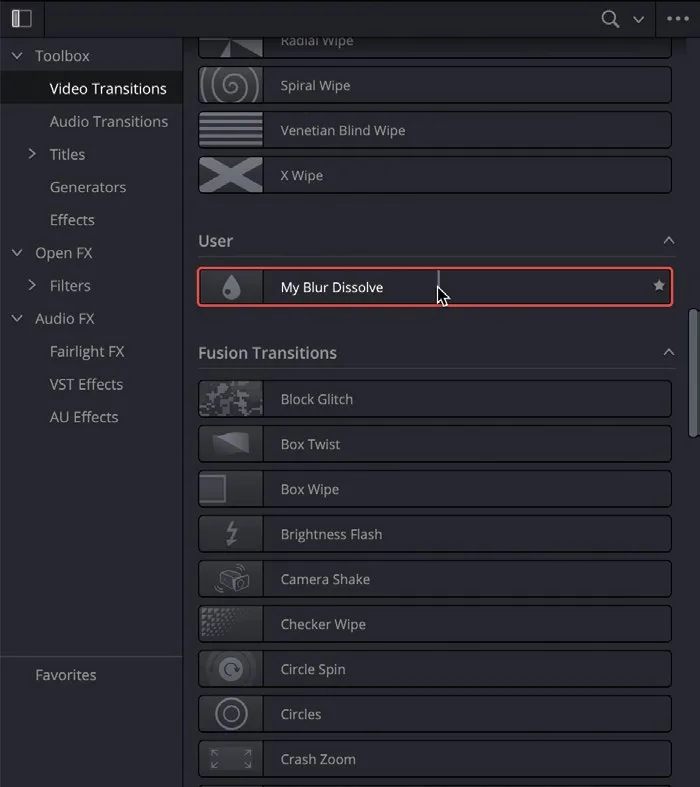
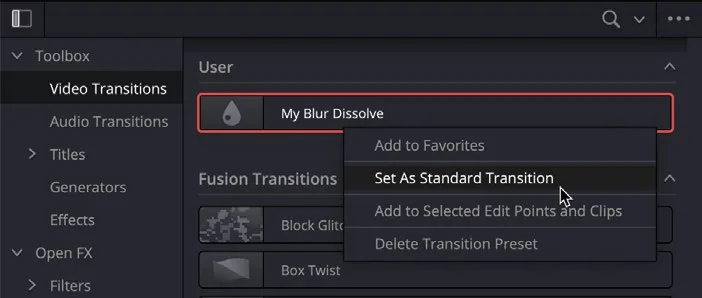
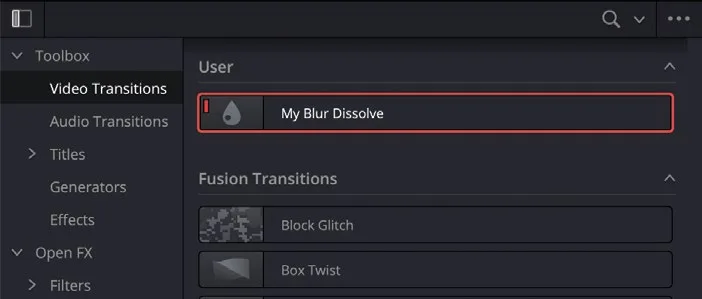
该转场图标的左上角出现红色标签,表明它现在已成为 Standard Transition(标准转场),可通过键盘快捷键快速应用。A red tag appears in the top left corner of the transition’s icon, indicating that this transition is now the Standard Transition. You can now apply this using a keyboard shortcut.
NOTE · 注意
提示:若要删除不再需要的用户转场预设,可右键点击该转场,选择 Delete Transition Preset。To remove an unwanted user transition preset, right-click the transition and choose Delete Transition Preset.
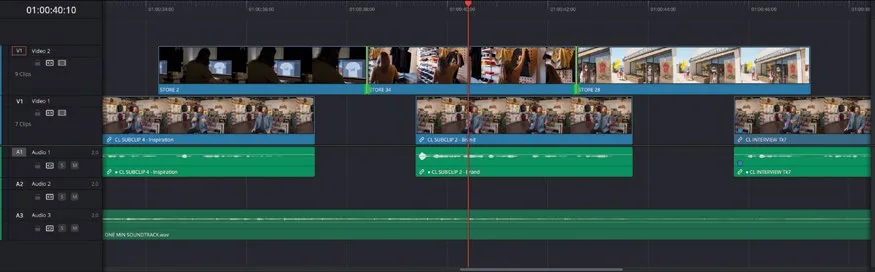
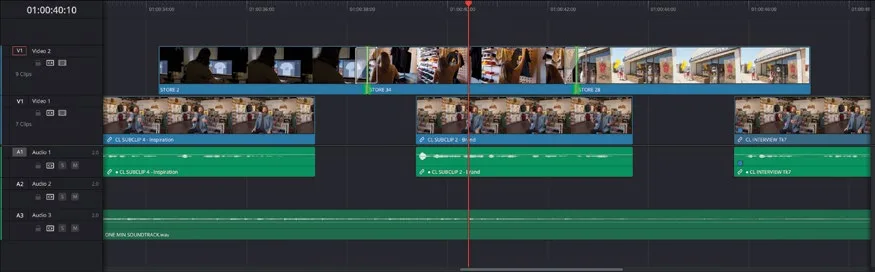
- 在时间线上,按住 Command 键(macOS)或 Ctrl 键(Windows)点击 STORE 2、STORE 34 和 STORE 28 剪辑之间的编辑点。In the timeline, Command-click (macOS) or Ctrl-click (Windows) the edit points between the STORE 2, STORE 34, and STORE 28 clips.
- 选择菜单 Timeline > Add Video Only Transition,或按 Option-T(macOS)/ Alt-T(Windows),即可将自定义转场同时添加到所选的两个编辑点上。Choose Timeline > Add Video Only Transition or press Option-T (macOS) or Alt-T (Windows) to add your customized transition to both selected edit points.
NOTE · 注意
提示:若要将 Standard Transition 恢复为默认,向上滚动到 Dissolve 转场分类,右键点击 Cross Dissolve 转场,选择 Set As Standard Transition。To return the Standard Transition back to the default, scroll back up to the Dissolve category of transitions, right-click the Cross Dissolve transition, and choose Set As Standard Transition.
关于转场对齐与剪辑手柄:每次添加转场时,都需要考虑两点——一是编辑点两侧的剪辑是否有足够的手柄来容纳该转场;二是转场在编辑点周围的对齐方式。About Transition Alignment and Clip Handles Whenever you add a transition, you should consider a couple of things—firstly, whether the clips on either side of the edit where you’re adding the transition have enough handles to allow you to add the transition and, secondly, how the transition is aligned around the edit point.
手柄是指剪辑中超出当前入点和出点范围的部分,trim 剪辑时会看到手柄以白色轮廓显示。转场必须借助手柄来产生叠化所需的画面重叠:一个 1 秒的转场会多播放前后各 0.5 秒的内容,但在时间线上剪辑长度并不会变长。Handles are parts of the clips that extend beyond the current In and Out points of the clips in the timeline. You see the handles of a clip outlined in white whenever you trim a clip. Transitions need these handles in order to create the overlap needed. A 1-second transition will play a half-second extra of both the outgoing and incoming clips, even though the clips won’t appear longer in the timeline.
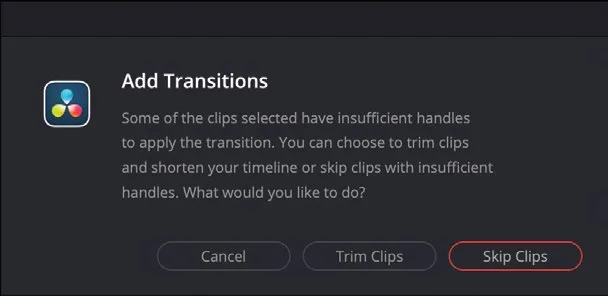
如果将转场应用到某一侧或两侧手柄不足的编辑点,会弹出警告框。If you attempt to apply a transition to an edit point that doesn’t have sufficient handles on one or both sides, a warning box will appear.
此时可选择取消添加转场、修剪剪辑以腾出足够手柄,或跳过手柄不足的剪辑。除非确有必要,一般不希望因添加转场而压缩原本的剪辑,因此最稳妥的做法是提前手动确保手柄充足。You can choose to cancel applying the transition, trim the clips so there are enough handles, or skip the clips that don’t have enough handles. In most cases, you probably don’t want your edit shortened like this unless absolutely necessary, and it’s always best to manually ensure that you have enough handles.
另一种方法是调整已应用转场的对齐方式。转场对齐始终以它所应用的编辑点为基准。当同时选中编辑点两侧来添加转场时,转场会居中跨越编辑点,前后两侧从各自可用手柄中各取相同帧数。Alternatively, you can choose to adjust the alignment of the applied transition. Transition alignments are always based around the edit point where they are applied. When you select both sides of an edit to apply a transition, this will center the transition across the edit, with equal numbers of frames used from the available handles of both the outgoing and incoming clips.
如果编辑点某一侧的手柄不足,可只选中该侧(出侧或入侧),将转场设为“起始于编辑点”或“结束于编辑点”对齐。当入侧剪辑没有手柄时,适合用“起始于编辑点”;当出侧剪辑手柄不足时,则适合用“结束于编辑点”。If you don’t have enough handles on a clip on one side of the edit, you can choose to align the transition either starting or ending on the edit point by selecting the outgoing or incoming side of the edit only. Transitions aligned “starting on edit” are useful if there are no handles on the incoming clip; aligning them “ending on edit” is useful if the outgoing clip doesn’t have the required handles.
可在 Inspector 的 Transition选项卡中调整转场的当前对齐方式,也可在时间线上右键点击转场进行修改。从 Effects Library 拖动转场到编辑点上时,根据拖入位置在编辑点左侧或右侧即可直接选择对齐方式(前提是手柄足够)。You can change the current alignment of a transition in the Transition tab of the Inspector or by right-clicking the transition on the timeline. You can also choose the transition alignment when dragging a transition to an edit point from the Effects Library by dragging it to the left or right of the edit point (provided enough handles are available, of course).

本卡术语Terms in this card
入点和出点In & Out Points 时间线Timeline 预设Preset 交叉溶解Cross Dissolve 检查器Inspector 播放头Playhead 转场Transition 修剪Trim 窗口Power Window 键盘快捷键Keyboard Shortcuts 模糊Blur 帧Frame