音乐自动闪避Auto Ducking the Music
12 steps
简介Overview
混音最后要处理的是音乐轨。第 3 课里你通过打关键帧来调节音乐音量,Fairlight页面同样支持添加、调整和编辑音频关键帧。不过 Fairlight 还有几招更省力的玩法!The last element to add to the mix is the Music track. Back in Lesson 3, you accomplished this using a series of keyframes. You can still add, adjust, and edit audio keyframes in the same way in the Fairlight page. However, the Fairlight page has a couple of other tricks up its virtual sleeve!
下面要用一种自动方式来控制时间线上的音量,那就是 Track FX 中的 Ducker(闪避器)。You will start by using another automatic method of riding the audio levels in the timeline using a Track FX called the Ducker.
- 在时间线中,取消所有轨道上已启用的
Solo按钮。In the timeline, deselect all the active Solo controls for the tracks.
TIP · 提示
提示:可以在时间线轨道头的 Solo 控件上按住鼠标拖动,一次性启用或关闭多个轨道的 Solo。You can click and drag your mouse across the Solo controls in the timeline track headers to enable/disable the Solo for a set of tracks at once.
- 取消任何已选中的轨道,将播放头回到时间线起始位置,开始播放并聆听前两段对白片段。Deselect any currently selected tracks and return the playhead to the start of the timeline and begin playing back, listening to the first two dialogue clips.
整体来看音乐音量还算合适,但 Chris 一开口说话就不行了。The general level of the music is acceptable until Chris starts speaking, of course.
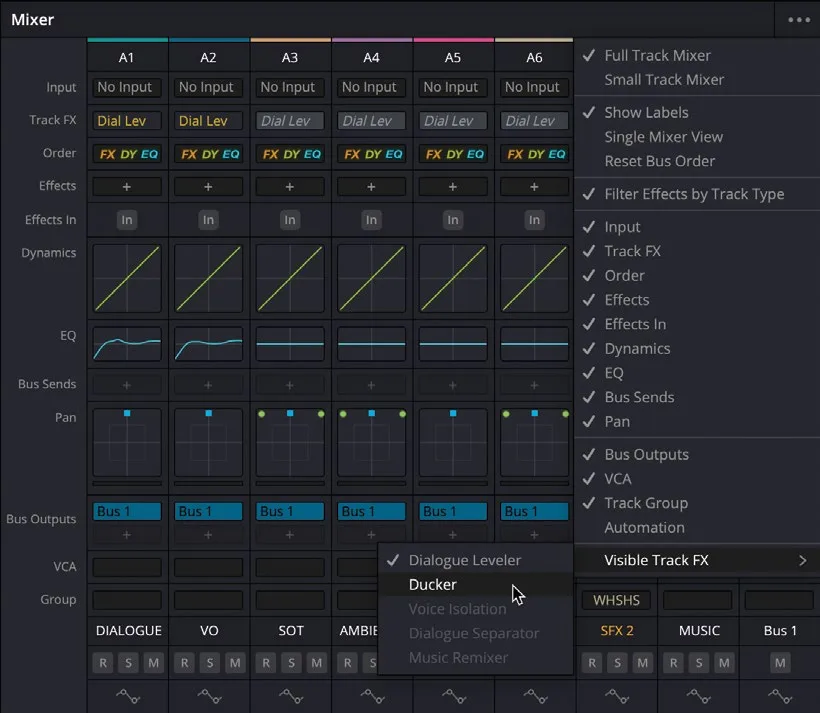
- 在 Mixer(混音器)中点击 Options 菜单(…),选择
Visible Track FX > Ducker。In the mixer, click the Options menu (…) and choose Visible Track FX > Ducker.
Ducker 会出现在 Dial Lev(Dialogue Leveler)下方的 Track FX 列表中。The Ducker appears below the Dial Lev (Dialogue Leveler) in the row of Track FX.
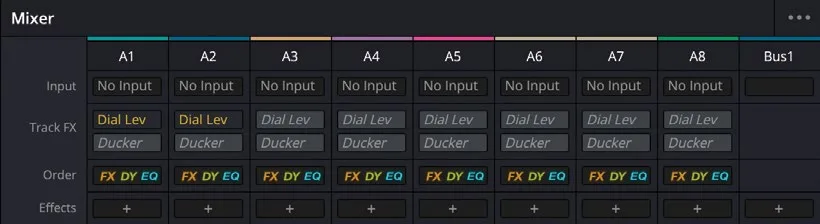
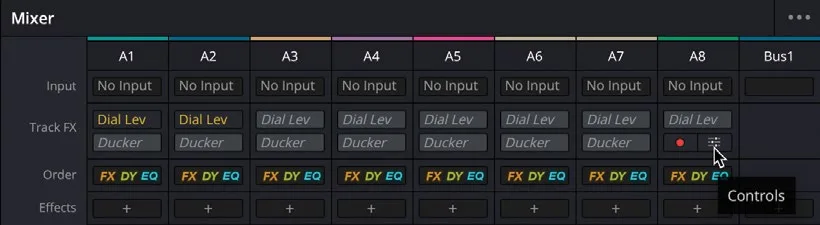
- 为 MUSIC 轨道(A8)启用 Ducker Track FX,并点击其设置按钮打开参数面板。Enable the Ducker Track FX for the MUSIC track (A8) and click the settings to open the controls.
Ducker 的参数面板会在独立窗口中打开。The Ducker’s controls open in a separate window.
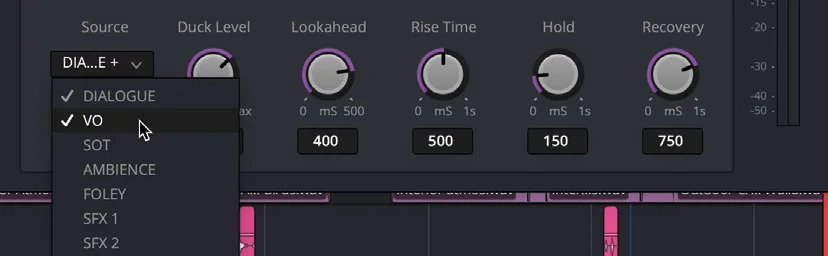
- 在 Source 菜单中选择 DIALOGUE 轨道,这就是 Ducker 用来检测信号的源轨道。In the Source menu, choose the DIALOGUE track. This is the track the Ducker will listen to.
- 把 Duck Level 调到 12 dB,这个值就是 MUSIC 轨道被压低的音量幅度。Adjust the Duck Level to 12 dB. This is how much the MUSIC track audio level will be reduced by.
- 开始播放时间线。Begin playing the timeline.
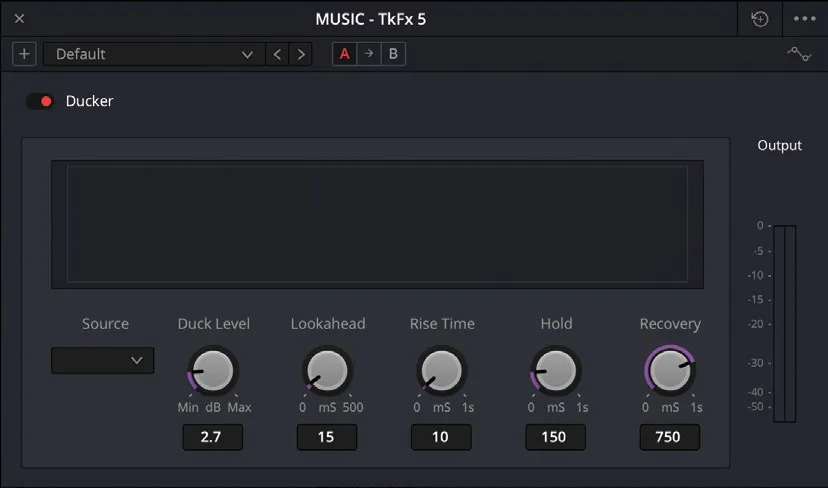
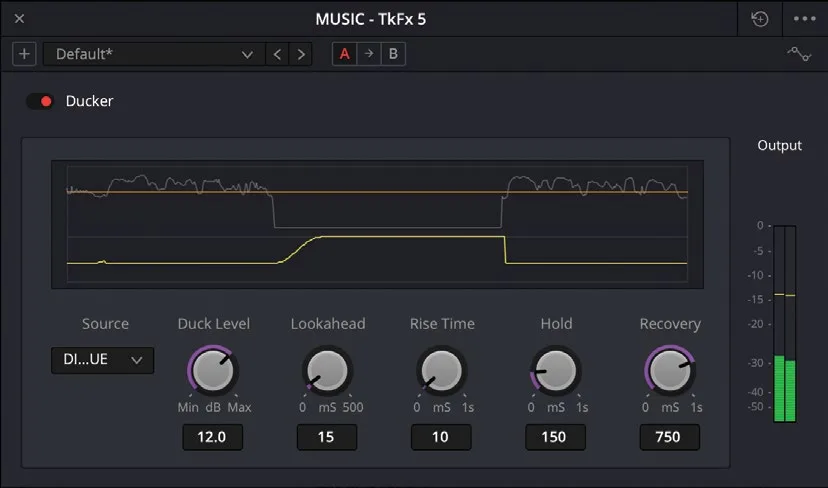
播放过程中,Ducker 会根据 DIALOGUE 轨道上的音频片段,实时调整 MUSIC 轨道的音量,让音乐在 Chris 的 soundbite(人声片段)出现时自动压低,整个过程无需打关键帧就完成了自动混音。As the timeline plays, the Ducker will show a real-time adjustment of the audio levels of the MUSIC track, based on the audio clips of the DIALOGUE track, instantly mixing the music against Chris’s soundbites without the need for keyframes!
不过,声音片段结束后的 Recovery(恢复)比较平滑,而声音片段开始前的 Rise Time(上升时间)则略显突兀。However, while the Recovery out of the soundbites is nice and smooth, the Rise Time going into the soundbites is a little too abrupt.
- 把 Rise Time 调整为 500 mS(毫秒)。Adjust the Rise Time to 500 mS (milliseconds).
- 再次播放时间线,注意听调整后的效果变化。Play the timeline again, noting the difference the changes have made.
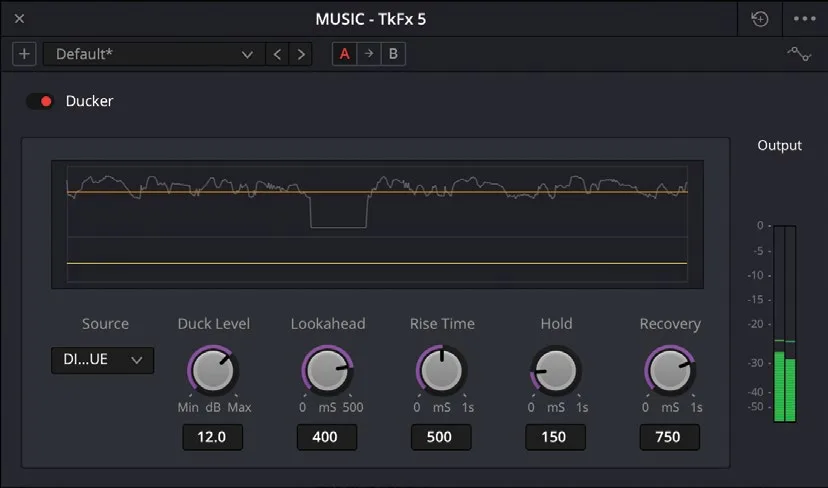
为了避免 Ducker 在 Chris 每次短暂停顿时都反复调整音量,可以调整 Lookahead(预读)参数。To prevent the Ducker from adjusting the level between each of Chris’s pauses, you can adjust the Lookahead control.
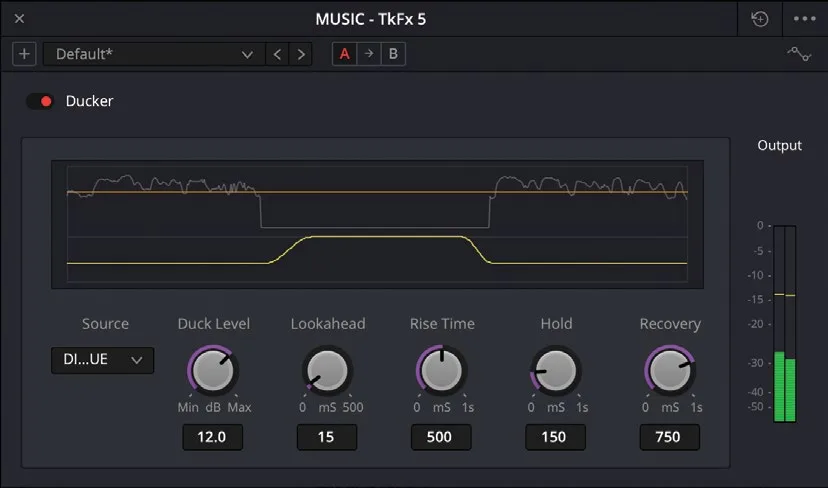
- 将 Lookahead 调到大约 400 mS,让短停顿期间的音量更加稳定一致。Adjust the Lookahead to around 400 mS for a more consistent level across the short pauses.
你也可以把其他轨道添加到 Ducker 的 Source(信号源)中。You can also add other tracks to the Ducker’s Source.
- 点击 Source,然后按住 Command 键(macOS)或 Ctrl 键(Windows)点击 VO 轨道,把它也添加为 Ducker 的监听源轨道。Click the Source and Command-click (macOS) or Ctrl-click (Windows) the VO track to add it as a source track for the Ducker to listen to.
此时 Ducker 会同时根据 DIALOGUE 和 VO 两轨上的音频来压低 MUSIC 轨道的音量。The Ducker now reduces the level of the MUSIC track based on the clips’ audio in the DIALOGUE and VO tracks.
- 对混音效果满意后,关闭
Ducker窗口。When you are happy with the mix, close theDuckerwindow.
NOTE · 注意
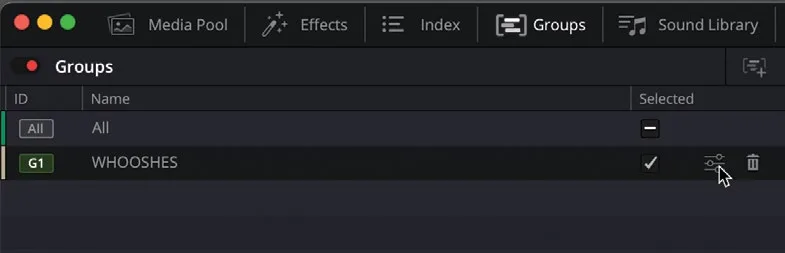
如需导入本课使用 Ducker 完成的成品时间线,请打开 Media Pool,选择 TIMELINES 智能合集(smart bin),然后依次选择 File > Import > Timeline,导航到 R20 Beginners Guide / Lesson 08 / Timelines / OMO PROMO MIX COMPLETED DUCKER.drt,点击 Open 即可。To import a finished version of the timeline for this lesson that uses the Ducker, open the media pool, select the TIMELINES bin, choose File > Import > Timeline, navigate to R20 Beginners Guide / Lesson 08 / Timelines / OMO PROMO MIX COMPLETED DUCKER.drt, and click Open.
本卡术语Terms in this card
媒体夹Bin 媒体池Media Pool 声音片段Soundbite 时间线Timeline 关键帧Keyframe 播放头Playhead 调音台Mixer 窗口Power Window 静帧Still 音频关键帧Audio Keyframes 闪避器Ducker Fairlight 音频Fairlight 音效Sound Effects 帧Frame