TASK 2Task 2
设置自定义快捷键Assign Custom Shortcut
7 steps
- 在
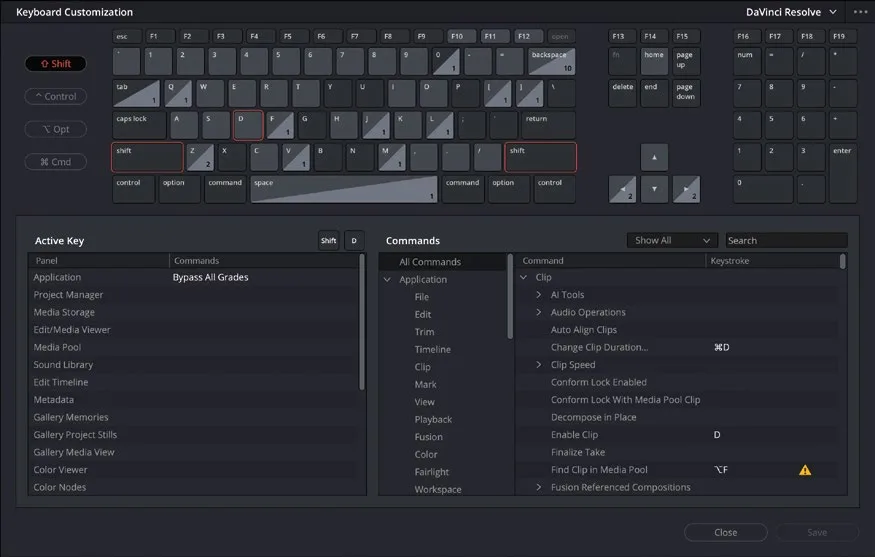
Keyboard Customization窗口右下角的 Commands 区域,确保选中 All Commands 分组。In the Commands area in the lower right portion of theKeyboard Customizationwindow, ensure that the All Commands group is selected.
TIP · 提示
除了 All Commands,你也可以在 Commands 区域左侧的列表中选择特定菜单或面板来缩小搜索范围,向下滚动可查看更多选项。Instead of choosing All Commands, you can narrow your search to specific menus or panels using the options in the left list of the Commands area. Scroll down this list to see more options.
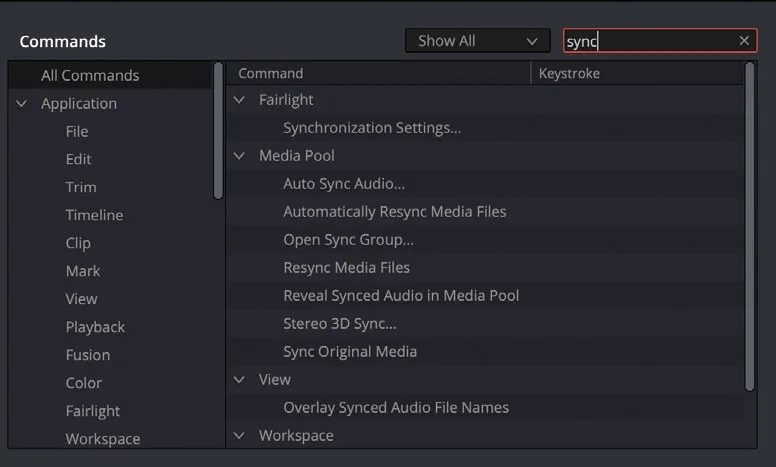
- 点击搜索框,输入 sync,搜索描述中包含 "sync" 的命令。Click the Search field and type sync to perform a search for commands that include “sync” in their description.
默认键盘快捷键方案下,Auto Sync Audio 命令没有分配快捷键。It seems Auto Sync Audio does not have a shortcut assigned under the default keyboard shortcuts.
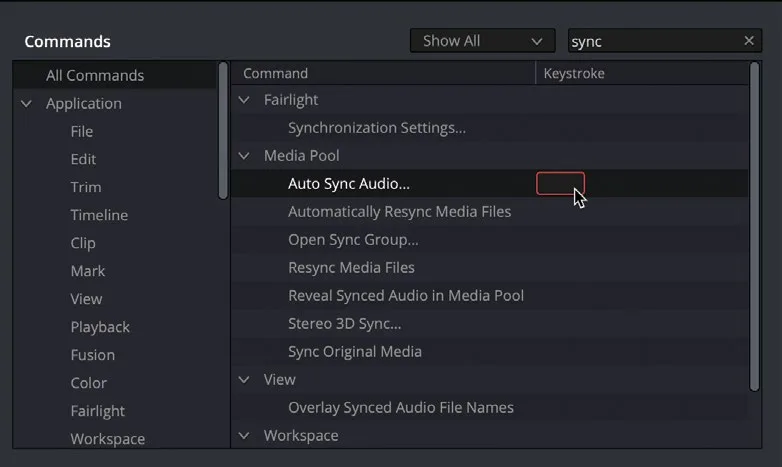
- 在 Keystroke 列中,点击 Auto Sync Audio 命令对应的区域。Click the area in the Keystroke column for the Auto Sync Audio command.
选中后,按下键盘上的相应按键即可为其分配快捷键。Once selected, you can now choose to assign a shortcut by pressing the appropriate keys on your keyboard.
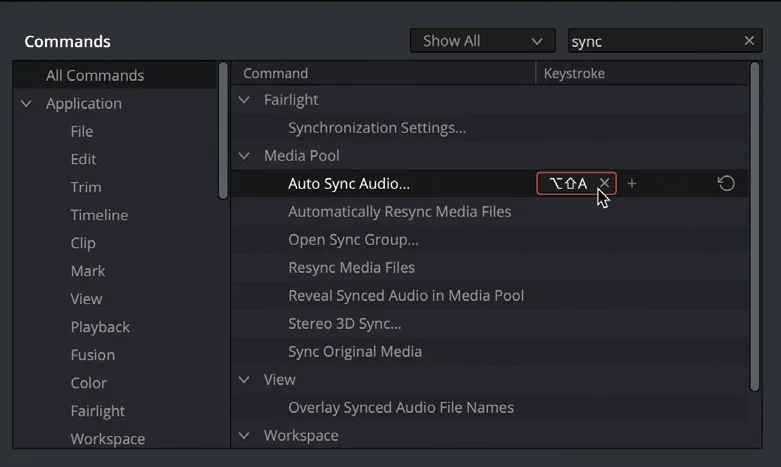
- 按下 Option-Shift-A(macOS)或 Alt-Shift-A(Windows),将该组合键分配给 Auto Sync Audio 命令。Press Option-Shift-A (macOS) or Alt-Shift-A (Windows) to assign that key combination to the Auto Sync Audio command.
每条命令可以分配多个键盘快捷键。如需为同一命令添加多个快捷键,点击 +(加号)图标新增一组按键组合;点击按键旁的 x 可移除快捷键;点击按键右侧的重置箭头(鼠标悬停在命令上时可见),可将当前布局下该命令的按键恢复为默认设置。Each command can have multiple keyboard shortcuts assigned. If you wish to add more than one keyboard shortcut to the same command, click the + (plus) icon to add another keystroke combination. You can also remove shortcuts from a command by clicking the x next to the keystrokes. To reset the keystrokes for a command back to their defaults for the current layout, click the reset arrow to the right of the keystrokes (visible when your mouse pointer is over the command).
NOTE · 注意
注意:若选择的按键组合已分配给其他命令,Resolve 会发出警告并询问是否继续分配。选择 Assign 后,该按键将从原命令移除,并应用至新命令。恢复某命令的默认按键时,原命令也会重新获得该按键。If you choose a keystroke combination that is already assigned to a command, Resolve will warn you and give you the choice of whether you want to continue to assign that keystroke. If you choose Assign, the keystroke will be removed from the original command and will be applied to the new command. Resetting the keystrokes for a command will also reassign the keystroke back to the original command.
你已经为 Auto Sync Audio 命令设置了新的按键组合,但需先保存才能生效。You have chosen a new keystroke combination for the Auto Sync Audio command; however, you will need to save it before you can use it.
- 点击 Save。Click Save.
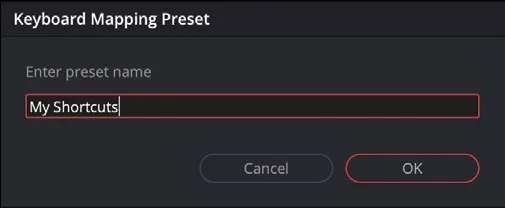
弹出 Keyboard Mapping Preset窗口,提示你将更改保存为新的自定义预设。The Keyboard Mapping Preset window opens, asking you to save the changes to a new, customized preset.
NOTE · 注意
注意:DaVinci Resolve 不允许修改默认 mapping 预设。如需恢复未更改的键盘快捷键,直接选择 DaVinci Resolve 预设即可。DaVinci Resolve will not allow you to alter the default mapping presets, so if you wish to return to an unadulterated set of keyboard shortcuts, you can simply select the DaVinci Resolve preset.
- 在 Enter Preset Name 字段中输入 My Shortcuts,然后点击 OK。In the Enter Preset Name field, type My Shortcuts and then click OK.
包含自定义快捷键的新 mapping 预设已添加到预设下拉列表中。The new mapping preset containing your customized shortcut has been added to the dropdown list of presets.
今后,当此快捷键预设激活时,按 Option-Shift-A(macOS)或 Alt-Shift-A(Windows)即可对所选片段执行 Auto Sync Audio 命令。In the future, when this shortcut preset is active, you’ll be able to press Option-Shift-A (macOS) or Alt-Shift-A (Windows) to enable the Auto Sync Audio command for selected clips.
NOTE · 注意
如需管理映射预设,点击 Keyboard Customization窗口右上角的 Options (…) 菜单,可导出、导入和删除可用预设。To manage the mapping presets, click the Options (…) menu in the top right of the Keyboard Customization window to reveal commands for exporting, importing, and deleting available presets.
- 要恢复默认快捷键,选择 DaVinci Resolve 预设。To return to the default shortcuts, select the DaVinci Resolve preset.
至此,你应该对如何在系统层级和用户层级正确设置项目并按需自定义偏好有了清晰的理解。You should now have a clear understanding of how to set up your projects correctly and customize the preferences to your requirements at both the system and user levels.
本卡术语Terms in this card
导出Export 预设Preset 窗口Power Window 键盘快捷键Keyboard Shortcuts 映射(调色)Mapping