TASK 1Task 1
创建子剪辑素材库Create Subclip Bin
9 steps
- 选中 INTERVIEW bin,选择
File > New Bin或按 Shift-Command-N(macOS)/ Shift-Ctrl-N(Windows)新建一个 bin。Select the INTERVIEW bin and choose File > New Bin or press Shift-Command-N (macOS) or Shift-Ctrl-N (Windows) to create a new bin.
新 bin 名为 Bin 7,因为这是本项目中创建的第 7 个 bin。A new bin is created called Bin 7, because this is the seventh bin created in this project.
- 将新 bin 重命名为 SUBCLIPS。Rename the new bin SUBCLIPS.
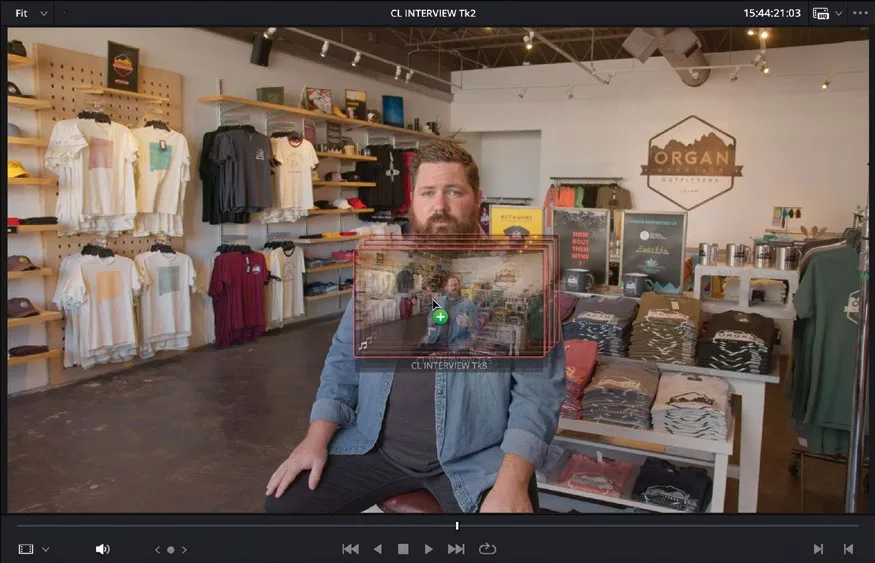
- 选中 VIDEO bin 中的全部片段,拖入 viewer(检视器)。Select all the clips in the VIDEO bin and drag them into the viewer.
- 选中 SUBCLIPS bin。Select the SUBCLIPS bin.
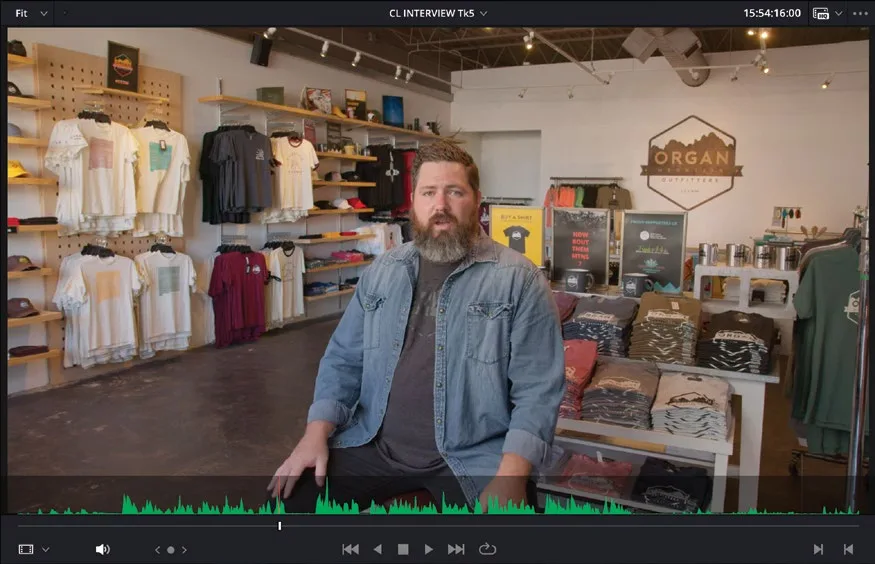
- 在检视器顶部的片段菜单中,确保 CL INTERVIEW Tk5 在检视器中处于激活状态。Using the clip menu at the top of the viewer, ensure that CL INTERVIEW Tk5 is active in the viewer.
- 在检视器的 Options 菜单中选择 Show Audio Waveform on Source Clip,显示该片段的波形。Using the viewer’s Options menu, choose Show Audio Waveform on Source Clip to display the clip’s waveform.
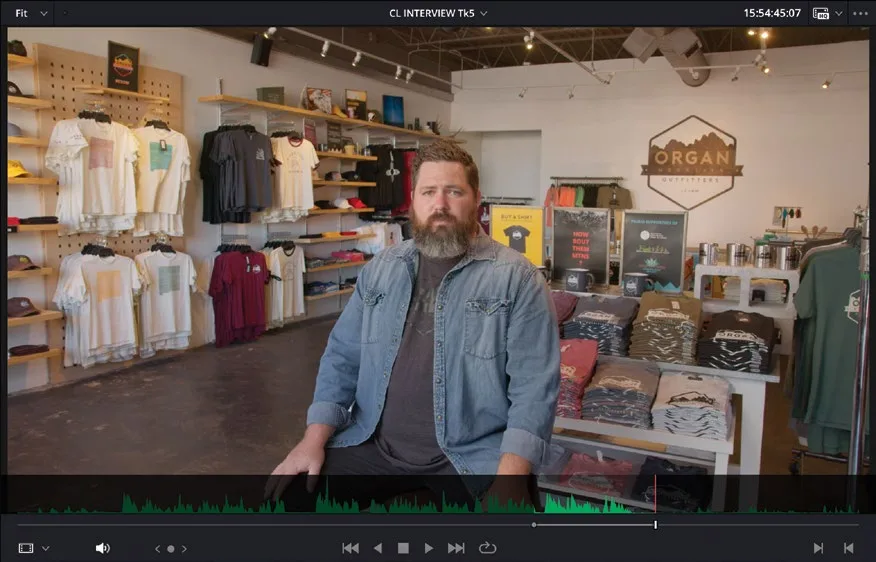
- 在 Chris 说出 "That's what really inspires us…" 之前设置 In 点,在他说 "…the design process starts." 之后设置 Out 点。Set an In point just before Chris says, “That’s what really inspires us…” and an Out point after he says “…the design process starts.”
TIP · 提示
提示:设置子剪辑的入点和出点时无需非常精确。实际上,建议多预留一些范围(参见本课后面的“调整子剪辑边界”边栏)。You don’t need to be accurate when setting In and Out points for subclips. In fact, setting them to include a little more than you intend to use is a recommended technique (see the sidebar “Adjusting Subclip Limits” later in this lesson).
- 选择
Mark > Create Subclip,或按 Option-B(macOS)/ Alt-B(Windows)。Choose Mark > Create Subclip or press Option-B (macOS) or Alt-B (Windows).

New Subclip窗口会打开,要求确认子剪辑的名称,名称默认沿用原剪辑文件名并加后缀 "Subclip"。此时无需在意名称。The New Subclip window opens, asking you to confirm the name of this subclip, which is the same filename as the original clip but with the word “Subclip” added to the end. Don’t worry about the name of the subclip at this point.
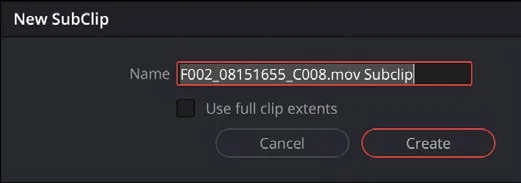
- 点击 Create,将子剪辑添加到当前 bin。Click Create to add the subclip to the current bin.
在检视器下拉菜单中,选择 CL INTERVIEW Tk8 这条剪辑。From the viewer dropdown menu, choose the clip CL INTERVIEW Tk8.
在 Chris 说 "We want people to experience…" 之前设置入点,在他说 "…it's changed my life." 之后设置出点。Set an In point just before Chris says, “We want people to experience…” and an Out point after he says, “…it’s changed my life.”
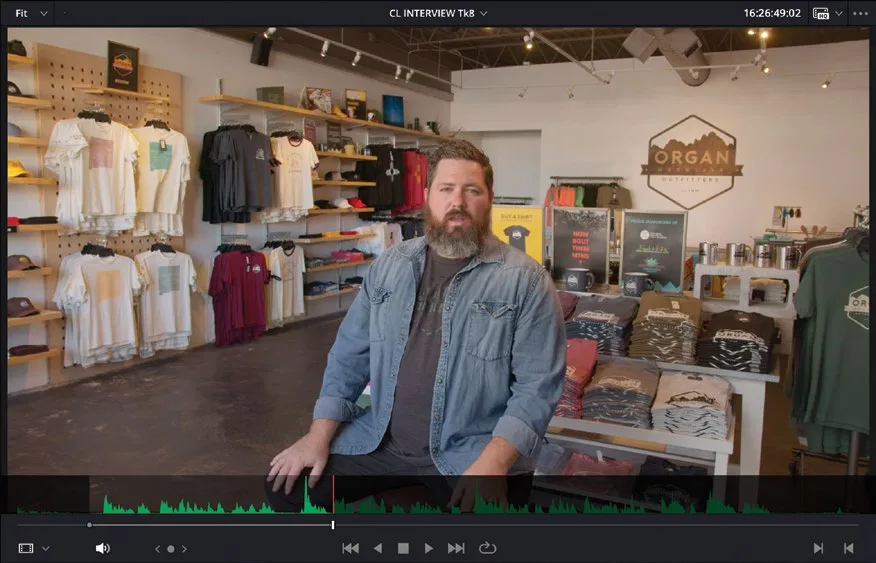
选择 Mark > Create Subclip,或按 Option-B(macOS)/ Alt-B(Windows)。Choose Mark > Create Subclip or press Option-B (macOS) or Alt-B (Windows).
同样暂时不修改子剪辑名称,在 New Subclip窗口中直接点击 Create。Again, don’t worry about the name of the new subclip for now, just click Create in the New Subclip window.
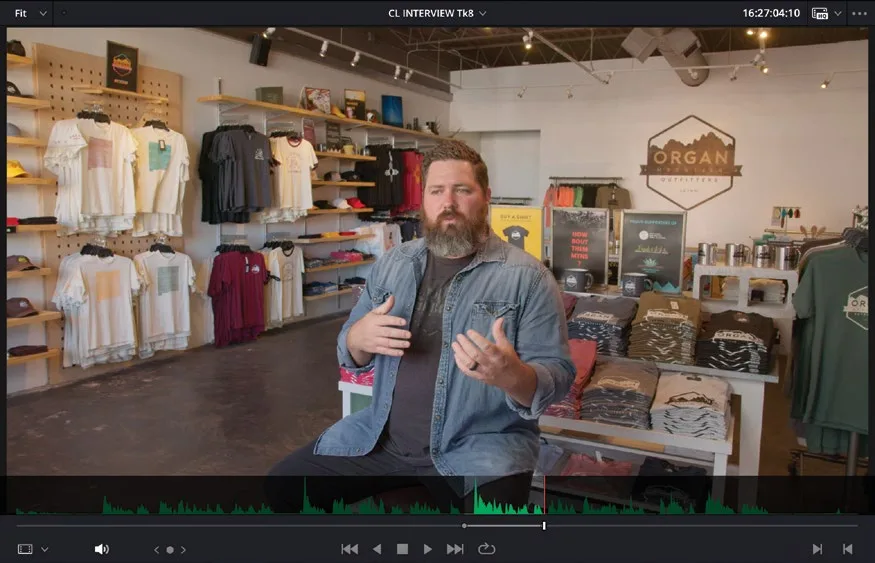
继续在检视器中播放剪辑,围绕下一段重要 soundbite(Chris 说 "Our brand is really a reflection of our community and who we are.")设置入点和出点。Continue playing the clip in the viewer and set an In and Out point around the next notable soundbite, when Chris says, “Our brand is really a reflection of our community and who we are.”
这次直接从检视器把剪辑拖到 media pool 中的 SUBCLIPS bin 来创建子剪辑。This time, drag the clip from the viewer into the SUBCLIPS bin in the media pool to create the subclip.
再次在 New Subclip窗口中点击 Create。Again, click Create in the New Subclip window.
继续在检视器中播放剪辑,围绕 Chris 最后一段 soundbite "That's why we say experience the southwest." 设置入点和出点。Continue playing the clip in the viewer and set another In and Out point around Chris’s final soundbite: “That’s why we say experience the southwest.”
选择你偏好的方式从这段 soundbite 创建子剪辑,然后点击 New Subclip窗口中的 Create。Choose your preferred method for creating a subclip from this last soundbite and click Create in the New Subclip window.
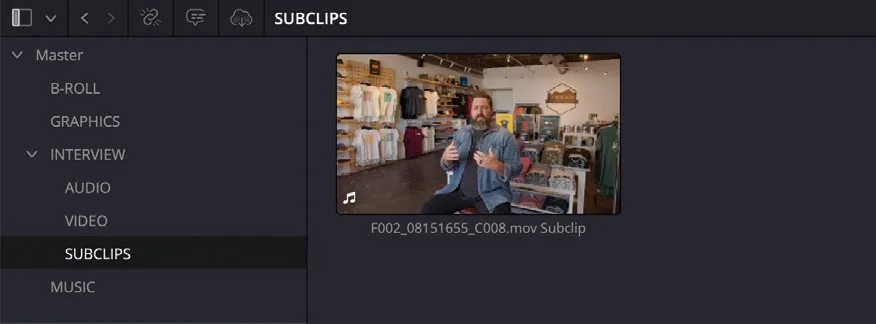
SUBCLIPS 智能夹中现在有四个子剪辑。You now have four subclips in the SUBCLIPS bin.
修改子剪辑元数据:创建子剪辑后,可以使用本课学到的元数据技巧来管理它们。Modifying Subclip Metadata Now that you’ve created the subclips, you can use some of the metadata tricks you learned throughout this lesson.
本卡术语Terms in this card
媒体夹Bin 入点和出点In & Out Points 媒体池Media Pool 声音片段Soundbite 子片段Subclips 窗口Power Window 元数据Metadata