Qualifier 与 Power Window 组合使用Combining Qualifiers and Power Windows
9 steps
简介Overview
把 Qualifier 与 Power Window 结合使用,可以更精准地圈选画面中需要调整的区域。同一画面中往往会出现多处你希望调整的相似色调。与其在 Qualifier面板里费力去净化选区(往往还会牺牲 key 的质量),不如直接用 Power Window 来限定 Qualifier 的作用范围。You can refine an area of the image you want to modify even more precisely by using the qualifier and power windows together. Often, an image will have several instances of a hue that you are trying to manipulate. Instead of focusing your efforts on cleaning up the selection in the qualifier palette (and likely compromising the quality of the key), sometimes the best option is to use a power window to limit which part of the frame the qualifier operates on.
- 如果还没选中,先选中 clip 10。If it is not already selected, select clip 10.
- 确认 node 02 仍处于选中状态。因为 Qualifier 的结果溢出了画面其他部分,所以当前效果并不理想。Make sure you still have node 02 selected. The image does not look great because the results of our qualifier are spilling into the rest of the shot.
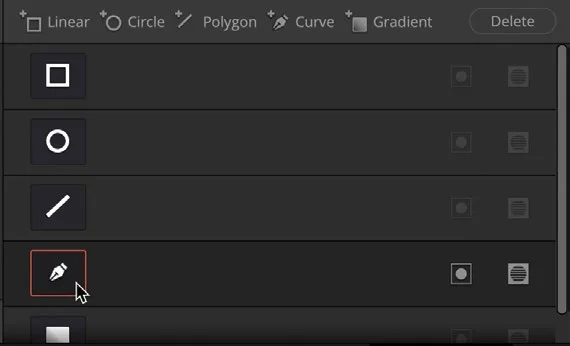
- 在中间窗口中,点击
Window按钮。In the middle window, select theWindowbutton. - 在菜单中选择曲线窗口(curve window)。Select the curve window from the menu.
- 适当缩小画面视图,可以通过滚动鼠标中键,也可以按 Command-minus(macOS)或 Ctrl-minus(Windows)。Zoom out of the image slightly by either scrolling the middle mouse wheel or pressing Command-minus (macOS) or Ctrl-minus (Windows).

当前视图下 Qualifier 区域可能不太容易看清,可以切换显示方式以便更清楚地观察选区。The qualifier area may be a little difficult to see in the current view, so you can change it to see the qualified area in more detail.
- 在 viewer 右上角重新打开
Highlight按钮。In the top right corner of the viewer, turn theHighlightbutton back on.
此时仍处于黑白的显示模式,点击 viewer 左上角 highlight options 菜单中的默认 Highlight按钮即可恢复。It will still be in the black-and-white setting, so click the default Highlight button in the highlight options menu in the top left corner of the viewer.
我们的目标是把衬衫从画面其余部分中单独分离出来。You are looking to isolate the shirt from the rest of the image.
- 在 viewer 中左袖下方略偏外的位置,点击添加第一个控制点。Click and add a first control point in the viewer just offscreen under the left sleeve.
- 继续添加控制点,沿衬衫大致勾画一个形状。记住,形状闭合之后仍可继续添加控制点。Continue to add control points and draw a rough shape around the shirt. Remember that you can always add points once the shape has closed.
TIP · 提示
记住:点击鼠标中键可以删除一个点;按住 Command(macOS)或 Ctrl(Windows)并拖动点,可以把线性点转为平滑点;双击点则可以把它变回线性点。Remember that you can delete a point by clicking the middle mouse button. You can also turn a linear point into a smooth point by holding down Command (macOS) or Ctrl (Windows) and dragging the point. Double-clicking a point will make it linear.
- 点击 Highlight 图标,或按 Shift-H,关闭高亮显示。Turn off the highlight by clicking the Highlight icon or pressing Shift-H.
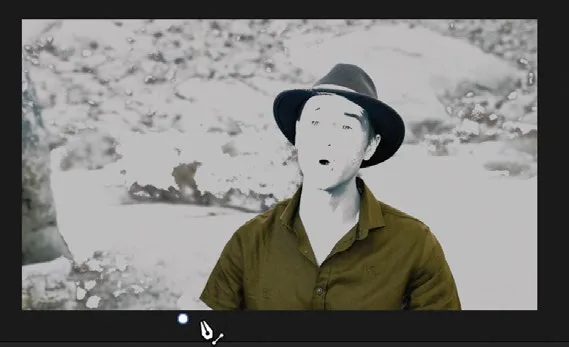
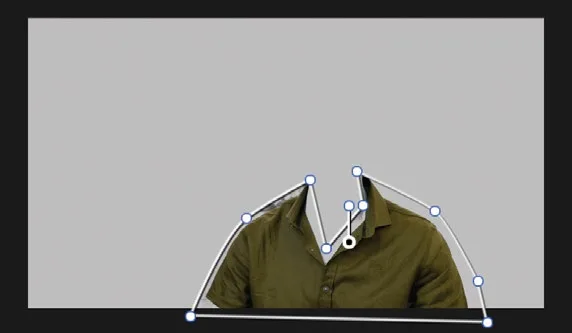
点击屏幕上 Overlay按钮,关闭 Window。Turn off the Window by clicking the onscreen Overlay button off.
现在你应该已经把衬衫从画面其余部分分离出来了。不过由于 qualifier 仍有一些噪点,Sean 脖子周围和左肩外侧还需要做一点清理。You should now have isolated the shirt from the rest of the image. However, a little cleanup is still needed around Sean’s neck area and just off the left shoulder since we still have some noise from the qualifier.
回到 Qualifier 工具,选择 Picker Subtract(减选)工具。Go back into the Qualifier tool and select the Picker Subtract tool.
点击 Auto Black and White Highlight,关闭 viewer 的高亮模式。Click the Auto Black and White Highlight to stop the viewer from going into highlight mode.
开启 Show Paths(显示路径)选项。Turn on the Show Paths option.
Show PathsShow Paths
Auto Black and WhiteAuto Black and White
Picker SubtractPicker Subtract
现在你可以去除之前被选中的区域了。You now have the ability to remove areas that were originally qualified.

放大到画面右侧 Sean 脖子附近。Zoom in to the image around Sean’s neck on the right side.
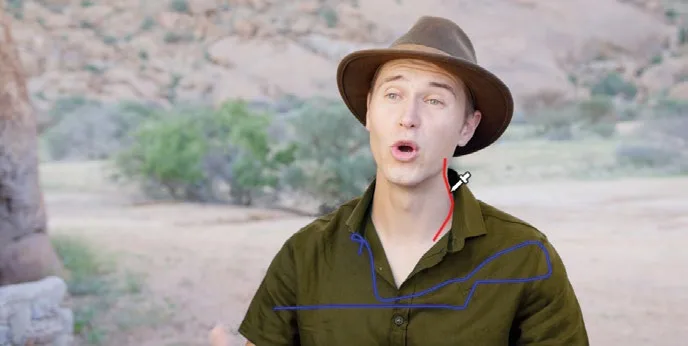
从噪点顶部向下点击拖动,尽量贴近衣领但不要碰到。拖动时会出现一条红线,表示从原始 qualifier 选区中减去了这一笔所覆盖的区域。Click and drag from the top of the noise down, getting as close to the shirt collar as possible without touching it. You will see a red line appear as a selection is removed from the original qualifier.
Qualifier窗口的 Strokes面板中有一个垃圾桶图标,如果哪一步画错了,直接点它就能删除这一笔。If at any point you make a mistake, in the Qualifier window, simply click the trash can icon in the Strokes panel to delete the stroke.
在左肩位置再画一笔,把衣服之外残留的选区也减掉。Click and drag another stroke over the left shoulder to remove the last of the qualifications that sit outside the shirt.
现在可以看到,Power Window 正在和 qualifier 协同工作,把窗口外被选中的区域排除掉。As you can now see, the window is working with the qualifier to remove selected areas outside the power window.
把 qualifier 和 Power Window 结合使用,可以根据元素的色相快速做出干净的选区,同时迅速排除画面中干扰的元素。这样既不用把 Power Window 画得过于精确,也不用反复微调 qualifier,省时又能得到最干净的抠像效果。Combining the qualifier with a window has allowed you to quickly make a clean selection based on the element’s hue while just as quickly excluding interfering elements from your selection. Using both tools meant that you didn’t have to draw an overly precise power window or endlessly tweak the qualifier. Combining the two tools has saved time and resulted in the cleanest key.
本卡术语Terms in this card
覆盖Overwrite 曲线Curves 窗口Power Window 限定器Qualifier 静帧Still 节点Node 帧Frame