TASK 3Task 3
禁用与启用时间线Disable and Enable Timelines
2 steps
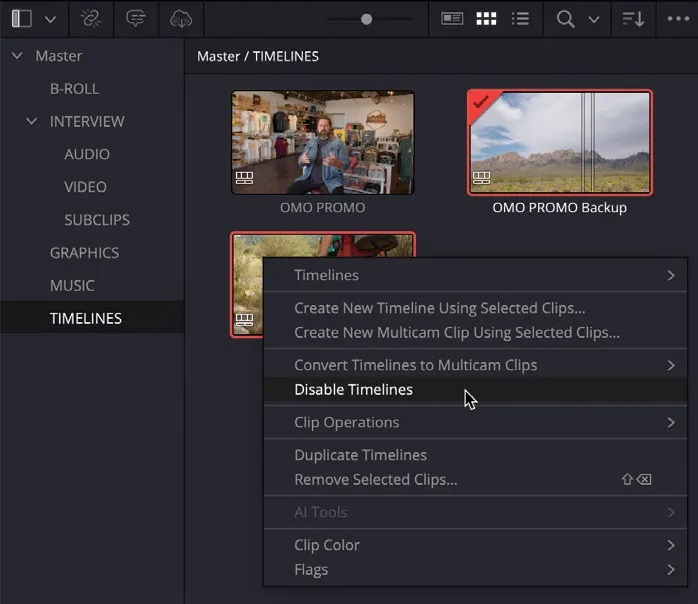
- 若要禁用未使用的时间线,先在 media pool 中选中它们,然后右键选择 Disable Timeline(s)。To disable any unused timeline(s), select the timeline(s) in the media pool and then right-click them and choose Disable Timeline(s).
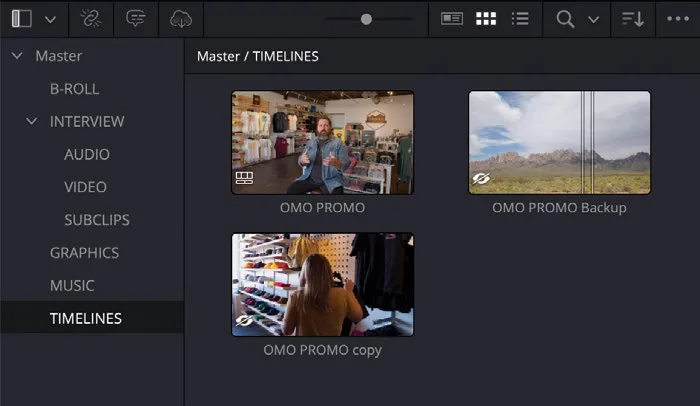
被禁用时间线的缩略图会变成带删除线的眼睛图标。A disabled timeline’s thumbnail is replaced by a struck-through eye.
禁用的时间线无法直接打开,也不会出现在时间线查看器的下拉列表中,必须先重新启用。Disabled timelines cannot be opened without first re-enabling them, and they won’t appear in the timeline viewer dropdown list.
- 若要重新启用已禁用的时间线以便打开和使用,在 media pool 中右键该时间线,选择 Enable Timeline(s)。To re-enable a previously disabled timeline so you can open it and use it again, right-click the disabled timeline(s) in the media pool and choose Enable Timeline(s).
至此,你对工作时间线的管理和备份恢复已经有了更深入的理解。确保 media pool 中至少保留一条当前 OMO PROMO 时间线的备份,然后可以继续精修 Organ Mountain Outfitters 的宣传片。You now have a greater degree of understanding when it comes to managing your working timelines and restoring backups. Ensure that you have at least one backup of the current OMO PROMO timeline in the media pool, and you can now continue to finesse the Organ Mountain Outfitters promo.
剪辑的艺术——Trimming(修剪)是指对时间线上某个片段的入点(In)和出点(Out)进行调整,堪称剪辑师最重要的技能。Trimming 可以调整片段的起始、结束、起止两端,甚至在特定情况下调整其他时间线片段的起止。DaVinci Resolve 拥有非线性编辑器(NLE)中最灵活、功能最完善的修剪工具集之一,让你能够直观、精准地完成复杂的时间线调整。The Editor’s Art Trimming is the term given to adjusting a clip’s In and Out points once it is in the timeline and is arguably the most important skill an editor possesses. Trimming allows you to adjust the start of a clip, the end of a clip, the start and end of a clip, or, in certain circumstances, the start and end of other timeline clips. DaVinci Resolve has one of the most flexible, fully featured trimming toolsets of any nonlinear editor (NLE), allowing you to perform complex timeline adjustments intuitively and precisely.
除了简单地剪切片段、删除大段不需要的素材外,DaVinci Resolve 中的修剪主要在两种时间线模式下进行:Selection 模式(选择模式)或 Trim Edit 模式(修剪编辑模式)。Beyond simply cutting a clip and removing large sections of unwanted footage, trimming in DaVinci Resolve generally occurs in one of two timeline modes: Selection mode or Trim Edit mode.
Selection(选择)模式让你可以直观地在时间线上移动片段并调整时长,这是入门修剪最方便的方式。Trim Edit(修剪编辑)模式则解锁修剪功能的真正实力:可以对编辑点做 ripple edit,也能对单个镜头做 slip(内容前后滑移)和 slide(相对邻接片段的位置平移)。— Selection mode allows you to move clips around the timeline and adjust their durations simply and easily. This is the most intuitive way to begin trimming clips in Resolve’s timeline. — Trim Edit mode unlocks the true power of the trimming functions. In this mode, you can ripple edit points, as well as slip the content of a shot and slide the position of a shot in relation to its neighboring clips.
Resolve 的所有修剪功能都支持同时作用于多条片段或多个编辑点,既能用鼠标按住拖拽完成,也能用快捷键实现高精度操作。All the trimming features in Resolve can also be applied to multiple clips or multiple edit points simultaneously and can be made by clicking and dragging with your mouse or using keyboard shortcuts for the utmost precision.
NOTE · 注意
如果你需要先跟上进度再进入下一步,可进入 TIMELINES bin,选择 File > Import > Timeline,定位到 R20 Beginners Guide / Lesson 02 / Timelines / OMO PROMO CATCHUP 05.drt,然后点击 Open。If you need to catch up before moving to the next step, select the TIMELINES bin and choose File > Import > Timeline, navigate to R20 Beginners Guide / Lesson 02 / Timelines / OMO PROMO CATCHUP 05.drt and click Open.
本卡术语Terms in this card
媒体夹Bin 媒体池Media Pool 时间线Timeline 波纹Ripple 滑移Slip Edit 修剪Trim 备份Backup 键盘快捷键Keyboard Shortcuts