修改时间线设置Changing Timeline Settings
6 steps
简介Overview
目前你只有一份原始时间线的副本,多了一些时间线标记。要让它适合上传到 TikTok、YouTube Shorts 等主要以竖版视频为主的平台,需要调整这条时间线的设置。Currently, you only have a copy of your original timeline, albeit with some extra timeline markers. To make it suitable for uploading to platforms such as TikTok or YouTube Shorts that primarily support vertical video, you’ll need to adjust the settings of this timeline.
- 在时间线查看器的 Timeline Settings 菜单中,选择 Custom Timeline Settings。From the Timeline Settings menu in the timeline viewer, choose Custom Timeline Settings.
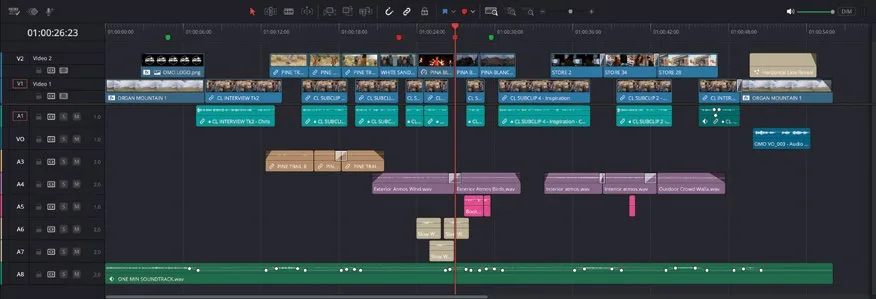
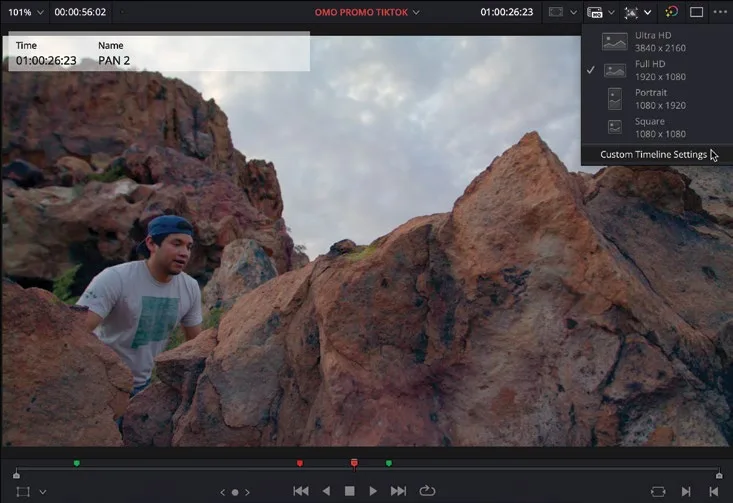
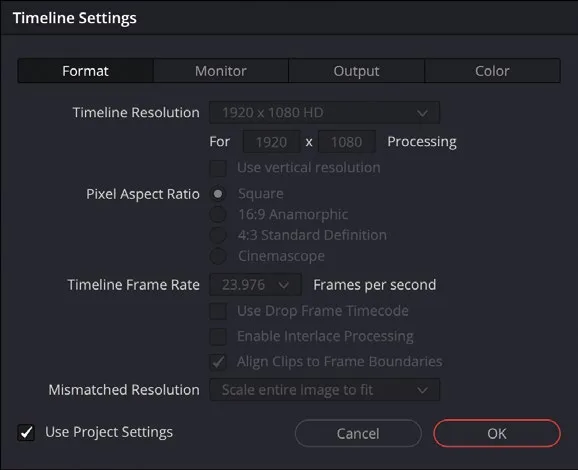
该时间线的 Timeline Settings窗口随即打开。The Timeline Settings window for this timeline opens.
所有选项目前都不可用,因为它们由第 7 课配置的 Project Settings 决定。你需要覆盖这些设置,让这条时间线拥有独立于项目的自定义配置。All the options are currently unavailable because they are set by the Project Settings you configured in Lesson 7. You’ll need to override these settings so that this timeline can have a custom setting independent of the project.
TIP · 提示
如果想统一修改项目中所有使用 Project Settings 的时间线,可以在 Project Settings 中调整 Timeline Format 选项。If you want all the timelines in your project that are using Project Settings to change, you can adjust the Timeline Format options in the Project Settings.
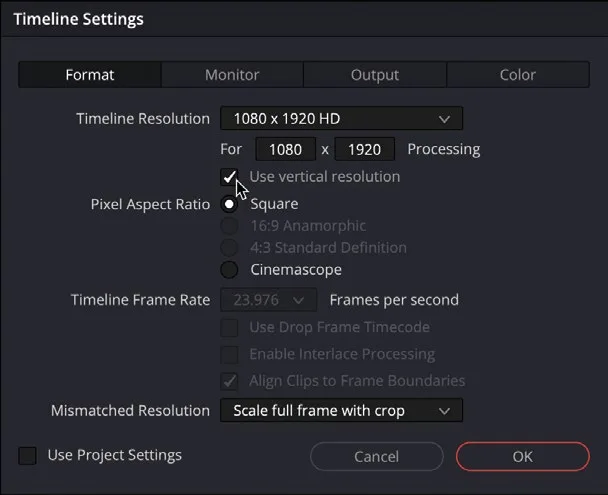
- 取消勾选 Use Project Settings,即可激活各项设置并开始修改。Uncheck Use Project Settings to activate the settings, allowing you to make changes.
- 在 Timeline Resolution 中选择 "Use vertical resolution"。In the Timeline Resolution, select the “Use vertical resolution” option.
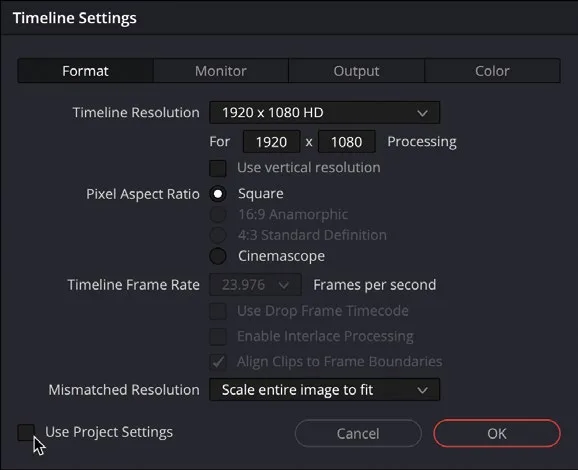
这一项会把时间线分辨率切换为 1080 x 1920 HD,并把 Mismatched Resolution 改为 "Scale full frame with crop"。这是关键设置:画面会填满新的宽高比,而不是上下加黑边做 letterbox,但时间线查看器两侧的画面会被裁掉。This single option adjusts the timeline resolution to 1080 x 1920 HD and changes the Mismatched Resolution option to “Scale full frame with crop.” This is an important setting, since it means the footage will fill the new aspect ratio rather than being letterboxed with black lines at the top and bottom of the image, although you will lose footage off the edges of the timeline viewer.
- 点击 OK,将更改应用到选中的时间线。Click OK to apply the changes to the selected timeline.
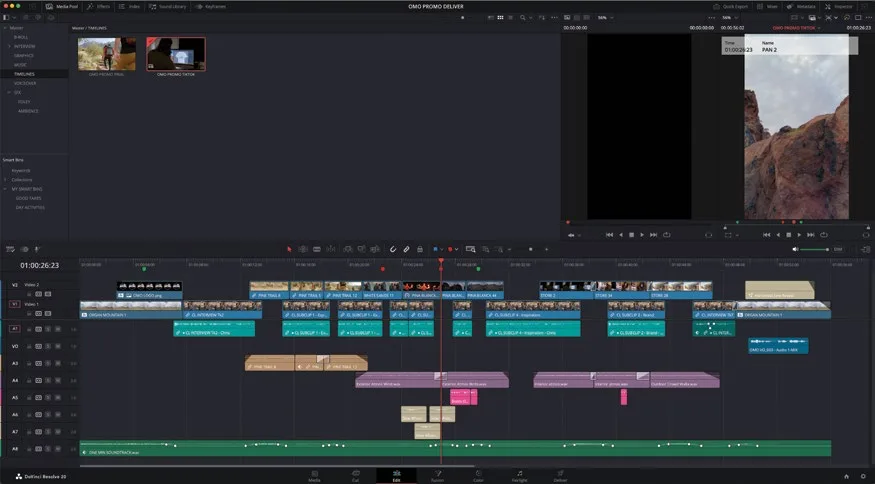
Edit page 界面会自动调整以适配竖版时间线。The edit page interface automatically changes to accommodate the vertical timeline.
NOTE · 注意
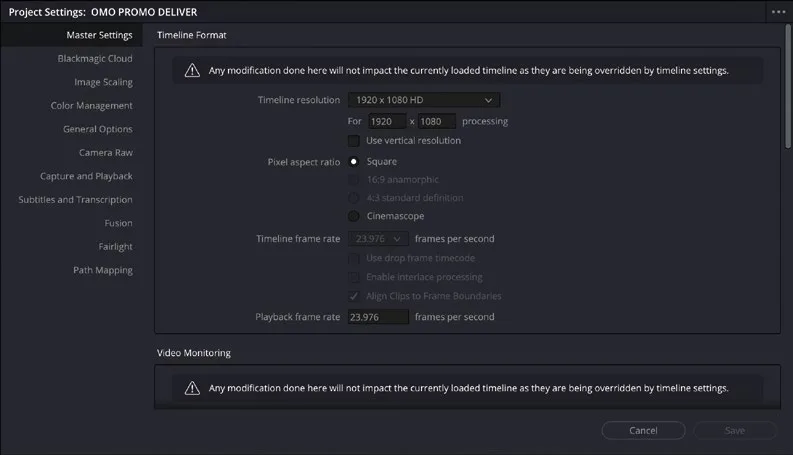
调整后的时间线图标会表明它拥有独立于当前项目 Project Settings 的设置。在该时间线为当前活动时间线时打开 Project Settings,Master Settings 和 Color Management 区域会显示警告:项目的任何设置更改都不会影响当前加载的时间线,因为它现在使用自己的时间线设置。The icon for the newly adjusted timeline indicates that it has its own settings separate from the current project’s Project Settings. Opening Project Settings while this timeline is active will result in a warning displayed in the Master Settings and Color Management sections informing you that any changes made to the project’s settings will not impact the currently loaded timeline, since it now has its own timeline settings.
- 调整 viewer 大小,让画面看起来更舒服。Resize the viewers so you can see the content more comfortably.
- 拖动时间线进行回放,检查修改效果。Scrub through the timeline to review the changes.
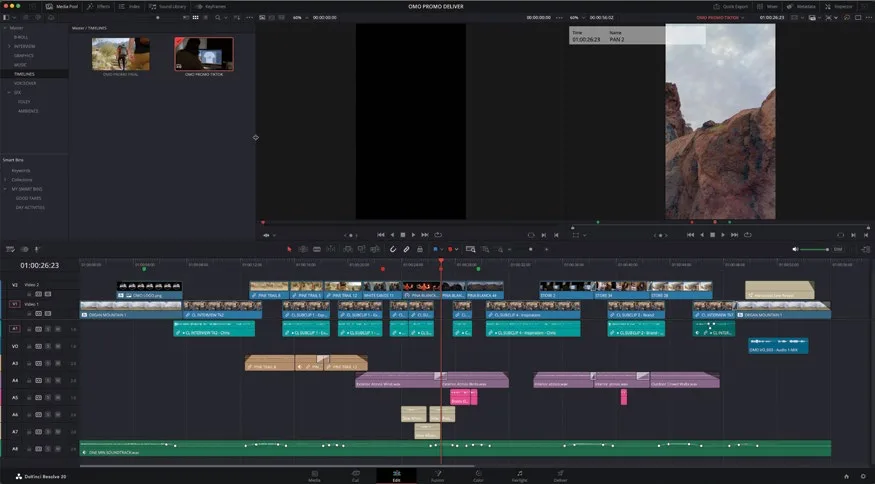
现在时间线 Viewer 会按新长宽比重新构图显示原始素材。The timeline viewer will now show the original footage framed in the new aspect ratio of the timeline.
本卡术语Terms in this card
时间线Timeline 分辨率Resolution 竖版时间线Vertical Timeline 编辑页Edit page 标记Marker 覆盖Overwrite 色彩管理Color Management 窗口Power Window 项目设置Project Settings 帧Frame