打开标记索引Opening the Marker Index
7 steps
简介Overview
除非摄影指导(DP / DoP)一开始就明确知道成片需要以 9:16 画幅显示,否则你大概率要调整部分镜头的构图。好在即便画面看似被裁切了,完整的图像信息始终可用。Unless the director of photography (DP or DoP) clearly understood that all or part of the final film would need to be displayed in a 9:16 aspect ratio, you will likely need to adjust the framing of some of these shots. Thankfully, you always have access to the complete picture information, even though it appears cropped.
前面打的标记也能帮你快速定位哪些片段最需要重新构图。You also know which clips will need your attention most, thanks to the markers you added in earlier steps.
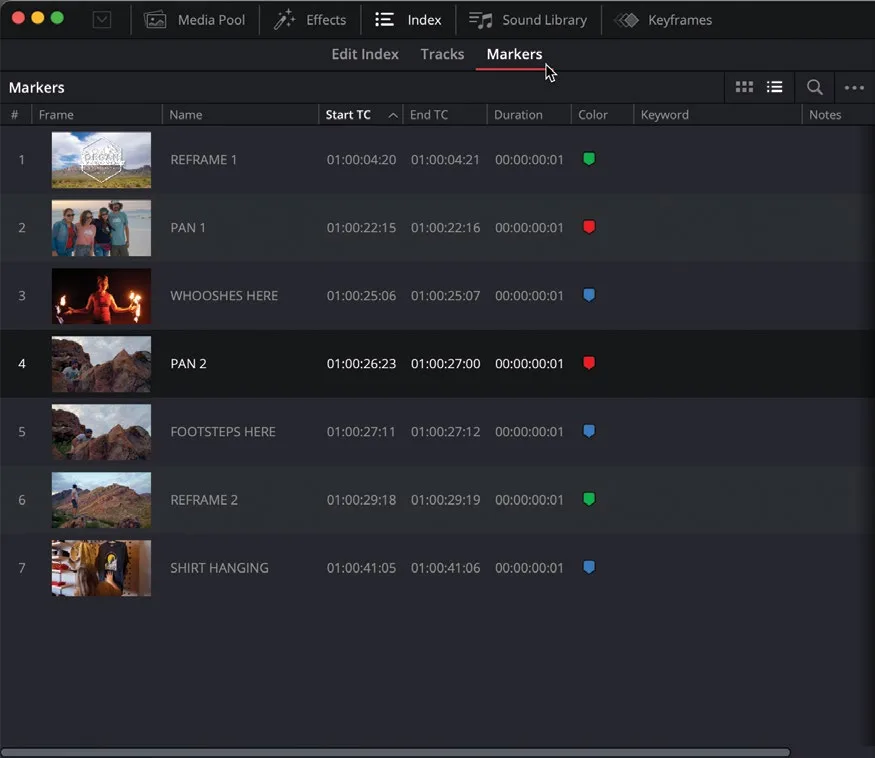
- 在 Edit page 左上角的按钮区,关闭 Media Pool,打开 Index,然后切换到
Markers选项卡,查看当前时间线上的所有标记。Using the buttons in the top left corner of the edit page, close the media pool and open the Index. Then click the Markers tab to reveal a list of markers for the current timeline.
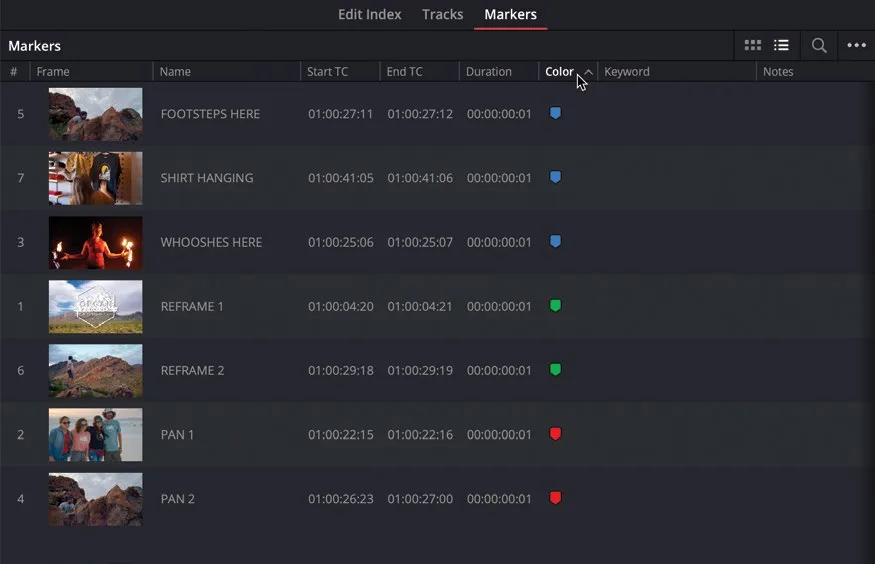
- 点击 Color 列标题,按颜色对标记排序。Click the Color column header to sort the list of markers by their colors.
TIP · 提示
提示:在 Index 的 Options(…)菜单中可以筛选只显示特定颜色的标记。You can choose to show only specific marker colors in the Index by using the Options (…) menu.
- 在绿色标记中找到 REFRAME 1,点击跳转到该标记并打开 Inspector。From the green markers, click the REFRAME 1 marker to jump to that marker and open the Inspector.
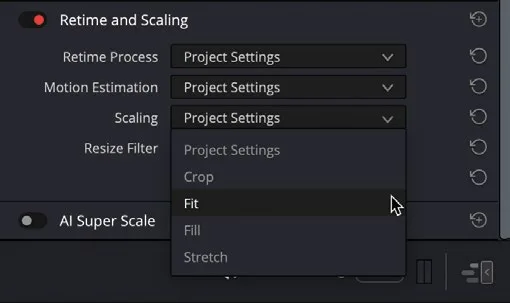
- 确认 Inspector 显示的是 OMO LOGO.png 片段的控制项。展开 Retime and Scaling 控件,在 Scaling 菜单中选择 Fit。Ensure that the Inspector shows the controls for the OMO LOGO.png clip. Open the Retime and Scaling controls in the Inspector and, in the Scaling menu, select Fit.
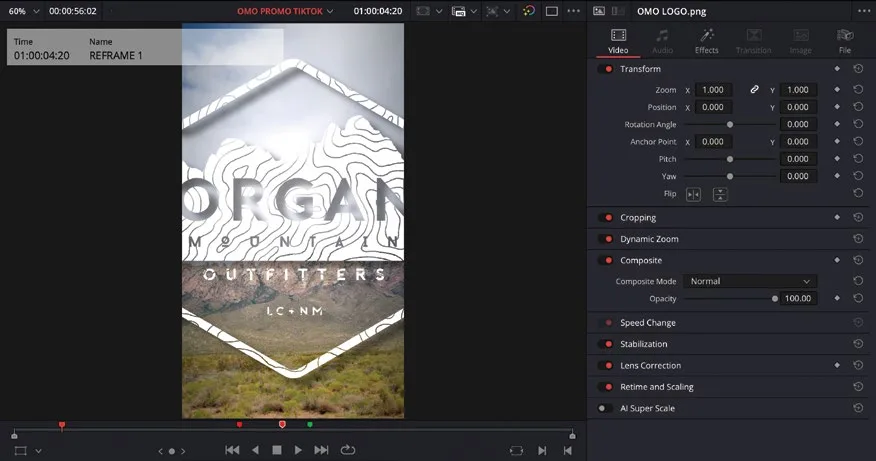
图形随即按新画幅等比适配,其他参数保持不变。The graphic is now correctly scaled to fit the new aspect ratio, while retaining all the other settings accurately.
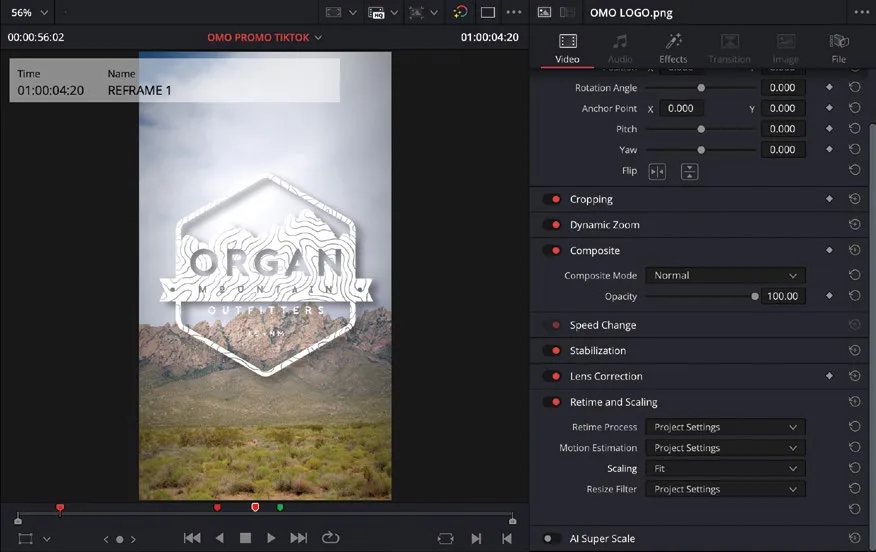
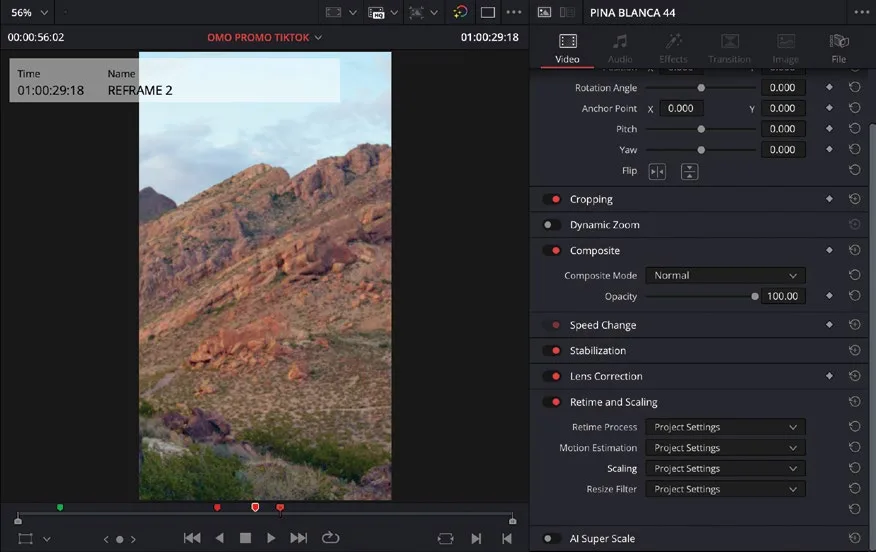
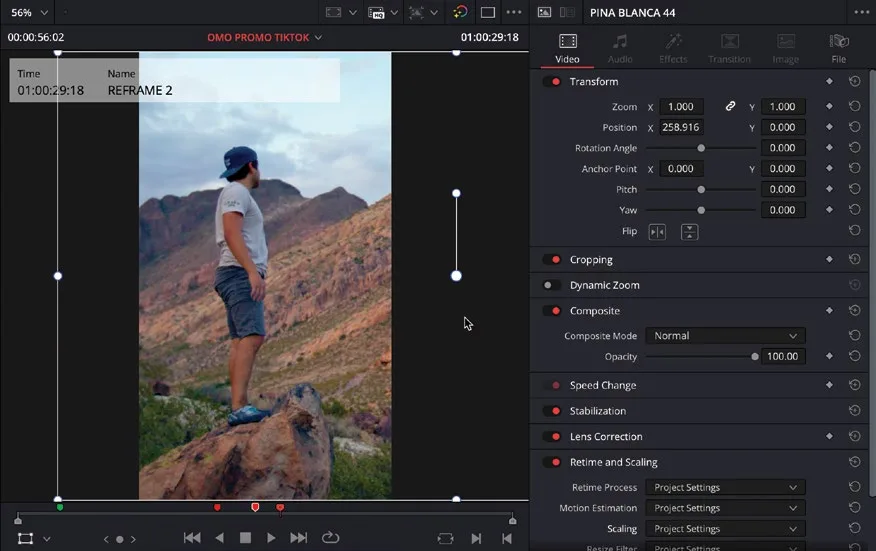
- 在标记列表中点击 REFRAME 2,播放头跳到那位站在岩石上眺望的人物镜头——他目前位于 9:16 画框之外。In the marker index, click the REFRAME 2 marker to place the playhead over the shot of the guy standing and looking out over the rocks, who you can’t see because he is currently outside the 9:16 framing of this shot.
- 按下 Shift+`(反引号),或选择
View > Viewer Overlay > Transform,启用屏幕上的 Transform 控件。Press Shift-` (accent grave) or choose View > Viewer Overlay > Transform to enable the onscreen Transform controls. - 按住 Shift 键,在 Viewer 中将画面向右拖动,重新把人物放到画框内。Hold Shift and drag the image in the viewer to the right to reposition the guy in the frame.
本卡术语Terms in this card
媒体池Media Pool 时间线Timeline 编辑页Edit page 检查器Inspector 标记Marker 播放头Playhead 变换Transform 帧Frame PNGPNG