标记声音片段Marking the Soundbite
12 steps
简介Overview
为了方便定位 soundbite,你可以在源视频旁边显示片段的音频波形。To help you locate the soundbite, you can display the clip’s audio waveform alongside the source video.
- 在 source viewer 的 transport controls 中,点击
Stop按钮停止播放。In the source viewer’s transport controls, click theStopbutton to halt playback. - 点击 source viewer 的 Options(…)菜单,选择 Show Audio Waveform in Source Clip。Click the source viewer’s Options (…) menu and choose Show Audio Waveform in Source Clip.
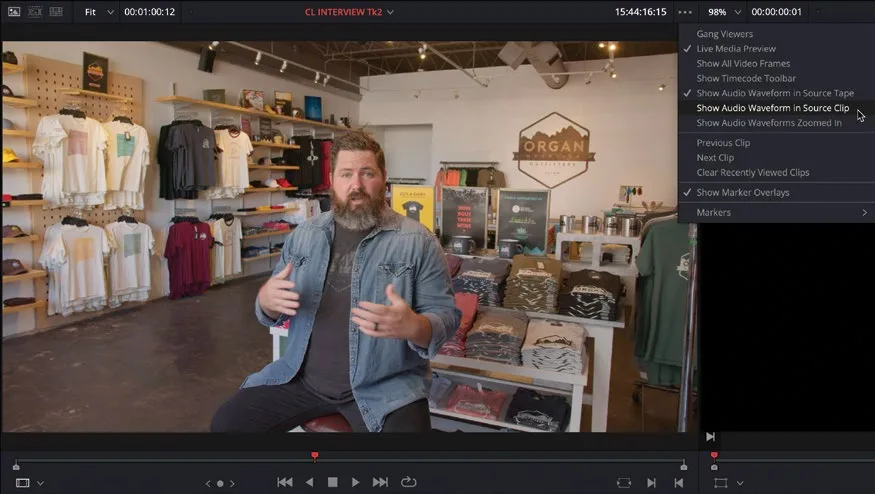
source viewer 底部会出现一条绿色的波形。A green waveform appears along the bottom of the source viewer.
- 点击 Go To First Frame 按钮,将播放头返回到片段开头。Click the Go To First Frame button to return the playhead back to the beginning of the clip.
- 按 Spacebar 重新播放这段采访。Press the Spacebar to start playing the interview again.
- 边听边留意:Chris 笑完之后、开口说 "I'm Chris Lang…" 之前,按 Spacebar 暂停播放。Listen to the interview as it’s playing and just after Chris laughs, but before he says, “I’m Chris Lang…,” press the Spacebar to stop playback.
音频波形上的间隙就是 Chris 开始自我介绍的位置,也可以切换到放大后的波形视图,提高定位精度。You should be able to judge where Chris starts to introduce himself from the gap in the audio waveform displayed, but you can also switch to a zoomed view of the waveform for even more accuracy.
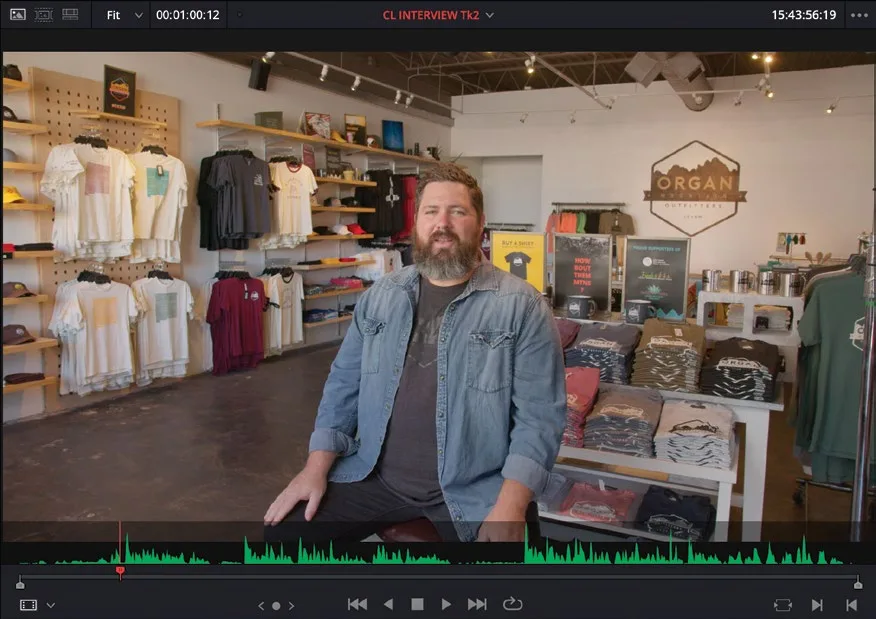
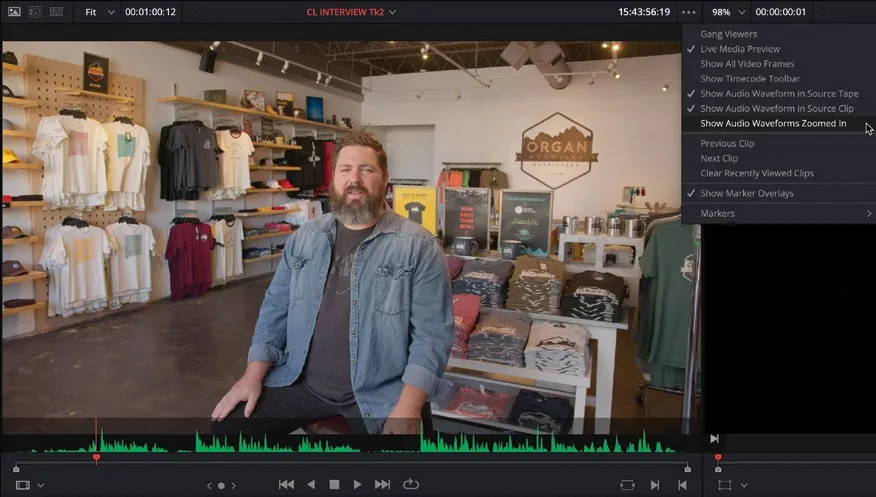
- 在 source viewer 的 Options 菜单(…)中选择 Show Audio Waveforms Zoomed In。From the source viewer’s Options menu (…), select Show Audio Waveforms Zoomed In.
波形随即切换为放大显示。The waveforms now show a zoomed-in display.
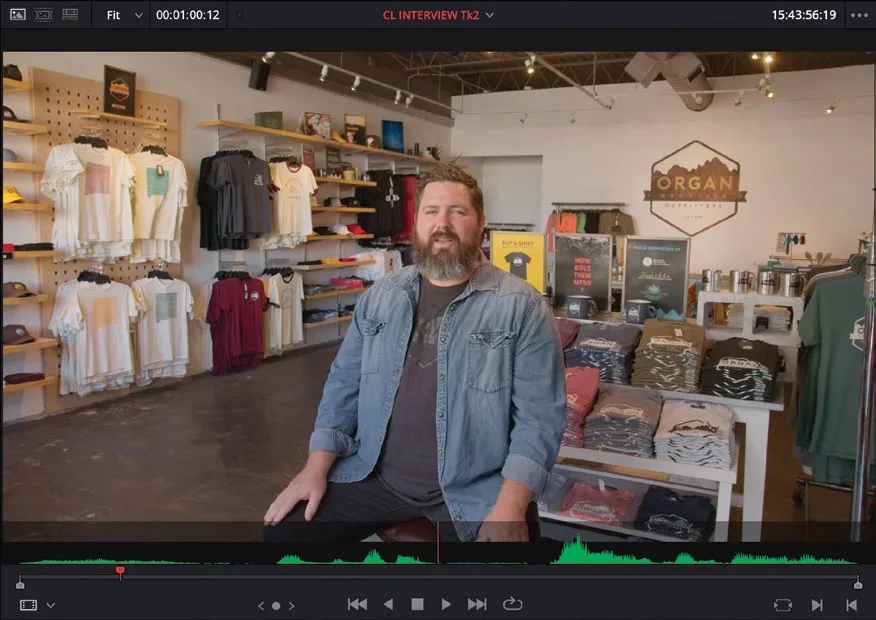
- 在 source viewer 传输控件中,按住 jog wheel 精细调整播放头位置。In the source viewer’s transport controls, click and hold the jog wheel to refine the position of the playhead in the source viewer.
- 用 jog wheel 把播放头移到大幅波形起点之前。Use the jog wheel to move the playhead to just before the start of the large waveform.
TIP · 提示
如果在前面步骤禁用了 audio scrubbing,按 Shift-S 重新开启。听到音频 scrub 声有助于把位置精确卡在 Chris 开讲之前。If you disabled audio scrubbing in the earlier steps, press Shift-S to re-enable it. Hearing the audio scrub can help you refine the position just before Chris starts speaking.
这就是第一段 soundbite 的起点,需要在当前播放头位置添加一个 In 点。This is where you want the first soundbite to start. To specify this, you’ll need to add an In point at the current playhead position.
- 在 source viewer 传输控件中,点击
Mark In按钮。In the source viewer transport controls, click theMark Inbutton.
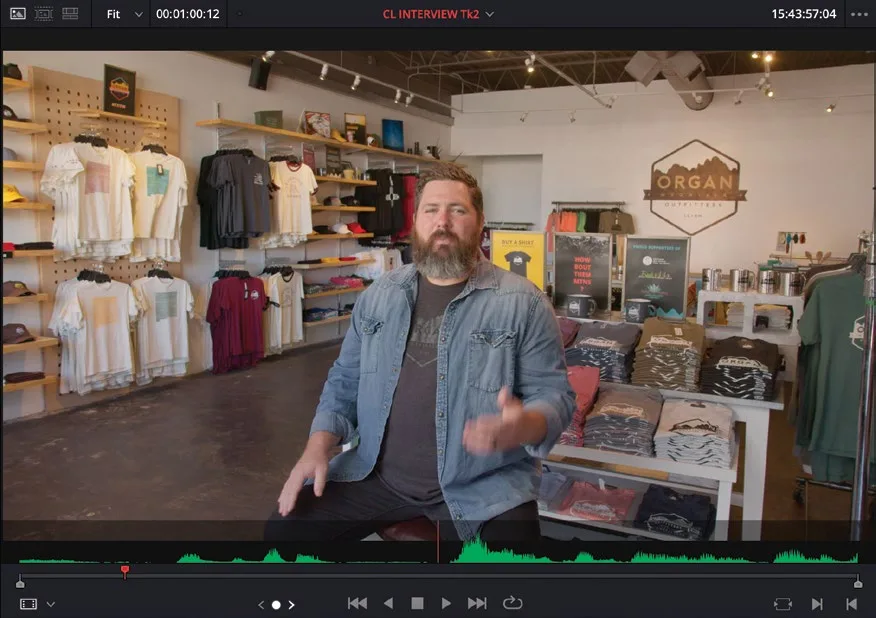 标记入点Mark In
片段的 In 点便从片头移到了播放头所在位置。The clip’s In point moves from the start of the clip to the position of the playhead.
这一段就是 Resolve 将要帮你插入到时间线上的部分,但对你的需求来说还是太长了。所以接下来你要通过添加一个 Out 点来指定 soundbite 的结束位置——没错,就是你猜的那样。This is the portion that Resolve will edit to the timeline for you, but it’s still far too long for your purposes. Instead, you will specify the end of the soundbite you’ll use by adding—yep, you guessed it—an Out point!
- 按 Spacebar 从当前播放头位置继续播放几秒,直到 Chris 说完 "…in Las Cruces, New Mexico",再按 Spacebar 停止播放。Press the Spacebar to continue playing the clip from the current playhead position for a few seconds until Chris says “…in Las Cruces, new Mexico,” and then press the Spacebar to stop playback.
- 用 jog wheel 再次微调播放头位置,使其刚好停在 Chris 眨眼之前。Using the jog wheel, again refine the position of the playhead to just before Chris blinks.
TIP · 提示
按 Left Arrow 可以将播放头往后逐帧 jog,按 Right Arrow 则往前逐帧 jog。也可参考下方侧边栏 "Controlling Playback" 的介绍。Press the Left Arrow to jog the playhead back 1 frame; press the Right Arrow to jog the playhead forward 1 frame. See also the sidebar “Controlling Playback” below.
- 在 source viewer 的 transport controls 中点击
Mark Out按钮。In the source viewer’s transport controls, click theMark Outbutton.
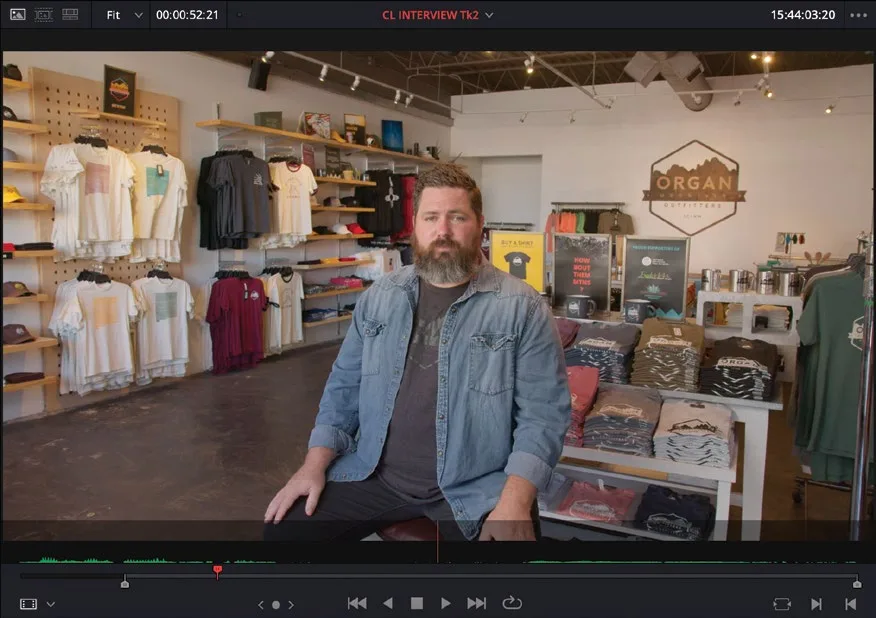 标记出点Mark Out
高亮显示的时长会更新为刚刚标记的 In 点与 Out 点之间的片段范围。The highlighted duration changes to the newly marked portion of the clip—between the In and Out points you’ve just set.
TIP · 提示
按 I 添加 In 点,按 O 添加 Out 点。Press I to add an In point and press O to add an Out point.
本卡术语Terms in this card
声音片段Soundbite 源检视器Source Viewer 时间线Timeline 标记Marker 播放头Playhead 静帧Still 帧Frame