导入项目Importing a Project
8 steps
本卡概念Key Concepts
DaVinci Resolve 中用于访问、组织和管理各个项目的地方,每个项目存储在一个称为项目库(Project Library)的数据库中。The place in DaVinci Resolve where you can access, organize, and manage each of your projects, with each project stored in a project library.
简介Overview
用 DaVinci Resolve 干活,不一定从剪辑开始。 通常你要花不少功夫把项目设置好,确保所有素材都到位、且组织有序——既要在电脑或硬盘上放好,也要在 Resolve 内部项目里归好类。The process of working with DaVinci Resolve doesn’t necessarily start with editing. Usually, there’s a whole lot of time, effort, and energy expended making sure the project is set up correctly and that all the media is available and properly organized, both on the hard drives of the computer you’re using as well as within the project you’re working on within Resolve.
大型制作中,这步通常由专人负责,岗位叫 DIT(Digital Intermediate Technician,数字中间片技术员)、 Data Wrangler(数据管理员)、 Media Manager(媒体管理员) 或 Edit Assistant(剪辑助理)。In large-scale productions, this process is often handled by a dedicated person called the DIT (Digital Intermediate Technician), Data Wrangler, Media Manager, or Edit Assistant.
小型项目里,这些人和剪辑师、调色师、混音师往往都是同一个人。On smaller productions, this person and the editor, colorist, audio mixer, etc., are all usually the same person!
眼下直奔主题: 你会拿到一个已经设置好的项目,只要导入到 DaVinci Resolve 20 就能开始剪辑。这样你能看到作者用哪些技巧和流程让剪辑更省事,后续课程再逐步拆解,学完就能用在自己的项目上。Don’t worry; you’ll explore all these roles throughout this book. However, to cut to the chase, you will start by working on a project that has already been set up for you. You simply need to import it into your copy of DaVinci Resolve 20 and start editing. This way, you can see how various techniques and processes were applied to make it easier for you to edit—techniques and processes that you will explore further in later lessons so that you can apply them successfully to your own projects in due course.
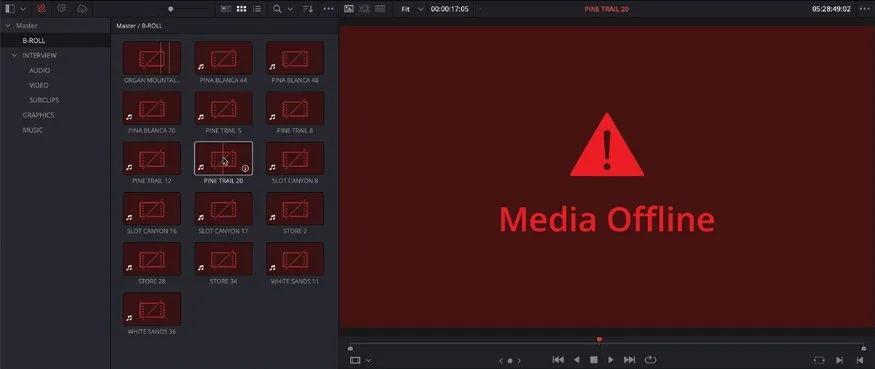
导入完成后别急着剪。如果素材显示为“离线媒体”,先花几分钟把它们重新链接到硬盘上的文件。Once your project is imported, you’re not quite ready to edit yet. If any media shows up as offline, you’ll want to relink the media files to the files on your hard drive first.
NOTE · 注意
注意:以下步骤假设你已经下载并解压了本书配套素材,并且至少打开过一次 DaVinci Resolve 20、走完了(或跳过了)Quick Setup 流程。如果还没做,请翻回本书开头的 "Getting Started" 部分。The following steps assume that you’ve already downloaded and unzipped the media files that accompany this book and have opened DaVinci Resolve 20 at least once and been through (or skipped) the Quick Setup process. If you haven’t completed either of these steps, please refer to the “Getting Started” section at the beginning of this book.
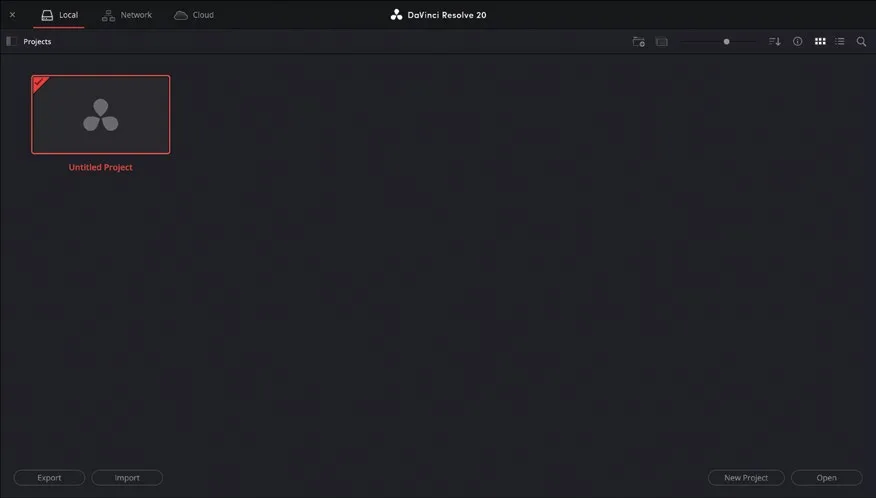
- 打开 DaVinci Resolve,等应用加载完毕,进入 Project Manager。Open DaVinci Resolve, letting the application load until the Project Manager opens.
— Local(本地)项目库: 存在你的电脑或直连存储(如外接硬盘)上。最简单易用,适合个人项目、不需要频繁协作的场景。 — Network(网络)项目库: 在网络环境内共享,比如后期制作机房,多人可以访问同一批项目。 — Cloud(云)项目库: 存放在 Blackmagic Cloud 专用服务器上,你和受邀的协作者只要能上网就能访问。— Local Project libraries are stored on your computer or on directly attached storage such as an external hard drive. These are the simplest and easiest types of project libraries to work with, especially for someone working on their own projects who doesn’t need to collaborate with others regularly. — Network Project libraries are available to anyone using DaVinci Resolve in a networked environment, such as a post-production facility where different people may need access to the same set of projects. — Cloud Project libraries are stored on dedicated Blackmagic Cloud servers where they can be accessed anywhere you can get online by anyone you choose to invite.
网络和云项目库的优势在于支持多人协作。 多个 DaVinci Resolve 用户不仅能访问同一个项目库里的项目,还能同时编辑同一个项目。Both networked and cloud-based project libraries have the advantage that they can be used to collaborate so that multiple DaVinci Resolve users can not just access a set of projects in a project library but actually work on the same project simultaneously!
作为入门教程,你将使用默认的本地项目库,并按前面所说的,导入作者帮你预先设置好的项目(你可以把他们当作本课的剪辑助理)。As this is a Beginner’s Guide, you will work with the default local project library and, as discussed, you will import a project that has already been set up for you by the authors (think of them as your edit assistants for this lesson).
 导入项目Import
NOTE · 注意
注意:关于如何创建自己的项目库,将在 第 10 课 "Delivery and Media Management" 中讲解。You will learn more about creating your own project libraries in Lesson 10, “Delivery and Media Management.”
- 在 Project Manager 左下角点击
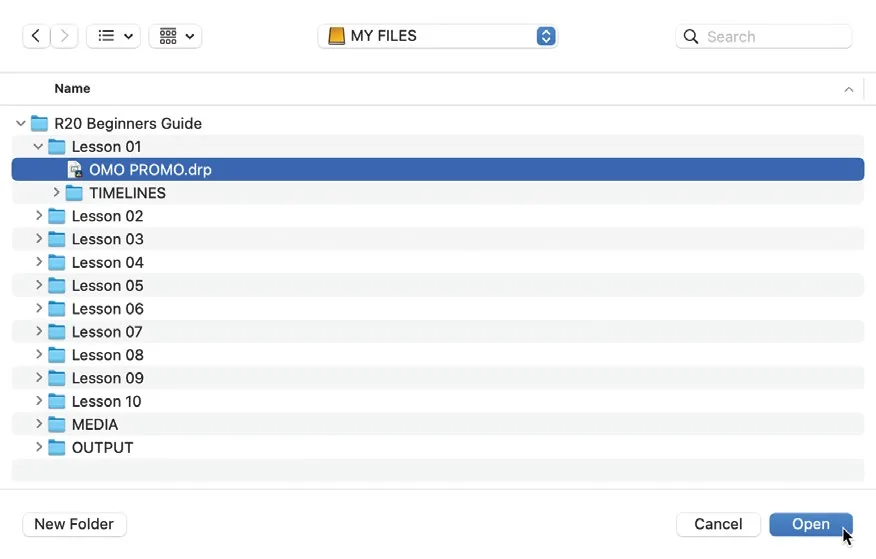
Import按钮。In the lower left corner of the Project Manager, click theImportbutton. - 在弹出的 Finder(macOS)或 Explorer(Windows)窗口中,导航到 R20 Beginner Guide / Lesson 01 文件夹,选中 OMO PROMO.drp 文件。In the Finder window (macOS) or
Explorerwindow (Windows) that opens, navigate to the R20 Beginner Guide / Lesson 01 folder and select the file OMO PROMO.drp.
扩展名 .drp 表示这是 DaVinci Resolve 的项目文件。项目文件只包含项目的设置和组织信息,不含任何媒体(音频和视频)文件,媒体文件存放在 R20 Beginner Guide 文件夹下的 Media 文件夹中。The file extension .drp indicates that this is a DaVinci Resolve Project file. Project files contain information about how the project is set up and organized but do not contain any media (audio and video) files. These files are kept in the Media folder in the R20 Beginner Guide folder.
- 选中 OMO PROMO.drp 文件后,点击 Open。With the OMO PROMO.drp file selected, click Open.
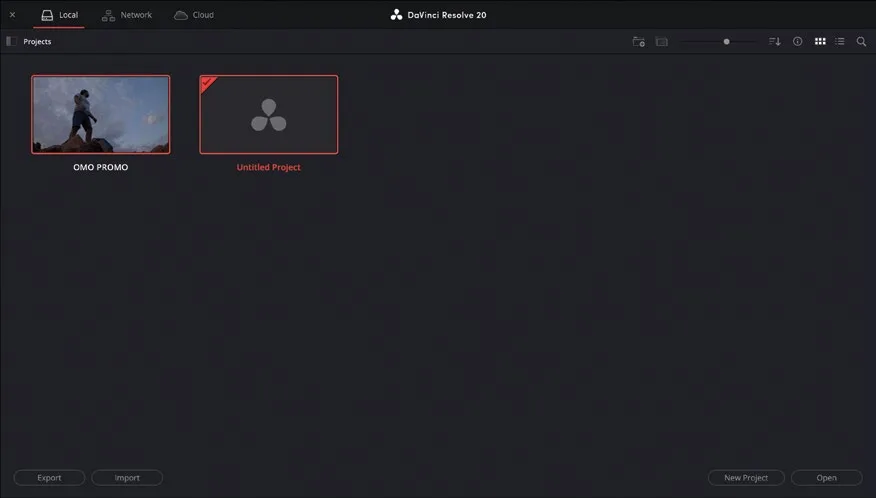
经过短暂处理后,项目文件就会被导入 Project Manager,可以直接打开使用。After a brief process, the project file is imported into the Project Manager and is now available for you to open.
NOTE · 注意
注意:DaVinci Resolve 不会直接从 .drp 文件打开项目,而是把项目文件复制到当前项目库中。之后所有修改都作用于项目库里的这份副本,而不是你最初选中的 .drp 文件。因此必须始终通过 Project Manager 打开项目,不要像在其他剪辑软件里那样直接双击 .drp 文件。DaVinci Resolve does not open projects directly from .drp files. Instead, the project file is copied into the current project library. Thereafter, any changes to the project are applied to the copy in the project library, not the .drp file you initially selected. This is why you must always open a project using the Project Manager rather than double-clicking a .drp file directly from your computer, which you might do if you’re more familiar with other video editing software.
- 在 Project Manager 中选中 OMO PROMO 项目,点击 Open;也可以直接双击 OMO PROMO 项目。With the OMO PROMO project selected in the Project Manager, click Open. Alternatively, double-click the OMO PROMO project.
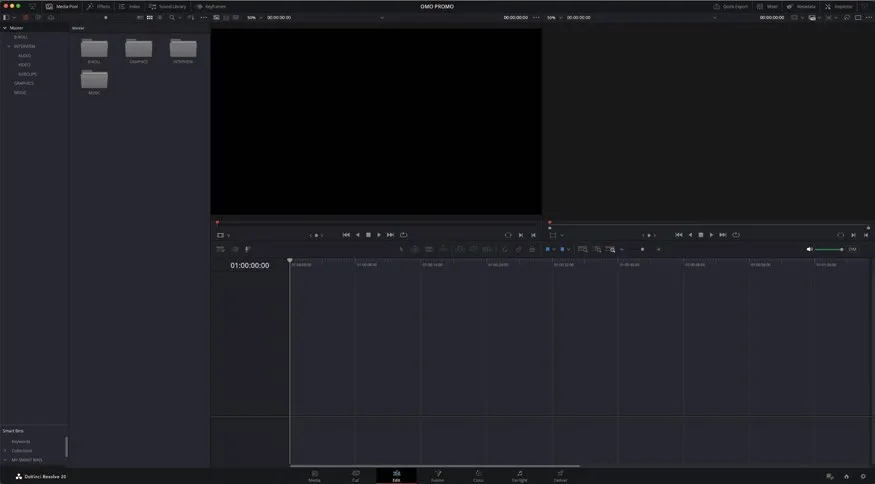
DaVinci Resolve 会在项目上次关闭时停留的页面打开它,所以你现在可能位于任意一个页面。DaVinci Resolve will open the project in the last page that was active when it was last opened, so you might be looking at this project in any of the pages.
- 如有必要,点击界面底部的
Edit按钮切换到Edit页面。If necessary, click theEditbutton at the bottom of the interface to open the edit page.
本卡术语Terms in this card
B-roll 素材B-roll 媒体夹Bin 项目文件.drp 项目库Project Library 项目管理器Project Manager 媒体管理Media Management 预设Preset 编辑页Edit page 调音台Mixer 窗口Power Window 调色Grade 项目设置Project Settings