在剪辑页面快速变换Quick Changes in the Edit Page
8 steps
简介Overview
利用这个合成,可以直接在剪辑页面快速做出多种变化版本。With this composition, you can quickly create many variations directly in the edit page.
- 按 Shift-4 返回剪辑页面。Press Shift-4 to go back to the edit page.
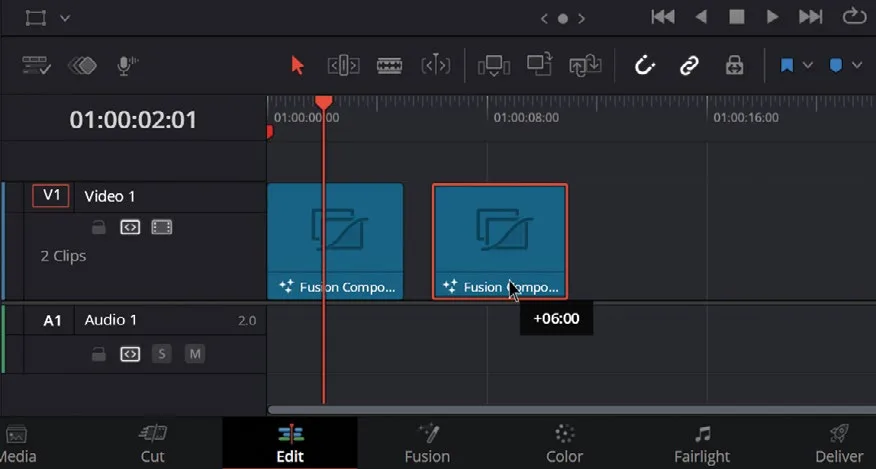
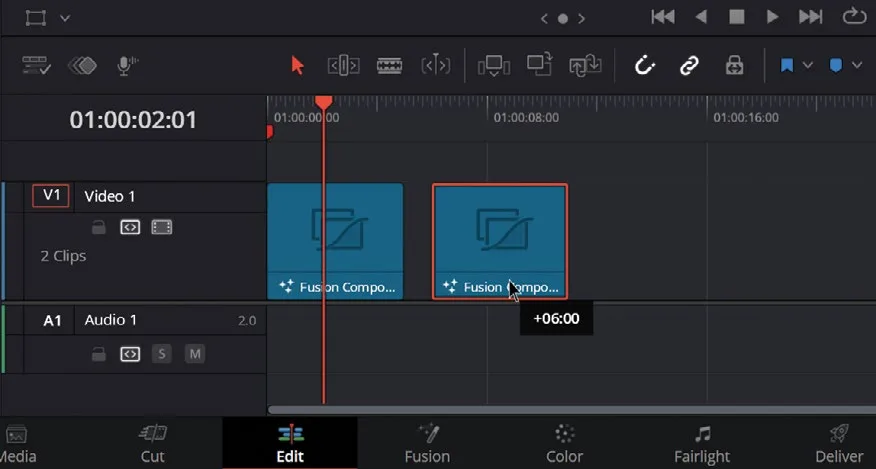
- 在时间线上复制这个 Fusion Composition。Windows 用 Ctrl-C 复制、Ctrl-V 粘贴;macOS 用 Command-C 复制、Command-V 粘贴。也可以按住 Alt(Windows)或 Option(macOS)键,鼠标点击并拖动该合成进行复制。Duplicate the Fusion Composition in the timeline. On Windows, you can use Ctrl-C to copy and Ctrl-V to paste. On macOS, use Command-C to copy and Command-V to paste. Alternatively, you can hold down the Alt key on Windows or the Option key on macOS, and then click and drag the composition to duplicate it.
- 点击界面左上角的
Effects按钮,打开 Effects Library(若尚未打开)。Click the Effects button at the top left of the interface to open the Effects Library (if it’s not already open). - 进入
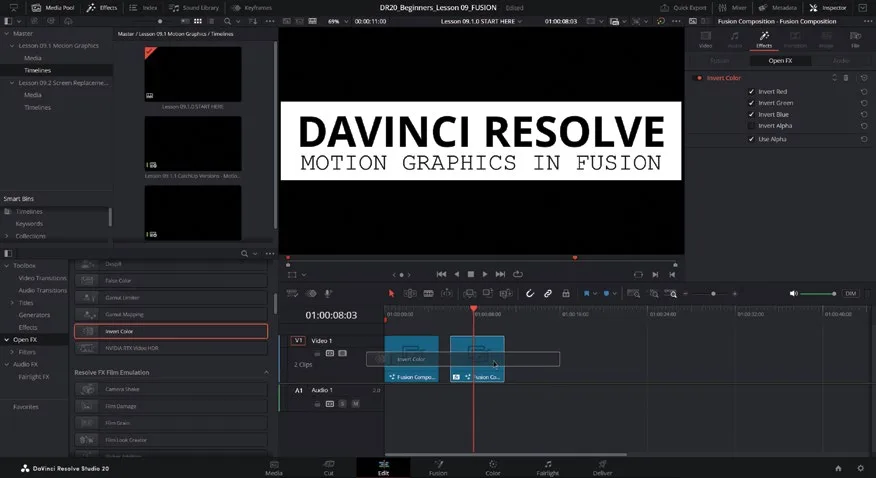
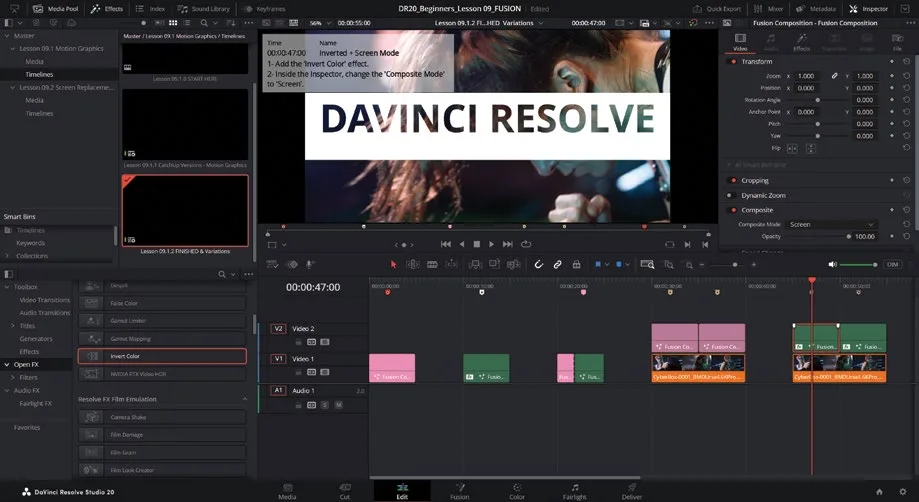
Open FX > Filters > Resolve FX > Resolve FX Color分类,把 Invert Color 特效拖到复制的合成上。Navigate to Open FX > Filters > Resolve FX > Resolve FX Color category and select and drag the Invert Color effect onto the copy of your composition.
应用特效后,就得到了一个反转版本:原来的黑色变白,白色变黑。进一步还可以把正常版和反转版两个标题组合起来,作为视频的遮罩!After applying the effect, you have a variation where what was black is now white, and vice versa. But you can take this a little further and use both versions (normal and inverted) of your title to mask a video!
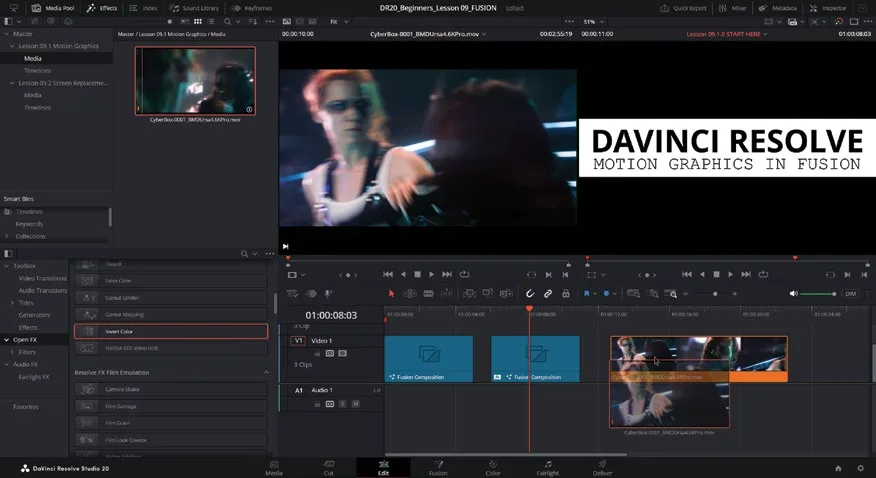
在 Lesson 09.1 Motion Graphics smart bin 里有一段 10 秒的 CyberBox 镜头,这是 Nahuel Srnec 使用 Blackmagic URSA Mini Pro 4.6K G2 在 LED 影棚中拍摄的 ICVFX 虚拟制片项目。这里用的不是原始素材,而是用来展示这台电影摄影机在虚拟制片中的能力——它的 dynamic range、分辨率、SDI 输入/输出以及 Ref/Timecode 接口都是 ICVFX 工作的关键。我们可以把这段素材和刚做好的标题结合使用。Inside the Lesson 09.1 Motion Graphics bin, you’ll find a 10-second shot of CyberBox, an ICVFX Virtual Production project shot by Nahuel Srnec using a Blackmagic URSA Mini Pro 4.6K G2 in an LED volume. This is not the raw media, but it provides a preview of the capabilities of this cinema camera for Virtual Production, thanks to its dynamic range, resolution, SDI input, SDI output, and Ref/Timecode connections, which are essential for ICVFX work. We can use this clip in combination with the title we’ve just created.
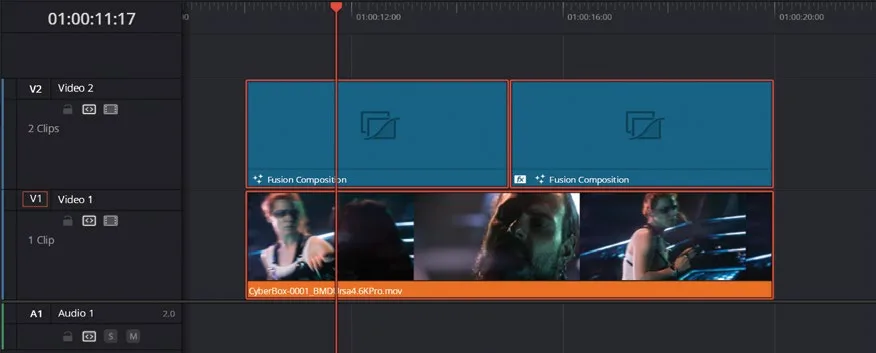
- 在剪辑页面把 CyberBox-0001_BMDUrsa4.6KPro.mov 加入时间线。Add the CyberBox-0001_BMDUrsa4.6KPro.mov clip to the timeline in the edit page.
- 在该素材上方的新建视频轨道上,放两份动画标题合成。Place two copies of your composition right above that clip on a new video track.
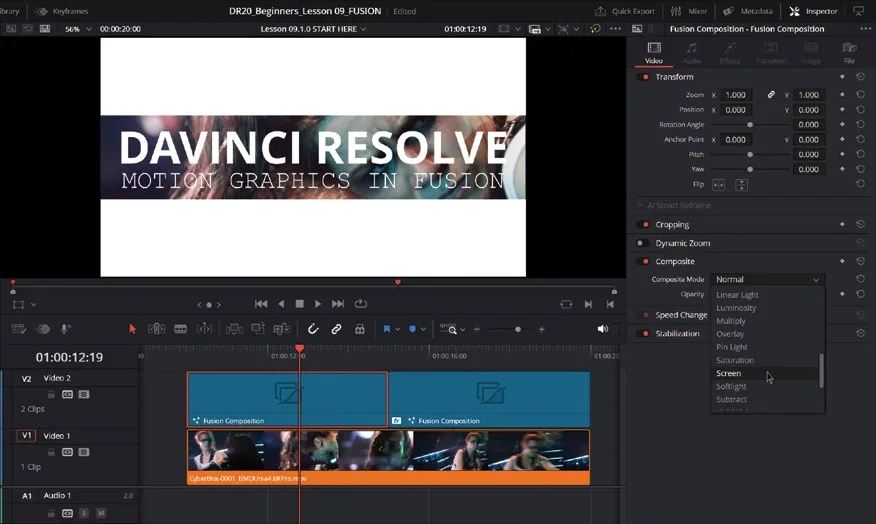
- 选中其中一份标题合成,打开 Inspector,把 Composite Mode 设为 Screen。Select one of those copies of the animated title composition, open the Inspector, and set the Composite Mode to Screen.
- 把另一份设为 Multiply。Set the other copy to Multiply.
时间线 Lesson 09.1.2 FINISHED & Variations 里还提供了一些示例,都是原合成的简单变化版本。有兴趣的话,可以在剪辑页面加载这条时间线查看。There are some additional examples for you in the timeline Lesson 09.1.2 FINISHED & Variations, which are simple variations of the original composition. If you’d like, you can look at them by loading that timeline on the edit page.
本卡术语Terms in this card
媒体夹Bin 时间线Timeline 分辨率Resolution 编辑页Edit page 检查器Inspector Resolve FXResolve FX 时间码Timecode 合成Compositing Fusion 合成Fusion 动态范围Dynamic Range RAWRAW