添加第一个节点Adding the First Node
9 steps
简介Overview
Merge Node 合并节点(509 页)是 Fusion 中极为实用的工具,能让你轻松创建复杂效果。Fusion 与剪辑页面深度集成,tools invaluable for creating complex effects with ease. The fully integrated The Merge Node 509
你可以从 Text Creation 文字创建(512 页)直接跳转到 Fusion 合成,workflow allows you to jump from Text Creation 512
无需额外渲染或转码。Keyframes and Animation 关键帧与动画(517 页)、Quick Changes in the Edit Page 剪辑页面快速修改(523 页)、VFX Compositing 影视特效合成(527 页)以及the edit page directly to your Fusion Keyframes and Animation 517 composition without the need for Quick Changes in the Edit Page 523 rendering or transcoding. VFX Compositing 527
Lesson Review 课程回顾(541 页)。Fusion 的界面乍看可能觉得复杂,但掌握节点的使用后,你将在项目中获得前所未有的控制力和效率。本课将通过一个运动图形练习,帮助你理解节点和动画的基本原理;随后你将在一个电影项目中把一块屏幕合成进另一个镜头,并匹配透视、反射、景深、噪点、色彩一致性等合成关键要素。Lesson Review 541 While Fusion's interface might seem complex initially, mastering its nodes will provide you with a new level of control and efficiency in your projects. In this lesson, you'll dive into Fusion with a motion graphics exercise that will teach you the principles of nodes and animation. Then, you'll work on a feature film project to integrate a screen into another shot, matching its perspective, reflections, depth of field, noise, color consistency, and other aspects essential to visual effects compositing.
添加第一个节点。目前合成里只有 MediaOut1 节点,它决定最终输出到 Edit 和 Color页面的内容。目标是制作一个动画标题:先搭建一个粗略的背景和文字草稿,再做动画——白色背景上放一个黑色矩形,里面包含主标题和一行副标题,文字均为白色。Adding the First Node Currently, your composition only has the MediaOut1 node, which determines what gets rendered back to the edit and color pages. Your goal is to create an animated title, so you will first create a rough draft of the background and text, and then move on to the animation of a white background with a black rectangle on top, containing a main title and a second line of text, both in white.
先添加一个 Background 节点,作为合成的基础。You'll start by adding a Background node, which will serve as the foundation for your composition.

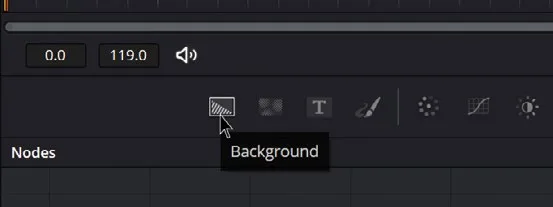
- 在工具栏找到 Background 工具(最右侧第一个图标),按住鼠标拖到 Node Editor 中。Locate the Background tool in the toolbar (it's the first icon on the right), and then click and drag it to the Node Editor.
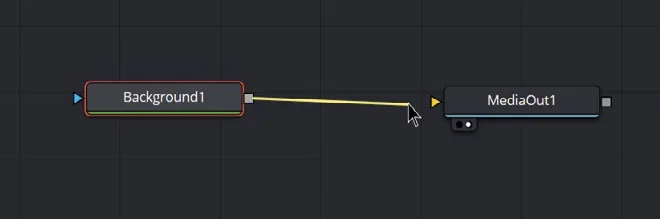
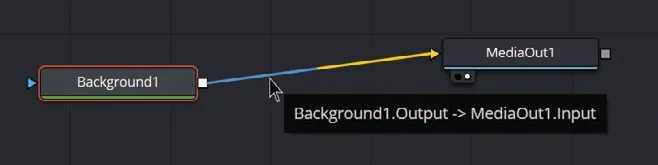
- 点击 Background1 节点右侧的灰色方块(节点输出),按住鼠标拖出一条连接线,连到 MediaOut1 节点的橙色三角形(节点输入)上。Click the gray square on the right of the Background1 node (node output) and drag with the mouse to connect the pipe to the orange triangle of the MediaOut1 node (node input).
连接到 MediaOut1 节点的内容会被渲染输出,在 Edit 和 Color页面中看到的就是这个输出。如果 MediaOut1 上没有连接任何节点,回到 Edit页面时就会看不到画面。Anything connected to the MediaOut1 node will be rendered out, and that's what you will see in the edit and color pages. If you don't connect anything to MediaOut1, you won't see any image when you return to the edit page.
要断开连线,把光标悬停在管道(白色连接线)上。当它变成蓝黄相间时,处于蓝色一侧就双击,处于黄色一侧就单击。也可以按住 Shift 键,点中节点并拖动来断开连接。注意:悬停在节点或连线上时,会弹出一个小窗口显示相关信息,这些信息同时显示在屏幕左下角。To break the connection, hover your cursor over the pipe (the white connection line). When it changes to blue and yellow, double-click it if you are on the blue side, or click it if you are on the yellow side of the pipe. You can also hold down the Shift key and click and drag the node to disconnect it. Note that when you hover over a node or connection, a small window will appear with information, which is also displayed at the bottom left of the screen.
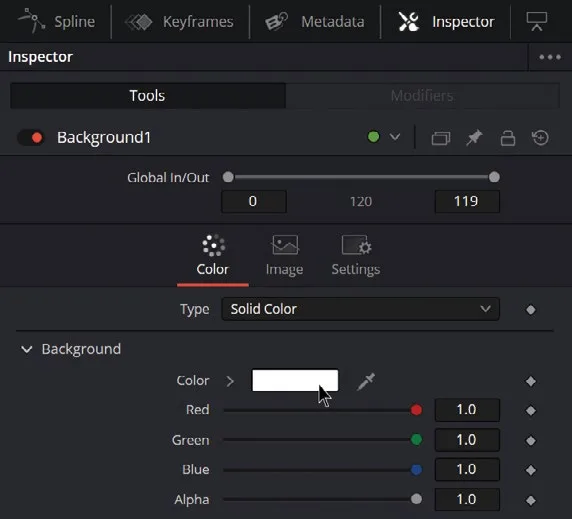
Inspector面板应已打开并位于屏幕右侧。如果没有打开,点击屏幕右上角的Inspector按钮打开它。点击Inspector按钮右侧的图标可以展开或收起 Inspector。The Inspector panel should be open at the right side of the screen. If not, open it by clicking theInspectorbutton at the top right of the screen. You can expand or shrink the Inspector by clicking the icon to the right of theInspectorbutton.- 选中 Background1 节点,在 Inspector 控件中将颜色改为白色。可以点击颜色框选择颜色,也可以把 Red、Green、Blue 的值分别设为 1.0。Select the Background1 node and, using the controls in the Inspector, change the color to white. You can either click the color box and select the color you want or set the Red, Green, and Blue values to 1.0 each.
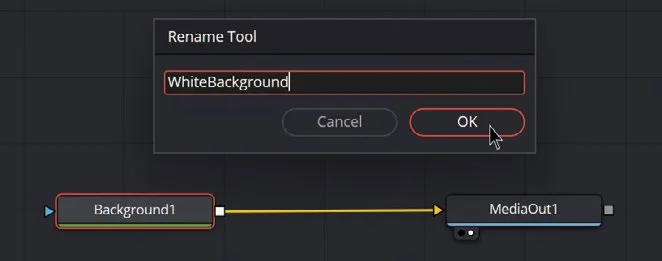
- 按 F2,或右键点击 Background1 选择 Rename,将 Background1 节点重命名为 WhiteBackground。Press F2, or right-click Background1 and choose Rename, and rename the Background1 node WhiteBackground.
NOTE · 注意
本练习在重命名节点时使用「驼峰命名法」,即每个单词的首字母大写。在 Fusion 中,名称不能包含空格,但也可以用句点或其他字符来分隔单词。This exercise uses "camel case" when renaming the nodes, where the first letter of each word is capitalized. In Fusion, names cannot contain spaces, but you can also separate words using a period or other characters.
- 按 Command-Shift-A(macOS)或 Ctrl-Shift-A(Windows)取消所有选中。在 Node Editor 中添加一个新的 Background 节点,并重命名为 BlackBackground。Deselect all by pressing Command-Shift-A (macOS) or Ctrl-Shift-A (Windows). Add a new Background node to the Node Editor and rename it BlackBackground.
- 选中 BlackBackground 节点,在工具栏(位于工具栏中间,第四段的第一个图标)中找到 Rectangle 工具并点击。With the BlackBackground node selected, locate the Rectangle tool (it's in the middle of the toolbar, the first icon in the fourth segment) and click it.
- 接下来,选中 WhiteBackground 节点,点击节点下方的小左圆点,将其加载到左侧 Viewer。也可以按键盘上的 1 加载到左侧 Viewer,或直接把节点拖进去。Viewer 顶部会显示已加载节点的名称。Next, select the WhiteBackground node and click the small left dot under the node to load it into the left viewer. You can also press 1 on your keyboard to load it into the left viewer or simply drag the node there. You'll see the name of the loaded node displayed at the top of the viewer.
- 选中 BlackBackground 节点,按 2 将其加载到右侧 Viewer。Select the BlackBackground node and press 2 to load it into the right viewer.
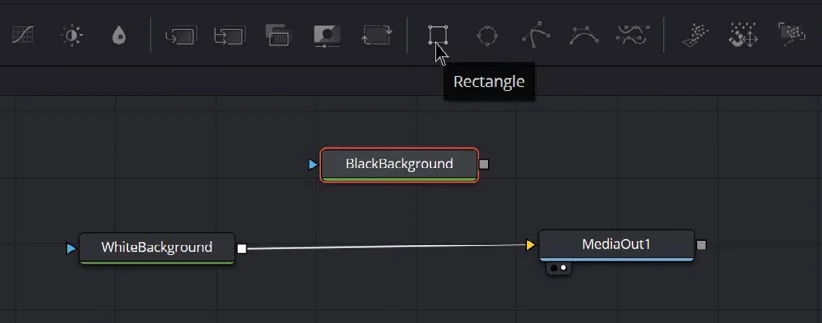
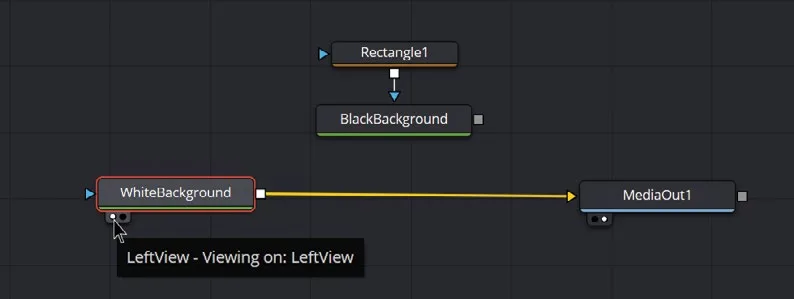
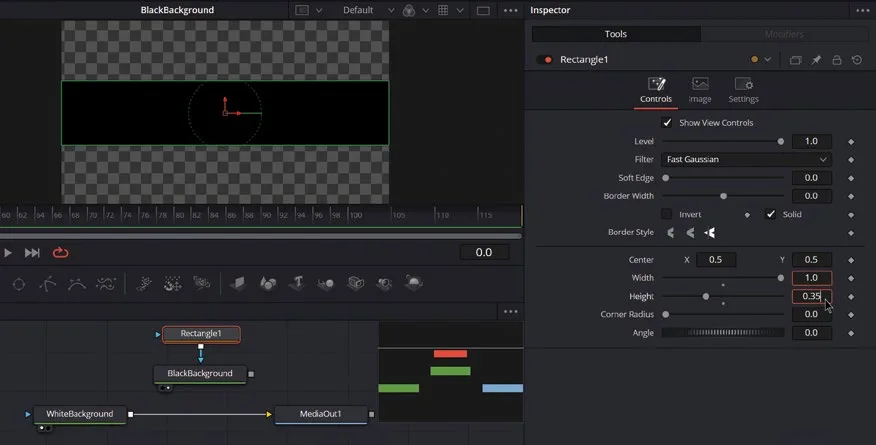
现在 BlackBackground 节点已经被遮罩,呈现为一个矩形。Rectangle1 的方块输出(node output)已连接到 BlackBackground 的蓝色三角输入(effect mask)。需要调整矩形的形状,使其覆盖整个画面宽度。You have masked the BlackBackground node, and now it's a rectangle. The square (node output) of Rectangle1 is connected to the blue triangle (effect mask) of BlackBackground. You should adjust the shape of the rectangle so that it covers the full width of the screen.
加载节点到 Viewer:悬停在一个节点上,点击其左下角的按钮即可。Loading Nodes into the Viewers Hover over a node and click the button at the bottom left.
选中节点后按 1(在左 viewer 显示)或 2(在右 viewer 显示)。Click the node and press 1 (for the left viewer) or 2 (for the right viewer).
在 Node Editor 中右键节点,或在 Inspector 中右键节点标题栏,选择 View On > None / Left View / Right View。Right-click the node in the Node Editor or its header in the Inspector, and then choose View On > None/Left View/Right View.
将节点拖拽到 viewer 上。Drag and drop the node onto a viewer.
清除 viewer 的方法:To clear viewers:
按 1 或 2 分别清除左、右 viewer;按 `(反引号键)同时清除两个 viewer。— Press 1 or 2 to clear the left or right viewer. — Press ` (the Accent key) to clear both viewers.
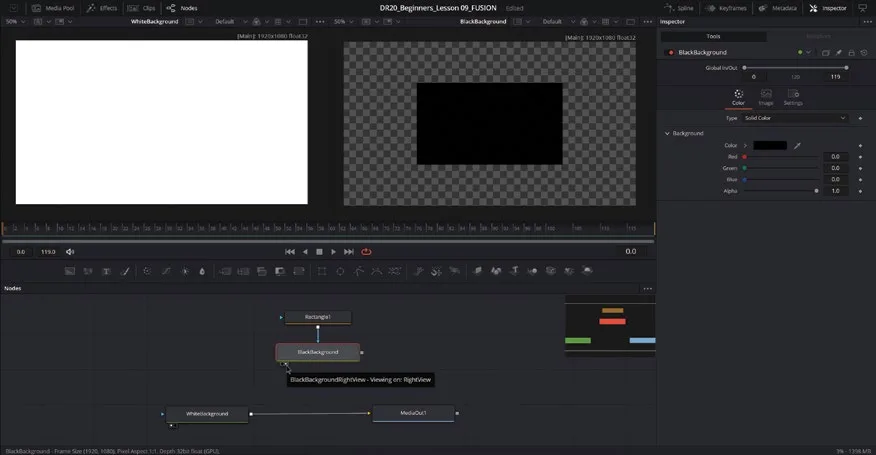
选中 Rectangle1,在 Inspector 中将 Width 设为 1,Height 设为 0.35。Select Rectangle1 and, in the Inspector, set the Width to 1 and the Height to 0.35.
TIP · 提示
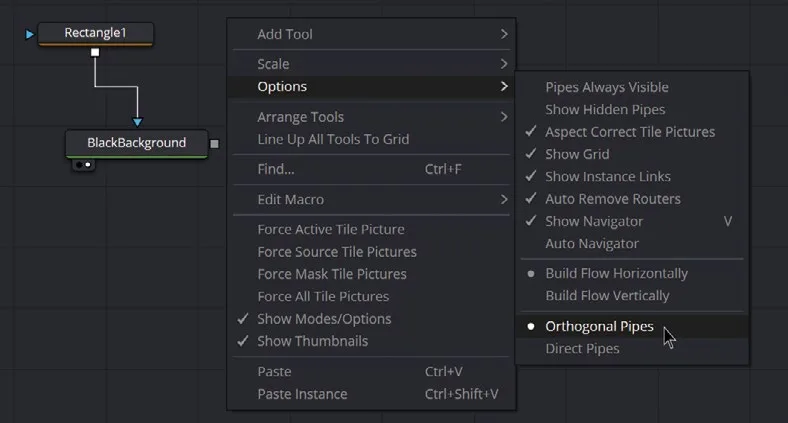
提示:节点之间的连线可以是直线,也可以是带 90° 转角的 Orthogonal Pipes(正交连线)。要切换为正交连线,可在 Node Editor 背景上右键,选择 Options > Orthogonal Pipes。同一菜单中还有 Line Up All Tools to Grid(将所有工具对齐到网格,便于整理节点)以及 Force Source Tile Picture(为每个加载图像的节点添加缩略图)。The pipes can be either direct lines or orthogonal (horizontal and vertical with 90º bends). To make them orthogonal, right-click the background of the Node Editor and select Options > Orthogonal Pipes. In the same menu, you'll also find the option Line Up All Tools to Grid, which can be useful for tidying up your nodes, and Force Source Tile Picture, which adds a small thumbnail to every node that is loading an image in the Node Editor.
本卡术语Terms in this card
渲染Render 编辑页Edit page 检查器Inspector 关键帧Keyframe 覆盖Overwrite 调色页Color page 窗口Power Window 合成Compositing Fusion 合成Fusion 合并Merge 节点Node 帧Frame 转码Transcode
相关知识卡Related Cards
理解节点Understanding Nodes 合成Compositing 关键帧与动画Keyframes & Animation Merge 节点Merge Node 节点编辑器Node Editor