TASK 1Task 1
标记精彩镜头Mark Good Takes
8 steps
- 在 Media Pool 中,选中 VIDEO bin 里的第一条采访片段 F002_08151648_C005.mov。In the media pool, select the first interview clip in the VIDEO bin, F002_08151648_ C005.mov.
- 在 Inspector 中向上滚动至顶部,显示
Metadata面板。Scroll to the top of the Inspector to display theMetadatapanel.
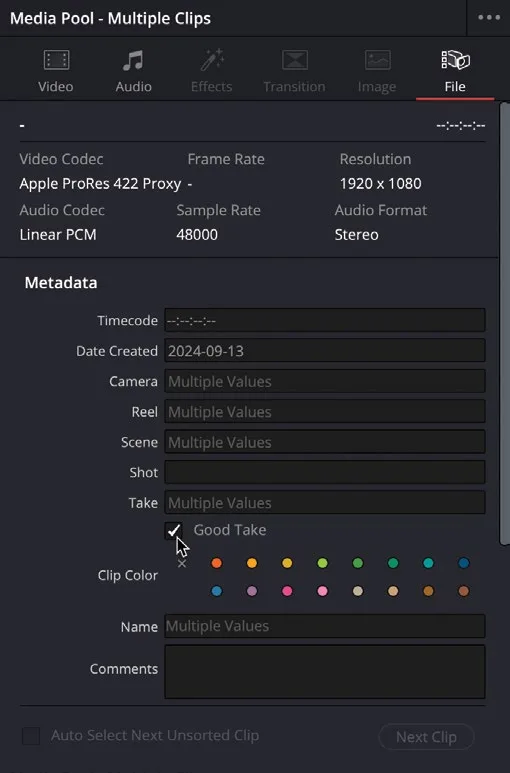
Inspector 内包含若干常用元数据字段,例如摄影机编号、reel、scene 和 take 等。这些信息是在原始拍摄时由摄影机直接写入的元数据。The Inspector contains several common metadata fields. In this case, you can see pieces of information that detail the camera number, reel, scene, and take. This is an example of metadata that has been assigned in-camera when the clip was originally recorded.
其中大部分字段都可编辑,方便你按需修改或补充自己的元数据。You can edit many of these fields to adjust or add your own metadata as needed.
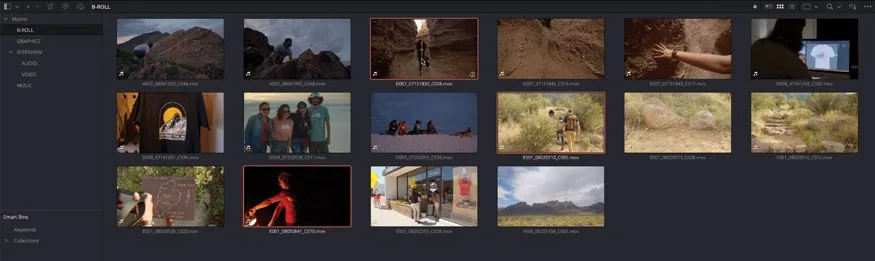
- 在 Media Pool 中选中 B-ROLL bin,用 Command+点按(macOS)或 Ctrl+点按(Windows)多选三个最中意的片段。In the media pool, select the B-ROLL bin and Command-click (macOS) or Ctrl-click (Windows) your three favorite clips.
- 在 Inspector 中勾选
Good Take复选框。In the Inspector, click theGood Takecheckbox.
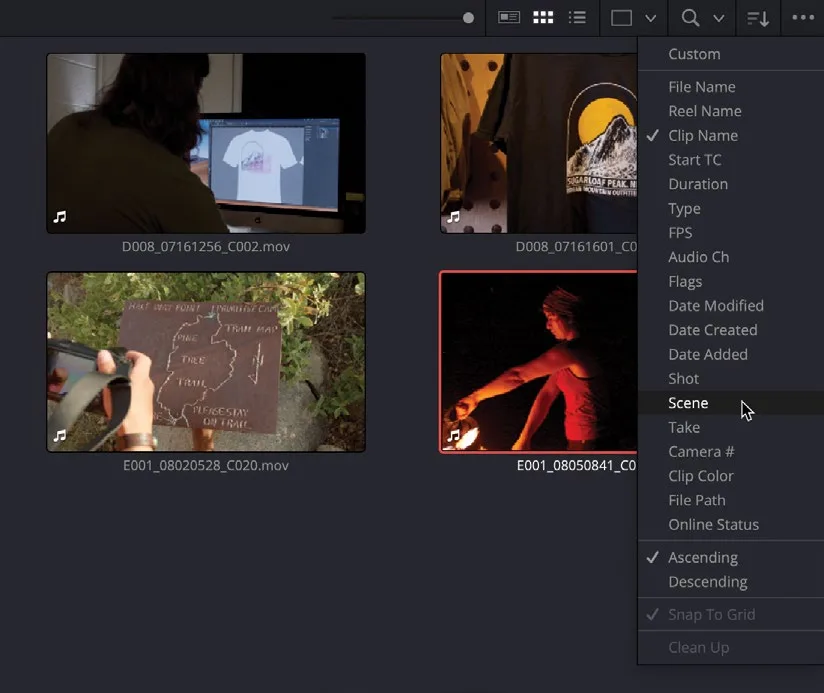
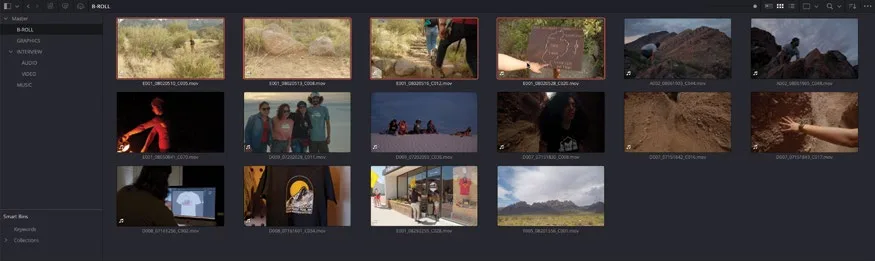
- 点击 Media Pool 的 Sort 菜单,选择 Scene,让片段按场景编号排列。Click the media pool Sort menu and choose Scene to list the clips in order of their scene number.
- 片段重新排序后,选中最前面四条片段(来自 Scene 2 的)。With the clips reordered, select the first four clips (from Scene 2).
- 在 Inspector 的 Comments 字段中输入 PINE TRAIL。In the Inspector, type PINE TRAIL in the Comments field.
- 再次点击 Media Pool 的 Sort 菜单,选择 Clip Name,让素材池里的片段按名称重新排列。Click the media pool Sort menu again and choose Clip Name to reorder the clips in the media pool by their names.
刚刚为这些片段添加了简单的元数据后,现在就可以用这些元数据快速找到对应片段。Simple Searches Using Metadata Having just added your own simple pieces of metadata to these clips, you can now use it to find these clips instantly.
本卡术语Terms in this card
B-roll 素材B-roll 媒体夹Bin 媒体池Media Pool 检查器Inspector 元数据Metadata