TASK 2Task 2
搜索镜头评论Search Clip Comments
9 steps
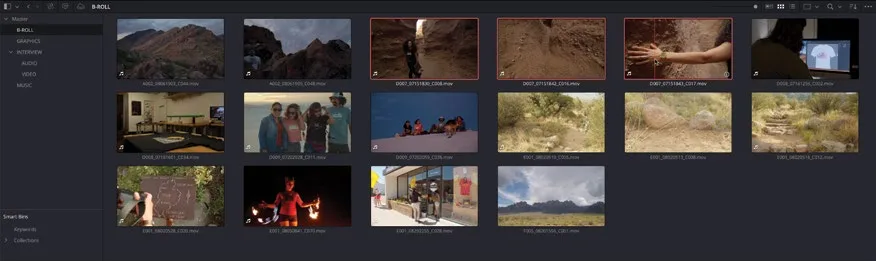
- 在 bin 列表中选择 Master bin。In the bin list, select the Master bin.
- 在 Media Pool 顶部,点击
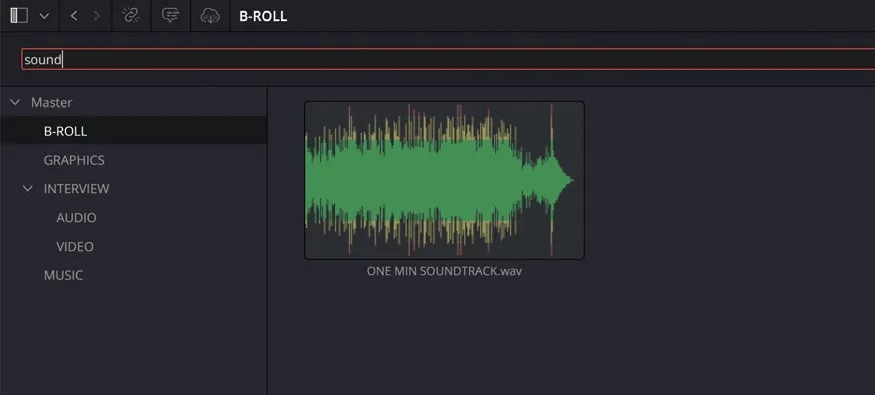
Search按钮(放大镜)旁边的菜单,选择 All Bins。At the top of the media pool, click the menu next to theSearchbutton (the magnifying glass) and choose All Bins. - 在 Search 字段中输入 soundtrack。In the Search field, type soundtrack.
因为这条音乐片段的名称里包含 “soundtrack”,所以会立即被显示出来。The music clip is displayed instantly because it has “soundtrack” in its name.
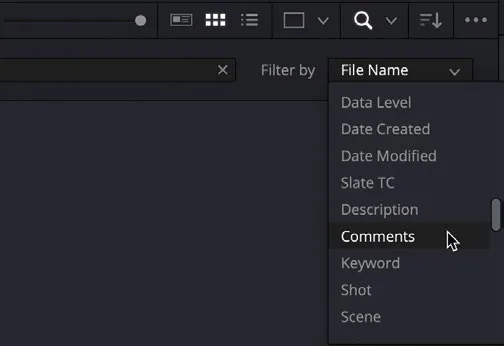
- 在 Filter By 菜单中选择 Comments。In the Filter By menu, select Comments.
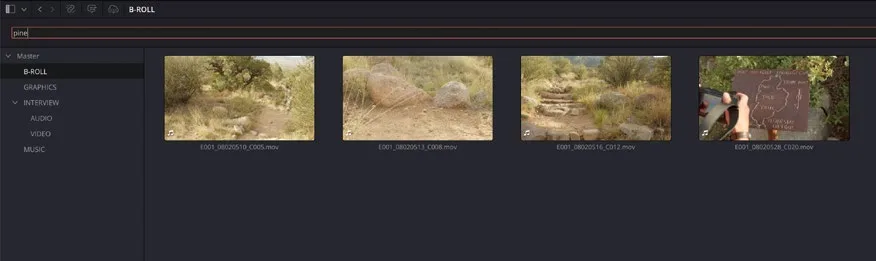
- 在 Search 字段中选中 “soundtrack” 并输入 pine,即可显示之前添加了 “PINE TRAIL” 注释的片段。In the Search field, highlight “soundtrack” and type pine to reveal the clips that have the “PINE TRAIL” comment you added previously .
- 点击 Search 字段右侧的 “x” 清除当前搜索。Click the “x” on the right side of the Search field to clear the current search.
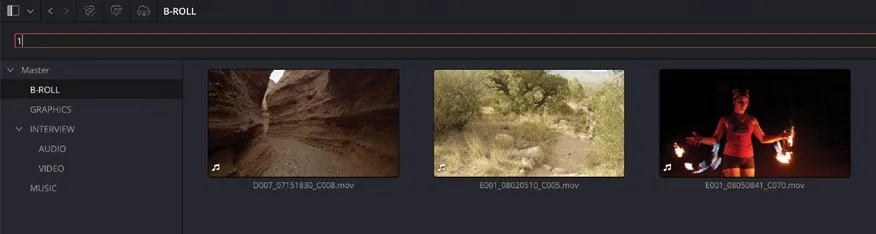
- 在 Filter By 菜单中选择 Good Take。In the Filter By menu, choose Good Take.
- 在 Search 字段中输入 1,表示值应为 “true”(启用),之前标记为 Good Take 的片段会立刻被筛选出来。In the Search field, type 1 to indicate the value should be “true” (active), and the clips you marked as good a few steps earlier are instantly recalled.
NOTE · 注意
要查看所有未标记为 Good Take 的片段,可在 Search 字段中输入 0。To view all the clips you haven’t marked as Good Takes, type 0 in the Search field.
- 点击搜索按钮(放大镜图标),清空并关闭搜索框。Click the Search button (magnifying glass) to clear and close the Search field.
Resolve 搜索功能强大且响应迅速,即使在超大型项目中,你也可以借助元数据的灵活性,在 Media Pool 中迅速找到所需片段。Resolve’s powerful and responsive search feature lets you leverage the flexibility of metadata to find media pool clips in even the largest projects.