TASK 1Task 1
配置项目设置Configure Project Settings
4 steps
- 执行
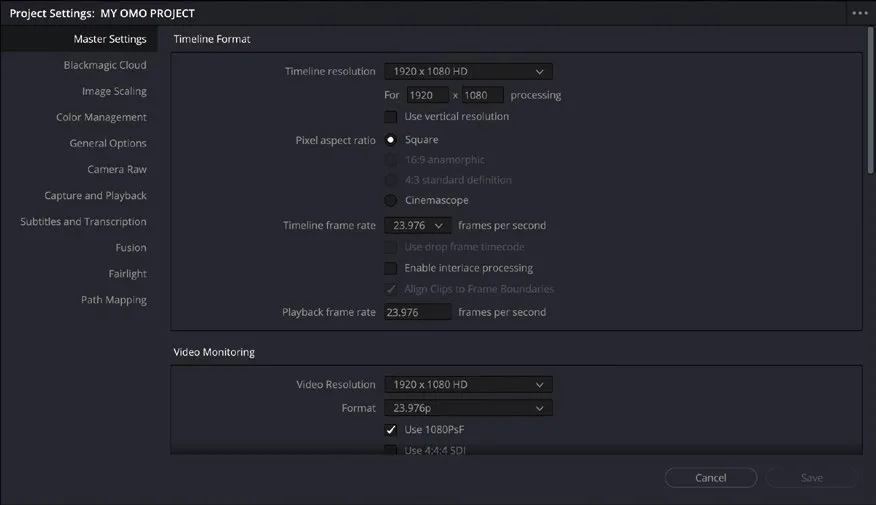
File > Project Settings,或按 Shift-9 打开Project Settings窗口。Choose File > Project Settings or press Shift-9 to open theProject Settingswindow. - 确认 Timeline Resolution 菜单中选择的是 1920 x 1080 HD,Timeline Frame Rate 下拉菜单中选择的是 23.976。Ensure that 1920 x 1080 HD is selected in the Timeline Resolution menu and 23.976 frames per second is selected from the
Timeline Frame Ratedropdown menu.
NOTE · 注意
注意:修改帧率后,Video Monitoring 区域中的 Playback Frame Rate 和 Format 会自动跟随改变(Format 仅在使用 Blackmagic Design Decklink 或 Ultrastudio I/O 设备时才相关)。一般这正是你想要的;但在极少数情况下,比如时间线分辨率或帧率不被你的视频监看硬件支持时,可以手动分开调整。必要时也可手动改 Video Resolution,确保监看分辨率正确。When you change the frames per second option, the Playback Frame Rate and Format in the Video Monitoring section change to match (the latter is only relevant if you are using Blackmagic Design Decklink or Ultrastudio I/O devices). Normally, this is what you would want; however, in very rare instances you can adjust these separately, especially if you’re working with a timeline resolution or frame rate that is not supported by your video monitoring hardware. You may also need to manually change the Video Resolution so that you are monitoring at the correct resolution.
既然打开了 Project Settings,顺便调整一下本项目的其他设置——这批素材看起来是在特定色彩空间(color space)下拍摄的。While you are here, there are other settings that you can adjust for this project too, especially since this footage looks like it’s shot in a particular color space.
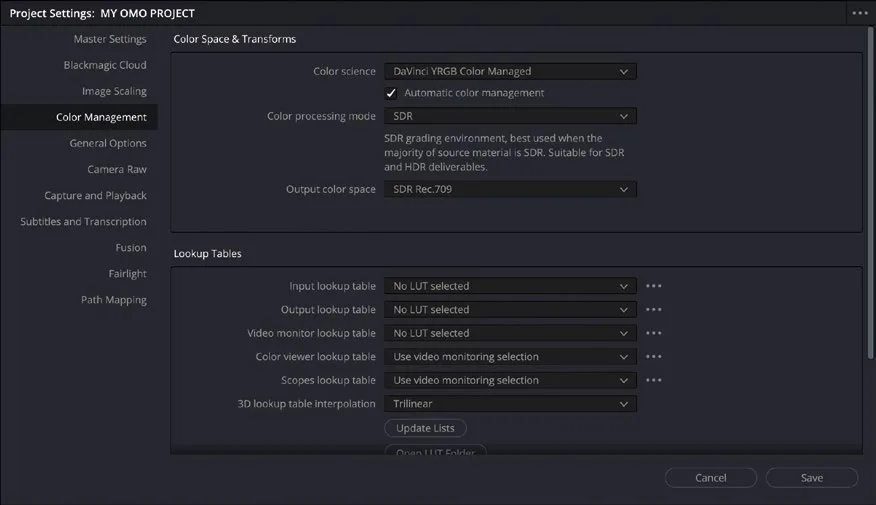
- 点选 Color Management,在 Color Science 下拉菜单中选择 DaVinci YRGB Color Managed。Timeline Color Space 和 Output Color Space 保持默认的 Rec 709 即可。Select Color Management and, in the
Color Sciencedropdown menu, choose DaVinci YRGB Color Managed. Leave the Timeline and Output Color Space options set to Rec 709. - 修改完当前项目的 Project Settings 后,点击 Save 保存。Media Storage 浏览器中显示的素材将自动启用色彩管理。Once you have changed the Project Settings for this project, click Save to save them. The media displayed in the media storage browser will now be automatically color managed.
如果经常使用不同设置创建项目,保存项目预设(project presets)会很方便。Saving Project Presets and Setting the Default Preset If you frequently work with projects requiring different settings, saving project presets can be useful.
项目预设保存了 Project Settings 中的全部设置,可用于快速加载整套设置,或在不同 Resolve 系统间迁移项目设置,还可以设为当前 Project Library 中所有新建项目的默认预设。Project presets save all the settings in the Project Settings. They are useful because they can be used to quickly load lots of settings instantly or to transfer project settings among different Resolve systems. You can also set a project preset as a default for all newly created projects in the current Project Library.
本卡术语Terms in this card
媒体存储浏览器Media Storage Browser 项目库Project Library 时间线Timeline 帧率Frame Rate 预设Preset 分辨率Resolution 色彩管理Color Management 色彩空间Color Space 窗口Power Window 项目设置Project Settings 帧Frame