浏览源媒体Exploring the Source Media
10 steps
简介Overview
在深入项目之前,先了解你将用到的源媒体文件。本节课将重新搭建第 1 课"剪辑粗剪"中开始的项目。即使还未导入任何素材,Media 页 凭借 media storage browser(媒体存储浏览器)就是查看源文件的理想入口。Before going further with this project, it is useful to consider the source media files you’ll be working with. For this lesson, you will re-create the project you started with in Lesson 1, “Editing a Rough Cut.” The media page is the perfect place to do this, even before you’ve imported a single clip, thanks to the media storage browser.
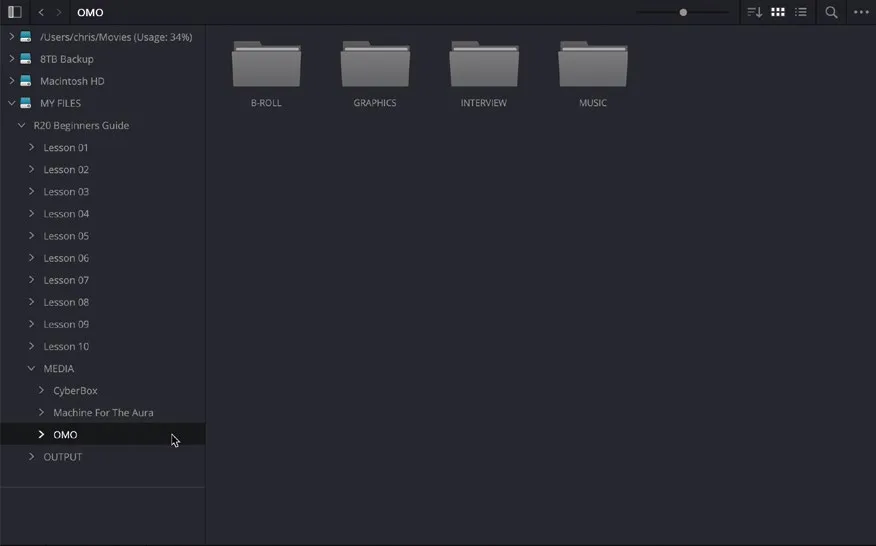
- 在 Media 页 左上角的 media storage browser 中,定位到 R20 Beginners Guide/Media/OMO。Using the media storage browser at the top left of the media page, navigate to R20 Beginners Guide/Media/OMO.
该路径下显示源媒体文件夹,其中包含按用途分子文件夹来存放各类源片段。This displays the source media folder, which contains additional folders that have been created to store the source clips.
TIP · 提示
如果觉得 media storage browser 简易的目录树用起来不顺手,可以直接在 Finder(macOS)或 File Explorer(Windows)中打开目标文件夹,拖入 media storage browser 即可快速定位。If you find it difficult to navigate through your file system using the media storage browser’s rudimentary directory tree, you can simply open a location in the Finder (macOS) or File Explorer (Windows) and drag the folder into the media storage browser to open that location directly.
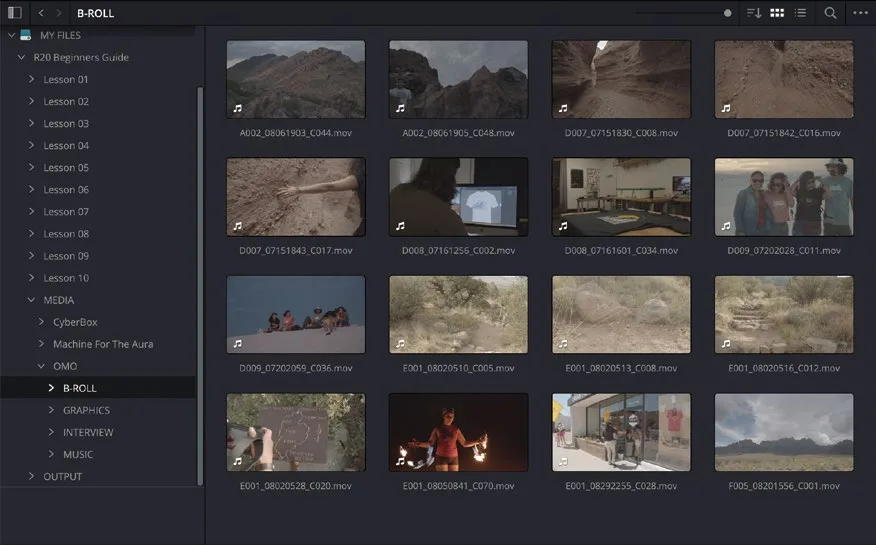
- 在 Media 页 左上角的 media storage browser 中,双击 B-ROLL 文件夹查看其内容。In the media storage browser at the top left of the media page, double-click the B-ROLL folder to view its contents.
该文件夹存放 Organ Mountain Outfitters 项目的 B-roll 素材,你在前面课程中应该已经见过。This folder contains the B-roll clips for the Organ Mountain Outfitters project that you’ll no doubt recognize from earlier lessons.
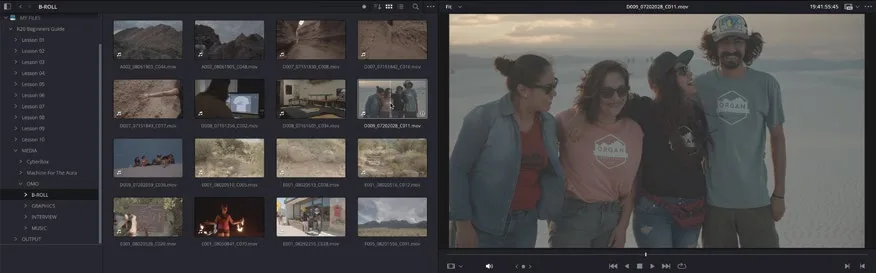
你可以选中任意片段进行预览,操作方式与之前在 Edit page 上一致,使用的也是同一套键盘快捷键(详见第 1 课)。You can select any of these clips and preview them, similar to how you’ve worked previously in the edit page, using the same keyboard shortcuts for playing clips in the media page’s source viewer that you’ve used previously on the edit page (see Lesson 1 for more details).
- 将鼠标指针悬停在该文件夹中任一片段上,即可在 Media 页 的 viewer 中实时预览。Move your mouse pointer across any of the clips in this folder to live preview the clip in the media page’s viewer.
TIP · 提示
可在 viewer 的 Options(…)菜单中关闭或启用 Live Preview;按 Shift-S 或选择 Timeline > Audio Scrubbing可切换 audio scrubbing。You can disable and enable Live Preview in the viewer’s Options (…) menu and toggle audio scrubbing by pressing Shift-S or by choosing Timeline > Audio Scrubbing
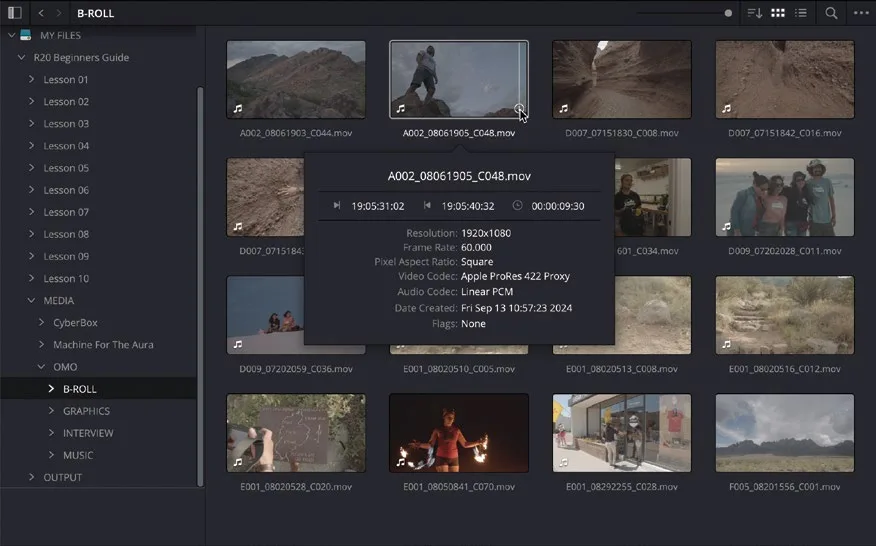
- 在 media storage browser 中,点击任意片段的"i"按钮查看更详细的信息。In the Media Storage browser, click the “i” button of any clip to reveal more information about that clip.
和 Media Pool 中一样,点击"i"按钮后会显示该文件的时长、分辨率、帧率以及视频编解码器等信息。As in the media pool, clicking the “i” button reveals information about the file, such as its duration, resolution, frame rate, and video codec.
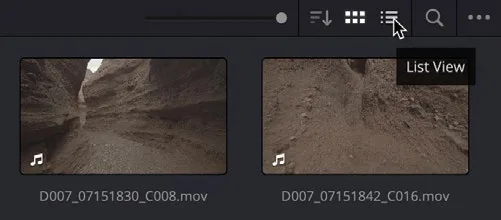
- 点击 media storage browser 顶部的
List View按钮切换为列表视图。Click the List View button at the top of the media storage browser.
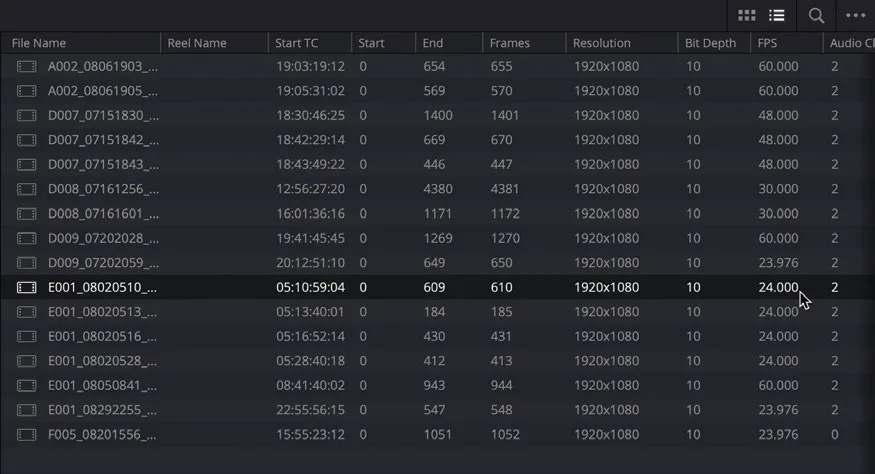
- 滚动列表,直到能看到 Resolution 和 FPS 两列。Scroll until you can see the Resolution and FPS columns.
List View 便于对比多个素材的属性。这里可以看到,所有素材分辨率相同(1920 x 1080),但帧速率各不相同(23.976、24、30、48 和 60 fps)。Using List View allows you to compare the properties of multiple clips. Here, you can see that the clips are all the same resolution (1920 x 1080) but have various frame rates (23.976, 24, 30, 48, and 60 fps).
TIP · 提示
在 media storage browser 中,右键点击任意列标题即可显示或隐藏对应的信息列。You can choose to show or hide different columns of information by right-clicking any of the column headings in the media storage browser.
- 点击
Thumbnail View按钮,回到熟悉的素材缩略图视图。Click the Thumbnail View button to return to viewing the familiar clip thumbnails.
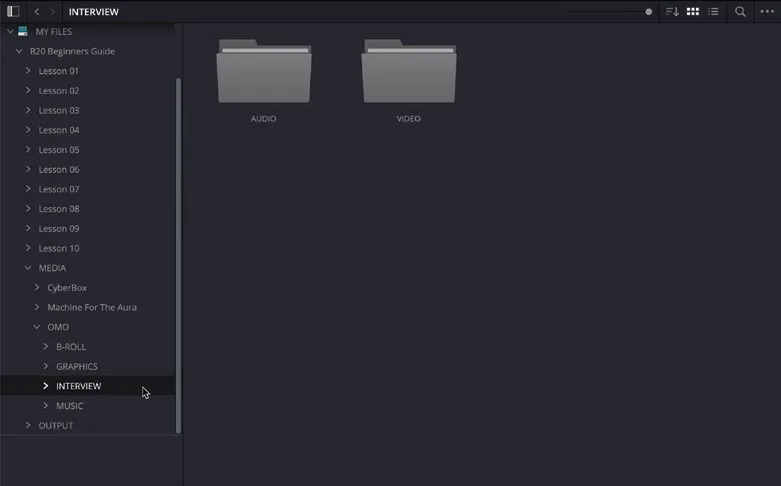
- 在 media storage location 的目录树中,进入 Organ Mountain Outfitters 文件夹,选中 INTERVIEW 文件夹。In the media storage location’s directory tree, select the INTERVIEW folder in the Organ Mountain Outfitters folder.
该文件夹下还有两个子文件夹:AUDIO 和 VIDEO。This folder contains two additional folders: AUDIO and VIDEO.
TIP · 提示
手动进入某个文件夹后,可以像使用网页浏览器一样,用 media storage browser 左上角的 Back 和 Forward按钮前后切换。If you manually navigate to a folder, you can then use the Back and Forward buttons at the top left of the media storage browser, like in an internet browser.
- 双击打开 VIDEO 文件夹查看素材。Double-click to open the VIDEO folder and view the clips.
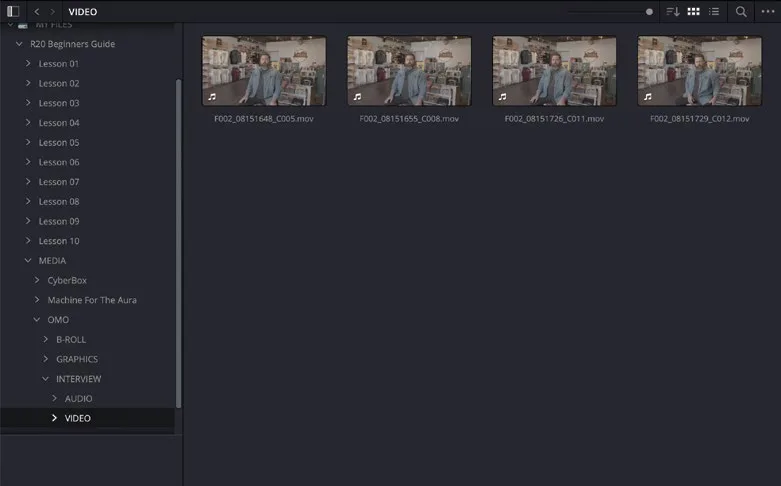
此文件夹包含 Organ Mountain Outfitters 创始人 Chris Lang 的全部采访素材。This folder contains all the interview clips with Organ Mountain Outfitters’ founder, Chris Lang.
- 点击
List View按钮,对比素材的分辨率和帧速率。Click the List View button and compare the clips’ resolutions and frame rates.
同样,这些采访素材统一为 1920 x 1080 分辨率,帧速率为 23.976 fps。Again, these interview clips have all been shot at a resolution of 1920 x 1080 and at a consistent 23.976 frames per second.
总结:本项目素材为 1080 HD 分辨率,帧速率从 23.976 到 60 fps 不等。从画面饱和度偏低也可以看出,素材是在特定 color space 下拍摄的。To summarize: the media you’ve been supplied with for this project has a 1080 HD resolution, with a variety of frame rates ranging from 23.976 to 60 frames per second. You will also note from the rather low saturation of the images that the footage has been shot in a specific color space.
本卡术语Terms in this card
B-roll 素材B-roll 媒体池Media Pool 媒体存储浏览器Media Storage Browser 源检视器Source Viewer 时间线Timeline 编码器Codec 帧率Frame Rate 分辨率Resolution 编辑页Edit page 色彩空间Color Space 饱和度Saturation 键盘快捷键Keyboard Shortcuts 解码Decode 帧Frame
相关知识卡Related Cards
媒体页面Media Page 媒体池Media Pool 媒体存储浏览器Media Storage Browser 时间线Timeline