TASK 1Task 1
创建关键词智能箱Create Keyword Smart Bin
6 steps
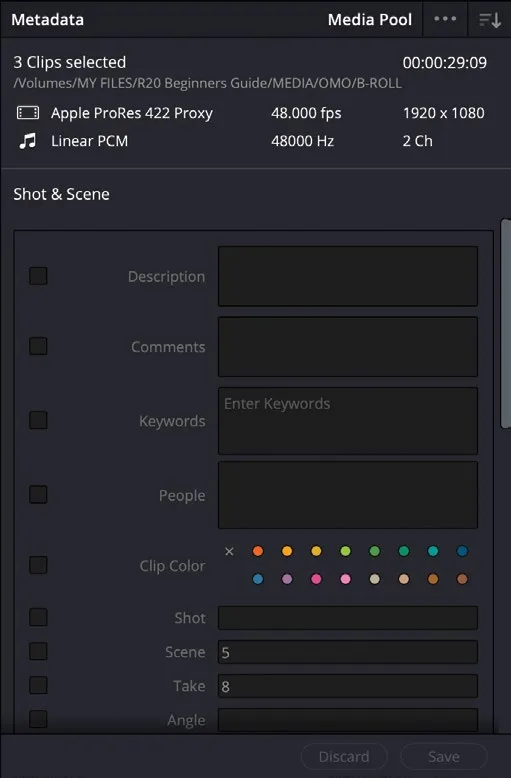
- 在 Media Pool 中点击 B-ROLL 文件夹,选中三个女孩走过 Slot Canyon 的片段。In the media pool, click the B-ROLL bin and select the three clips of the girls walking through Slot Canyon.
- 点击界面右上角的
Metadata按钮,展开Metadata面板。From the top right of the interface, click theMetadatabutton to reveal theMetadatapanel.
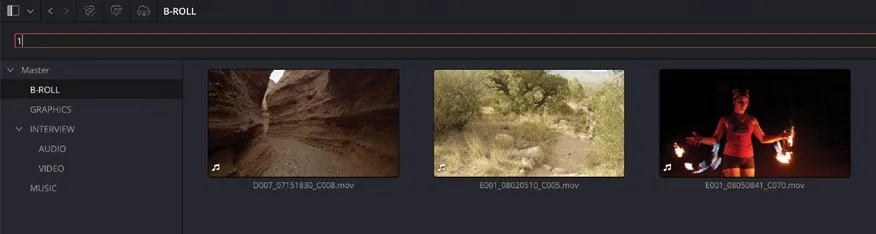
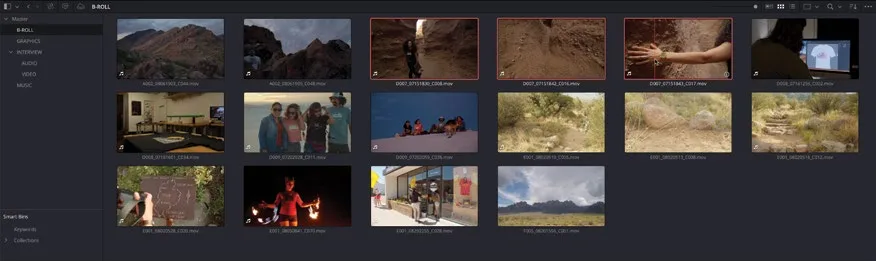
Metadata面板会出现在界面右下,原先 Inspector 的位置;Inspector 则上移,替换掉 Audio面板(Audio面板会自动关闭)。The Metadata panel opens at the bottom right of the interface, in place of the Inspector, which is moved up in place of the Audio panel (which is closed).
- 在
Metadata面板顶部点击排序菜单(三条线加一个箭头的图标),选择 "Shot & Scene"。At the top of the Metadata panel, click the Sort menu (three lines with an arrow) and choose “Shot & Scene.”
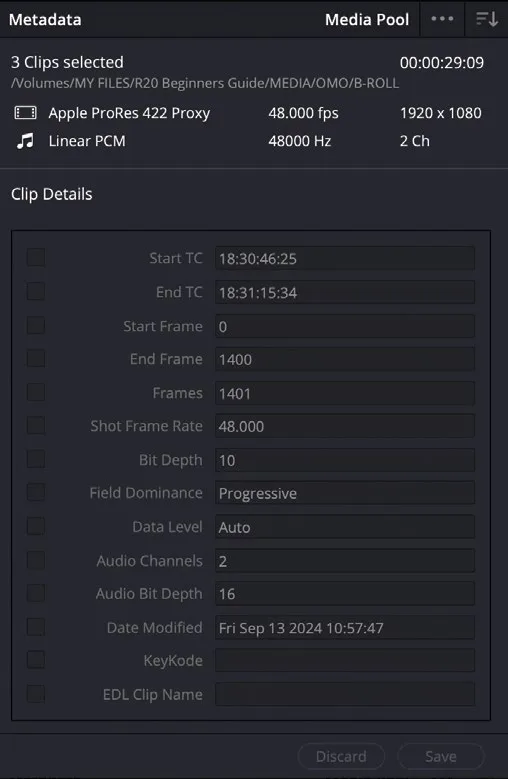
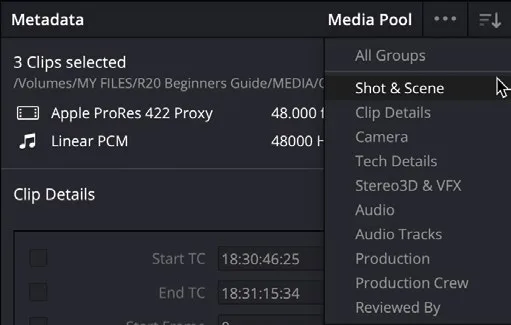
这样就会优先显示与镜头和场景信息相关的 metadata 字段。This displays the metadata fields most closely associated with shot and scene information.
其中部分字段与 Inspector 中列出的一样——它们确实是同一组数据,在两个面板里都能看到,内容完全重复。Some of these fields are the same as those listed in the Inspector; indeed, they are the same fields and are available in either of the two panels, and you will no doubt see the same information listed twice.
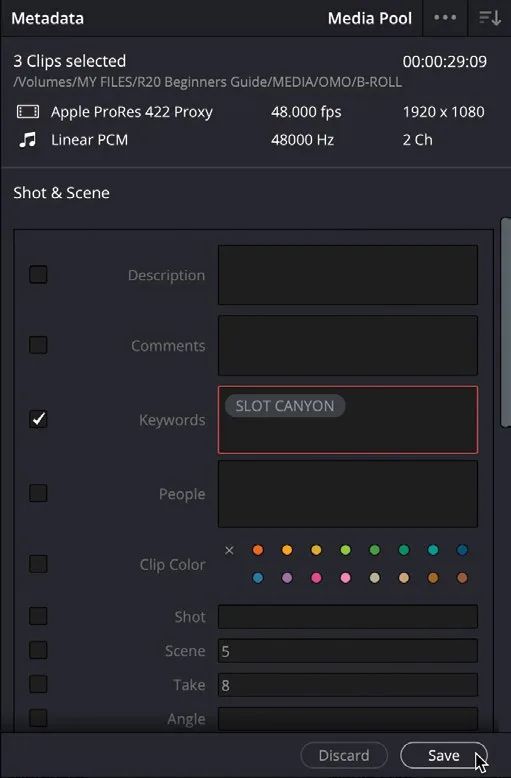
- 保持三个片段的选中状态,在
Metadata面板的 Keyword 字段中输入 SLOT CANYON,按 Enter(Return)确认。With the three clips still selected, type SLOT CANYON into the Keyword field of the Metadata panel and press Enter (Return).
输入的文字会被转换为关键词,并赋给当前选中的片段。Your text is converted into a keyword that is assigned to the selected clips.
- 点击
Metadata面板底部的 Save。At the bottom of the Metadata panel, click Save.
NOTE · 注意
只有同时为多个片段添加 metadata 时才需要手动保存。You only need to save the metadata if you’re adding it to multiple clips simultaneously.
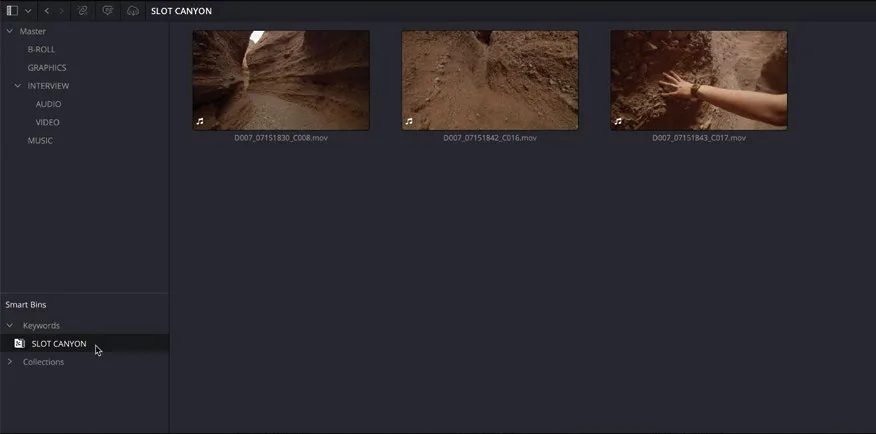
- 在 Media Pool 素材箱列表的 Smart Bins 区域,点击 Keywords smart bin 文件夹,再点开扩展三角箭头,展开 Keywords smart bins。In the Smart Bins area of the media pool’s bin list, click the Keywords smart bin folder, and then click the disclosure triangle to open the Keywords smart bins.
给 VIDEO 素材箱中的片段加上 "SLOT CANYON" 关键词后,对应的 SLOT CANYON Keyword Smart Bin 就会自动建立,里面只显示应用了该关键词的片段。其他类似的自动 smart bin 会在本课后面介绍。As soon as you added the “SLOT CANYON” keyword to the clips in the VIDEO bin, the SLOT CANYON Keyword Smart Bin was automatically created, which then displays just the clips with that keyword applied. You will learn how to display other automatic smart bins like this later in this lesson.
TIP · 提示
提示:可以把片段直接拖到已有的自动 smart bin 上,系统会自动给片段添加该 smart bin 的元数据属性,从而快速归入对应 bin。例如把片段拖到某个 keyword smart bin 上,就会自动为片段添加该 smart bin 的关键词。You can drag and drop clips onto an existing automatic smart bin to quickly add the clips to that bin by automatically assigning the metadata properties of the smart bin to the clips. For example, dragging a clip onto a keyword smart bin will automatically add that smart bin’s keyword to the clip.
常用关键词快捷键:不想每次都手动输入关键词,可以在 Keyword Manager 中预设最多 9 个常用关键词,用快捷键快速套用。Favorite Keyword Shortcuts Rather than typing keywords each time you want to add them to a clip, you can set up to nine favorite keywords in the Keyword Manager so you can quickly apply certain keywords using keyboard shortcuts.
选择 Workspace > Keyword Manager打开 Keyword Manager,在提供的栏位中输入常用关键词。Choose Workspace > Keyword Manager to open the Keyword Manager and enter the keywords you commonly use in the slots provided.
预设完成后,选中任意片段,选择 Mark > Favorite Keywords并点选需要的关键词,即可快速添加;也可以直接用快捷键 Option-Shift-1 到 9(macOS)或 Alt-Shift-1 到 9(Windows)给选中片段套用对应关键词;用 Option-Shift-0(macOS)或 Alt-Shift-0(Windows)可清除选中片段上已添加的全部关键词。Once assigned, you can quickly add the keywords to any selected clip(s) by choosing Mark > Favorite Keywords and selecting the keyword you want. Alternatively, you can use the shortcuts Option-Shift-1 through 9 (macOS) or Alt-Shift-1 through 9 (Windows) to apply the appropriate keywords to the selected clip(s). Use Option-Shift-0 (macOS) or Alt-Shift-0 (Windows) to remove all keywords applied to the selected clip(s).
导入元数据:可以看到,手动给 Media Pool 中的片段添加元数据并不难,也可以一直这样手动输入。不过为了让本项目更充分地体现元数据的价值,下面来导入一批额外的元数据。Importing Metadata As you can see, adding your own metadata to any of the clips in the media pool is easy, and you can continue to enter metadata manually in this way. However, to make it easier to see how useful metadata as a whole can be, you will import some additional metadata for this project.
本卡术语Terms in this card
B-roll 素材B-roll 媒体夹Bin 媒体池Media Pool 智能媒体夹Smart Bins 预设Preset 检查器Inspector 静帧Still 键盘快捷键Keyboard Shortcuts 关键词Keywords 元数据Metadata