TASK 1Task 1
创建智能BinCreate Smart Bin
13 steps
- 选择
File > New Smart Bin。Choose File > New Smart Bin.
TIP · 提示
你也可以右键 smart bin 列表,选择 Add Smart Bin。You can also right-click the smart bin list and choose Add Smart Bin.
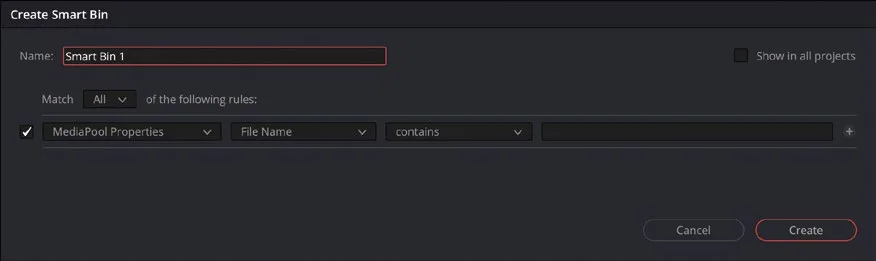
弹出 Create Smart Bin窗口。The Create Smart Bin window appears.
在这个窗口里设置规则,决定哪些片段会自动进入这个自定义 smart bin。选项很多,可以基于各种 metadata 把片段分组。Using this window, you set up the rules that determine which clips are automatically added to this custom smart bin. There are many potential options, enabling you to create smart bins that group clips based on a wide range of metadata.
- 在 Name 字段里输入 GOOD TAKES 作为这个 smart bin 的名称。In the Name field, enter GOOD TAKES as the name for this smart bin.
- Match 菜单保持默认的 “All of the following rules.”。Leave the Match menu set to “All of the following rules.”
- 在规则中,第一个 metadata 条件保持默认的 “Media Pool Properties”。In the rule itself, leave the first metadata criteria set to “Media Pool Properties.”
- 把 metadata 类型下拉菜单从 “File Name” 改为 “Good Take”。Change the metadata type dropdown menu from “File Name” to “Good Take.”
TIP · 提示
在列表中快速定位某个选项的方法:直接开始输入 metadata 字段的名称,然后用鼠标点选就能直接跳到那一项。To navigate quickly through the list of options, begin typing the name of the metadata field. You can then select it with your mouse to jump directly to it from the list.
- 第三个(也是最后一个)metadata 条件保持默认的 “is true.”。Leave the third and final metadata criteria dropdown menu set to “is true.”
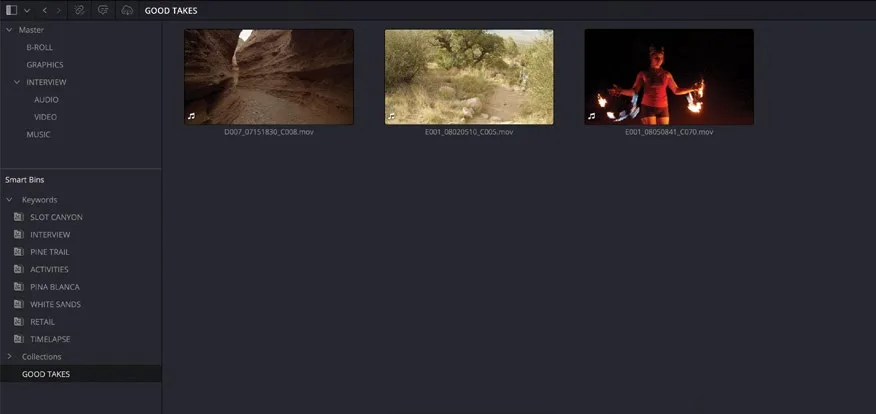
Media Pool 会立即显示规则匹配的结果,列出之前标记为 Good Take 的片段。The media pool will show the results of this rule, displaying the clips you previously marked as Good Takes.
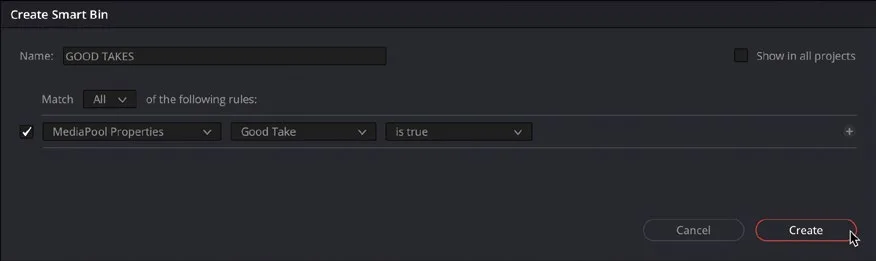
- 点击 Create。Click Create.
搜索已保存为 smart bin,自动收录所有标记为 Good Take 的素材。You have now saved the search as a smart bin that includes all the clips that you previously marked as Good Takes.
smart bin 的内容由规则决定,不能直接拖入或拖出素材。增减素材只能通过调整 smart bin 规则,或修改素材 metadata 以符合/不再符合规则。The content of a smart bin is always governed by the rules you set, so you cannot simply drag clips to and from a smart bin. To add or remove clips from a smart bin, you must either adjust the rules of the smart bin or adjust the clips’ metadata so it meets or falls outside of the rules.
- 在 Good Takes smart bin 中选中任意片段,在 Inspector 中取消勾选 Good Take,即可立即从 smart bin 中移除;也可以在 B-ROLL bin 中选中其他片段,勾选 Good Take,将其加入 Good Takes smart bin。Select any clip in the Good Takes smart bin and uncheck Good Take in the Inspector to instantly remove it from the smart bin. Alternatively, select any other clip from the B-ROLL bin and click the Good Take option to add it to the Good Takes smart bin.
NOTE · 注意
如需编辑已有 smart bin 的规则,在 bin 列表中右键点击它,选择 Edit 打开 Edit Smart Bin窗口,检查并调整规则。但自动生成的 smart bin(如 Keyword smart bin)不能用此方法编辑。To edit the rules for an existing smart bin, right-click it in the bin list and choose Edit to open the Edit Smart Bin window so you can review and adjust the rules as necessary. Automatic smart bins (like the Keyword smart bins) cannot be edited in this manner.
创建自定义 smart bin 时,还可以通过 Match 下的 All 或 Any 选项,设定多条规则之间的匹配关系。You can also set up additional rules when creating custom smart bins by using the options to Match using All or Any of the listed rules you choose.
- 选择
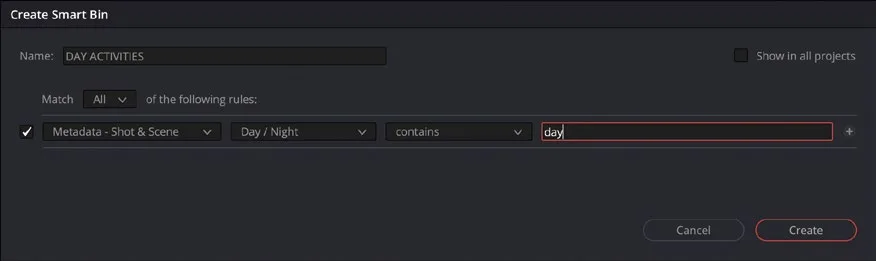
File > New Smart Bin。Choose File > New Smart Bin. - 在 Create Smart Bin 对话框的 Name 字段中输入 DAY ACTIVITIES。In the Name field of the Create Smart Bin dialog, type DAY ACTIVITIES.
- 将 Match 菜单保持为 "All of the following rules"。Leave the Match menu set to “All of the following rules.”
- 将规则第一个字段改为 "Metadata – Shot & Scene",第二个字段改为 "Day / Night",第三个字段保持 "contains"。Change the first field of the rule to “Metadata – Shot & Scene,” change the second field to “Day / Night,” and leave the third field set to “contains.”
- 在最后一个字段中输入 day。In the final field, type day.
media pool 会显示规则的匹配结果,列出所有 Day / Night 字段中包含 "day" 的片段。The media pool displays the results of the rule, displaying all clips that have “day” entered in the Day / Night metadata field.
在 Create Smart Bin窗口中点击 + 图标,为 smart bin 再添加一条规则。In the Create Smart Bin window, click the + icon to add another rule for the smart bin.
TIP · 提示
提示:需要更灵活的条件时,可按住 Option 键(macOS)或 Alt 键(Windows)点击 Add Filter Criteria按钮,这样会新增一个子规则组,该子组拥有独立的 All/Any 选项。For added flexibility, you can choose additional match options by Option‑clicking (macOS) or Alt-clicking (Windows) the Add Filter Criteria button. This will add a new subset of rules that have their own All/Any options.
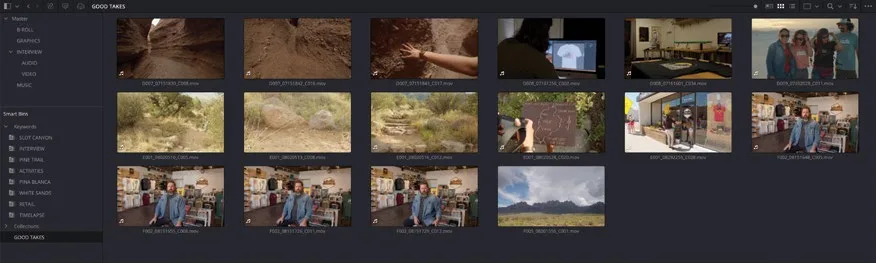
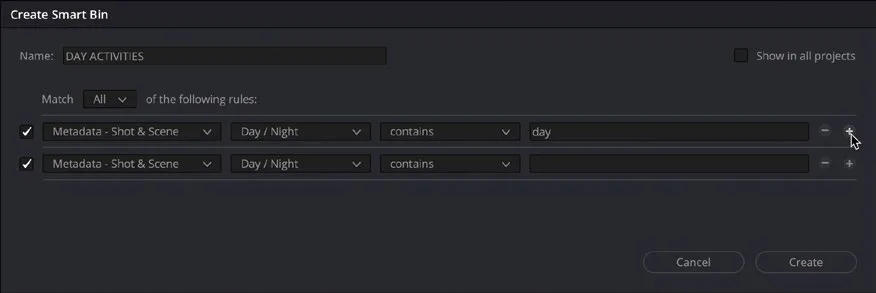
在这条新规则中,将第二个字段改为 "Keywords",第三个字段改为 "contains"。In this new rule, change the second field to “Keywords,” and the third field to “contains.”
由于还没有指定具体关键词,Media Pool 中的素材会全部消失。All the clips disappear from the media pool because you have not specified a keyword.
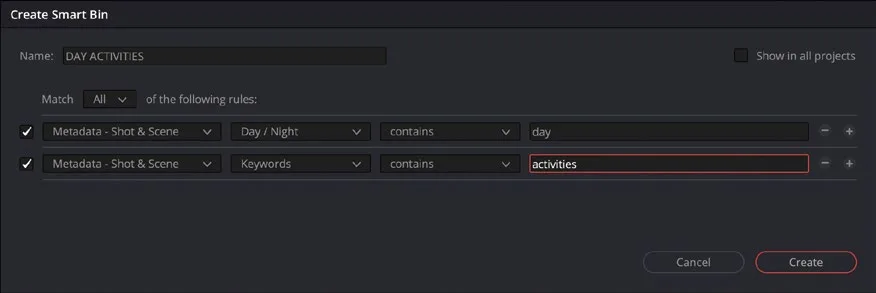
在第二条规则的最后一个字段中输入 activities。In the final field of the second rule, type activities.
NOTE · 注意
提示:该字段不区分大小写。This field is not case sensitive.
通过这条第二条规则,smart bin 的内容被进一步收窄,只保留带有 activities 关键词的素材。Using this second rule, you have further refined the contents of the smart bin by only including the clips that have the keyword “activities.”
将 Match 下拉菜单改为 "Any of the following rules"。Change the Match dropdown menu to “Any of the following rules.”
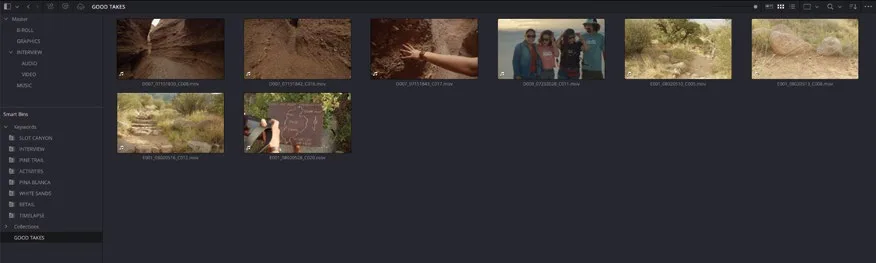
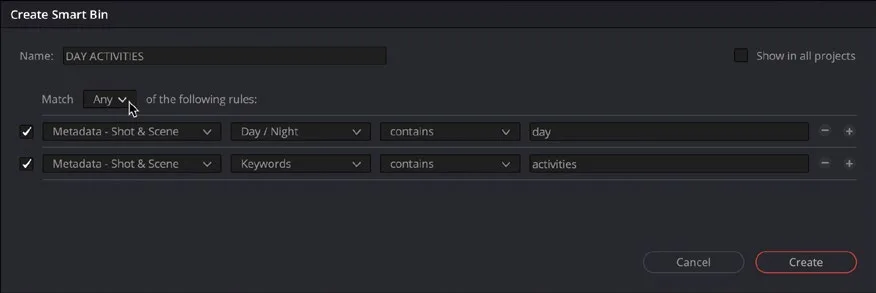
此时规则表示:smart bin 须显示 Day / Night 字段含 "Day",或关键词为 activities 的任一素材。This time, the rules specify that the contents of the smart bin should display any clip that has either “Day” in the Day / Night field or “activities” as a keyword.
将 Match 下拉菜单改回 "All of the following rules",点击 OK 保存 smart bin。Change the Match dropdown menu back to “All of the following rules” and click OK to save the smart bin.
整理自定义 Smart Bin:与所有 Keyword Smart Bin 都归入 Keywords 文件夹一样,你也可以将 smart bin 放入文件夹以便查找。Organizing Custom Smart Bins You can organize smart bins into folders to make them easier to find, in the same way that all the Keyword Smart Bins are organized in the Keywords folder.
本卡术语Terms in this card
B-roll 素材B-roll 媒体夹Bin 关键词智能媒体夹Keyword Smart Bins 媒体池Media Pool 智能媒体夹Smart Bins 检查器Inspector 标记Marker 窗口Power Window 关键词Keywords 元数据Metadata