套用静帧Applying Stills
8 steps
简介Overview
除了直接复制粘贴调色节点,你还可以把调色结果存为 still 存入 Gallery,随时调用。Stills 比复制粘贴更灵活:可以跨项目导入导出,形成独立的调色库;每个节点都会被保存,方便按需单独套用某个节点;还能把别的素材与已存 still 并列预览,快速匹配不同镜头之间的影调。Instead of simply copying and pasting grades, you may want to save your grades into the gallery as a still so you can recall the grade at any time. Using stills has some advantages over copying and pasting grades. First, stills can be imported and exported from a project so you can have an independent folder of your grades that you can use at any time in any project. They also save each node of the grade so you can apply only certain nodes if needed. A key feature of using stills is the ability to compare clips with saved graded stills so you can easily match two shots together.
套用 StillsApplying Stills
- 回到时间线选中 clip 03。这个调色目前效果不错,建议保存下来。Select clip 03 again in the timeline. This grade has proved useful so far, so it might be a good idea for you to save it.
把这版调色存为 still 即可保存到 Gallery。You can save the grade on this shot by saving a still into the gallery.
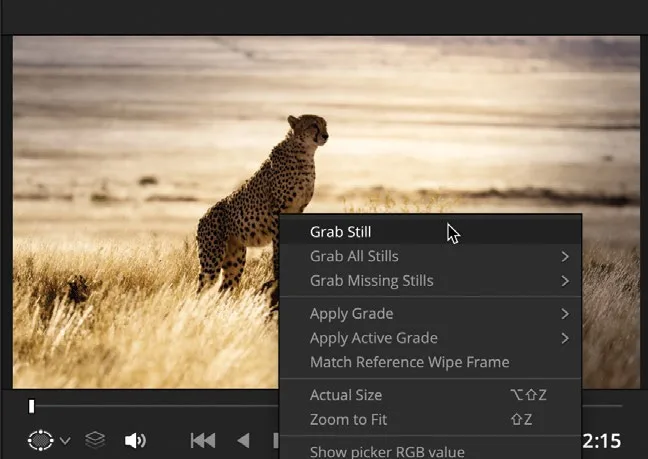
- 在 Viewer 中右键,从菜单里选 Grab Still。Right-click in the viewer and, from the menu, choose Grab Still.
参考画面就保存到 Gallery 了。这个 still 包含重建该调色所需的全部节点,可以套用到任何素材上。The reference still image is saved to the gallery. The still contains all the nodes needed to rebuild the grade for any shot it is applied to.
建议给 still 加上标签,方便以后查找时能一眼认出用途。It is good practice to label the stills so that when you return to them, you have an idea of what they are.
- 在 Gallery 里右键这个 still,选 Change Label。Right-click the still in the gallery and select Change Label.
- 把 still 重命名为 CONTRAST LIGHT。Rename the still CONTRAST LIGHT.
- 在时间线里选中 clip 13。Select clip 13 in the timeline.
这也是一段沙漠镜头,可以套用之前存好的调色试试。This is another desert shot that may benefit from the grade we have saved.
正式套用之前,可以先在时间线里选中任意素材,用 Gallery 中的 still 预览调色效果。Before applying the grade, you can preview it on any clip in the timeline using the still in the gallery.
- 要预览静帧,选中 clip 13,把鼠标指针移到静帧上并来回移动。To preview the still, with clip 13 selected, move the mouse pointer over the still and move it back and forth.
Viewer 会用你当前悬停的静帧的调色来显示时间线上选中的片段。如果你觉得这个调色合适,就可以直接套用。The viewer will show you the current selected clip in the timeline using the grade of the still you are hovering over. If you decide the grade is suitable, you can apply it.
TIP · 提示
如果想关闭预览,可以点 Gallery 右上角的 Options(…)菜单(三点图标),取消勾选 Live Preview 即可。If you want to turn the preview off, you can go into the Options (…) menu in the gallery by clicking the three dots in the top right corner of the window and unchecking the Live Preview option.
- 在 Gallery 中右键点击 CONTRAST LIGHT 静帧,选择 Apply Grade。Right-click the CONTRAST LIGHT still in the gallery and choose Apply Grade.
- 选中 node 02,进入 HDR tools,在 Global 控件里把 temperature 调低,让画面中被加 Power Window 的区域饱和度稍微降低一些。Select node 02 and go into the HDR tools and dial down the temperature in the Global controls to make the windowed area in the image a little less saturated.
静帧中的调色就应用到片段上了。要是给多段素材统一调色都这么简单就好了——但当片段已经做过调色,或者需要在不同镜头之间做 shot match 时,单纯复制粘贴就不够用了。The grade contained in the still is applied to the clip. If only achieving specific looks across multiple clips were this straightforward. What happens when you need to add grades to clips that have already been graded or need shot matching?
本卡术语Terms in this card
时间线Timeline 导出Export 对比度Contrast 饱和度Saturation 窗口Power Window 调色Grade 静帧Still 节点Node 帧Frame 引用(剪辑)Reference