添加片尾标题Adding the Closing Titles
16 steps
简介Overview
接下来用 Resolve 内置的 Fusion Titles 模板之一来添加行动召唤文字。Next, it’s time to add the call to action using one of Resolve’s built-in Fusion Titles templates.
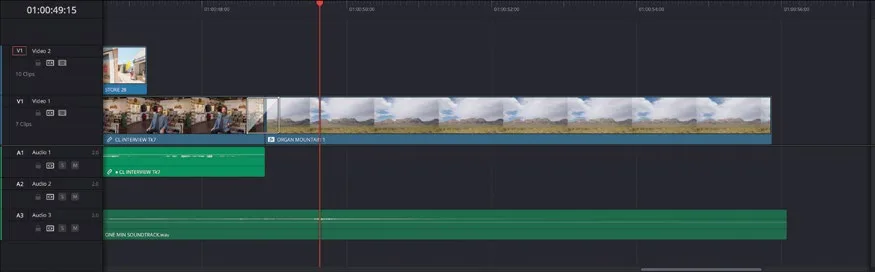
- 在时间线中滚动到末尾并播放最后一个片段 ORGAN MOUNTAIN 1。以 ONE MIN SOUNDTRACK.wav 的音频波形为参考,听到音乐最后一声拨弦时暂停。Scroll to the end of the timeline and play the final clip, ORGAN MOUNTAIN 1. Using the audio waveforms of the ONE MIN SOUNDTRACK.wav as a guide, stop when you hear the final strum of the music.
Resolve 在 Edit page 提供了多种标题生成器与模板来制作文字和标题。第 9 课“Fusion 入门”会进一步介绍如何在 Fusion page 中创建自定义文字。Resolve has many options for creating text and titles using a series of title generators and templates directly in the edit page. You will explore more options for creating your own text using the Fusion page in Lesson 9, “An Introduction to Fusion.”
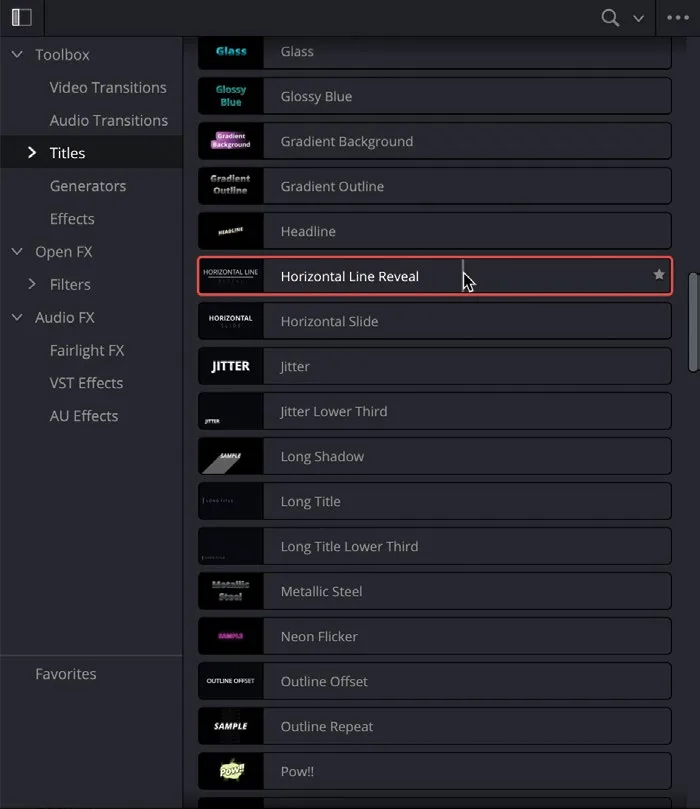
- 在 Effects Library 中选择 Titles 类别,向下滚动 Fusion Titles 列表,找到 Horizonal Line Reveal 标题。In the Effects Library, select the Titles category and scroll through the list of Fusion Titles to the Horizonal Line Reveal title.
与之前用过的转场和滤镜一样,每个标题模板都可以把鼠标悬停在上面并左右移动来实时预览。As with the transitions and filters you’ve worked with previously, each title template can be live previewed by hovering your mouse pointer over the title and moving it left and right.
把标题拖到时间线上想放置的位置即可添加,但正如上一课所讲,这种方式局限性较大。更灵活的做法是在 Source Viewer 中打开标题。To add a title to your timeline, you can simply drag it to the location where you want it to appear. However, as you discovered in the previous lesson, this can be quite limiting. Instead, you can open the title in the source viewer.
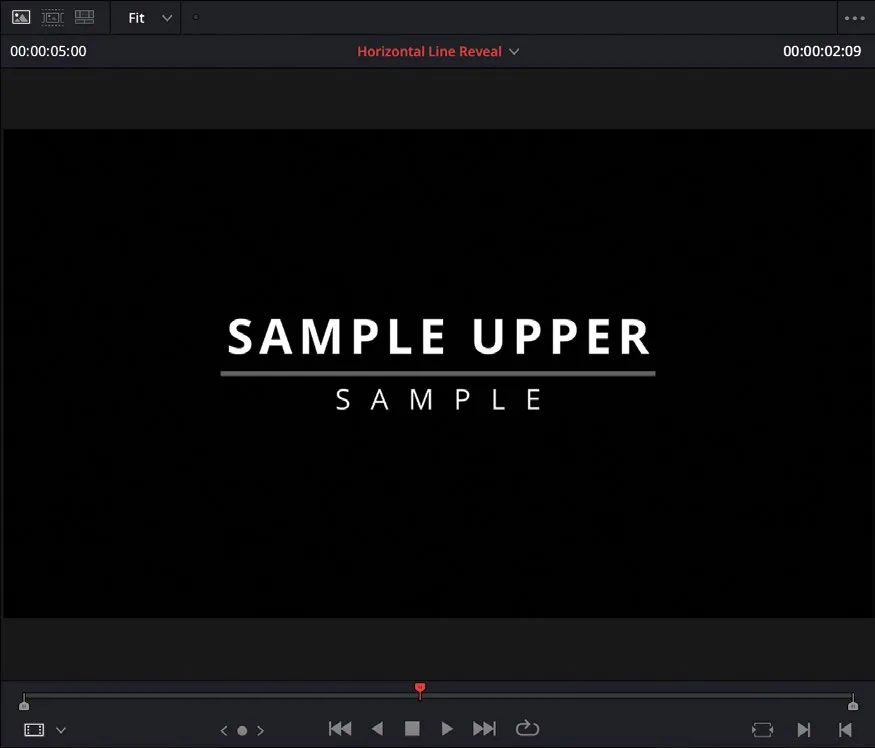
- 双击 Horizontal Line Reveal 标题,在 Source Viewer 中打开。必要时移动 Source Viewer 的播放头到中间以便更好地查看标题。Double-click the Horizontal Line Reveal title to open it in the source viewer. If necessary, move the source viewer’s playhead to the center so you can see the title better.
- 把 Horizontal Line Reveal 标题从 Source Viewer 拖到时间线 Viewer,或按 F12,执行 Place on Top 编辑。Drag the Horizontal Line Reveal title from the source viewer to the timeline viewer, or press F12, to perform a Place on Top edit.
- 将时间线播放头放在时间线上的标题片段上。Place the timeline playhead over the title clip in the timeline.
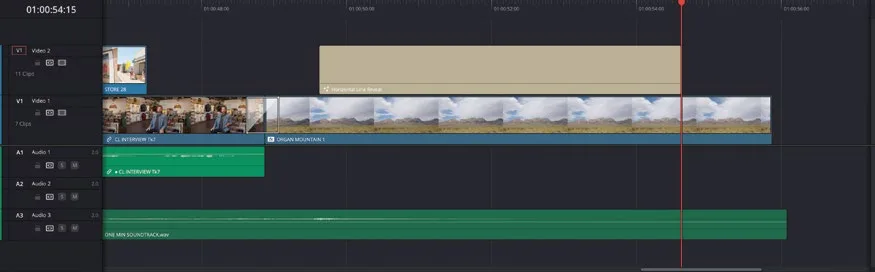
Inspector 会自动显示 Horizontal Line Reveal 标题的各项参数。The Inspector automatically displays the controls for the Horizontal Line Reveal title.
TIP · 提示
标题添加到时间线后,双击任意标题即可打开 Inspector。You can open the Inspector by double-clicking any title once it’s been added to the timeline.
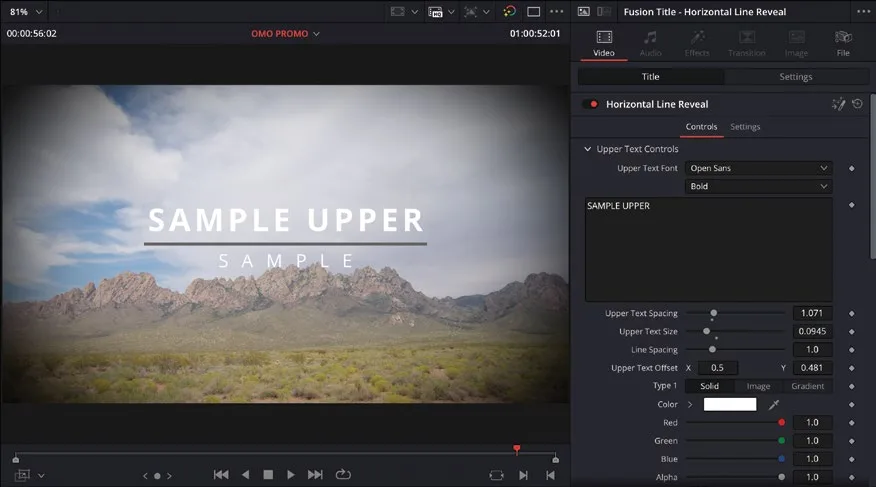
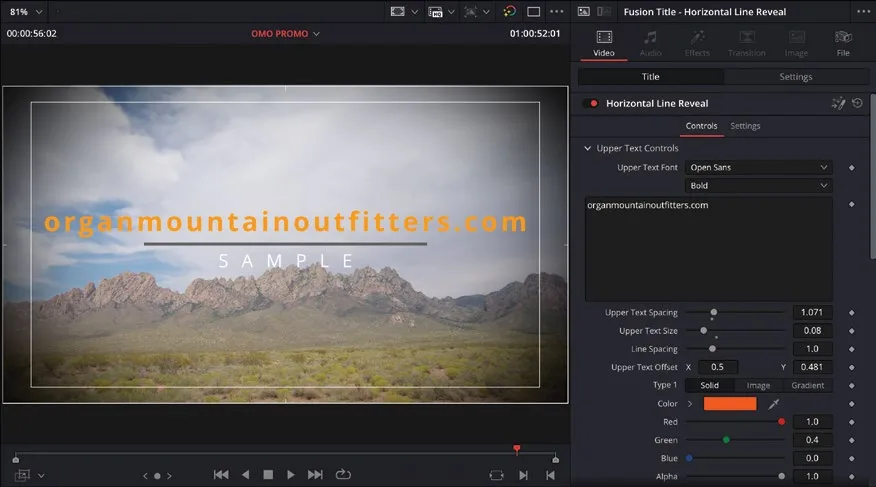
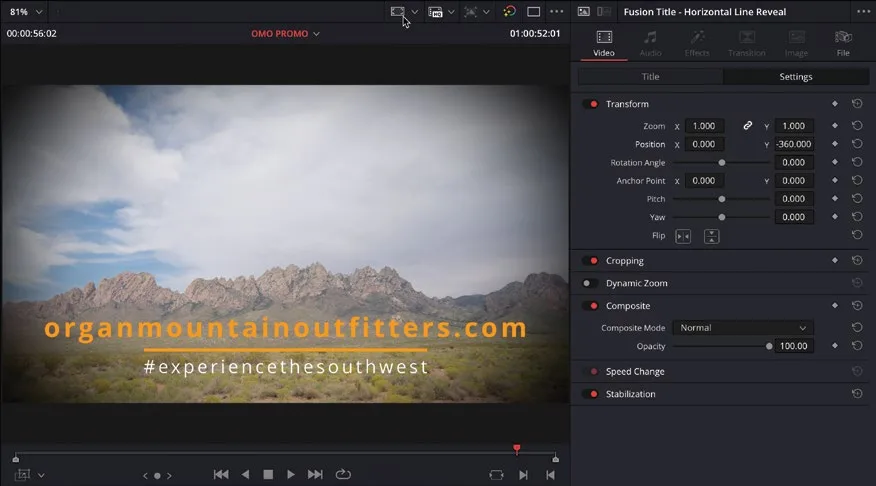
- 在 Inspector 的 Upper Text Controls 中选中 SAMPLE UPPER 文字,输入 organmountainoutfitters.com。In the Inspector, select the SAMPLE UPPER text in the Upper Text Controls and type organmountainoutfitters.com.
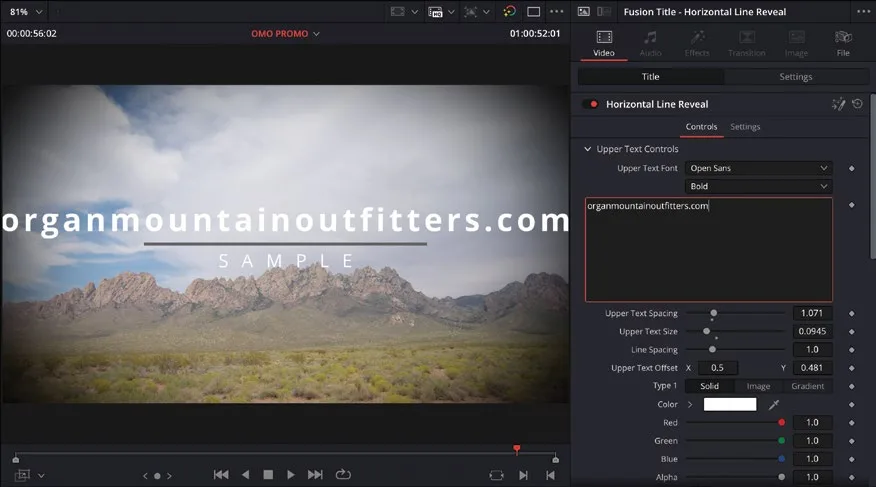
安全区(safe area)用来保证文字在有 overscan 的屏幕上不被裁切,也是广播节目的常规要求——以它为参照来控制字幕尺寸。To ensure that the text isn’t too large, you can use the safe areas as a guide. Safe areas are used to ensure that titles and graphics are correctly displayed on screens with overscan and are typically required for broadcast programs.
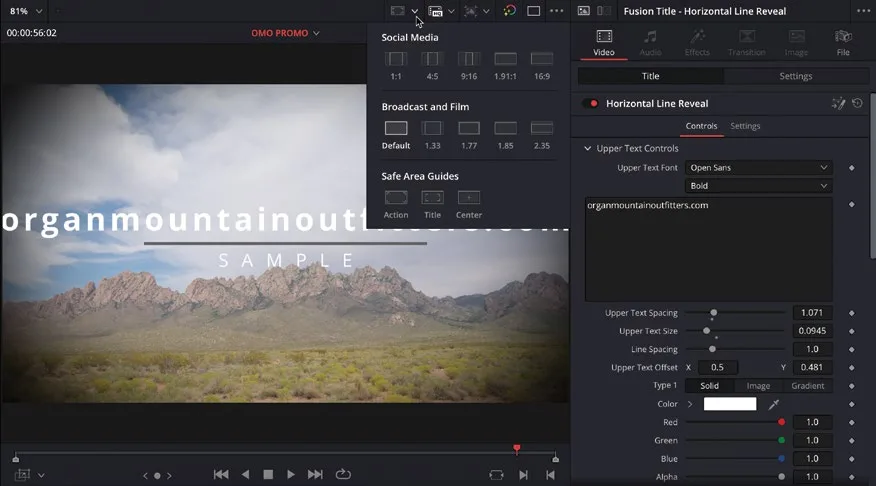
- 在时间线 viewer 中点击 Safe Area Guides 菜单。In the timeline viewer, click the Safe Area Guides menu.
- 在 Safe Area Guides 分类下,勾选 Title。In the Safe Area Guides category, enable the Title option.
遵守 viewer 中显示的参考线,可让字幕在不同 HD 显示器上都能完整呈现。Adhering to the guides that are now displayed in the viewer will ensure that your titles appear correctly on different HD monitors.
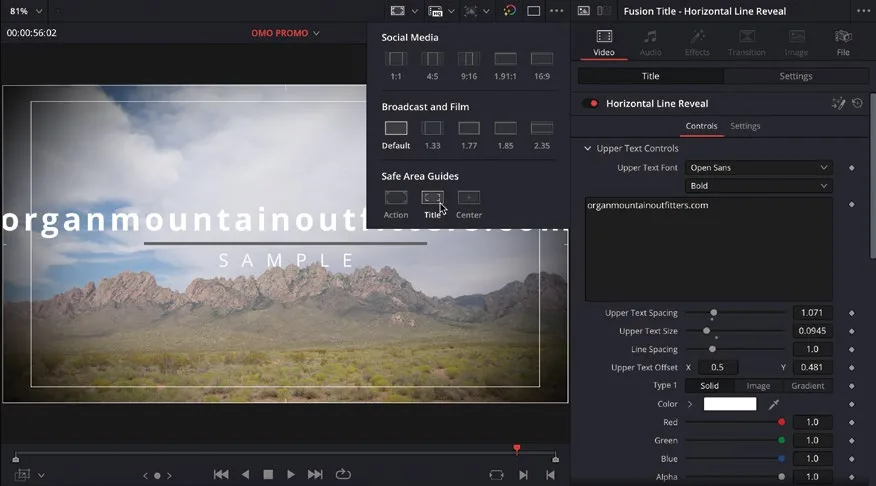
- 把 Upper Text Size 调到约 0.08,让字幕落在内圈 title safe guide 以内。Change the Upper Text Size to about 0.08 so the title fits within the inner safe title guide.
把 Blue 降到 0.00、Green 调到约 0.40,文字就变成亮橙色。To change the color of the text, reduce the Blue control to 0.00 and the Green to about 0.40 to give the text a bright orange color.
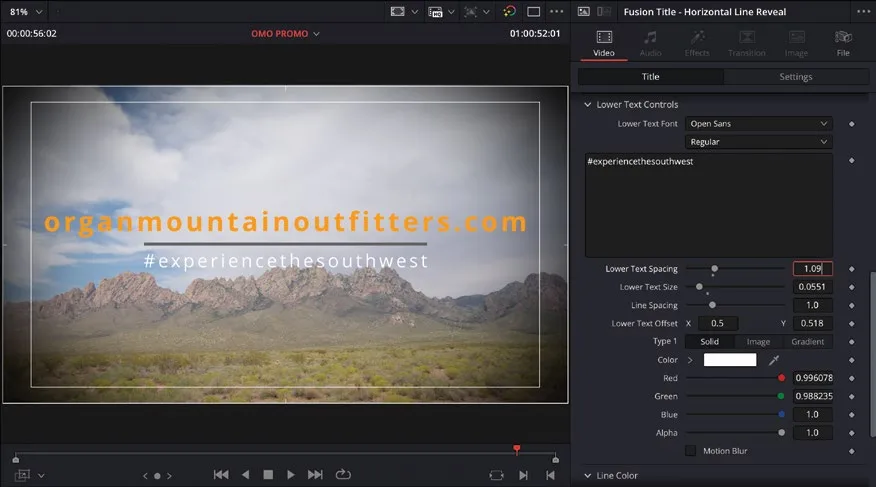
在 Inspector 中向下滚动到 Lower Text Controls,选中 SAMPLE 文字,改为 #experiencethesouthwest。Scroll down in the Inspector to the Lower Text Controls, highlight the SAMPLE text, and type #experiencethesouthwest.
把 Lower Text Spacing 调到约 1.09,让下排文字与上排等长。Adjust the Lower Text Spacing to about 1.09 so the text is about the same length as the line.
TIP · 提示
在 Inspector 中选中某个字段后,可以按 Up Arrow / Down Arrow 键微调数值。You can press the Up Arrow and Down Arrow keys to adjust the values of a selected field in the Inspector.
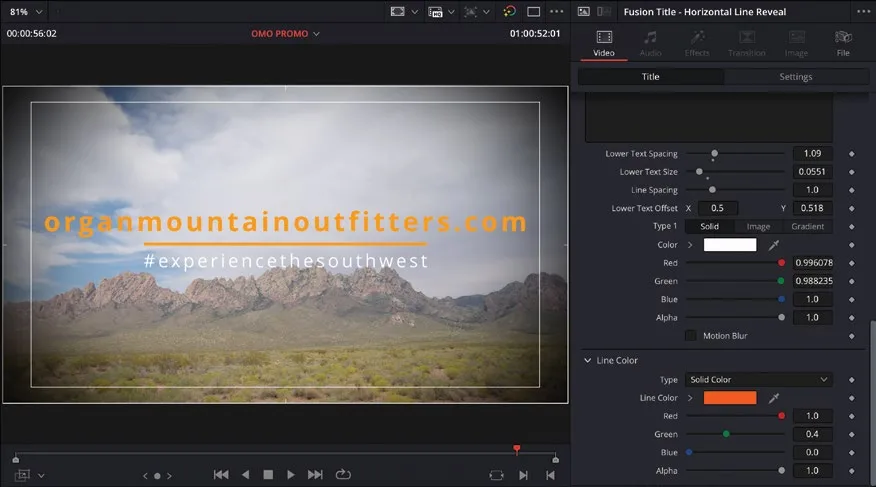
滚动到 Inspector 最底部的 Line Color 控件。Scroll to the bottom of the Inspector to the Line Color controls.
把 Line Color 改成与上排文字相近的橙色:Red 1.00、Green 0.40、Blue 0.00。Change the Line Color to a similar shade of orange as the Upper Text: Red 1.00, Green 0.40, Blue 0.00.
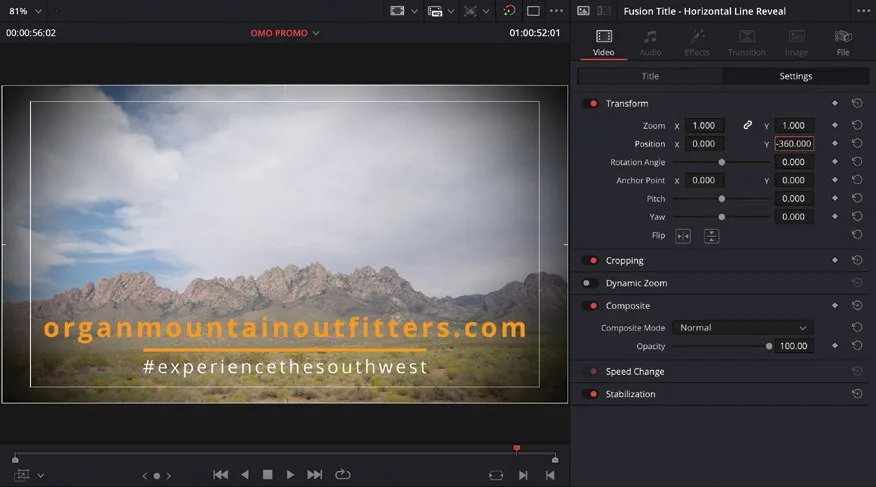
最后把整组字幕放到画面下方区域。Finally, you will position the entire title over the lower portion of the screen.
- 点击 Inspector 顶部的
Settings选项卡。Click the Settings tab at the top of the Inspector.
- 将 Y Position 的值改为约 -360.00,使字幕在时间线检视器中下移,但仍位于内 title safe 辅助线内。Change the Y Position value to about -360.00 to move the title down in the timeline viewer but still inside the inner title safe guide.
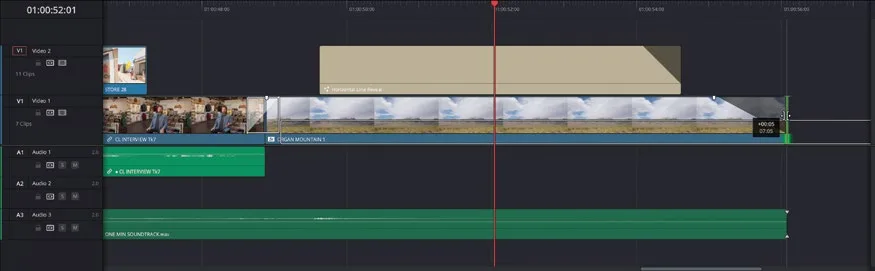
- 在时间线中,拖动字幕片段的淡入淡出手柄,添加 12 帧的淡出(提示框中显示 -00:12)。In the timeline, use the title clip’s fade handle to apply a 12-frame fade out (-00:12 in the tooltip).
- 在 ORGAN MOUNTAIN 1 片段上拖动淡入淡出手柄,添加 1 秒的淡出(提示框中显示 -01:00)。Apply a 1-second fade-out using the fade handle on the ORGAN MOUNTAIN 1 clip (-01:00 on the tooltip).
- 在 V1 上修剪 ORGAN MOUNTAIN TL.mov 片段的尾部,使其吸附到 A3 上音频片段的末端。Trim the end of the ORGAN MOUNTAIN TL.mov clip on V1 so it snaps to the end of the audio clip on A3.
- 在时间线检视器中点击
Guides按钮,关闭辅助线。In the timeline viewer, click theGuidesbutton in the timeline viewer to turn off the guides. - 点击
Full Extent Zoom按钮,播放查看时间线。Click the Full Extent Zoom button and watch the timeline.
NOTE · 注意
如果需要继续下一步前先同步进度,可选中 TIMELINES 智能 bin,然后选择 File > Import > Timeline,导航到 R20 Beginners Guide / Lesson 02 / Timelines / OMO PROMO CATCHUP 08.drt,点击 Open。If you need to catch up before moving to the next step, select the TIMELINES bin and choose File > Import > Timeline, navigate to R20 Beginners Guide / Lesson 02 / Timelines / OMO PROMO CATCHUP 08.drt and click Open.
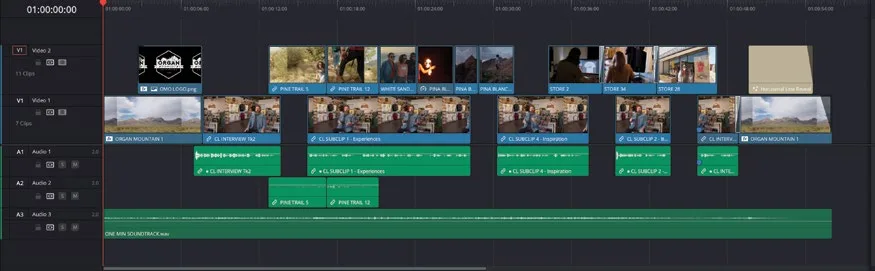
完成!成片看起来很棒,而且你已经借助本课所讲的工具与技巧将它提升到了一个全新的水平。不过它还没有真正完成。画面已经做到最好,接下来要让声音也做到最好!在向客户交付可上传社交媒体的文件之前,还需要对音频进行精修。Excellent! The edit looks great, and you’ve brought it to a whole new level using the tools and techniques detailed in this lesson. However, it’s still not finished. Now that you’ve made it look as good as it can look, it’s time to make it sound as good as it can sound! It’s time to refine the audio before providing the client with a file they can upload to their social media accounts.
本卡术语Terms in this card
媒体夹Bin 置顶插入Place on Top 源检视器Source Viewer 时间线Timeline 编辑页Edit page 检查器Inspector 播放头Playhead 转场Transition 修剪Trim 淡入淡出Fade 静帧Still Fusion 合成Fusion 帧Frame
相关知识卡Related Cards
时间线Timeline Fusion 标题Fusion Titles 效果库Effects Library Fusion 页面Fusion Page