项目设置Setting Up the Project
9 steps
简介Overview
本节将重新打开第 3 课中 Organ Mountain Outfitters 宣传短片的剪辑工程,先导入该工程文件并重新链接媒体。In this lesson, you will revisit the edit you were working on in Lesson 3, the short promo video for Organ Mountain Outfitters, and you will start by importing a version of that project and relinking the media files.
- 打开 DaVinci Resolve,在 Project Manager 中点击
Import按钮。Open DaVinci Resolve and, in the Project Manager, click theImportbutton. - 导航到 R20 Beginners Guide / Lesson 08,选择 OMO PROMO FAIRLIGHT.drp 工程文件,点击 Open。Navigate to R20 Beginners Guide / Lesson 08. Select the OMO PROMO FAIRLIGHT.drp project file and click Open.
- 工程导入 Project Manager 后,双击 OMO Fairlight 工程将其打开。Once it has been imported into the Project Manager, double-click the OMO Fairlight project to open it.
- 必要时点击
Edit按钮,或按 Shift+4 切换到 Edit page。If necessary, click theEditbutton or press Shift-4 to switch to the edit page. - 选择
Workspace > Reset UI Layout。Choose Workspace > Reset UI Layout. - 在时间线预览窗口顶部,打开时间线 OMO FAIRLIGHT。From the top of the timeline viewer, open the timeline OMO FAIRLIGHT.
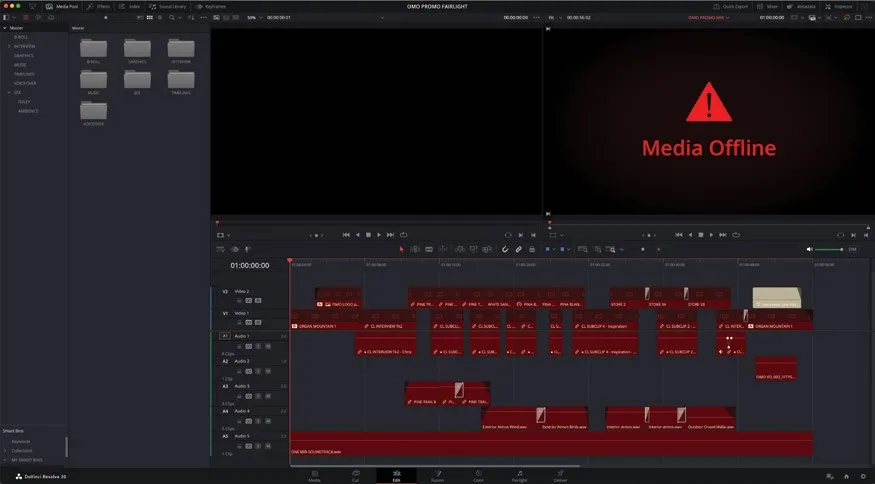
你会看到所有片段目前都处于离线状态,需要重新链接。You will see that all the clips are currently offline and will need relinking.
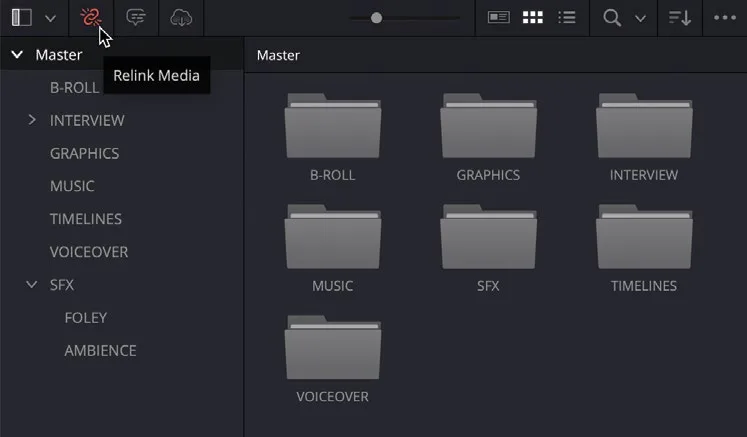
- 点击 Media Pool 顶部的
Relink Media按钮。Click the Relink Media button at the top of the media pool. - 在
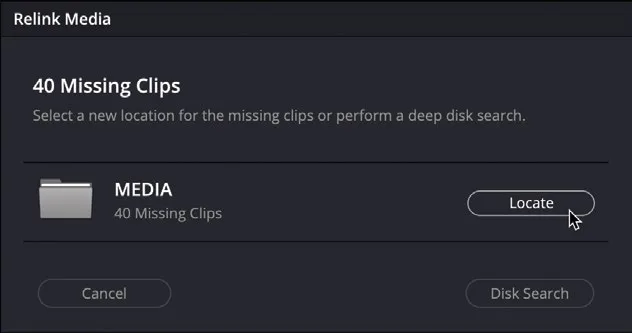
Relink Media窗口中点击 Locate。In the Relink Media window, click Locate. - 导航到 R20 Beginner Guide 文件夹,点击 Open,让 Resolve 在该文件夹中搜索并定位媒体文件。Navigate to the R20 Beginner Guide folder and click Open to allow Resolve to search the folder and locate the media files.
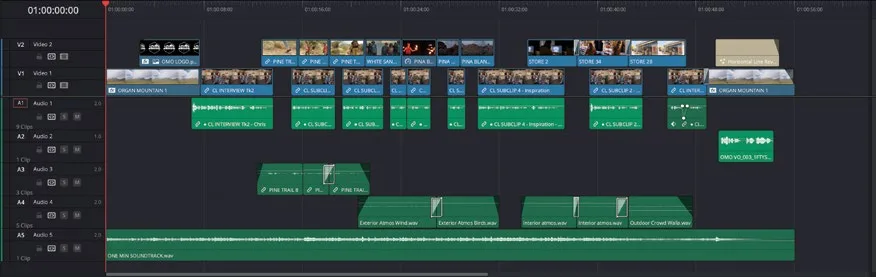
播放 OMO FAIRLIGHT 时间线,重新熟悉这条 Organ Mountain Outfitters 宣传片。Play the OMO FAIRLIGHT timeline to refamiliarize yourself with the Organ Mountain Outfitters promo.
本卡术语Terms in this card
媒体池Media Pool 项目管理器Project Manager 重新链接媒体Relink Media 时间线Timeline 编辑页Edit page 窗口Power Window Fairlight 音频Fairlight