保存 LUTSaving LUTs
3 steps
简介Overview
保存 LUT。DaVinci Resolve 自带多种 LUT,开箱即可使用。但 DaVinci Resolve 及其 LUT 工作流的一大优势在于能够创建自定义 LUT,并与其他调色师或制作团队成员共享。Saving LUTs DaVinci Resolve comes with a variety of LUTs that you can start using right away. However, one of the strengths of DaVinci Resolve and its LUT workflow is the ability to create custom LUTs and share them with other colorists or production crew members.
我们已为 DJI 画面创建了一个不错的转换,你可能想把它保存为 LUT 供其他片段使用。注意 LUT 无法保存二级调色,例如 power window 或 qualifier——这类信息需要用 still 保存。但对于其他 DJI 素材来说,保存为 LUT 是个合适的选择。We have now created a nice conversion for our DJI shot, and you may want to save this as a LUT for other shots. Remember that LUTs cannot save secondary grades such as power windows or qualifiers—for that, you need stills—but in this case, for any other DJI shots, you can create a LUT.
- 右键缩略图 18,选择
Generate LUT > 33 Point Cube。Right-click thumbnail 18 and choose Generate LUT > 33 Point Cube.

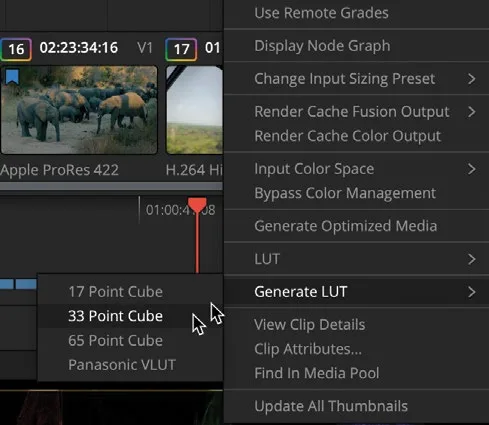
LUT 可保存为 17、33 或 65 点。点数越多,LUT 越精确。33 点 LUT 长期以来是行业标准,被摄像机、显示器和各类软件广泛支持;65 点 LUT 精度更高,但兼容性也相对较差。LUTs can be saved using 17, 33, and 65 points. The more points, the more accurate the LUT. 33-point LUTs have been the standard for a while and are widely supported in cameras, displays, and applications. 65-point LUTs contain more precision but are also less compatible with other devices.
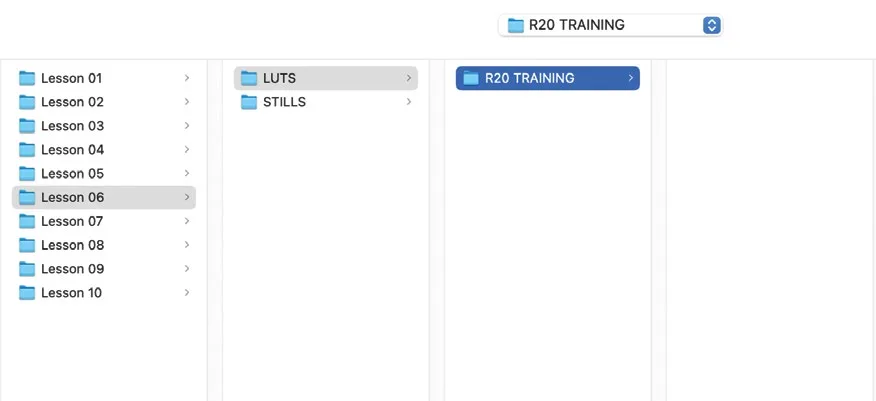
- 进入训练素材中的 Lesson 06 文件夹,选中 LUTS 文件夹。Go into the Lesson 06 folder in the training materials and select the LUTS folder.
该文件夹内有一个名为 R20 TRAINING 的子文件夹,目前为空。这样设置是为了让 R20 TRAINING 出现在你的 LUT 浏览器中。This folder contains another folder called R20 TRAINING, which is currently empty. It is set up this way so the R20 TRAINING folder will appear in your LUT browser.
- 将 LUT 保存为 DJI2Rec709_Custom。Save the LUT as DJI2Rec709_Custom.
TIP · 提示
默认情况下,LUT 会沿用生成它的片段名称。如果想改名,直接在系统的 Finder/Explorer窗口中重命名即可,DaVinci Resolve 中会自动更新。By default, the LUT will take the name of the clip it was generated from. If you want to change this, you can simply rename the LUT in the Finder/Explorer window on your system. It will automatically update in DaVinci Resolve.
以这种方式使用 LUT 对于分享调色非常有用。LUT 没有可调参数,套用即可,因此不会出错。如果发送静帧,则更容易出错——比如遗漏或误删某个节点,从而改变画面效果。另外,如果你不想展示调色的搭建过程,保存为 LUT 可以去除所有节点信息。Using LUTs in this way can be very useful for sharing grades. The LUT has no adjustable parameters and is just applied, therefore no mistakes can be made. If a still is sent, there is more room for error since a node can be missed or accidentally deleted, changing the look. Also, if you do not want to show how your grade was built, saving it as a LUT removes all the node information.
本卡术语Terms in this card
窗口Power Window 限定器Qualifier 二级调色Secondary Correction 调色Grade LUT(查找表)LUT 静帧Still 节点Node 帧Frame
相关知识卡Related Cards
窗口Power Windows 限定器Qualifier 二级调色Secondary Color Correction LUT 完整工作流程LUT Workflow