加载 LUTLoading LUTs
9 steps
简介Overview
加载 LUT。LUT 保存后,必须重新加载回 DaVinci Resolve 才能使用。与 gallery 静帧统一保存在 DaVinci Resolve 引用的固定位置不同,LUT 可以从系统的任何位置导入,因此你需要让 DaVinci Resolve 指向自定义 LUT 文件夹的所在路径。Loading LUTs Once a LUT has been saved, it must be loaded back into DaVinci Resolve for you to be able to use it. Unlike gallery stills that are saved in one place that DaVinci Resolve references, LUTs can be imported from any location on a system. Therefore, you must point DaVinci Resolve to the location of your custom LUT folders.
你可以选择把 LUT 安装到默认 LUT 文件夹,也可以在 System Preferences 中直接指定一个 LUT 文件夹来加载。You can choose to install a LUT into the default LUT folder or simply choose a LUT folder to load in the System Preferences.
- 在界面左上角,选择
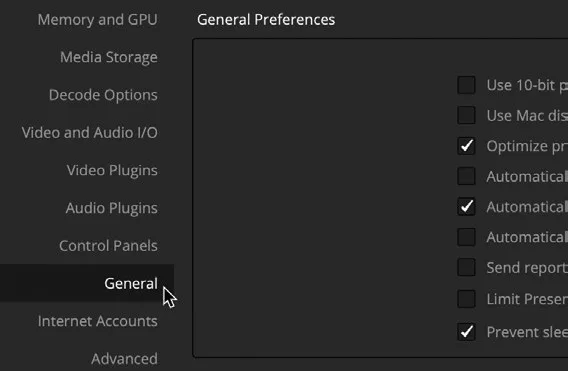
DaVinci Resolve > Preferences。In the top left of the interface, select DaVinci Resolve > Preferences. - 在 System Preferences 中,选择 General 选项。Within the System Preferences, choose the General option.
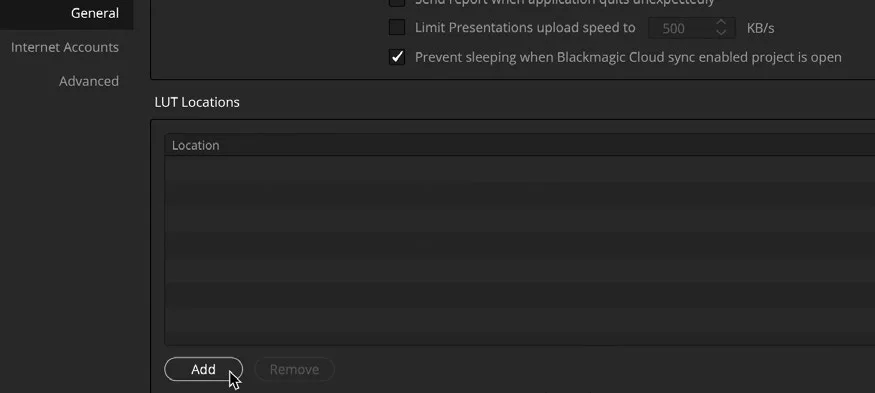
- 在 LUT Locations 区域,点击左下角的
Add按钮。In the LUT Locations section, click theAddbutton in the bottom left corner.
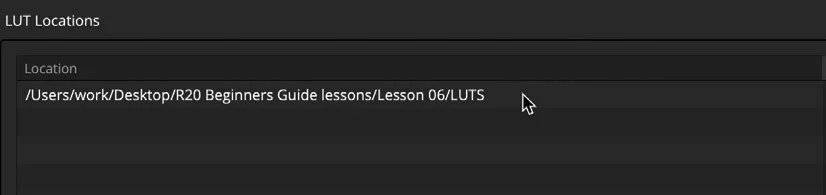
- 在训练素材中进入 Lesson 06 文件夹,选中 LUTS 文件夹。Go into the Lesson 06 folder in the training materials and select the LUTS folder.
该文件夹内还包含一个名为 R20 TRAINING 的子文件夹,其中就有你刚刚保存的 LUT。这样设置是为了让 R20 TRAINING 文件夹能够出现在 LUT 浏览器中。This folder contains another called R20 TRAINING, which contains the LUT you have just saved. It is set up this way so the R20 TRAINING folder will appear in your LUT browser.
- 保持 LUTS 文件夹选中状态,点击 Open,该 LUT 文件夹就会被添加到 LUT Locations 列表里。With the LUTS folder selected, choose Open, and the LUT folder will be added to the LUT Locations.
NOTE · 注意
文件路径可能与图中显示的不同,取决于你保存课程文件的位置。The file path may be different to the one in the picture since it depends on where you have saved your lesson files.
- 点击
System Preferences窗口右下角的 Save。Click Save in the bottom right corner of theSystem Preferenceswindow.
LUT 不会立刻显示,因为 LUT 的文件路径可能需要刷新。The LUT may not appear straight away since the file path to the LUT may need to be refreshed.
- 在文件夹窗口中右键点击 LUT 文件夹,选择 Refresh。R20 TRAINING 文件夹就会显现,里面包含你新建的 LUT。Right-click the LUT folder in the folder window and choose Refresh. The R20 TRAINING folder will appear with your newly created LUT inside.
TIP · 提示
从第三方来源下载 LUT 时要谨慎。不同的实现方式可能导致画面与原本预期效果差距很大。后期公司可以针对自家环境精确校准 LUT,因此常用于内部流程;但脱离这些受控环境后使用,效果可能会差异显著。Be cautious when downloading LUTs from third-party sources. Their implementation could result in your content looking very different from the originally intended adjustments. Since post-production companies can generate LUTs precisely calibrated to their environments, they are popular for in-house use. However, using LUTs taken out of those controlled environments can cause results to vary widely.
你制作的 LUT 可以应用到今后任何 DJI 拍摄的素材上。Your LUT can be used for any other DJI footage that you now use.
返回 Color page,选中刚刚添加到时间线上的片段。Go back into the color page and select the clip you have just added to the timeline.
在 LUT 文件夹中,选择 R20 TRAINING 文件夹,然后双击 DJI2Rec709_Custom LUT 将其应用到新片段上。In the LUT folder, choose the R20 TRAINING folder and double-click the DJI2Rec709_ Custom LUT to apply it to the new clip.
本卡术语Terms in this card
媒体夹Bin 时间线Timeline 编辑页Edit page 调色页Color page 窗口Power Window LUT(查找表)LUT 静帧Still 帧Frame 引用(剪辑)Reference