识别未调色片段Identifying Ungraded Clips
6 steps
简介Overview
调色时,必须确保时间线上每个片段都已调色。未调色片段在已应用特定风格(look)的场景中会非常显眼,观众一眼就能看出来。实际项目的时间线可能包含数百个镜头,而且调色过程中还可能有新素材加入,逐个追踪每个镜头并不容易。When grading your timeline, it’s very important to ensure that all the clips are graded. An ungraded clip can be quite obvious, especially in a scene that has a specific look applied, meaning the ungraded clip will surely be noticed by the audience. It is quite possible that a timeline can run into hundreds of shots, depending on the project, and you may also have shots drop into the project after you have started grading. Therefore, keeping track of every single shot can be difficult.
Color页面提供了工具来帮你识别未调色的镜头。The color page contains tools that can help you identify shots that are not graded.
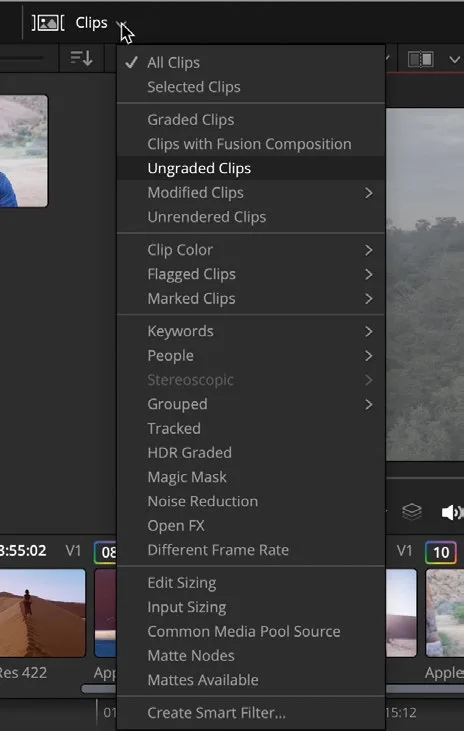
- 在界面右上角,点击 Clips 下拉菜单。In the top right corner of the interface, click the
Clipsdropdown menu.
菜单会列出所有片段筛选选项。A menu will appear showing you all the clip filtering options.
TIP · 提示
Clips 筛选器可以通过多种方式识别镜头,例如利用前面用过的元数据关键词、是否应用了 Resolve FX,或者片段的帧速率是否不同,选项非常丰富。The Clips filter can identify shots in a number of different ways. For example, you can use metadata such as keywords that you used earlier in this guide, whether or not a clip has a Resolve FX applied, or whether clips have different frame rates. There are numerous options.
- 在菜单中选择 Ungraded Clips。In the menu, choose Ungraded Clips.
你会看到缩略图变少了,此时显示的是时间线中所有未调色的片段。You will notice fewer thumbnails in the interface. You are now looking at all the clips within the timeline that do not have any grades.
TIP · 提示
如果缩略图完全消失,可能是误点了 Clips按钮本身而不是下拉箭头。遇到这种情况,再点一次该按钮,然后点击下拉箭头即可。If your thumbnails have disappeared, it may be due to clicking on the Clips button rather than the dropdown menu arrow. If this is the case, click the button again and then click the menu arrow.
虽然这个视图能定位未调色片段,但如果需要预览整条时间线或将未调色镜头与已调色镜头比对,这个视图就不太方便。此时可以用颜色标记来在整个时间线中识别未调色片段。Even though this identifies the clips, working in this view may be less than ideal if you want to preview the entire timeline or match ungraded shots to graded shots. In this case, you can color the clips to identify ungraded files in the complete timeline.
- 在缩略图视图中,选中时间线里的 clip 01。In the thumbnail view, select clip 01 in the timeline.
- 按住键盘上的 Shift 键,再选中时间线的最后一个缩略图,选中的缩略图周围会出现红色边框。Hold down the Shift key on the keyboard and select the last thumbnail in the timeline. A red border should appear around the selected thumbnails.
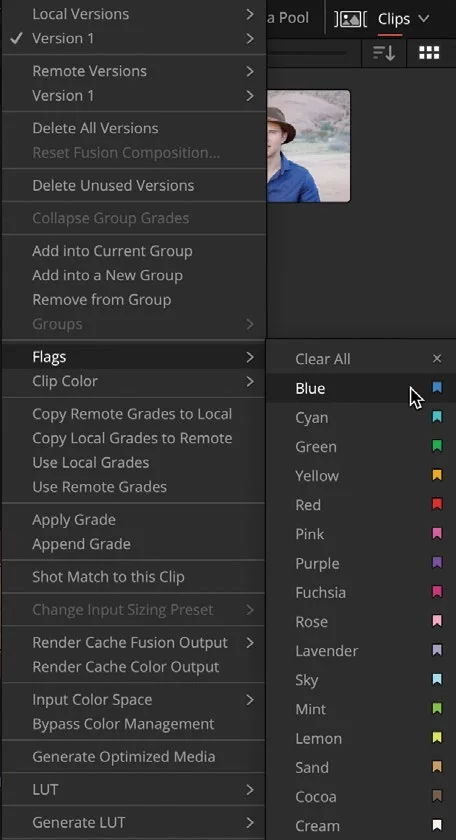
- 把鼠标指针放在任一选中的缩略图上,右键选择
Flags > Blue。每个缩略图的左上角会出现一面蓝色旗标。With the mouse pointer over any one of the selected thumbnails, right-click and choose Flags > Blue. Each thumbnail will now have a blue flag in the top left corner.
- 再次点击
Clips按钮的下拉菜单箭头,从菜单中选择 All Clips。Click the dropdown menu arrow again of theClipsbutton and from the menu choose All Clips.
现在时间线恢复完整显示,所有未调色片段都带有蓝色标记(blue flag),可以一眼区分哪些片段已调色、哪些尚未调色。You will now have the full timeline back with all the ungraded clips with a blue flag on them, so it is now easy to see which clips are graded and which are ungraded.
本卡术语Terms in this card
时间线Timeline 帧率Frame Rate 标记Marker 调色页Color page 调色Grade Resolve FXResolve FX 关键词Keywords 元数据Metadata 帧Frame