理解节点Understanding Nodes
2 steps
简介Overview
Color页面用节点来处理多级调色。和 Fusion page 那种把调色与效果堆叠成图层的做法不同,你可以按需添加任意数量的调色节点和滤镜效果。每个片段的节点可以看作一条调色流程图:片段(输入)从左侧进入,依次流过各节点,最终在右侧输出校正完成的画面。The color page uses nodes for multiple color corrections. Instead of stacking color corrections and effects as layers, you can add as many color correctors and filter effects as you like using nodes. You can view the nodes as a color correction flowchart for each individual clip. The clip, or the input, starts at the left, flows through each node, and ends on the right side of the screen with the corrected image output. Unlike the Fusion page
需要注意的是,Color页面中的每一个节点都是一整台 DaVinci Resolve 调色器,而不仅仅是某种单一类型的图像处理效果。可以把节点理解为搭建最终调色的积木。nodes, each node in the color page is a full DaVinci Resolve color corrector and not an individual effect that performs only one type of image processing. Think of nodes as building blocks that allow you to construct your finished grade.
前面练习中的调整都作用在第一个节点上——Node Editor 会自动为你提供这个起始节点。在做更复杂的调色时,可以继续添加节点,分别针对画面不同区域进行处理或添加效果。The adjustments you made in the preceding exercises were performed using the first node, which is provided for you automatically in the Node Editor. As you create more sophisticated corrections, you can add more nodes that target different parts of the image or add effects.

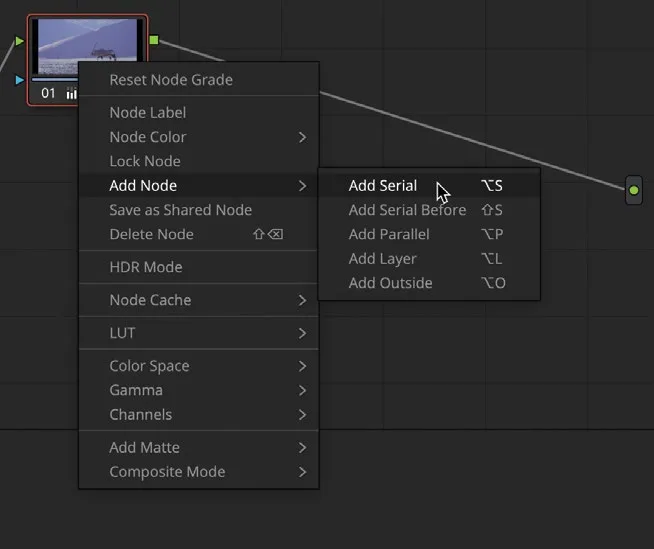
- 在 clip window 中重新选中 clip 01,在右上角 Node Editor 中右键点击 node 01。Select clip 01 again in the clip window. Right-click over node 01 in the top right
Node Editorwindow. - 在右键菜单中选择
Add Node > Add Serial,节点窗口中会出现第二个节点。From the contextual menu, choose Add Node > Add Serial. A second node will appear in the node window.
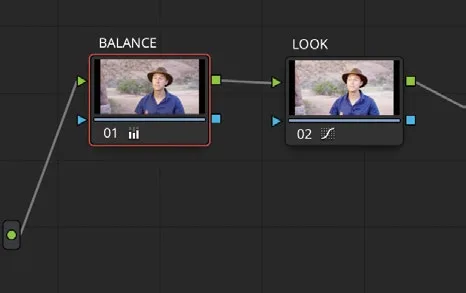
可以通过橙色描边判断当前正在编辑的节点,橙色高亮的即为活动节点。You can tell which node you’re working on because an orange outline will highlight the active node.