TASK 1Task 1
复制时间线Duplicate Timeline
2 steps
- 选择 Timeline > Find Current Timeline in Media Pool,快速在 bin 中定位当前激活的时间线。Choose Timeline > Find Current Timeline in Media Pool to quickly reveal the currently active timeline in its bin.
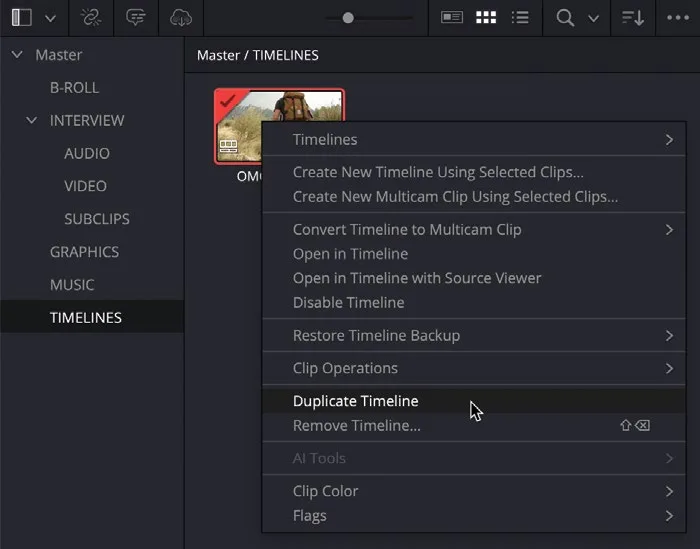
- 右键点击当前时间线,选择 Duplicate Timeline。Right-click the current timeline and choose Duplicate Timeline.
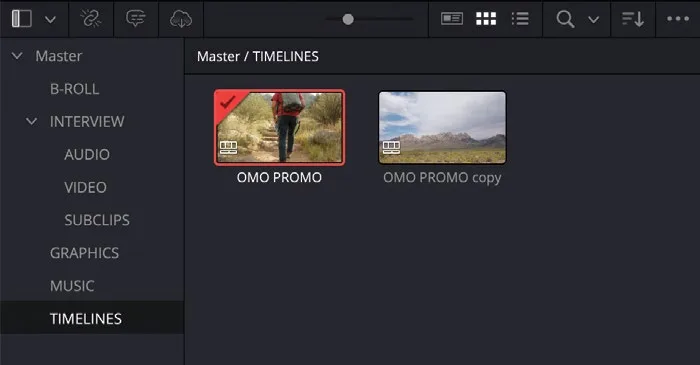
时间线副本会出现在同一个 bin 中。A copy of the timeline is created in the same bin.
这份时间线副本与原时间线同名,只是在末尾加了 copy 以示区别。This duplicate of your active timeline has the same name but with the word copy added to the end to signify that this is the duplicated timeline.
很多剪辑师喜欢重命名副本,通常把 copy 替换为版本号(v1、v2、v3 等),方便在 bin 中辨识。如果你保持默认名不变,那么每次复制原时间线时,新副本的名称会按顺序递增(copy、copy 1、copy 2……)。这样做有两个好处:一是你正在编辑的版本始终是最新的;二是自动命名的副本可以帮你回溯到更早的版本。Many editors often like to rename the duplicated timeline, usually replacing “copy” with a version number (v1, v2, v3, etc.) so they know what they are looking at in the bin. However, if you leave the name of the duplicated timeline as is, subsequent duplication of the original timeline will result in the name of the new duplicated timeline being incrementally increased (copy, copy 1, copy 2, etc.). This is a useful technique since, firstly, it always means the version of the timeline you’re working on is the latest, and, secondly, the automatic names of the duplicated timelines can help to “backtrack” to a previous version of the timeline if needed.
NOTE · 注意
如果需要查看某个时间线或副本的具体创建时间,可以点击时间线缩略图右下角的"I"按钮;也可以在 Media Pool 的 List View 中查看 Date Modified 列。Media Pool 不同视图的更多内容将在第 7 课"项目设置与偏好"中讲解。If you need more detail about when a particular timeline or copy was created, you can click the “I” button in the bottom right of the timeline thumbnail. Alternatively, you can view the Date Modified column using List View in the media pool. You will learn more about the different views in the media pool in Lesson 7, “Project Setup and Preferences.”
恢复时间线备份 如前所述,复制时间线很有用,但需要手动操作。有时你可能全身心投入剪辑,忘了复制时间线!此时要回到更早的版本就非常困难,因为你得按无数次 Undo,按到键盘上的 Z 键磨秃为止。Restoring a Timeline Backup Duplicating timelines is a useful step for the reasons outlined above, but it is a step you must undertake manually. Occasionally, you may find yourself in the situation where you’ve been so caught up in the creative process of editing that you have completely neglected to duplicate your timeline! In this case, it would be very difficult to rewind the clock and go back to an earlier version without having to use so many Undo commands that the Z key on your keyboard would wear away!
别担心,DaVinci Resolve 会随时自动保存时间线备份。Never fear, though, because DaVinci Resolve has your back and is saving backups of your timelines as you work on them.
本卡术语Terms in this card
媒体夹Bin 媒体池Media Pool 时间线Timeline 备份Backup 项目设置Project Settings