使用 Deliver页面Using the Deliver Page
4 steps
简介Overview
项目里现在有两条时间线,可以导出成交付文件。Quick Export 能用预设快速导出,而 Deliver页面的优势在于选项更丰富,并且支持队列导出,无需等当前任务完成就能开始下一个。You now have two timelines in your project ready to export into deliverable files. You could open the Quick Export window and choose appropriate presets for each timeline. However, one of the advantages of using the deliver page over the Quick Export function is that you have access to many more options, and you can also queue export jobs rather than having to wait for the export to complete before starting the next export job.
接下来要把每条时间线分别导出为不同格式。In the following steps, you will export each of your timelines to a variety of formats.
- 选择 File > Close the Current Timeline。Choose File > Close the Current Timeline.
- 选择
Workspace > Reset UI Layout。Choose Workspace > Reset UI Layout. - 重新打开原始的 OMO PROMO FINAL 时间线。Reopen the original OMO PROMO FINAL timeline.
先导出这条时间线。This is the timeline you will export first.
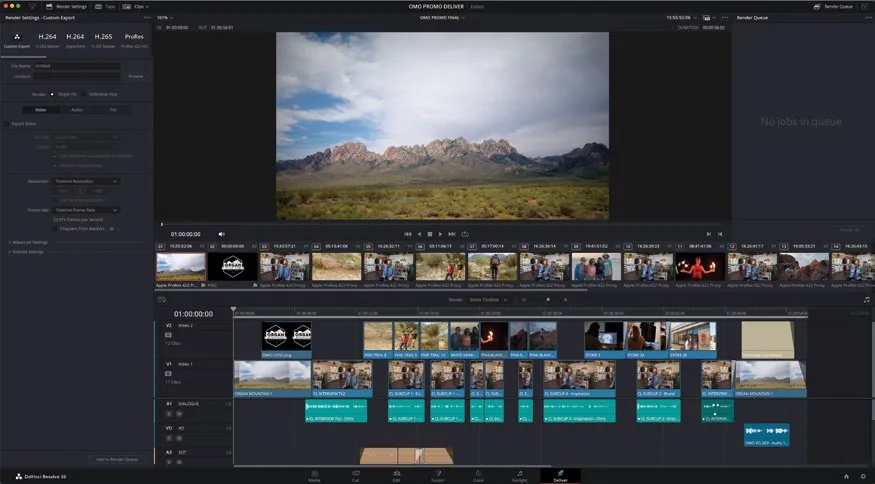
- 点击界面底部的
Deliver按钮,或按 Shift-8 打开 deliver 页面。Click the Deliver button at the bottom of the interface, or press Shift-8 to open the deliver page.
本卡术语Terms in this card
时间线Timeline 交付页Deliver page 导出Export 预设Preset 快速导出Quick Export