审阅渲染任务Reviewing the Jobs
4 steps
简介Overview
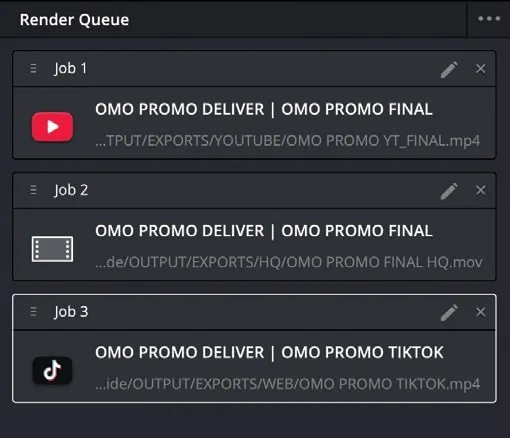
提交到 Render Queue 的任务都还没有被渲染到硬盘。需要手动启动 Render Queue 才会开始渲染。在启动之前,可以检查每个任务的渲染设置,必要时先做调整再生成文件。None of the jobs you have submitted to the Render Queue have been rendered to your hard drive. To begin the process, you must start the Render Queue manually. However, before you do that, you have the opportunity to check the render settings of each job and, if necessary, adjust them before creating the file.
- 点击 Render Queue 的 Options (…) 菜单,选择 Show Job Details。Click the Render Queue’s Options (…) menu and choose Show Job Details.
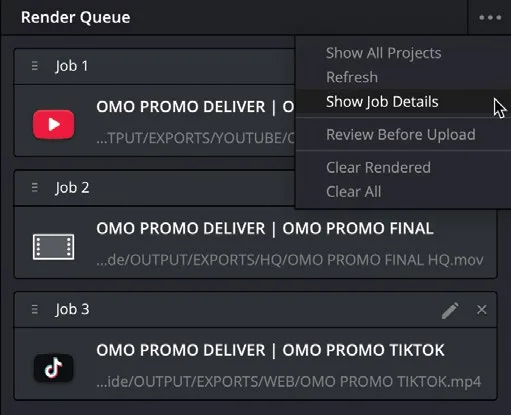
每个任务现在会显示更详细的待渲染文件设置信息。Each job now shows more information about the settings of each file to be rendered.
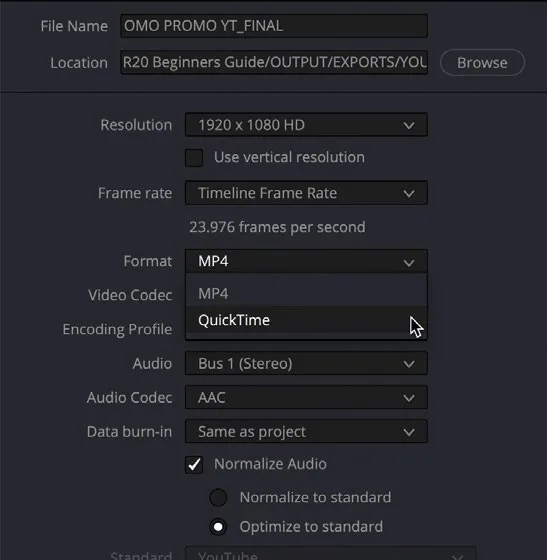
本练习中,你需要把 Job 1(用于上传 YouTube 的版本)的格式从 .mp4 改为 QuickTime .mov。For this exercise, you will change the format of Job 1—the version destined for YouTube—from .mp4 to a QuickTime .mov file.
- 点击 Job 1 旁边的铅笔图标,重新打开该任务的渲染设置。Click the pencil icon for Job 1 to reopen the render settings for that job.
- 在 Format 弹出菜单里,把 MP4 改为 QuickTime。Change the Format pop-up menu from MP4 to QuickTime.
- 点击 Update Job。Click Update Job.
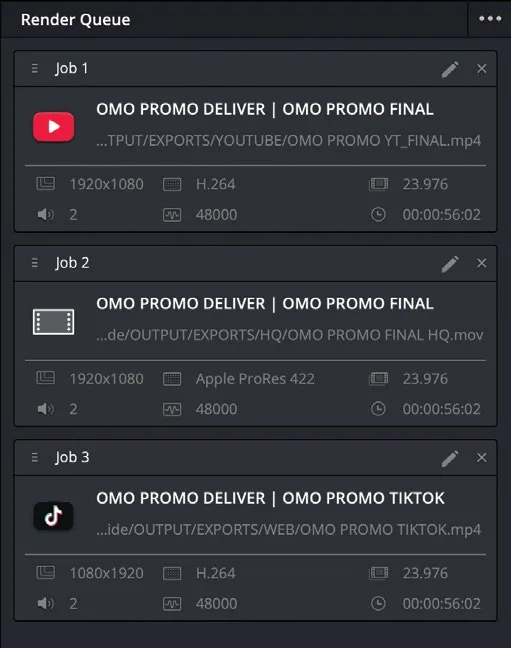
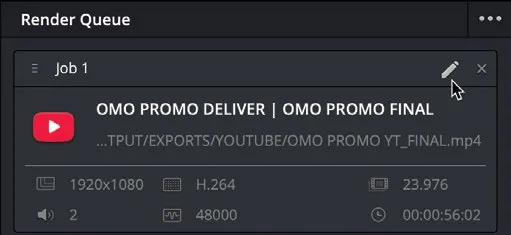
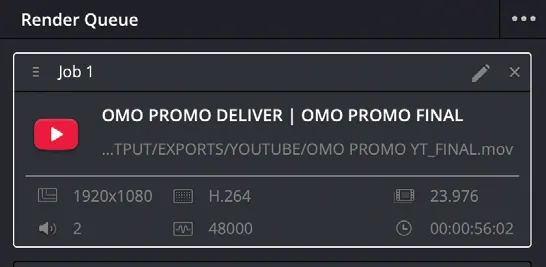
任务在 Render Queue 中更新,文件扩展名从 .mp4 变成了 .mov。The job updates in the Render Queue, reflected by the change in the file extension from .mp4 to .mov.