渲染任务Rendering the Jobs
5 steps
简介Overview
检查好每个任务的设置后,就可以开始实际导出了。DaVinci Resolve 会按 Render Queue 里的顺序自动依次渲染每个任务。After reviewing the settings for each job, you are ready to start the actual export process. This will automatically render each job sequentially as listed in the Render Queue.
TIP · 提示
提示:点击任务名称可以重命名,方便识别;拖动每个任务左上角的把手可以调整顺序。You can edit the name of each job to make it easier to identify by clicking the job name, and you can change the order of the jobs by using the drag handle in the top left corner of each job.
- 在 Render Queue 中,确保没有选中任何任务(或全部选中),然后点击 Render All。In the Render Queue, ensure that none (or all) of the jobs are selected and click Render All.
NOTE · 注意
提示:你也可以只选中 Render Queue 中特定的任务,只导出这些任务。You can select specific jobs in the Render Queue to export just those jobs.
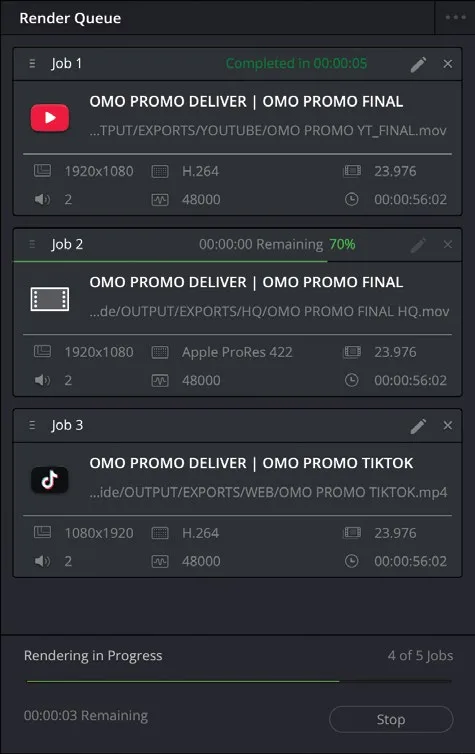
每个任务会依次加载,文件按指定位置渲染输出。任务完成后,会在该任务上加上绿色的 "Completed" 标签。Each job is loaded in turn, and the files are rendered to the destinations. Once the job has been completed, a green “Completed” label is added to the job.
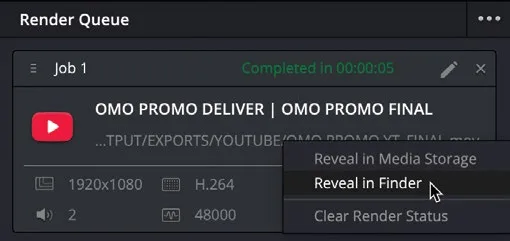
- 所有任务完成后,右键点击 Job 1b,选择 Reveal in Finder(macOS)或 Open File Location(Windows)。Once all the jobs have been completed, right-click Job 1b and choose Reveal in Finder (macOS) or Open File Location (Windows).
渲染好的文件会显示在硬盘上的 Output 文件夹中,你可以用合适的播放器打开并预览最终成片。The rendered file is revealed in the Output folder on your hard drive, where you can open it in an appropriate media player and preview the final rendered results.
- 回到 DaVinci Resolve,右键点击 Render Queue 中的 Job 2,选择 Show in Finder(macOS)或 Open File Location(Windows),找到高质量的 .mov 文件。Return to DaVinci Resolve and right-click Job 2 in the Render Queue and choose Show in Finder (macOS) or Open File Location (Windows) to reveal the high-quality .mov file.
NOTE · 注意
提示:在 macOS 上可以用 QuickTime Player 打开这些文件查看;在 Windows 上可以重新导入到新的 DaVinci Resolve 工程中。On macOS, you can open these files in QuickTime Player to review them. On Windows, you can reimport them into a new DaVinci Resolve project.
- 回到 DaVinci Resolve,右键点击 Render Queue 中的 Job 3,选择 Show in Finder(macOS)或 Open File Location(Windows)。Return to DaVinci Resolve and right-click Job 3 in the Render Queue and choose Show in Finder (macOS) or Open File Location (Windows).
- 最终的渲染文件会显示出来,你可以用合适的播放器进行预览。The final rendered file is shown, which you can preview in an appropriate media player.
现在所有文件都准备好,可以分发到各自的目标位置了。All these files are now ready to be distributed to their appropriate destinations.