TASK 1Task 1
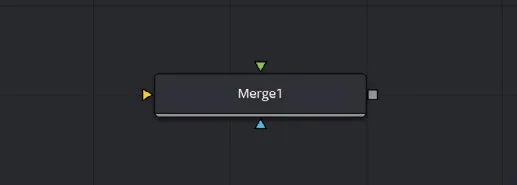
连接合并节点Connect Merge Node
5 steps
- 先取消所有选中,然后点击 Merge 图标,将其添加到 Node Editor 中。Deselect everything and click the Merge icon to add it to the Node Editor.
Foreground(前景)输入Foreground Input
Background(背景)输入 Merge Output(输出)Background Input Merge Output
Effect Mask(效果遮罩)Effect Mask
现在你有一个 WhiteBackground 和一个加了 mask 的 BlackBackground。先想一下:每个元素应该连到哪个输入上?You have a WhiteBackground and a masked BlackBackground. Take a moment to think about which element you would connect to each input.
- 从 WhiteBackground 的输出(灰色小方块)拖拽到 Merge1 节点的橙色输入上。Click and drag the output of the WhiteBackground (the small gray square) to the orange input of the Merge1 node.
- 把加了 mask 的 BlackBackground 连到 Merge1 节点的绿色输入上。Connect the masked BlackBackground to the green input of the Merge1 node.
- 最后,把 Merge1 的输出(小方块)连到 MediaOut1 的输入上。Finally, connect the output (square) of the Merge1 to the MediaOut1 input.
- 节点全部连好之后,选中 MediaOut1,按键盘上的数字 2,把它载入到 viewer 2 中查看。Once you have the nodes connected correctly, load the
MediaOut1 node intoviewer 2 by selecting MediaOut1 and pressing 2 on your keyboard.
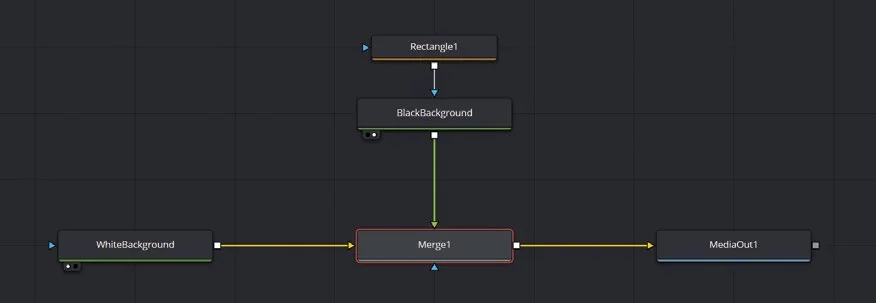
你应该能看到一个黑色矩形叠在白色背景之上。You should see a black rectangle on top of a white background.
TIP · 提示
如果不小心把节点接反了(背景片段接到前景输入、前景片段接到背景输入),按 Command-T(macOS)或 Ctrl-T(Windows)即可切换。If you accidentally connect the nodes the wrong way around (the background clip to the foreground input and the foreground clip to the background input), simply press Command-T (macOS) or Ctrl-T (Windows) to switch them.
在 Fusion 里,节点连接线看的是颜色,不是位置。Fusion 会为了排版整齐自动调整输入接口在节点上的方位。比如把 Rectangle1 节点拖到 BlackBackground 左边,蓝色三角箭头就会跑到节点左侧。In Fusion, it’s the color of the connections that matters, not their position. Fusion may adjust the placement of inputs around the node for better organization. For instance, moving the Rectangle1 node to the left of the BlackBackground will shift the blue triangle/ arrow to the left side of the node.
节点怎么摆都可以,只要连线不变,最终画面就不会受影响。但把节点按逻辑排好,有助于你理解自己的作品。You can arrange nodes in any way you prefer. As long as the connections remain the same, your final image won’t be affected. However, keeping nodes organized logically helps you understand your work better.
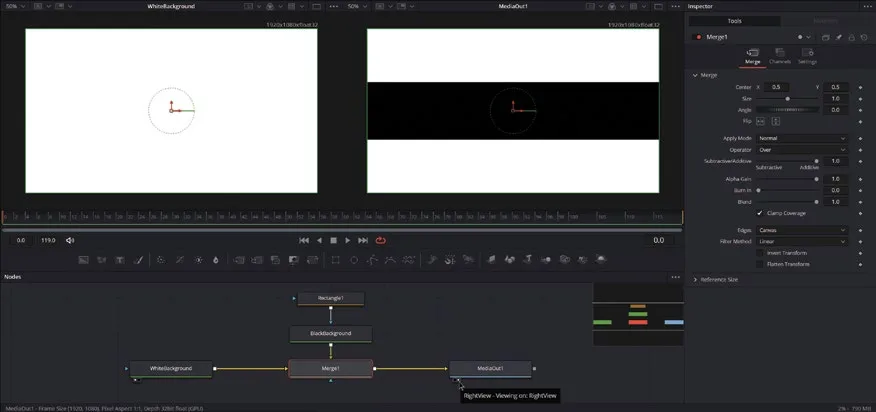
现在 Fusion 合成里已经加了一些节点,下面来学怎么在 Fusion页面里导航。Fusion 的鼠标和键盘操作都是上下文相关的,同样的操作在不同位置效果会不同。推荐使用三键鼠标,按住滚轮相当于中键;数位笔加手写板也是不错的选择。Navigating in the Fusion Page Now that we have some nodes added to our Fusion composition, let’s learn how to navigate the Fusion page. Mouse and keyboard commands in Fusion are context- sensitive, meaning the same inputs can produce different effects depending on where your mouse pointer is located. A three-button mouse is recommended for Fusion, where pressing the scroll wheel functions as a middle click. Alternatively, a pen and tablet can also be a good option.